We’ve compiled a selection of interesting Telegram channels for you, but some of them may not open. Instead of content, you see the message “This channel is unavailable” or “This bot is unavailable.” Many people think this is a bug or a government block. In reality, the reason is different, and everything can be resolved using the messenger’s built-in tools. Let me explain why this message appears and how to remove it on Android.
Removing restrictions from Telegram channels on Android
Why Telegram Says “This Channel Is Unavailable”
The official Telegram client for Android, downloaded from Google Play, has built-in restrictions. Channels and bots with certain themes are hidden from view. On Android, the wording usually reads “This bot/channel is unavailable due to copyright infringement,” while in other cases you see “This channel is unavailable because it was used for distributing” something.
This is not a bug and not a government block.
The reason lies in Google Play’s requirements: the app store prohibits providing access to certain categories of content. Telegram in Russia is forced to comply with these rules in the version from the store, so some channels are hidden in it. There is no account ban, and Telegram channels haven’t gone anywhere. They simply aren’t displayed in that particular version of the app.
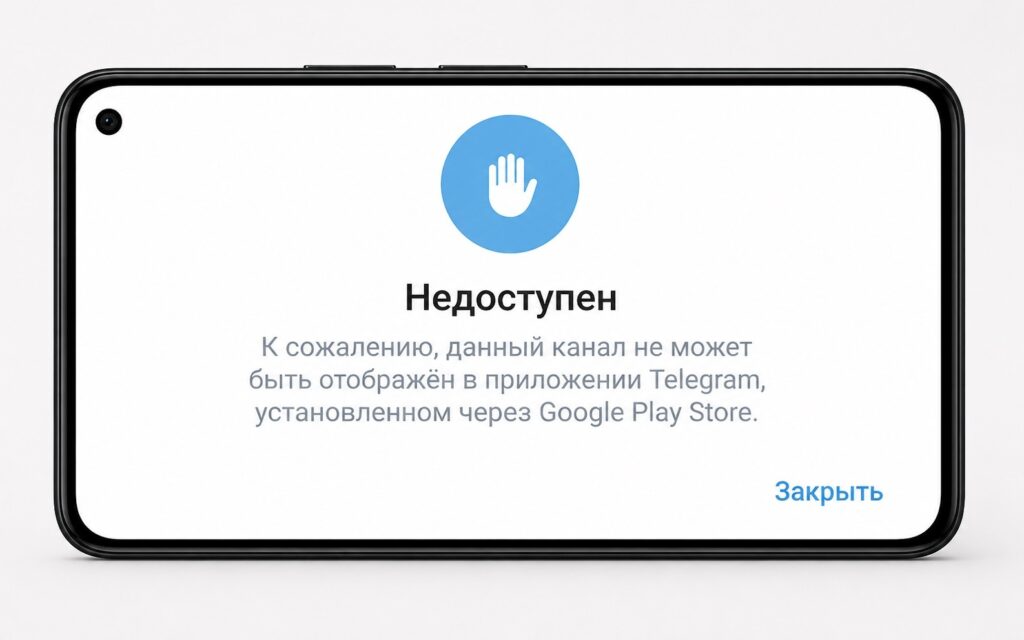
The channel may indeed turn out to be unavailable
How to Open an Unavailable Channel in Telegram on Android
The solution is simple: you need a version of Telegram downloaded not from Google Play, but from the messenger’s official website. Telegram has two options for Android: the standard one from Google Play and the so-called Direct version without app store restrictions:
- Open the page telegram.org/android in your browser and tap the “Download Telegram” button. Do not use the Google Play link that is also on this page (you need the APK file from the website).
- Wait for the file to download and open it to install. If the system doesn’t allow you to install the app, open Android “Settings,” find the “Security” section, and allow installation from unknown sources for your browser.
- After installation, log into your account. This version can work alongside Telegram from Google Play, meaning data syncs automatically.
- Go to “Settings.”
- Open the “Account” tab.
- Check the “Date of Birth” section. If a date is specified, delete it or change the year so that the age is at least 18 years.
- Make sure the “Show Sensitive Content” toggle is enabled. In current versions, it is located in the “Chat Settings” section, under “Other Settings.”
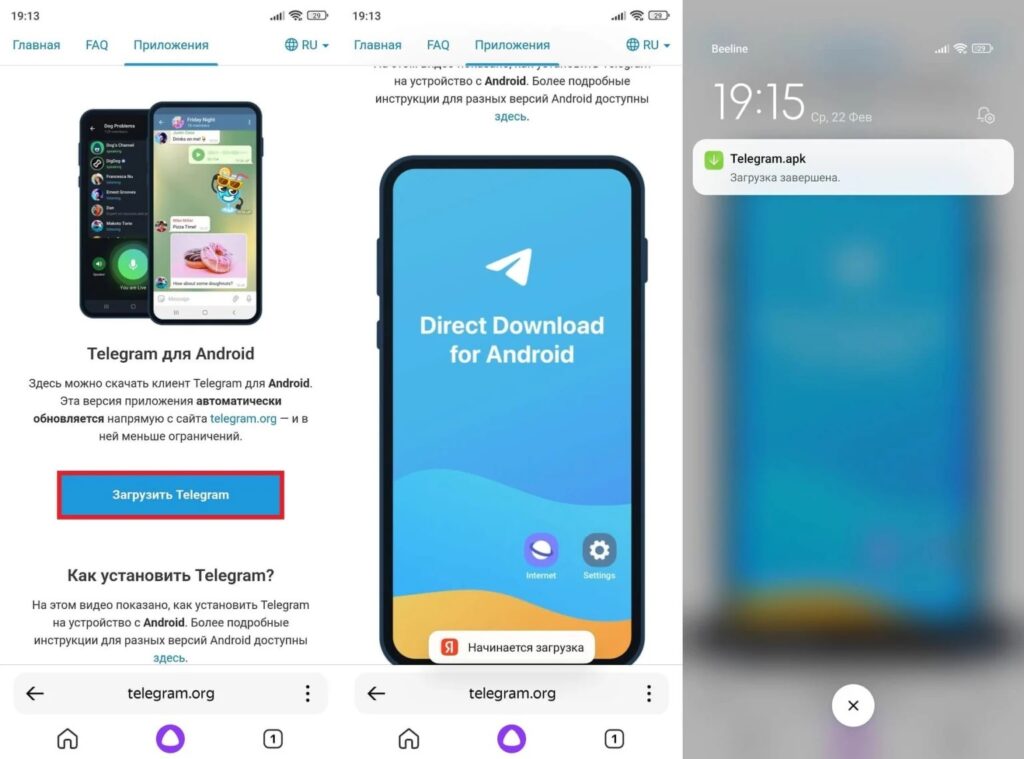
You need to download the messenger’s APK file
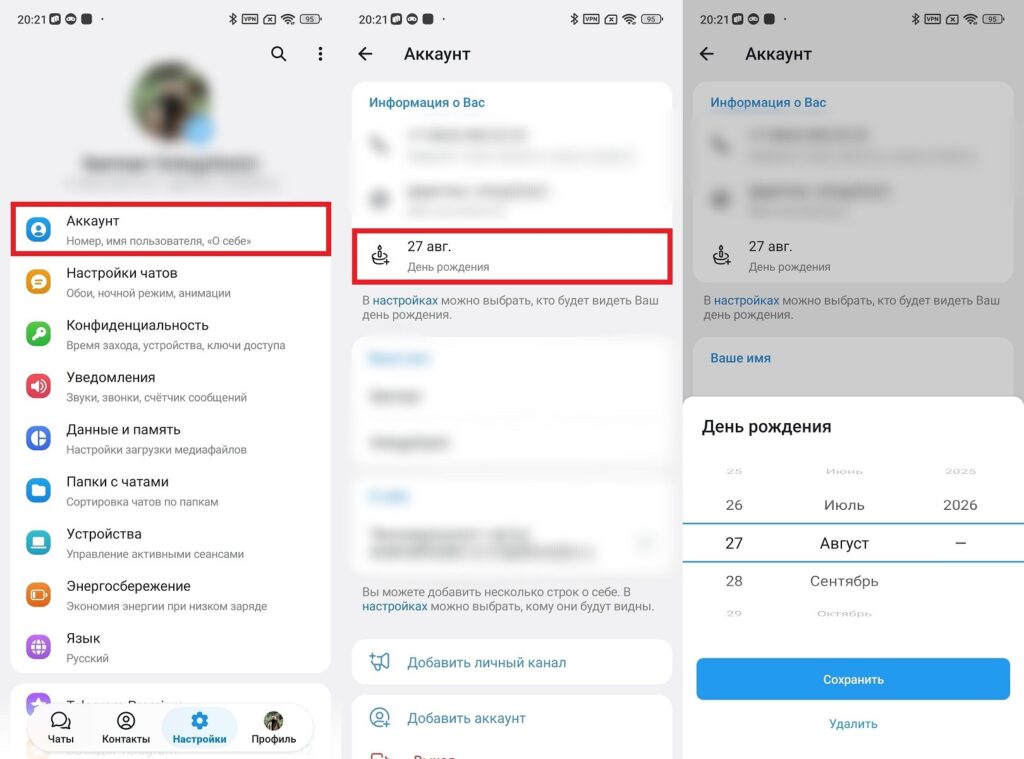
You need to set the correct date of birth
After this, previously hidden best Telegram channels will become available. Important: the setting is tied to your account, so it will apply to all your other devices as well. Enable it once — it works everywhere.
How to Open an Unavailable Channel via Telegram Desktop
If you have a computer nearby, this is another working method. It’s important to download Telegram Desktop specifically from the official website desktop.telegram.org, and not from the Microsoft Store or Mac App Store. Versions from app stores are subject to the same rules as the mobile version from Google Play, and the necessary toggle is not available in them.
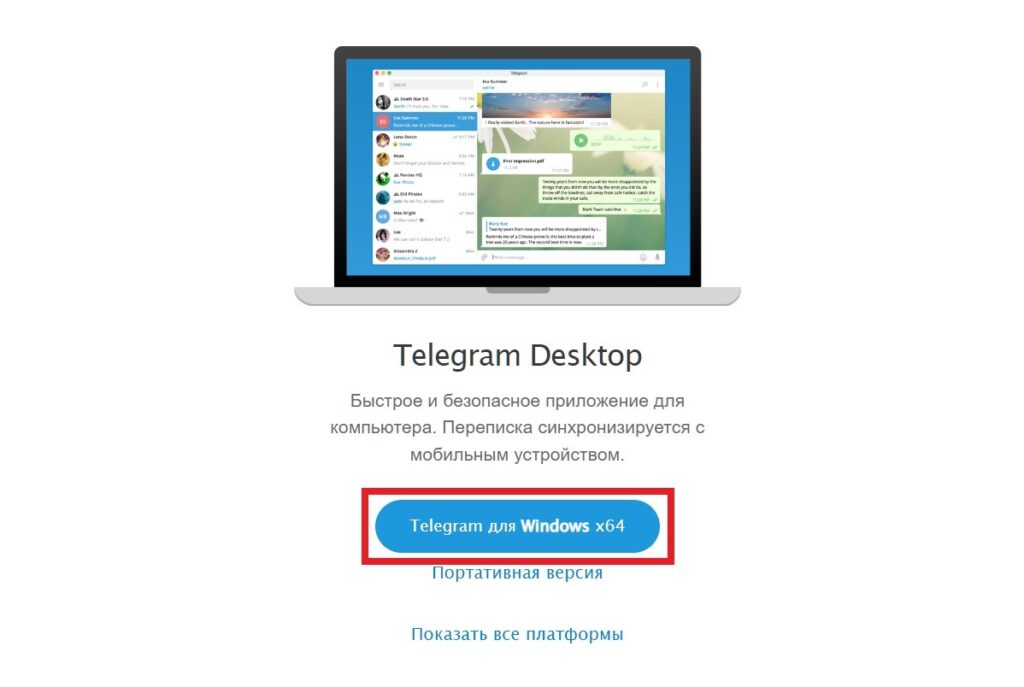
Download the version from the official website
In the version from the website, open “Settings,” go to “Privacy and Security,” find the “Sensitive Content” section, and activate the “Disable filtering” toggle. After restarting the client, the setting will sync with all your devices — including your Android smartphone.
The web version at web.telegram.org works similarly and doesn’t require installation — a browser is enough. The steps are the same: “Settings,” “Privacy and Security,” enable the filtering toggle. It’s a convenient option if you don’t want to install a program on your work computer.
Why Some Channels Remain Unavailable
The described methods don’t work in all cases. There are situations where a channel is unavailable in Telegram for other reasons and no settings will help:
- The channel was deleted by its administrator or blocked by Telegram itself for serious violations (in this case, it is unavailable for all users without exception);
- Blocked channels cannot be found through Telegram’s internal search; you can only access them via a direct link;
- Even after changing settings, such channels may not display an avatar (this is a visual restriction and does not affect the content);
- If your account is tied to a number from a country with strict legislation, restrictions are applied at the country code level, and filtering settings may simply not appear.
All the described methods are official: they don’t require root access, third-party software, or modified versions of Telegram. These are built-in settings of the messenger itself, which Telegram provides to users as an alternative to the restricted version from Google Play. Telegram channel restrictions in the Google Play version are not an absolute rule, but a technical solution that the messenger itself allows you to change.


