After 2022, Russian users encountered significant problems with access to Apple services: some apps and games became unavailable in the Russian region, and starting April 1, 2026, the usual methods of paying for Apple services stopped working. In this article, we’ll break down how to change the region on your iPhone in 2026, what’s important to check before changing your App Store region, and which region to choose for the App Store.
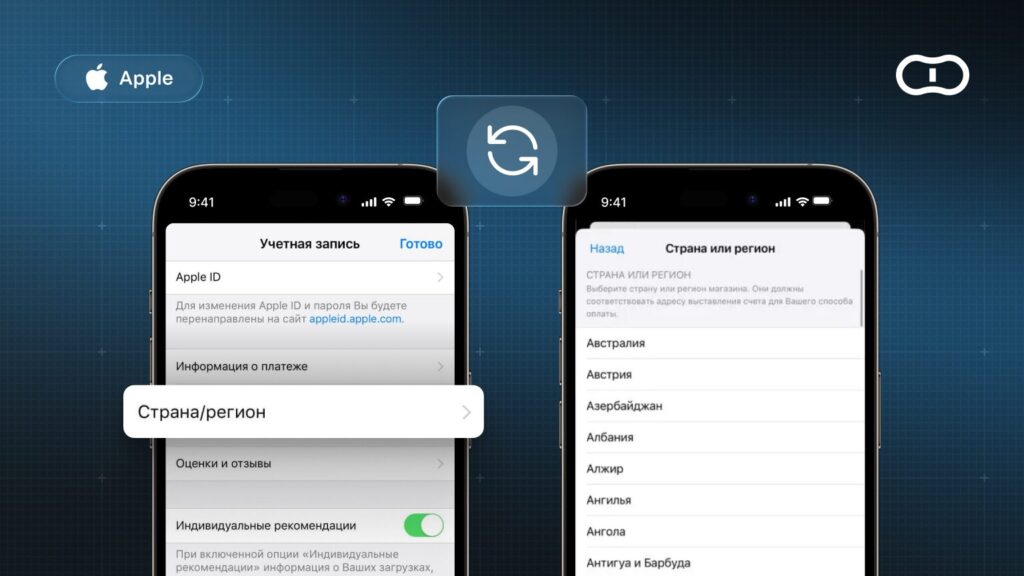
Step-by-step explanation of how to change your App Store region
Why You Even Need to Change Your App Store Region
Your Apple ID determines what your App Store looks like. The chosen country affects app availability, subscription prices, payment methods, access to Apple services, and the ability to use gift cards.
Starting April 1, 2026, for users in Russia, payment for Apple services via MTS and Beeline mobile phone billing stopped working. This affected not only direct payments but also the mechanism for obtaining Russian Apple gift cards through intermediary services: the majority of Russian gift cards were purchased specifically through mobile carrier billing.
Before April 1, 2026, users in Russia had two working options:
- paying for Apple services through MTS or Beeline directly;
- using Russian Apple gift cards.
After April 1, 2026, both of these options no longer work.
As a result, a Russian Apple ID no longer allows users to pay for iCloud, iTunes, Apple Music, Apple Arcade, and other services through the usual methods.
That’s why users have begun massively switching to foreign regions. The most popular options among Russian users have been: the USA, Turkey, Kazakhstan, the United Kingdom, Belarus, and Poland.
What You Need to Do Before Changing Your Apple Region
Before you change your App Store region, you need to make sure your account has:
- no active subscriptions;
- no pre-orders;
- no Family Sharing;
- no pending purchases;
- no remaining balance on the Apple ID account.
Cancel Your Subscriptions
Since April 2026, you can change your App Store region from a Russian account even with active subscriptions (such as iCloud+), and Apple will automatically convert them to the new region’s currency. However, some subscriptions may not transfer (for example, Apple Music) or may work with limitations — you’ll need to cancel them and wait for the paid period to end.
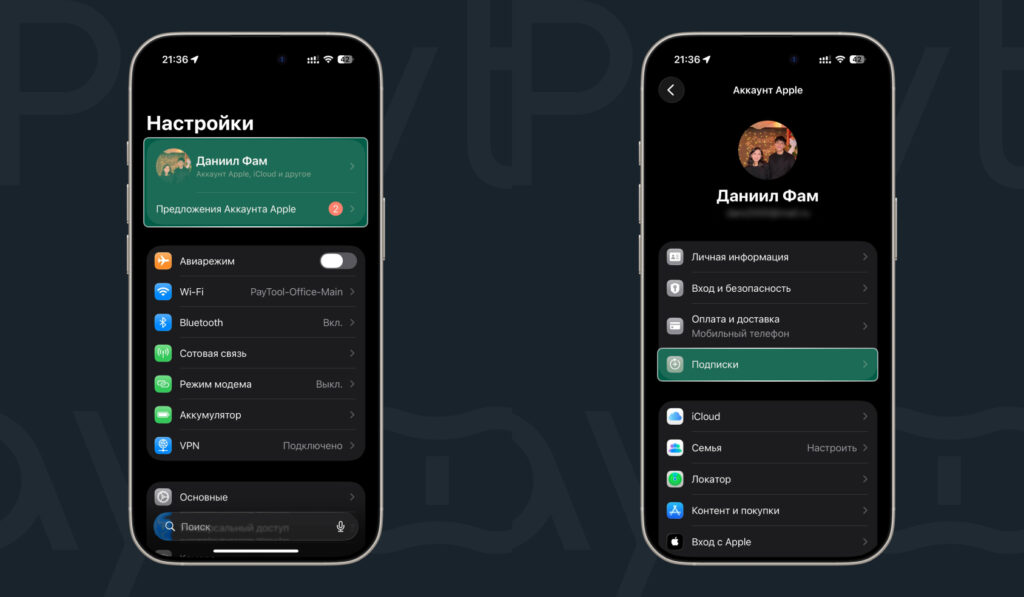
Go to the subscriptions section
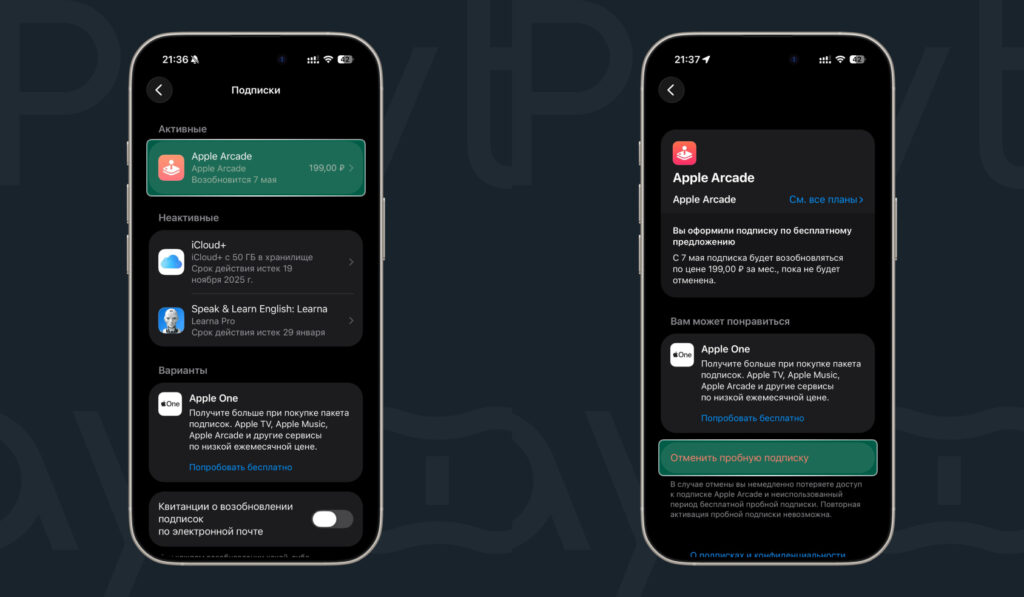
And cancel everything active there
To cancel a subscription, open Settings — Apple ID — Subscriptions and cancel all active subscriptions.
Check Your Apple ID Balance
If there’s money remaining on your Apple ID account, the App Store won’t let you change your region.
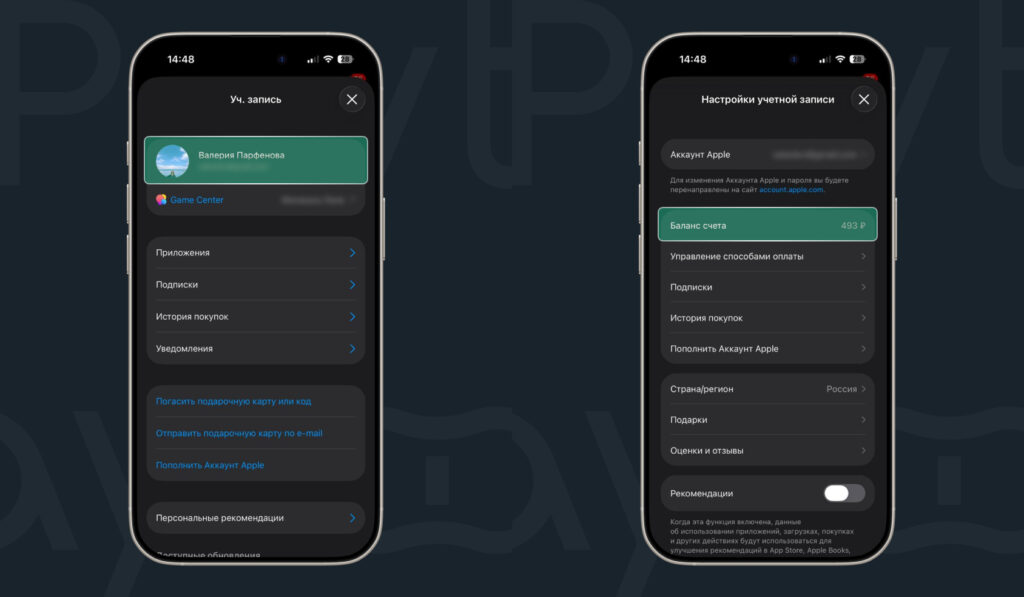
You can check the balance here
You can check your balance in the App Store — profile — Apple ID balance.
If there’s money left, you have two options: spend the remaining balance or contact Apple support to zero out the balance (via the paid number 8-499-951-25-79).
Check for Pending Purchases
Sometimes a user has already made a purchase or subscription, but the payment hasn’t been processed by Apple’s system yet. While the transaction is being processed, you won’t be able to change your region.
What to do: check your purchase history, wait for the payment processing to complete, and make sure there are no payment errors.
Cancel Pre-Orders
If your account has a pre-order for an app, game, movie, or other content, Apple may also block the region change.
In this case, you need to open the App Store, go to your account profile, find the pre-orders section, and cancel all active pre-orders. If the “Pre-Orders” option doesn’t appear, it means you have no pre-orders.
Leave Family Sharing
If your account is part of Family Sharing, you also won’t be able to change your country.
To leave or stop Family Sharing, open “Settings” and select “Family.” Tap your name and then “Stop Family Sharing.”
Only after completing all these conditions will Apple allow you to change the country on your iPhone in the App Store.
How to Change Your App Store Region: Step-by-Step Instructions
The most common way to change your App Store region is through the Settings app. Here are the complete step-by-step instructions:
- Go to “Settings” — tap your profile name — “Media & Purchases” — “View Account”;
- Select “Country/Region” — “Change Country or Region”;
- Select the desired country (for example, Turkey or the USA);
- Enter any real address in the chosen country (you can take hotel or café details from Google Maps). For the USA, it’s better to choose states with minimal tax, such as Delaware, California, or Florida, otherwise the cost may be higher;
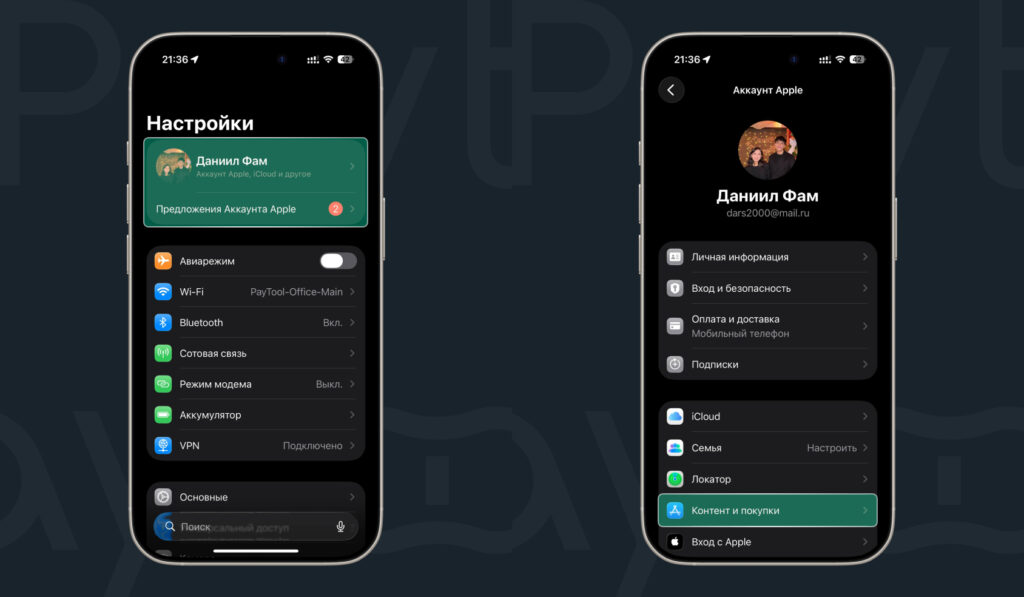
Start the region change here
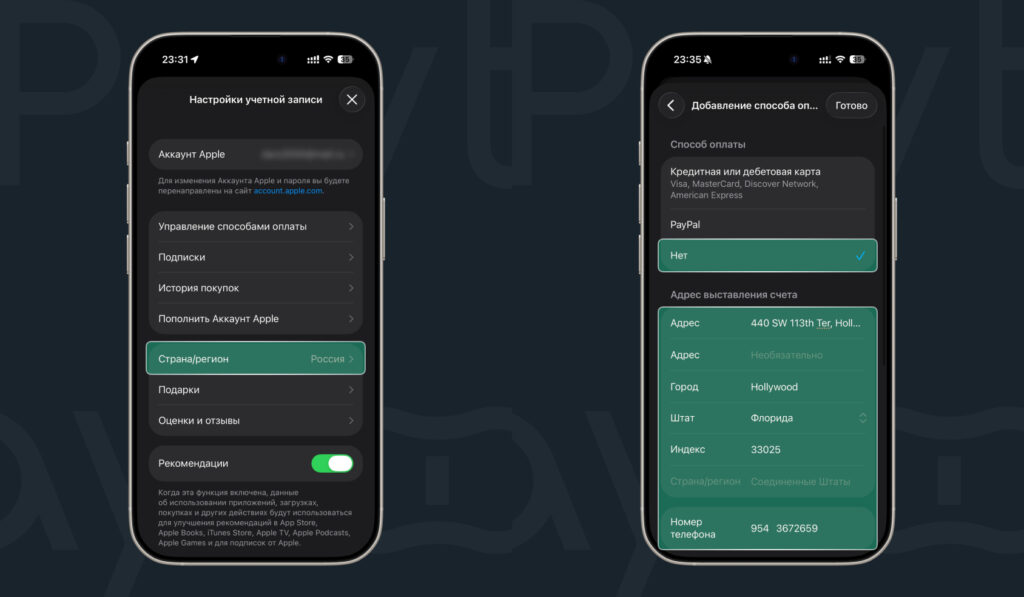
And complete the setup


