If Google Play says an app is not supported on your device, a common reason is that your phone runs an older Android version than the app’s developer requires. Each Android app has a minimum supported Android version, and you can check it in the app’s store listing before installing. Version is not the only factor, though. Processor architecture, required hardware features, and the developer’s own restrictions can also block an install, even on a fairly modern phone.
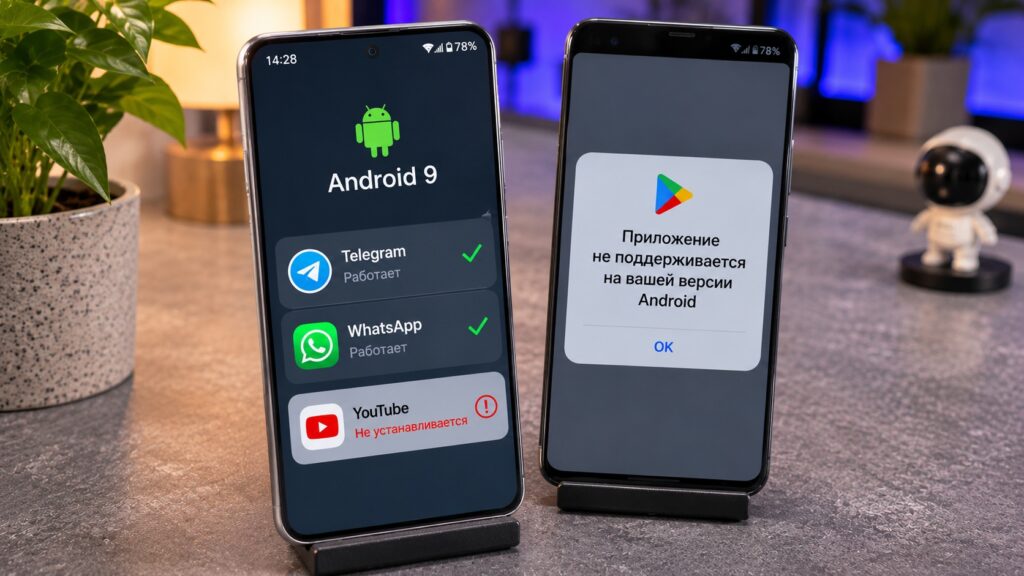
Supported and unsupported apps on an older Android phone
What you need to know
- An Android app’s main requirement is usually its minimum Android version. In the source’s example, the Wildberries app requires Android 8.0 or newer.
- Google Play lists the required OS version in an app’s description, under the “Compatibility for your devices” section.
- Developers can raise the minimum version in later updates, so an app that runs on Android 8 today might require Android 10 or 11 a year from now.
- A new enough Android version does not guarantee installation. Processor architecture, hardware features, country and model restrictions, and developer exclusions also matter.
Developers set requirements for each app
PC games typically list a required processor, graphics card, and amount of RAM. Android apps usually have simpler requirements, and the main one is the minimum Android version the app can run on.
Take the Wildberries app as an example. It currently requires Android 8.0 or newer, so it can be installed on phones running Android 8, 9, 10, or any later version. A device on Android 7 does not meet the requirement.
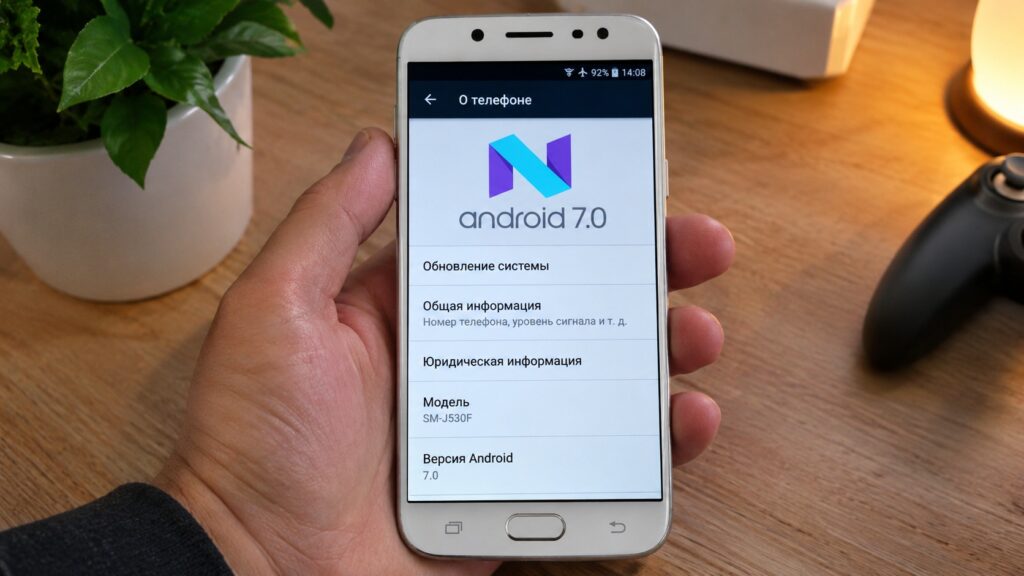
An old smartphone running Android 7
Why apps drop older Android versions
Each new Android release adds capabilities that older versions lack. Developers build apps around these features and gradually stop supporting outdated devices. Requirements can also change with app updates. An app that works on Android 8 today may require Android 10 or 11 a year later.

The system version is not the only limit. Compatibility also depends on processor architecture, required hardware features, and the developer’s own requirements. That is why some apps are unavailable even on relatively modern Android phones.
How to check an app’s minimum Android version
The simplest way to find an app’s required Android version is to look at its store listing. You do not need to install the app first. The source author demonstrated the process with Wildberries, but the same steps work for almost any app.
In Google Play
- Open Google Play and search for the app.
- Go to the app’s page.
- Open the app’s description section.
- Scroll down to the “Compatibility for your devices” section.
- Expand the details for your phone and find the required OS version.
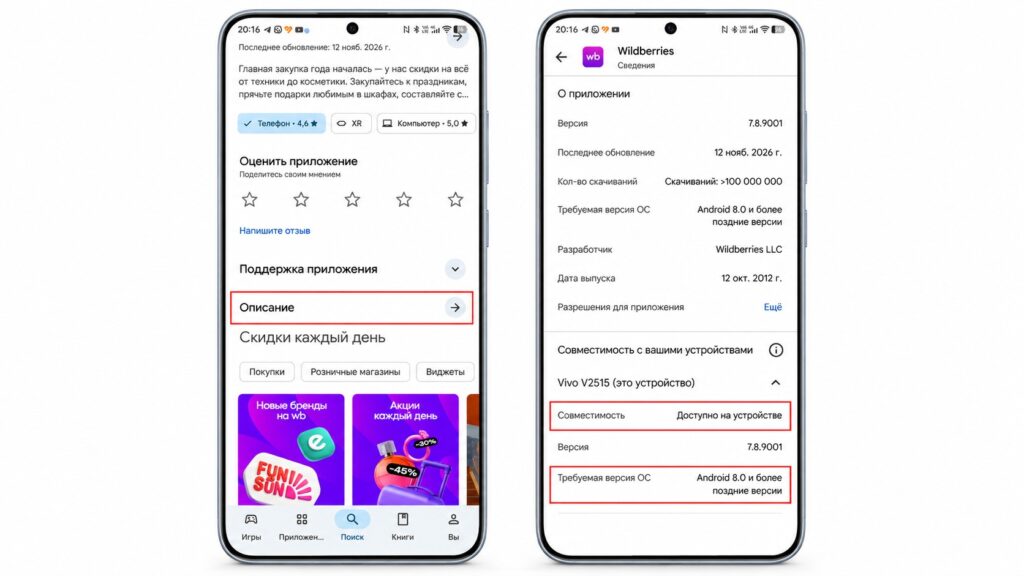
Checking compatibility in Google Play
The source author reports that on their vivo X300, Google Play showed Wildberries version 7.8.9001 as available to install, with a minimum of Android 8.0. Google Play also shows compatibility with your specific device, so you do not have to compare every specification yourself.
Do not confuse the two numbers. In this example, 7.8.9001 is the version of the Wildberries app, not the version of Android.

In other app stores
Other stores may place this information elsewhere. The source also shows RuStore, which lists a “Minimum Android version” line in an “Additional” section further down the app page.
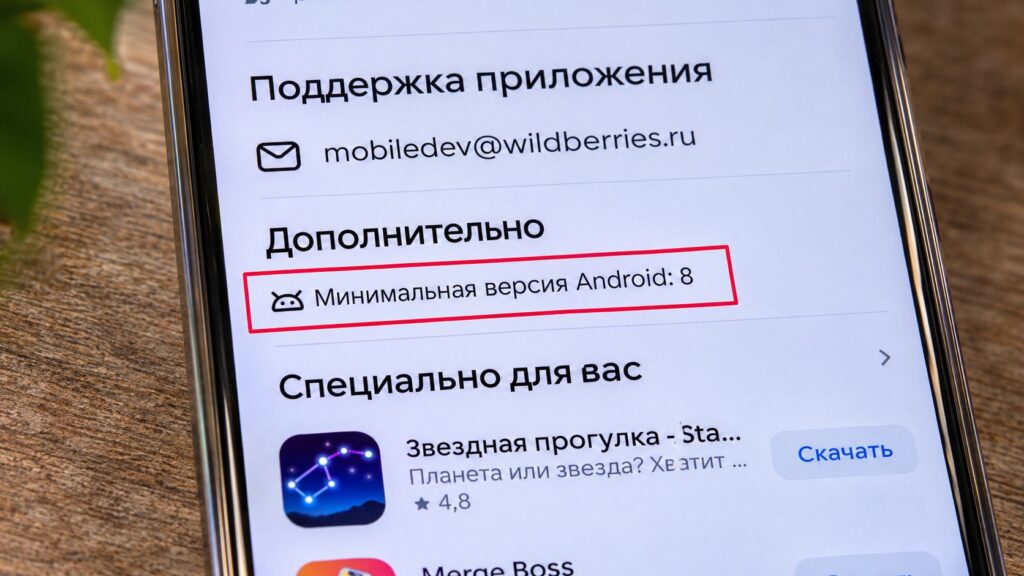
Checking compatibility in the RuStore app store
For Wildberries, both stores listed the same minimum of Android 8. Google Play additionally checks compatibility with your particular device, while RuStore offers a quick look at the required OS version.
How to find your phone’s Android version
Next, you need to know whether your phone meets the requirement. You do not need special apps, benchmarks, or third-party websites. On most Android phones the steps are:
- Open the phone’s Settings.
- Go to “About phone” or “About device.”
- Find the “Android version” entry.
- Note the number shown.
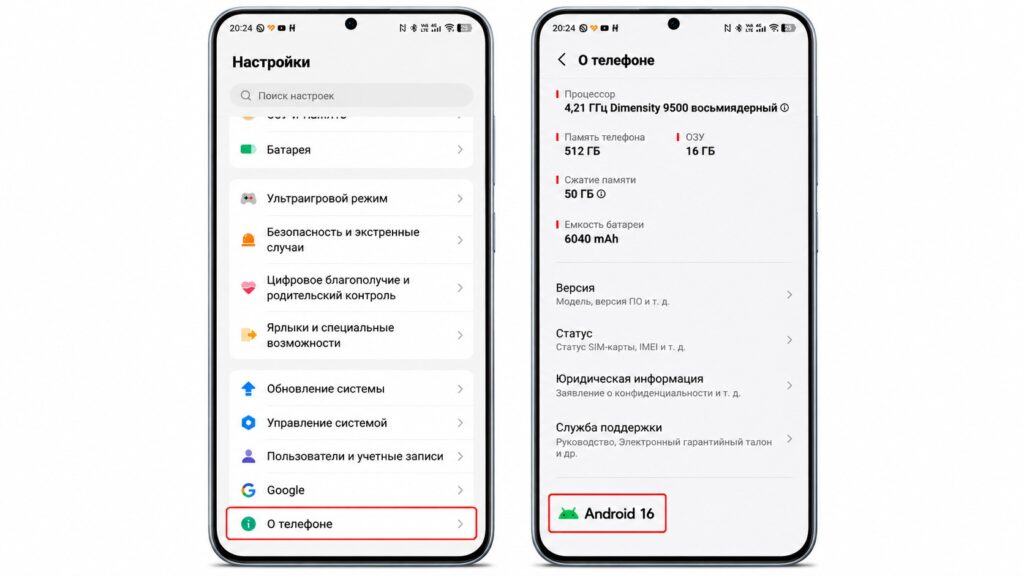
Checking the Android version on a phone
Menu names vary by manufacturer:

- vivo (OriginOS): the information is in the phone’s “About phone” details.
- Samsung Galaxy: open “About phone,” then “Software information.”
- Xiaomi: the Android version is listed under “About phone.”
Note that the manufacturer’s interface version is not the Android version. HyperOS, One UI, and OriginOS each use their own numbering, which does not necessarily match Google’s Android version number.
Once you have both numbers, compare them. If an app requires Android 10 and your phone runs Android 14, it meets the minimum. If your phone runs Android 9, you would need a system update or another way to access the service.
A new enough Android version still doesn’t guarantee installation
Suppose an app requires Android 10 and your phone runs Android 16, yet Google Play still says the app isn’t supported on your device. That can happen, because the store checks more than the minimum OS version. Compatibility can also depend on:
- processor architecture and supported software components;
- a camera, specific sensors, or other hardware features;
- restrictions by country and device model;
- a developer’s decision to exclude certain phones from the supported list.
For this reason, Google Play’s compatibility check is sometimes more useful than simply comparing Android versions. If the store marks your device as incompatible, the source advises working out why before looking for an APK file online.
Incompatibility can also come from the app itself. Android restricts the installation of some very old apps that were built for long-outdated system versions.

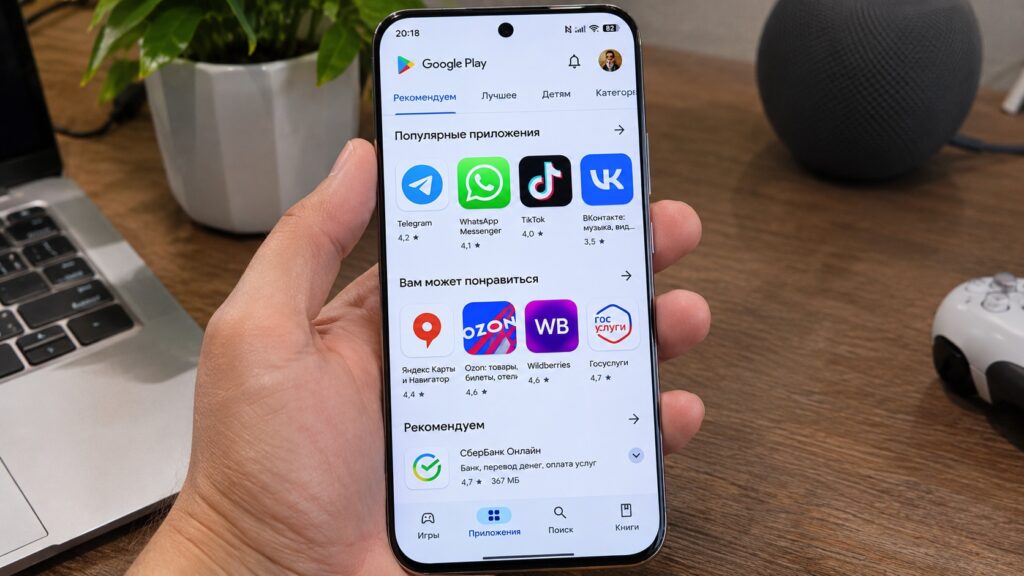
Apps in the Google Play Store
Before trying any workaround, the source recommends confirming that the app can actually run on your version of Android.
Older Android phones gradually lose access to new apps
The most frustrating case is a phone that no longer receives OS updates while developers keep raising their requirements. For example, you might have used an app on Android 9 for several years. Then a new version arrives that requires Android 11. Google Play stops offering the update, although the older version of the app may still launch.
A raised requirement does not mean the app will stop working immediately. Over time, however, some features may be disabled, connections to the app’s servers may fail, or the app may display prompts asking you to update.
What to do if your phone no longer qualifies
In this situation, the source author suggests these steps:
- Check the minimum Android version on the app’s store page.
- Compare it with the Android version installed on your phone.
- Check your phone’s settings for an available Android update.
- If no update is available, see whether the service has an official web version.
- If needed, ask the developer whether the older version of the app is still supported.
The source cautions against downloading old APK files from unknown websites. Even if such an app installs, it may not work properly. Without current security fixes, it also carries additional risks, especially for apps that handle personal data or payments. The source concludes that app compatibility is one of the main arguments for keeping a phone’s operating system up to date.