A situation that baffles many iPhone owners in Russia. You’re not paying for iCloud, the account region is Russian, yet photos still end up in the cloud. This is exactly what one of our readers experienced: she logged into iCloud from a computer and unexpectedly found yesterday’s photos there. Even though new photos hadn’t been uploading to the cloud before. Prior to that, a VPN had been turned on for some time on the phone — and a seemingly logical guess emerged that Apple now restricts synchronization not by Apple ID region, but by geolocation. It seems like the cloud shouldn’t work without a subscription — especially since paying for iCloud has become difficult.
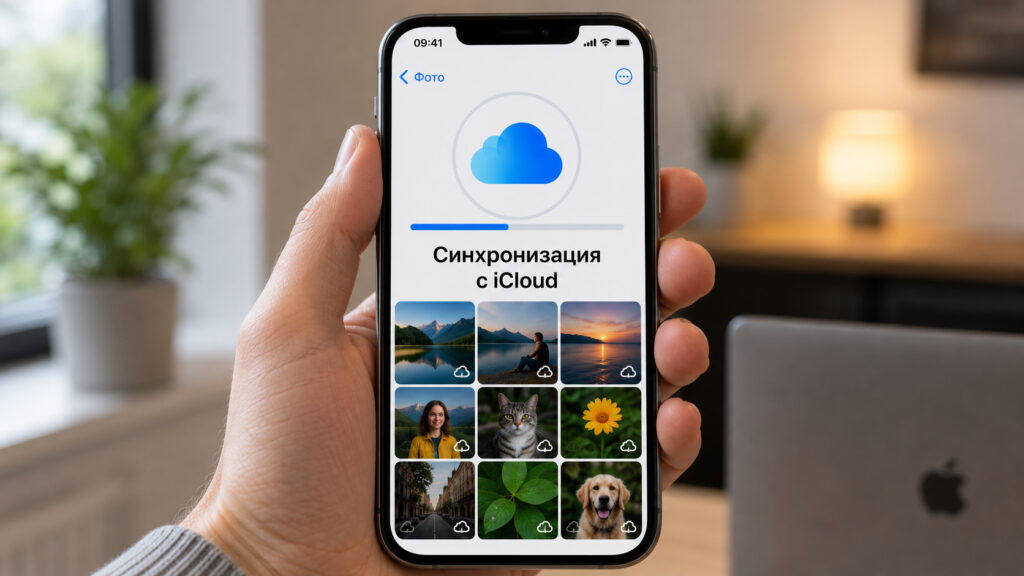
iCloud sync works as long as there’s space in the cloud
Which iCloud Features Continue to Work in Russia
The main misconception that causes panic. Many people are convinced that after Apple’s departure from the Russian market, the cloud died entirely. This is not the case. The restrictions only affected iCloud+ subscription payments — that is, purchasing additional storage beyond the free tier. Direct charges from Russian cards and mobile balances no longer go through, and that’s why many users’ subscriptions started getting canceled en masse.

All Apple services work in Russia. You just need to figure out how to pay for them
But the Apple ID itself hasn’t gone anywhere. It’s a fully functional working account with almost all services operational: photo and video uploads, backups, notes, keychain. Synchronization is tied to the account and to available cloud storage space, not to which country you’re accessing the internet from. Therefore, a turned-on VPN has no effect on it — neither positive nor negative.
The fact that photos ended up in iCloud is not a glitch or a loophole.
Why Photos Upload to iCloud Without Payment
The answer is simple: Apple gives every Apple ID 5 GB of free cloud storage. These gigabytes don’t depend on a subscription, region, or payment method. You have them by default from the moment your account is created.
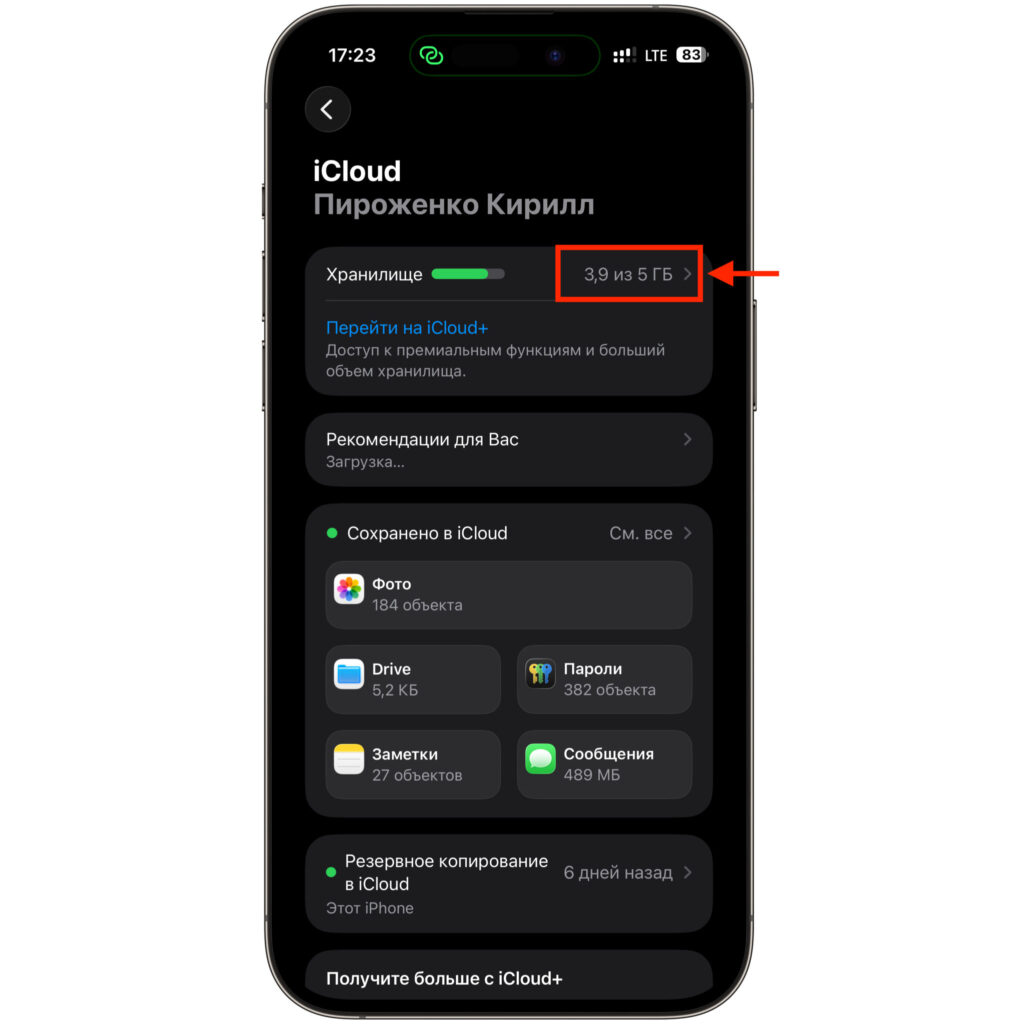
As long as the free storage hasn’t run out, you can sync anything with iCloud
As long as your photos, videos, and backups fit within these 5 GB, everything syncs as usual. A photo taken on your phone uploads to the cloud and becomes visible on a computer or on the iCloud.com website. This is exactly what the reader saw: a few of yesterday’s shots easily fit within the free limit and uploaded automatically.
No subscription is required for the basic storage to work. But since space is limited, it’s worth knowing in advance how to save your photos from iCloud and other data so you don’t lose anything. So “partial” synchronization is not a bug — it’s simply the system working within available free space.
How to Enable Photo Sync via iCloud on iPhone
If you want photos to automatically upload to the cloud, you need to activate the feature. On recent versions of iOS, here’s the procedure:
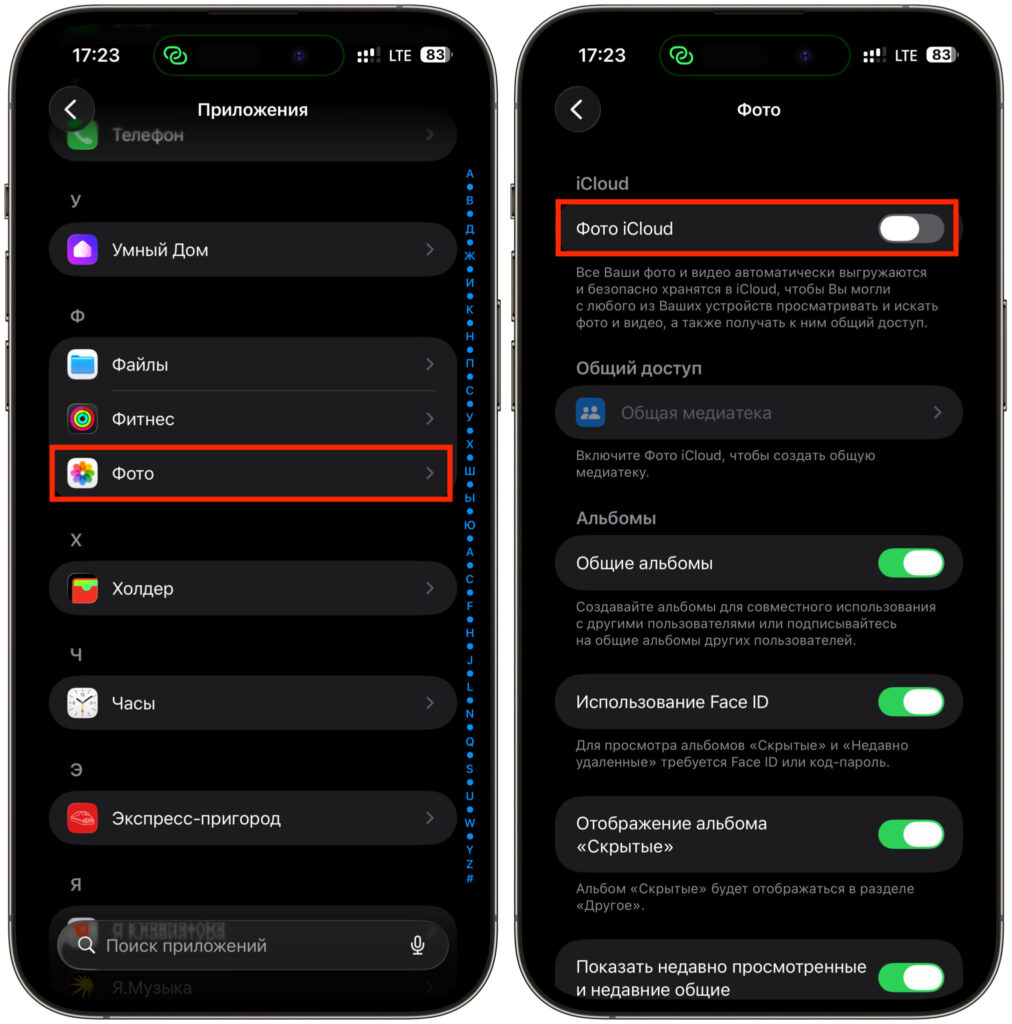
Activate this toggle and wait
- Open “Settings” on your iPhone.
- Go to the “Apps” section.
- Select “Photos.”
- Turn on the iCloud Photos toggle.
After that, your entire media library will gradually start uploading to the cloud — within the available space. Here you can also choose how to store photos: “Optimize iPhone Storage” keeps compressed versions on the device while storing originals in the cloud, or “Download Originals” — when full-size files are stored both locally and in the cloud.
Checking how much space is already used is easy: “Settings” — your name at the top — iCloud. There you’ll see a storage bar and what exactly is consuming gigabytes — most often it’s photos and videos.
Why Photos Stopped Uploading to iCloud
Now for the flip side. The free 5 GB fills up very quickly, especially if you shoot in high resolution or store lots of videos. Once the limit is reached, exactly what many people fear will happen: new photo uploads will stop.
You’ll see a notification that storage is full. Old photos that already made it to the cloud will remain in place and continue to be displayed on other devices. But new shots will only exist in the phone’s memory until you free up space or upgrade your plan.
You can free up space manually — delete unnecessary backups, clean up the media library, disable synchronization for heavy apps. The bottom line is simple: our reader didn’t break anything and didn’t find a secret loophole. Apple left all Russian users with the basic 5 GB, and synchronization works honestly as long as those gigabytes haven’t run out.