You know that feeling when you buy a new smartphone, turn it on — and see dozens of apps you never installed? People constantly message me about useless carrier apps that even charge you money. That’s really a separate story. But there are far more unwanted guests on a new smartphone. Every time I buy a new device, I methodically go through the list and delete all unnecessary apps on the phone. Here’s my experience.
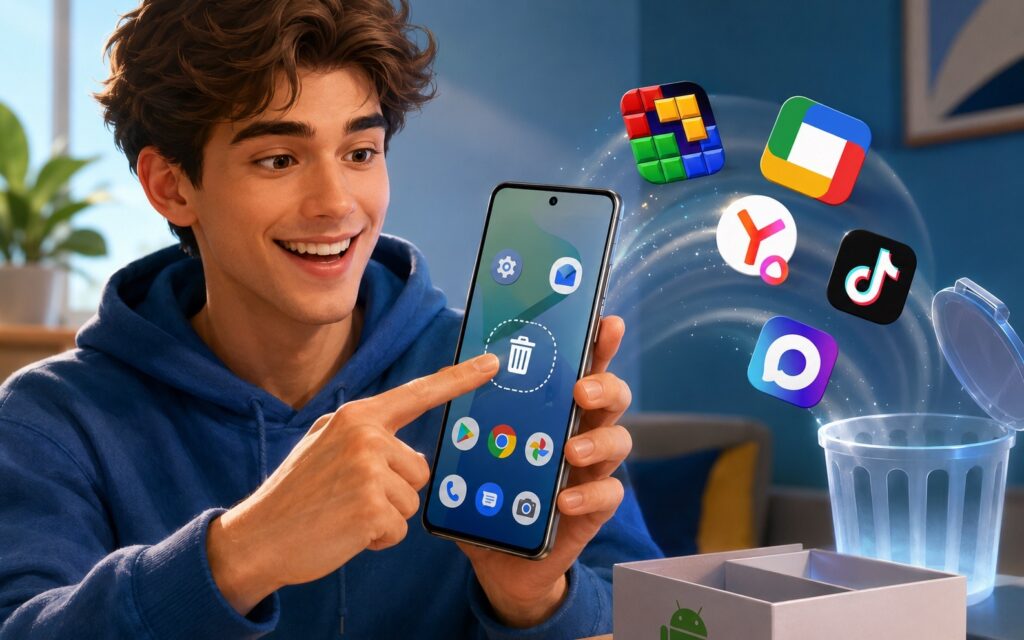
Don’t be shy and do as I do
Why Are There Apps Installed on the Phone
Before deleting anything, it’s useful to understand where pre-installed Android apps come from in the first place. They can be divided into several categories.
Pre-installed apps come in four types, and you can't delete all of them.
Basic apps for device operation — the smartphone simply won’t function without them:
- camera, phone, messages, settings;
- Google system services: Play Services, Google Framework;
- update and security apps.
Apps under Google’s license — a mandatory package for all smartphones with Google certification:
- Google Play, Gmail, Google Maps, Chrome, YouTube;
- Google Photos, Google Drive, Google Pay.
Partner apps — the manufacturer gets paid for these:
- games like Block Blast or Royal Match;
- streaming services, marketplaces, competitor browsers.
We’ll talk about mandatory apps for Russia further on.
Mandatory Apps in Russia
Mandatory apps in Russia — a separate category that many confuse with pre-installed ones. In reality, they’re not installed in the traditional sense: a special folder appears on the home screen of a new smartphone with a name like “Mandatory,” “Russia,” or similar. Inside are recommendation icons: MAX, Odnoklassniki, VKontakte, Yandex, and others.
The "Mandatory" folder contains shortcuts, not installed apps.
Technically, these apps aren’t installed yet — they’re just shortcuts for quick download. But the folder is annoying and takes up screen space. I methodically delete all icons from it until the folder disappears on its own:
- Press and hold the app icon inside the folder.
- Select “Delete” or drag the icon to the trash at the top of the screen.
- Confirm the shortcut deletion (the app itself is neither installed nor deleted in the process).
- Repeat for each icon in the folder.
- When the folder is empty, it will disappear from the screen automatically.
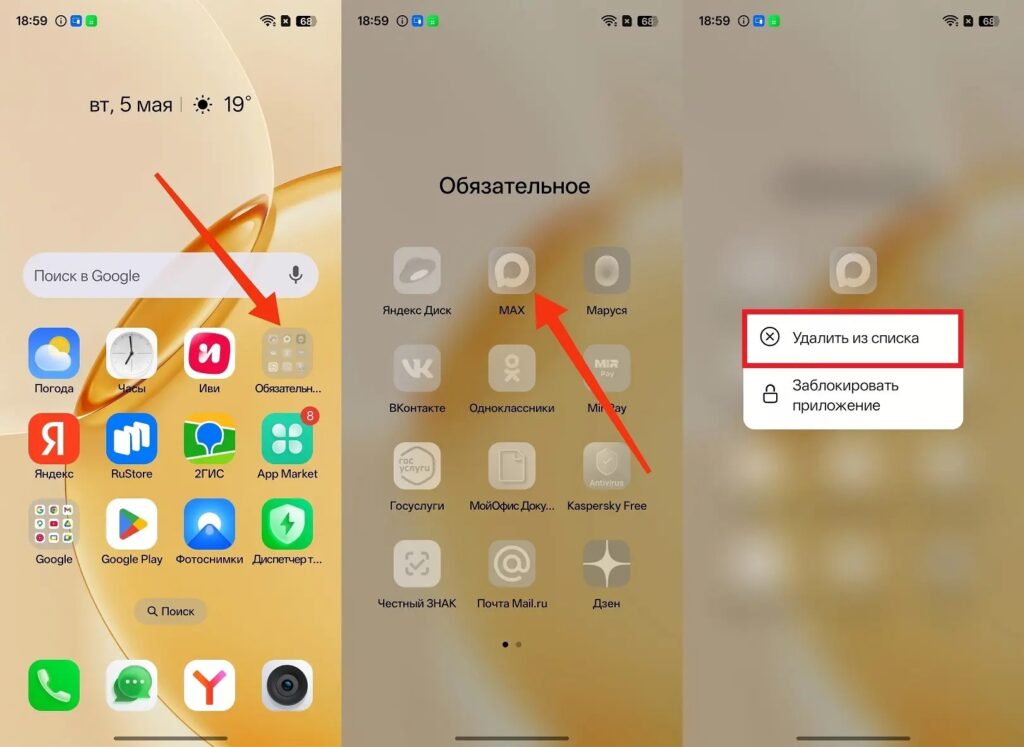
This is what you should do with all apps from the folder
If icons can’t be deleted this way, try long-pressing directly on the folder and select “Edit” or “Modify.”
Pre-installed Games on Android
Unnecessary Android apps in the form of games — another standard story. Manufacturers get paid for each installation, so a new smartphone almost always has Block Blast, Royal Match, or some other casual game. I don’t need them — I delete them immediately.
Pre-installed games are deleted the standard way.
Games, unlike shortcuts from the “Mandatory” folder, are already fully installed. I delete them through settings:
- Open “Settings” on the smartphone.
- Go to the “Apps” or “App Management” section.
- Find the game in the list and tap on it.
- Tap “Uninstall” and confirm the action.
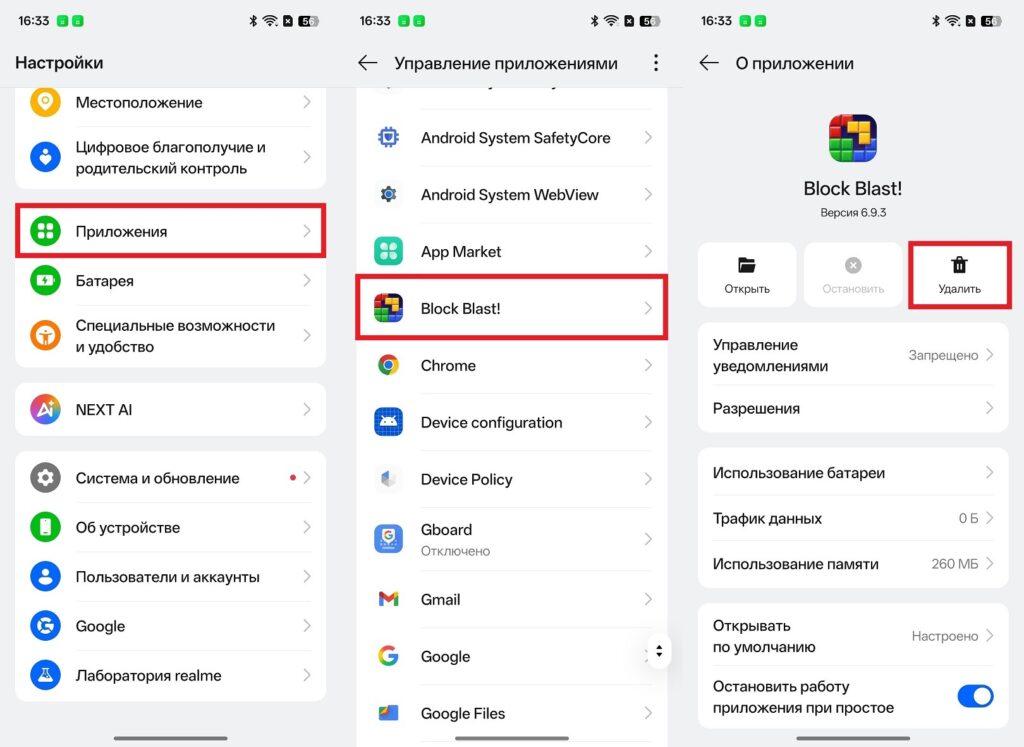
There can be several such games on your smartphone
You can also press and hold the game icon on the home screen or in the app drawer and select “Uninstall” — this is faster if there aren’t many such programs. Unnecessary phone apps in the form of games usually delete without issues: the manufacturer installs them as regular user apps.
Pre-installed Apps on Android
Besides games, a new smartphone often comes with a whole set of partner services. On global device versions, this might be Netflix, TikTok, LinkedIn. On Russian versions — Yandex Browser, Yandex Music, Ivi, carrier services. I delete all Android advertising apps of this kind without exception: I don’t plan to use them, and they consume resources.
Partner apps take up space and memory — I delete them all.
The instructions are the same as for games:
- Open “Settings — Apps.”
- Find the desired app in the list.
- Tap “Uninstall” and confirm.
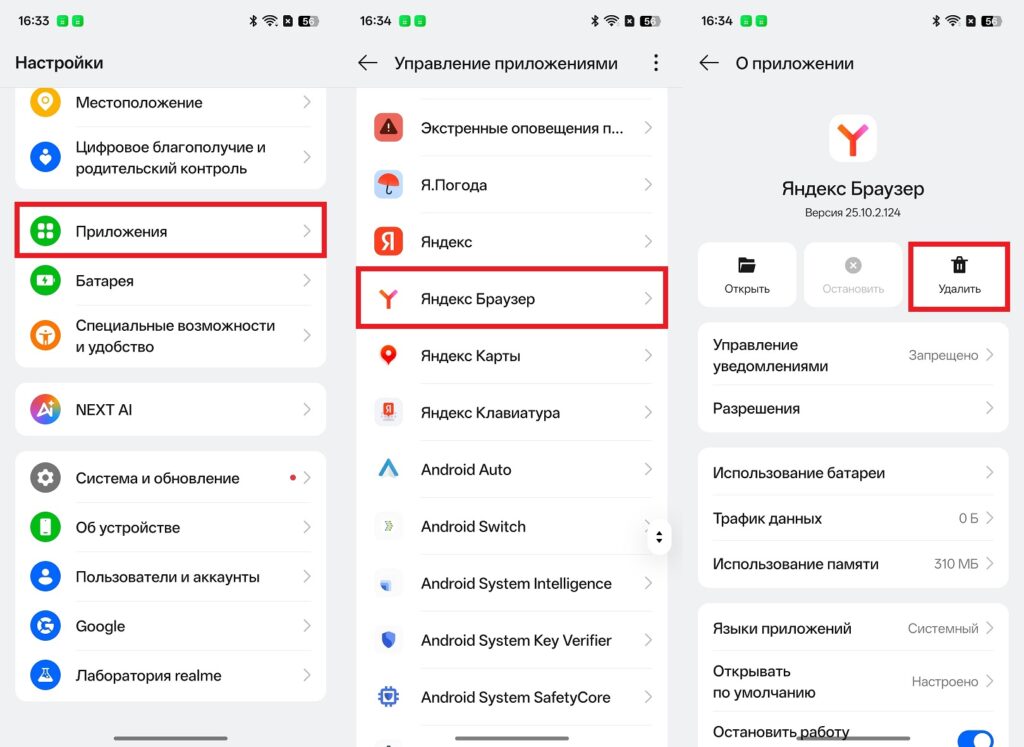
Remove partner apps immediately and without reservations
If you want to quickly find all partner apps at once — in the “Apps” section, sort the list by size or installation date. Apps installed on the device activation day are most likely pre-installed. I don’t touch standard Android apps from Google though: Chrome, Gmail, and Google Maps work reliably and don’t get in the way.
What to Do If Apps Won’t Delete on Android
Some pre-installed apps cannot be removed using standard methods. These are system apps from the manufacturer or Google that are protected from deletion. The “Uninstall” button is simply unavailable for them. But there’s a way out.
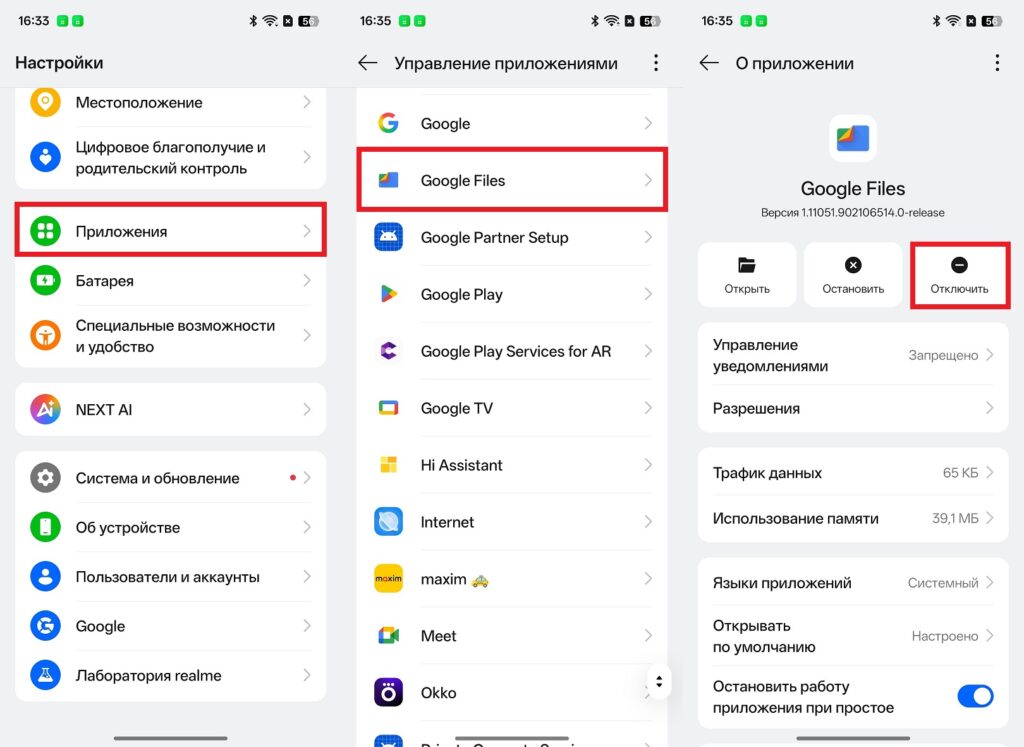
Method 1: disable the app. This is a safe alternative to deletion. The app will remain on the device but will stop launching, consuming memory, and showing up in the list:
- Open “Settings — Apps.”
- Find the desired app and tap on it.
- If the “Uninstall” button is unavailable — tap “Disable.”
- Confirm the action in the warning that appears.
If the app won’t uninstall


