Despite the messenger stopping support for many smartphones in 2026, WhatsApp continues to evolve with new features. WhatsApp is gradually rolling out usernames — short nicknames like @Name123 that allow people to contact you without your phone number. The feature has been rolling out over several months and isn’t available to everyone yet, but you can already reserve a name in advance. Let’s break down why this is useful and how to set everything up.
About the new WhatsApp username feature on Android
WhatsApp Username — What It Offers
The main idea is simple: a username hides your phone number. Those who don’t have your number in their contacts will only see your nickname, not your digits. Meanwhile, existing contacts who already have your number saved will continue to see it as before — nothing changes for them.
This is a convenient way to let someone message you without revealing your personal number. Essentially, the messenger is catching up with Telegram’s logic, where usernames have existed for a long time.
Rules for WhatsApp Usernames
A nickname can’t be entirely arbitrary. Here are the main format requirements:
- Length from 3 to 35 characters;
- You can use lowercase Latin letters (a–z), digits (0–9), underscores (_), and periods (.);
- The name cannot consist of only digits;
- The name must be unique;
- Prohibited words and phrases cannot be used.
There are additional restrictions as well. Some names are reserved for businesses, government agencies, and public figures, so a nice short nickname may be unavailable — in that case, a variant generator can help. You can transfer a name to another number only if you’re changing the number on the same device; transferring between different devices doesn’t work yet. And to control who can message you by username, you can set up a special username key.
How to Create a Username in WhatsApp
The feature is rolling out gradually, so in some regions you’ll be able to create a name right away, while in others you can only reserve it in advance for now. A reserved name will become active when the feature officially launches in your region — you’ll receive a notification:
- Open “Settings.”
- Tap on your profile.
- Select “Create username” (or “Reserve username” if the feature is still rolling out in your area).
- Enter your desired name — the system will show whether it’s available or not.
- If the name is taken, the app will suggest alternatives based on your input.
- Tap “Save” and confirm.
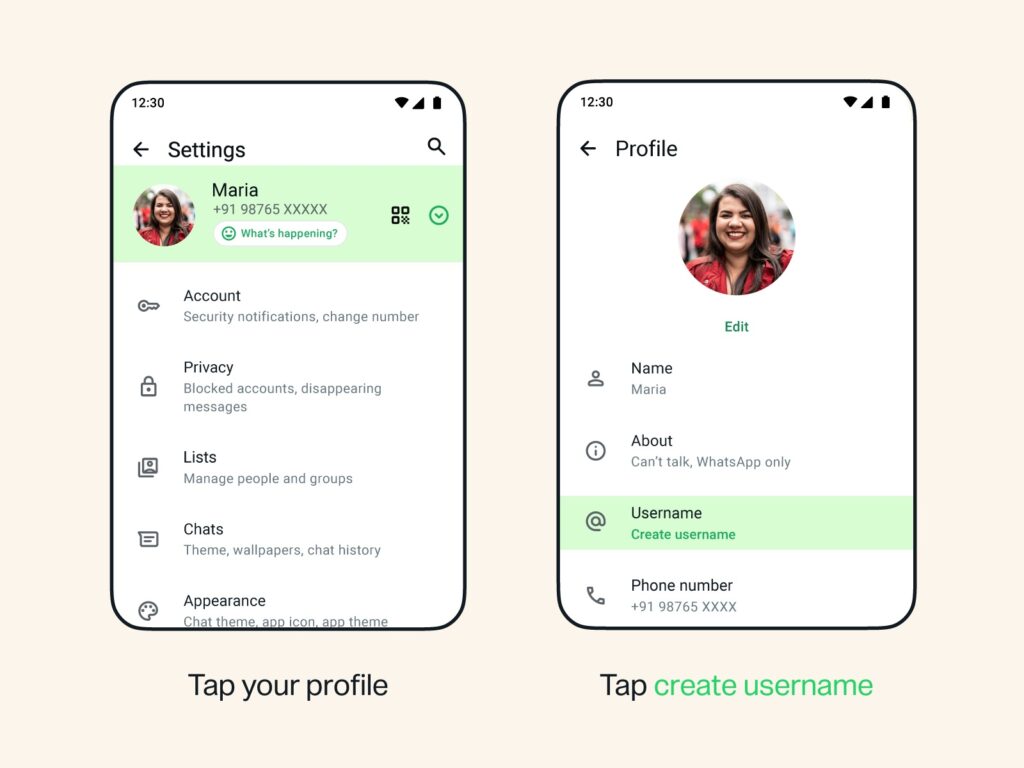
The feature is not yet available to everyone. Image: faq.whatsapp.com
Before saving, you should know that a username is completely voluntary. You can create, change, or delete it at any time, and the messenger works as usual without one.
If number privacy matters to you, it’s worth reserving a name in advance — especially a short and convenient one, before someone else takes it.
How to Transfer Your Instagram* Nickname to WhatsApp*

You can transfer a nickname from other social networks
If you already use a convenient name on Instagram* or Facebook*, you can transfer it to WhatsApp provided it hasn’t already been taken by someone else. To do this, you need to add WhatsApp* to the same Accounts Center where your accounts are located:
- Open “Settings” and tap the area around your profile photo.
- Select “Create username.”
- Tap “Use name from Instagram*” or “Use name from Facebook*.”
- Follow the prompts to add your accounts to the shared Accounts Center.
There are important nuances here. Adding WhatsApp* to Accounts Center is optional and can be disabled at any time. If the same name is used by different people on Instagram and Facebook, it will go to whoever claims it first. Also, changing your name on Instagram* or Facebook* won’t automatically update it in WhatsApp* — you’ll need to change it separately.
How to Change or Delete Your WhatsApp* Username
You can change your name through “Settings,” the area around your profile photo, then “Username” and “Edit.” But there’s a limitation: the number of name changes is limited. After each change, your previous nickname may become available to other people, so you won’t be able to change it like gloves.
Deletion works similarly — through the same section and the “Delete username” button. It’s important to remember the protection period: after deletion, you have 14 days to reclaim the name before someone else can take it. The same protection applies if you want to reclaim a previous nickname after changing it.
* — belongs to Meta, which is recognized as extremist and banned in Russia.


