Every summer the same story repeats itself. Apple shows off a new version of iOS, releases the beta, and thousands of people install it on their only iPhone that very evening. Then it begins: the battery is dead by lunchtime, the banking app crashes on launch, and rolling back is no longer really an option. Apple recently released the first public beta of iOS 27, and many are once again considering installing it. Before you hit the update button, spend five minutes on this article. It will save you much more time.

Important nuances before installing the iOS 27 beta
Is It Worth Installing the iOS 27 Public Beta
Apple’s public betas are indeed calmer than the first developer builds. By the time of the public release, the most noticeable bugs have already been cleaned up, the interface doesn’t fall apart before your eyes, and outwardly everything looks almost like a finished system. But polished doesn’t mean finished. It’s still test firmware that Apple is completing right in your hands.
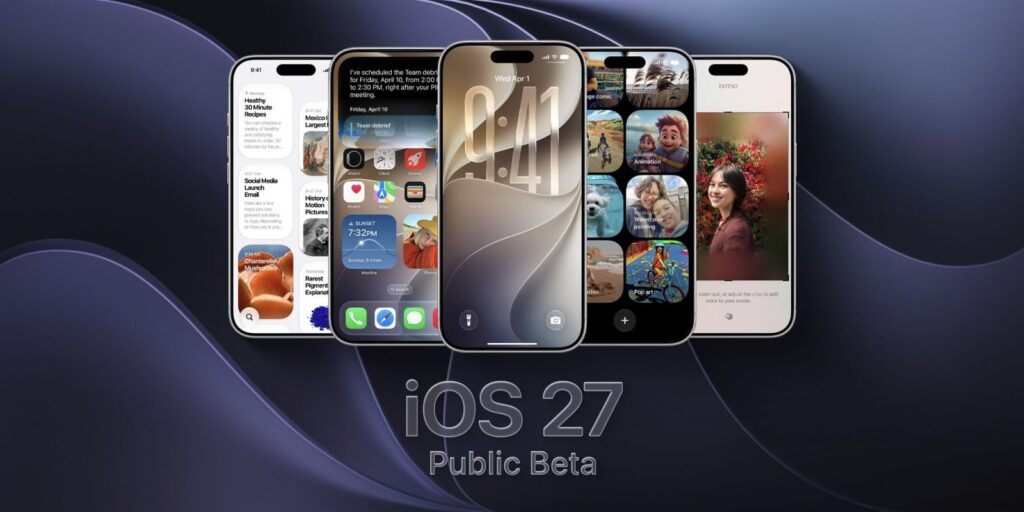
The Public Beta is tested a bit longer and only then becomes available for installation
Based on the impressions of those who’ve been running iOS 27 since the first developer beta, stability has noticeably improved. Moreover, in some scenarios iOS 27 runs smoother than iOS 26: this year Apple seriously focused on optimization and performance, and it’s noticeable even on older models like the iPhone 11 Pro Max. But random app crashes, strange battery drain, and features that suddenly stop responding haven’t gone anywhere.
The main question is simple: are you ready to fix your phone in the middle of a workday? There are about two months left until the final release.
Why Apps Might Not Work After Updating to iOS 27
Most popular apps work fine on the fresh iOS 27 beta. The problem is that the exceptions usually fall on exactly those apps without which your day falls apart. Banking apps are in the risk zone, along with authenticators, smart home software, work tools, and heavy games.
Things break in different ways. Some apps crash immediately after launch, others behave well for a week and then start losing data or refuse to accept push notifications. For Russian users, the situation is especially unpleasant: some banking apps already run on workarounds, and an extra layer of test firmware certainly won’t help them.
Before installing, honestly list the apps you can’t live without for a week. If even one of them stops working until the next beta, can you manage? It’s useful to search for reviews on Apple forums or Reddit for specific apps in advance. And remember: developers will roll out full iOS 27 support only in the fall, when the system is officially released.
Why Siri AI Doesn’t Work After Installing iOS 27
The main draw of iOS 27 is obvious. Apple rebuilt the assistant almost from scratch: the new Siri AI understands the context of what’s happening on the device and can work with your personal data, rather than sending you to search with every other question. Most people install the beta on day one specifically for it.
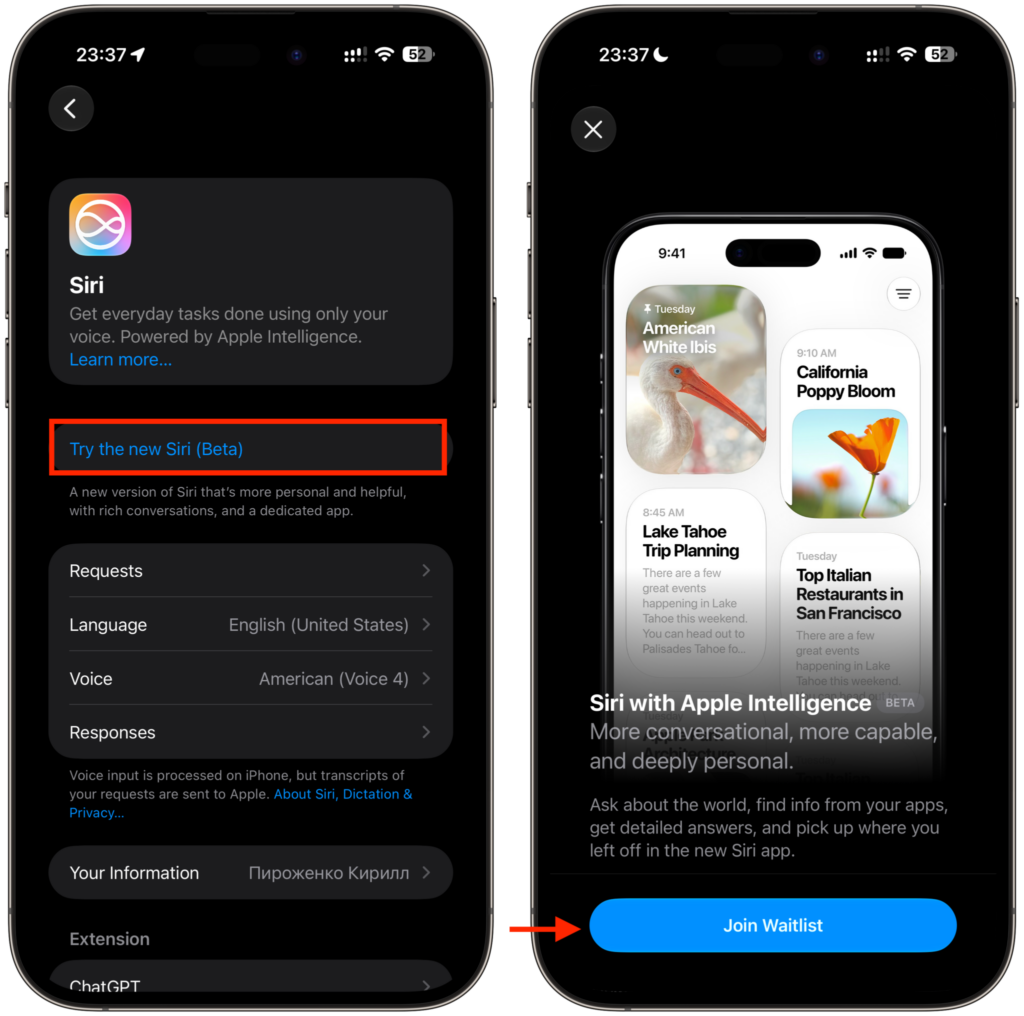
Siri AI still activates through a waitlist
But you won’t get it right after updating. The new Siri has a waitlist, just like Apple Intelligence had in 2024. You send an access request from settings, and then you wait: for some people activation takes a couple of hours, for others it drags on for several days. Plus the hardware requirements haven’t gone anywhere: you need an iPhone 15 Pro or newer, or a Mac and iPad with an M1 chip or higher.
The language is a separate story. And most importantly, take the waiting calmly: for the first days after installation, Siri will be regular Siri.
How Often Do iOS 27 Beta Versions Come Out
Installing the beta isn’t a one-time action but a subscription to regular phone maintenance. Apple releases new builds approximately every two weeks, and closer to the fall release the pace often accelerates: the company rushes to squash bugs.
Overall this is a good thing. Each build brings dozens of fixes, and the system gets more pleasant with each iteration. But a fresh beta sometimes breaks what was working, and you’ll have to wait a week or two for a fix. Plus there’s the data traffic, time to download and install, and the habit of keeping your phone on the charger when yet another update arrives.
Also, over two months of testing you’ll have time to figure out the little things Apple didn’t show at the presentation.
How to Back Up Your iPhone Before Updating
The most important advice in this whole story. Make a backup before updating, not after. If something goes wrong or you simply decide to go back to iOS 26, the backup will be the only way to save your data. You can roll back without one, but the phone will be clean as if fresh out of the box.
And you don’t just need any backup — you need an archived backup on a computer. An iCloud backup will sooner or later be overwritten with iOS 27 data and become useless for rolling back. A local archive via Finder or the Apple Devices app won’t be touched.
How to create an archived backup:
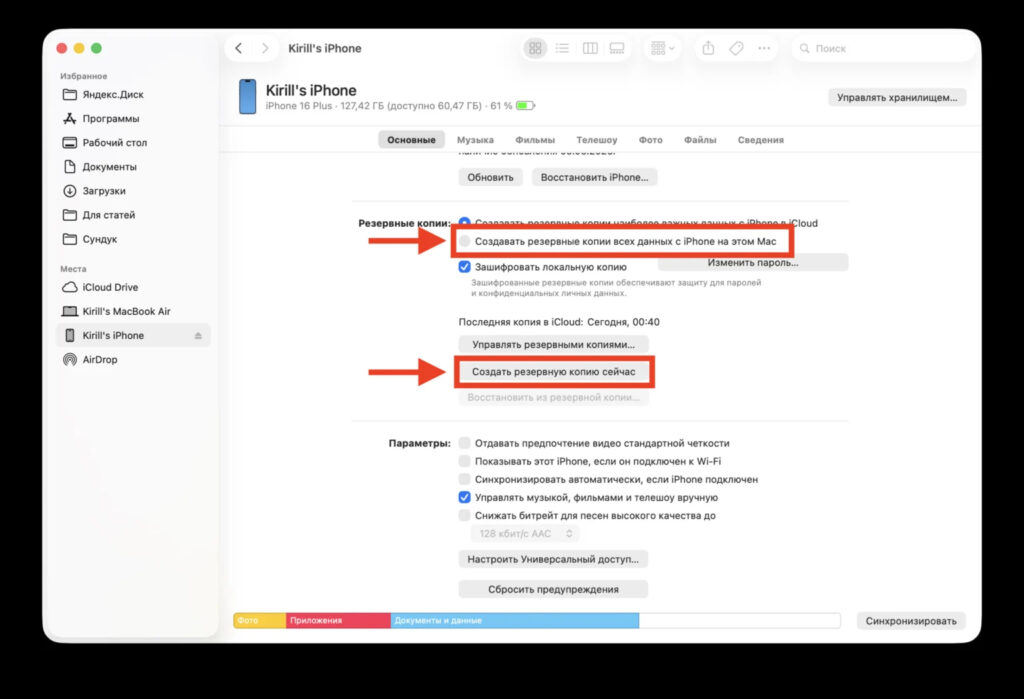
It’s better to make the backup on a computer
- Open Finder on Mac or the Apple Devices app on Windows.
- Connect your iPhone or iPad to the computer with a cable.
- Find the device in the sidebar of the app.
- If the computer is new, unlock the phone and confirm trust by entering your passcode.
- Click “Back Up Now” and wait for it to finish.


