Recently, we talked about how Galaxy S24 and Galaxy S25 started rapidly draining after an update, and the problem affected three-quarters of owners. But fast battery drain isn’t only caused by buggy patches. Android drains battery for many reasons, and most of them can be fixed through settings. And this applies to all smartphone owners, not just Samsung users. I’ll break it down in order: what to disable, how to find the culprit, and what actually works.
Disabling features that only make your smartphone battery worse
Which App Is Draining Your Battery
Before disabling anything, you need to understand who’s to blame. An app drains battery quietly and unnoticed: it sits in the background, accesses the network, and wakes up the processor. The answer is often surprising — the culprit turns out to be not an obvious candidate like a game, but some messenger or news app. How to find the battery hog:
- Open “Settings” on your smartphone.
- Go to the “Battery” section.
- Select “Battery usage” or “Battery consumption” — a list of apps sorted by power consumption will appear.
- Tap on the suspicious app, and you’ll see detailed statistics: active time, background time, consumption percentage.
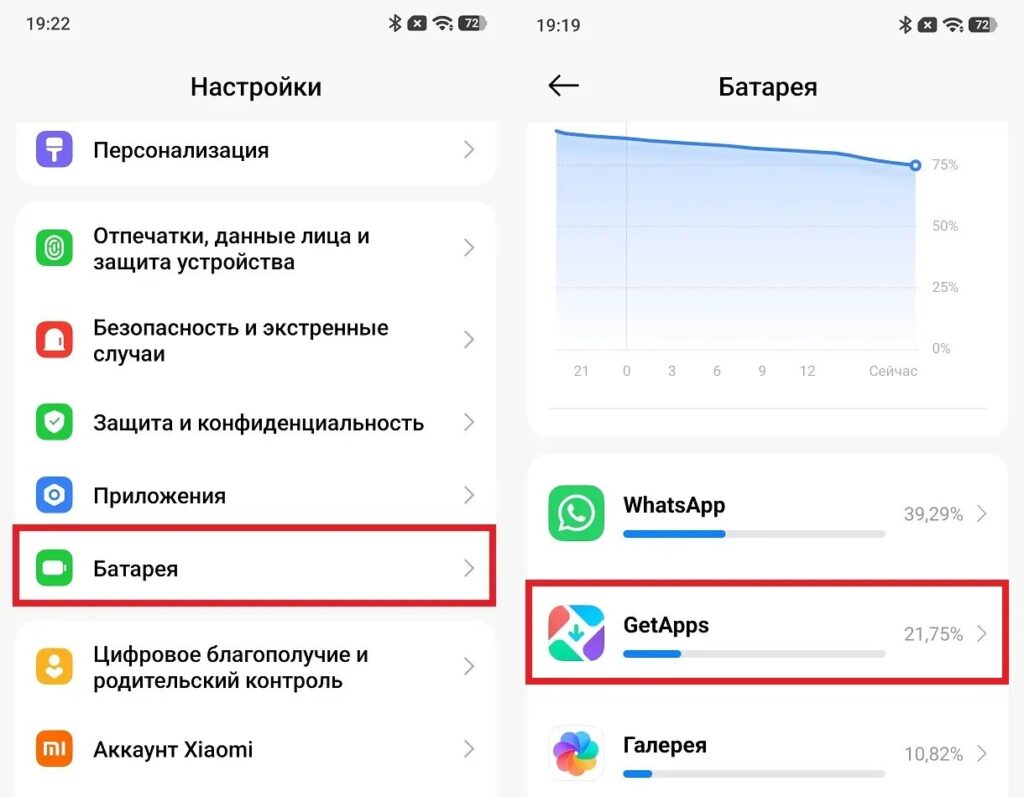
Finding the charge hog is pretty simple
After finding the culprit, restrict its background activity:
- Go to the “Apps” section in phone settings.
- Select “Battery usage” or “Restrict background activity.”
- Switch the mode from “Unrestricted” to “Optimized” or “Restricted.”
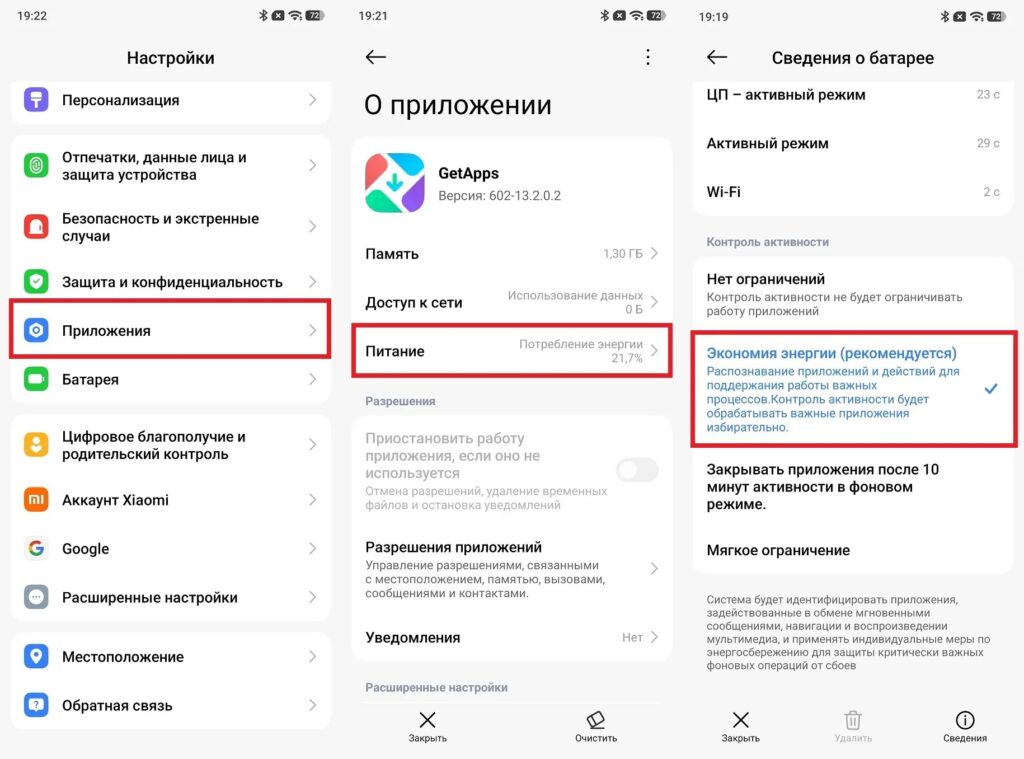
The key is to restrict the app’s background activity
Important note: don’t touch Google Play Services, Google Play Store, and system services, as restricting them will break synchronization and notifications. By the way, background Android apps aren’t always bad — some of them are needed for notifications to work.
Disabling Sync on Android
Android sync is a useful feature that runs in the background constantly. Google automatically syncs contacts, email, photos, documents, Chrome bookmarks, and app data. It’s convenient, but every sync means network access and CPU load. How to find and disable unnecessary phone battery settings:
- Open “Settings.”
- Go to “Accounts” or “Users and accounts.”
- Disable automatic account sync.
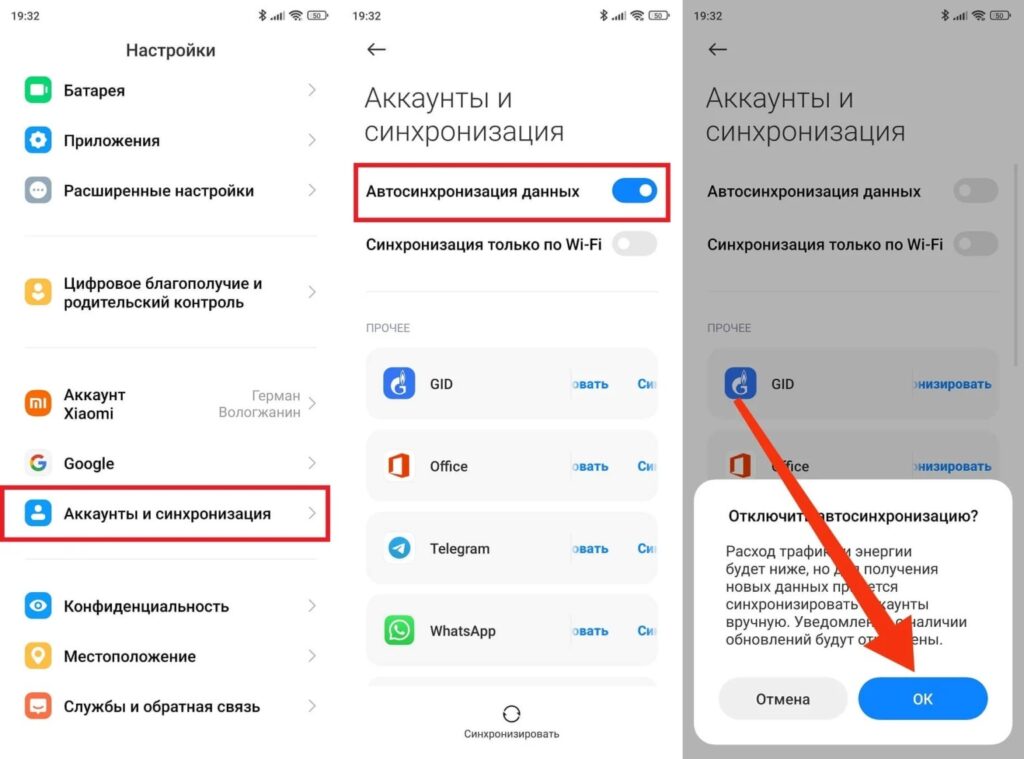
You can disable automatic sync to reduce battery load
It’s also worth looking at Google Photos separately. If auto-upload is enabled on mobile data — it drains both battery and data. Go to Google Photos, open “Settings — Backup” and limit uploads to Wi-Fi networks only. The difference in battery life will be noticeable.
Screen Settings for Energy Saving
The screen is the main power consumer in a smartphone. Android energy saving starts with display settings. Three parameters that have the biggest impact.
Dynamic refresh rate. If your smartphone supports 120 Hz — it’s great for smoothness, but expensive for the battery with constant use. Adaptive refresh rate automatically lowers it to 60 Hz or below in static scenarios.
- Open “Settings — Display.”
- Find “Refresh rate” or “Motion smoothness.”
- Select “Adaptive” instead of fixed 120 Hz.
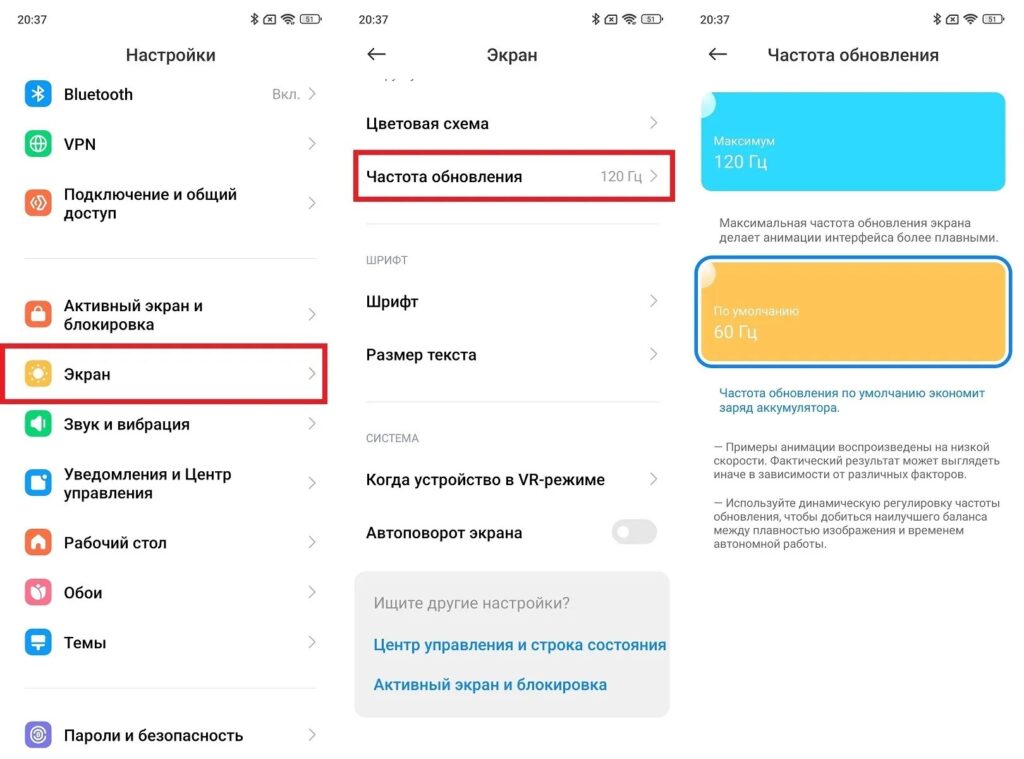
Either lower the refresh rate or set it to a dynamic value
Dark theme. On AMOLED and OLED screens, black pixels simply turn off — this is real savings. On IPS, dark theme makes almost no difference.
- Open “Settings — Display.”
- Enable “Dark theme” or “Night mode.”
- In Chrome additionally: “Settings — Dark mode” — choose “Dark” specifically, not “System default.”
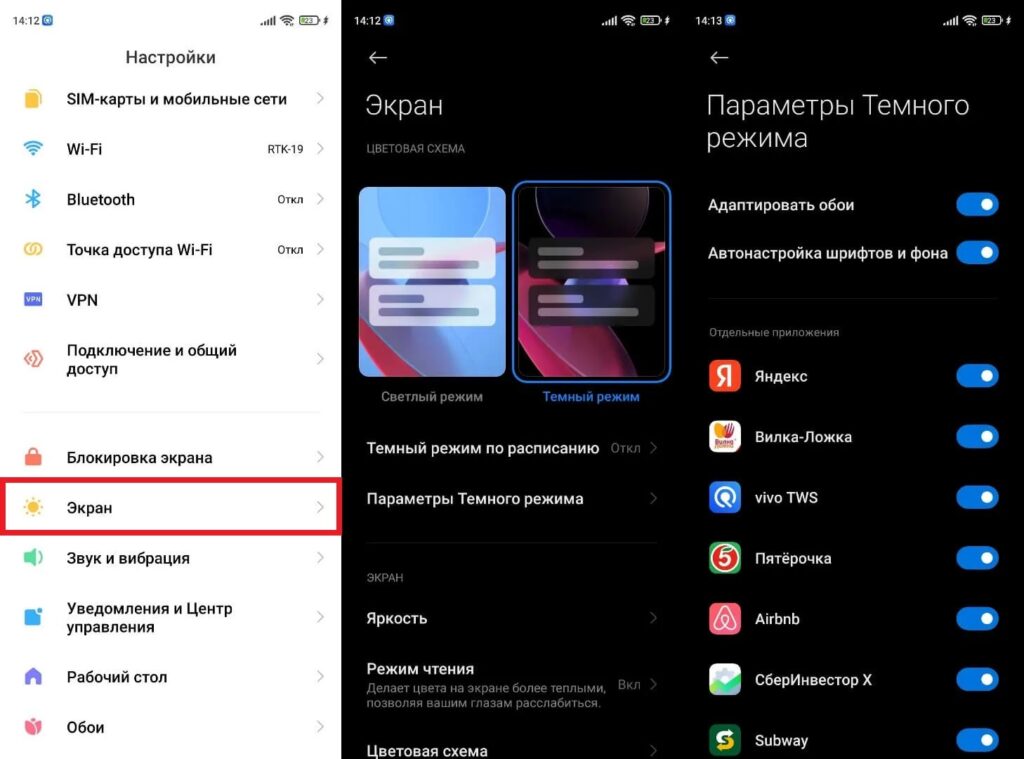
Dark theme will help if your smartphone has an AMOLED screen
AOD (Always-On Display). A nice feature that constantly shows time and notifications on the locked screen. If battery life matters — disable it or limit it with a schedule.
- Open “Settings — Display — Always-On Display.”
- Turn it off completely or set it to work only during certain hours.
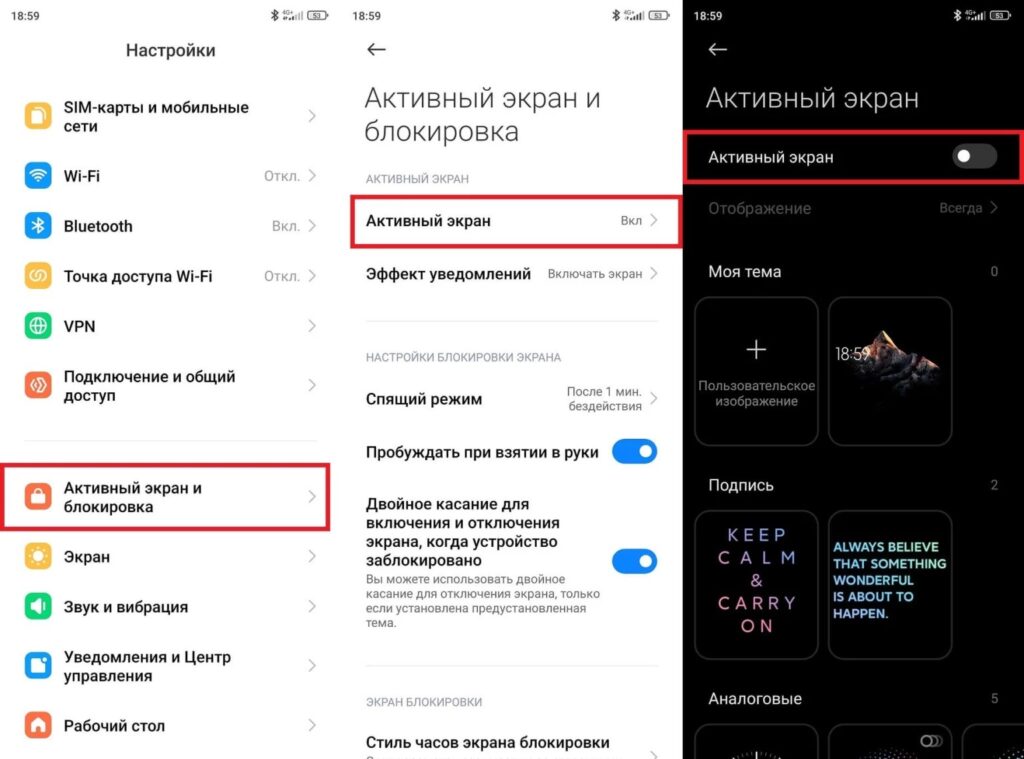
It’s better to disable AOD entirely
Adaptive refresh rate and dark theme on AMOLED — two simple steps that genuinely save battery.
System Haptic Feedback on Android Phone
This is one of the most underestimated features that drain the battery. Haptic feedback when typing on the keyboard, tapping buttons, and system notifications — every small pulse requires the vibration motor to work. Over the course of a day, this adds up to a noticeable load. How to disable haptic feedback:
- Open “Settings — Sound and vibration” or “Sound.”
- Find the “Vibration” section.


