The Dock in macOS is such a familiar thing that we stop noticing it. Right up until the moment when a gray square with a question mark appears in place of a familiar icon. The app seemed to have been sitting in its spot for years, and now the system honestly says it can’t find it. Let me reassure you right away: this isn’t a malfunction or a virus, and you won’t need to fix anything. Today we’ll look at the question mark in the Dock: where it comes from and how to get rid of it in a couple of seconds.
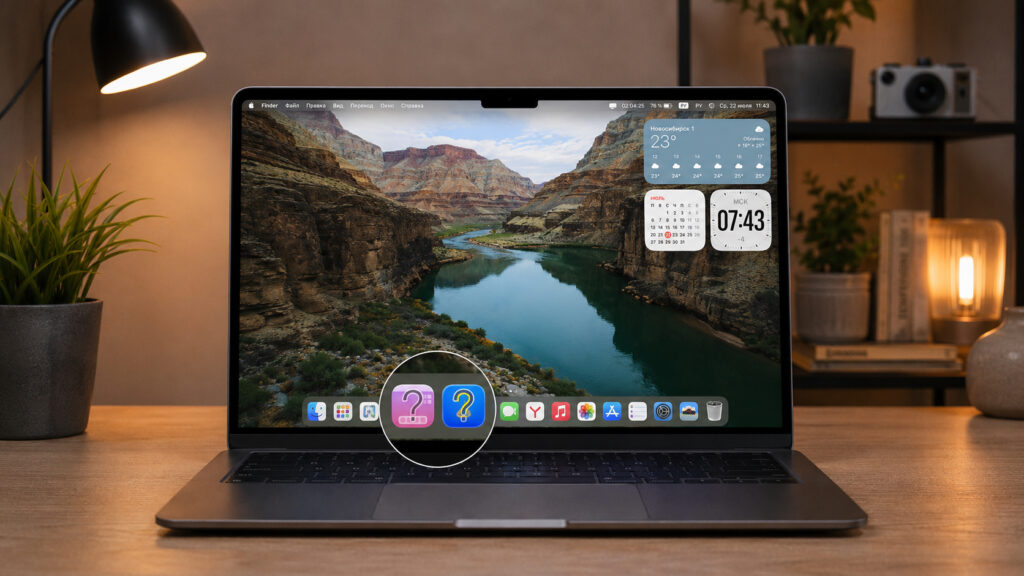
Have you encountered this problem on your computers?
Why a Question Mark Appears in the Dock on Mac
The mechanics here are simple. The Dock doesn’t store the apps themselves — it only stores shortcuts to them. When you drag an icon to the bottom panel, macOS remembers the path to the file in the system. And if there’s nothing at that path anymore, the system shows a question mark instead of the familiar image. It doesn’t always appear instantly: sometimes the old icon persists until the first click, and only after that does it turn into a question mark.
There are only four situations in which this happens:
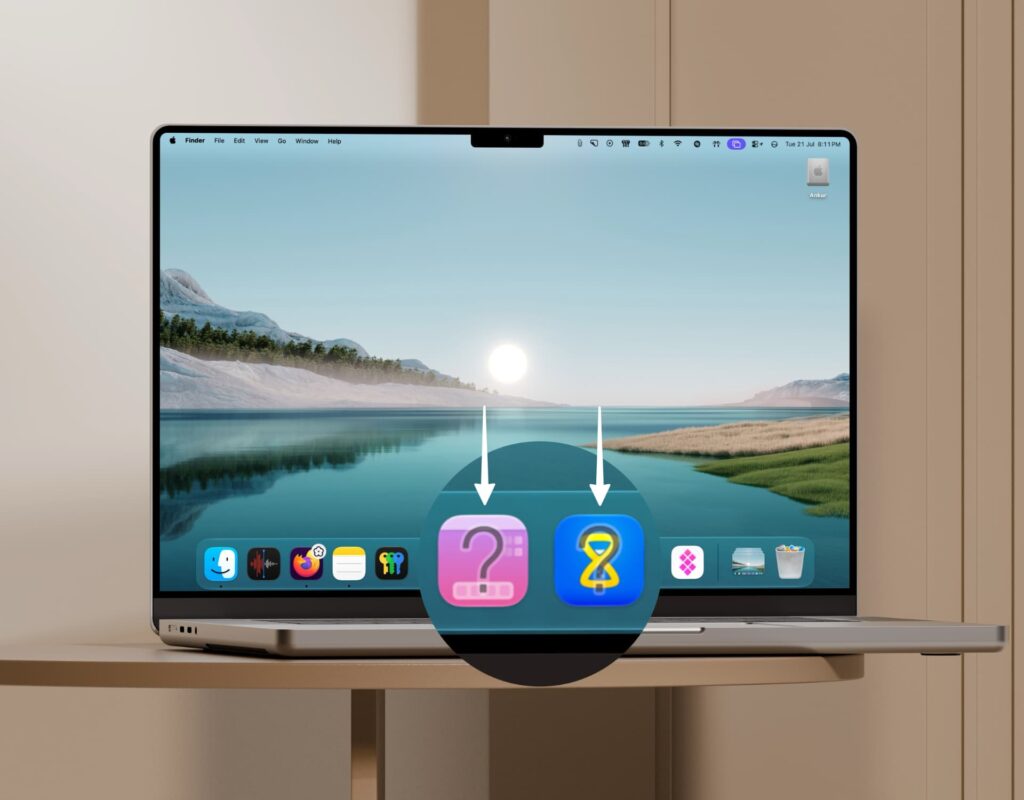
Situations may vary, but the essence is the same — the app at this shortcut doesn’t work
- The app was deleted. You sent it to the Trash and emptied the Trash, but the shortcut in the Dock remained. This is the most common scenario.
- The app was moved. The file was moved from the Applications folder to somewhere else — for example, to a separate folder with work software or to another disk partition.
- The app was renamed. You changed the file name, and macOS lost the old path. This especially comes up if the file was also moved after renaming.
- The app is unavailable. A heavy application like a video editor is installed on an external SSD, you clicked on the icon in the Dock, but the drive wasn’t connected to the computer at that moment.
I should note separately: the question mark only appears for apps that you added to the Dock manually. Standard Apple applications don’t behave this way because they live in the system partition and never go anywhere. If the question mark appeared after a system update, that’s also normal. Some third-party utilities simply don’t survive major updates.
How to Remove the Question Mark in the Dock on Mac
The first and fastest method: simply drag the icon out of the Dock. Grab it with your cursor and drag it onto the desktop, then release the mouse button. The shortcut will dissolve in a puff of smoke, and that’s it.
If dragging doesn’t work for some reason, there’s an option through the menu:
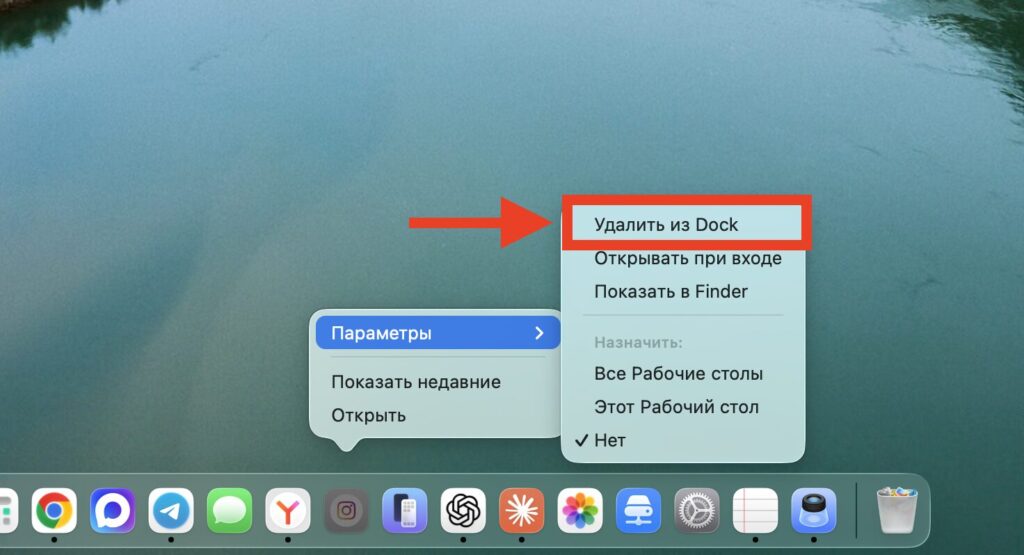
Delete the icon with this button
- Click on the icon with the question mark using the right mouse button or two fingers on the trackpad.
- In the menu that appears, select “Options”.
- Click “Remove from Dock”.
- Make sure the icon has disappeared and the neighboring shortcuts have shifted into its place.
What happens next depends on what happened to the app. If you deleted it permanently, there’s nothing more to do — case closed. If the application was simply moved or renamed, open Finder, find it in its new location, and drag the icon back into the Dock. Now the system will remember the current path and the question mark won’t return.
Why a Question Mark Appears for Apps on an External Drive
A separate story is when an app is installed on an external drive. This is often done with Final Cut Pro, Xcode, or heavy games to avoid filling up the built-in SSD on the Mac. As long as the drive is connected, everything works normally. As soon as you disconnect it and click on the icon, a question mark appears in the Dock.
The good news is that you don’t have to delete the shortcut. It’s enough to restore the icon to its normal state:
- Connect the external drive to the Mac and wait until it appears in the Finder sidebar.
- Restart the computer through the Apple menu in the top left corner.
- After booting, check the Dock: the icon will return to its place along with the normal app icon.
- From now on, simply don’t click on that icon when the drive is disconnected, and the question mark won’t appear again.
The logic is simple: macOS caches the appearance of icons, and restarting forces the system to re-read the data. However, if you regularly work without the external drive, it’s easier to keep such apps not in the Dock but in a separate folder or launch them via Spotlight. This way you’ll save yourself from unnecessary clicks to nowhere.
Resetting the Dock on Mac to Factory Settings
Sometimes the Dock is stubborn and continues to show the question mark even after all manipulations. Usually this is the result of a corrupted settings file that the system can’t read correctly. In this situation, a full panel reset helps:
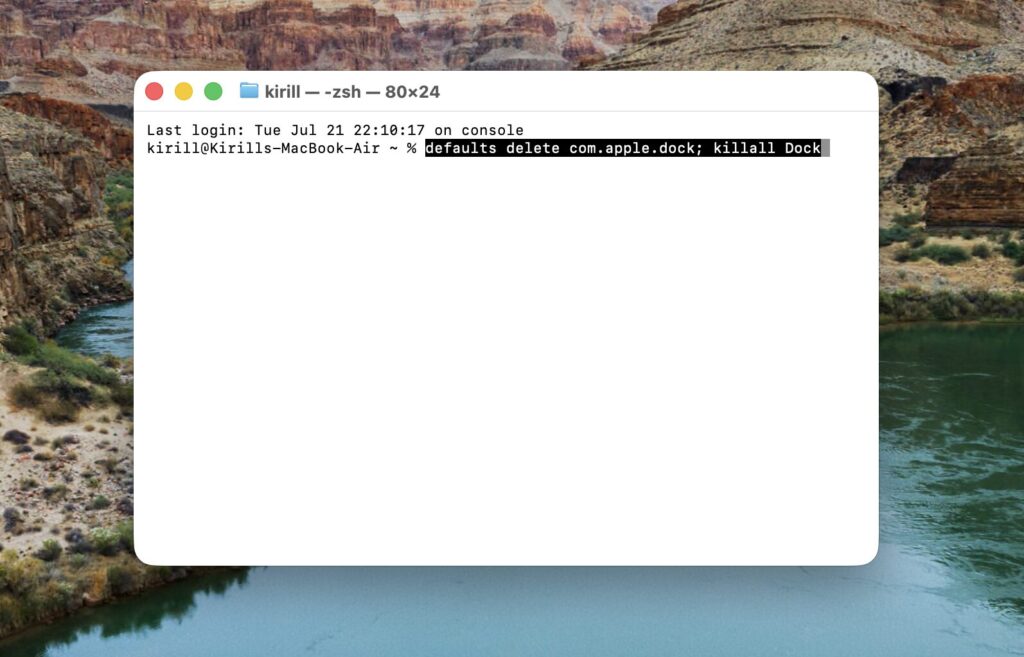
Or reset the Dock via Terminal. That works too
- Open the Terminal app through Launchpad or Spotlight search.
- Copy the command defaults delete com.apple.dock; killall Dock and press Enter.
- Wait until the panel at the bottom of the screen blinks and restarts on its own.
- Re-drag the apps you need into the Dock from the Applications folder.
- If desired, adjust the icon size and magnification in System Settings.
After the reset, the Dock will return to the appearance it had when you first launched a new Mac: only standard Apple applications and nothing extra. All your files and programs will remain in place — the reset only affects the panel’s appearance.
And one more thing worth keeping in mind. If icons in the Dock start behaving strangely en masse rather than one at a time, it makes sense to check the system for malware. A single question mark doesn’t mean anything like that, but mass icon disappearances are already a reason to be concerned.


