In iOS 27, the built-in photo editor received three new AI-based tools. They fix things that normally can’t be corrected after shooting: an awkward angle, a too-tight frame, and random unwanted objects. All three work right in the Photos app, without third-party programs and without manually sending the image anywhere. Let me say right away: these are tools for careful editing and correction, not for completely remaking a photo. The logic behind all three functions is the same: you captured the moment, and minor framing flaws can be tweaked later.
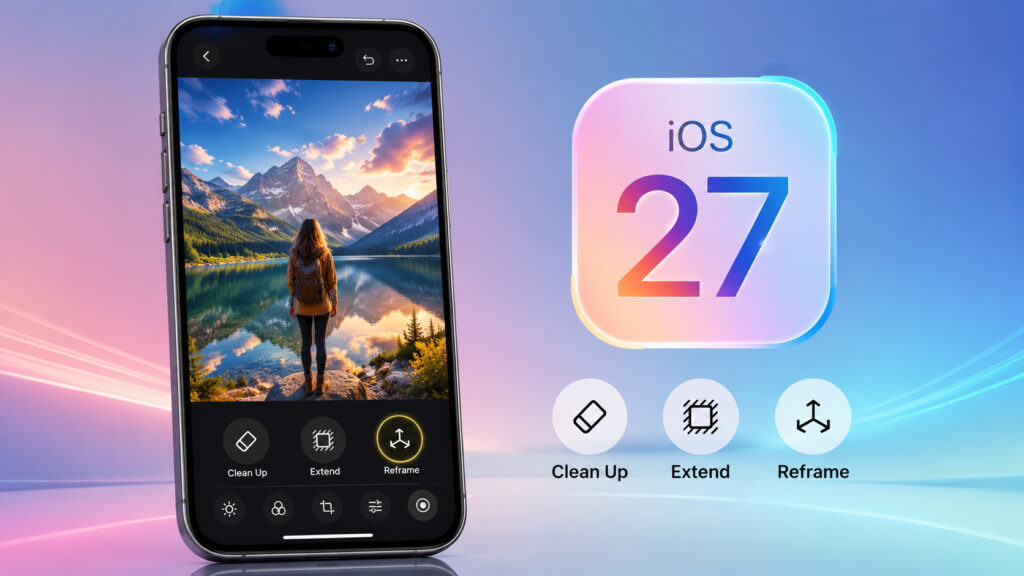
New tools appeared in Photos and old ones were improved
How to Fix a Tilted Horizon on iPhone
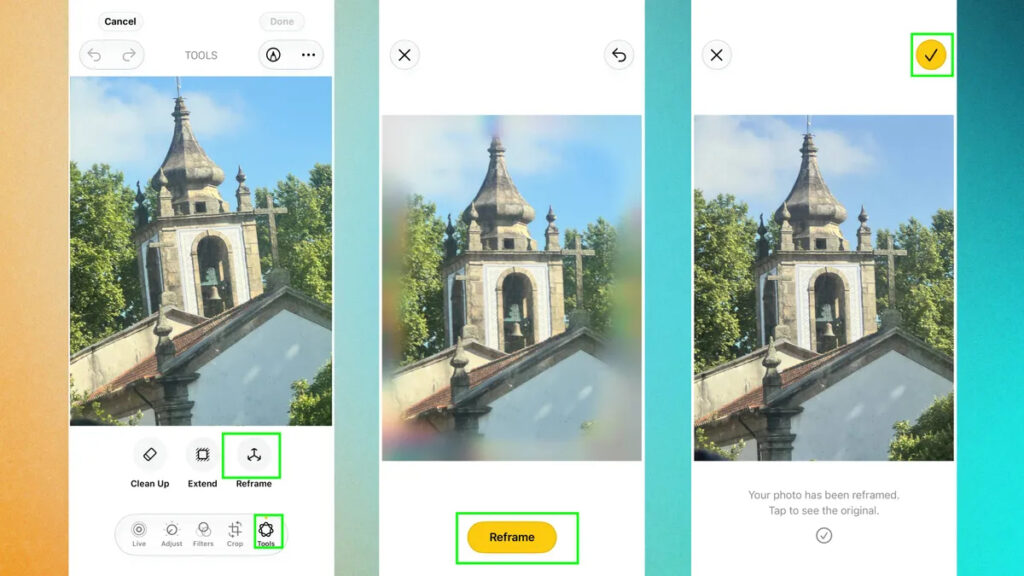
Reframe solves what previously could only be fixed by reshooting. The tool shifts the angle when the moment was captured but the angle turned out slightly wrong: for example, the edge of a sign or a lamppost crept into the top of a portrait.
It’s important to correctly understand the limits here. Reframe can fix a tilted horizon or vertical, slightly rotate the frame, and shift the viewpoint by a couple of steps. However, the tool can’t walk around an object and look behind it: the camera simply wasn’t there at that moment, and there’s nowhere to get the missing image from. This is correction of an already captured frame, not reshooting from a different position.
The process itself looks like this:
A great way to straighten vertical or horizontal lines
- Open a photo in the Photos app and enter editing mode.
- Tap on the tools and select Reframe.
- Move the image with your finger as if you physically shifted the camera before shooting.
- When the desired angle is found, tap “Save.”
Blurring appears at the edges when shifting — this is the area that the system fills in on its own. AI draws in the missing areas, trying to keep the scene cohesive. Part of the final image will not be real but generated, and this is worth remembering if the shot matters as a documentary record.
How to Extend a Photo on iPhone Without Losing Quality
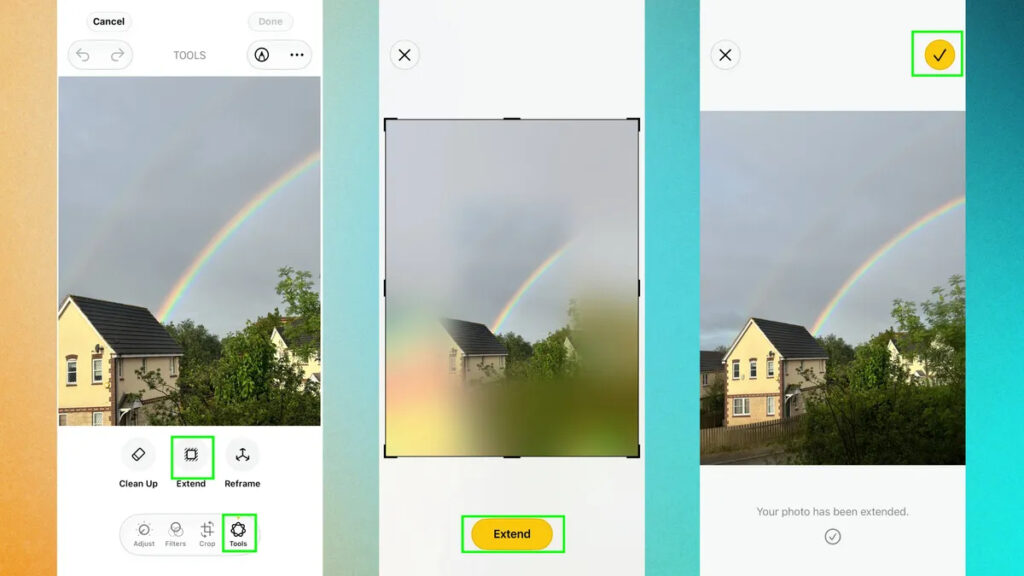
Extend works the opposite of cropping: it adds space around the edges of a shot that wasn’t there at the time of shooting. This helps when you couldn’t step back far enough and the frame turned out too tight.
There’s also a second scenario — a tilted horizon. Extend helps straighten a landscape: the tool draws in the top or bottom of the shot and gives the system room to correct the tilt without harsh cropping at the edges. Essentially, this is the same correction, not a rebuild of the composition from scratch.
To extend a frame, follow a few steps:
You can extend the frame if you want, but I wouldn’t recommend overdoing the extension
- Open the photo in editing mode and select Extend from the Apple Intelligence toolset.
- Stretch the edges of the image by pinching or dragging.
- Adjust how much to extend each side individually.
The missing areas, just like in Reframe, are generated by AI based on the image content. The simpler the background, the more natural the result: a clear sky or a solid-colored wall is filled in almost seamlessly, while complex architecture or faces may be slightly distorted by the system.
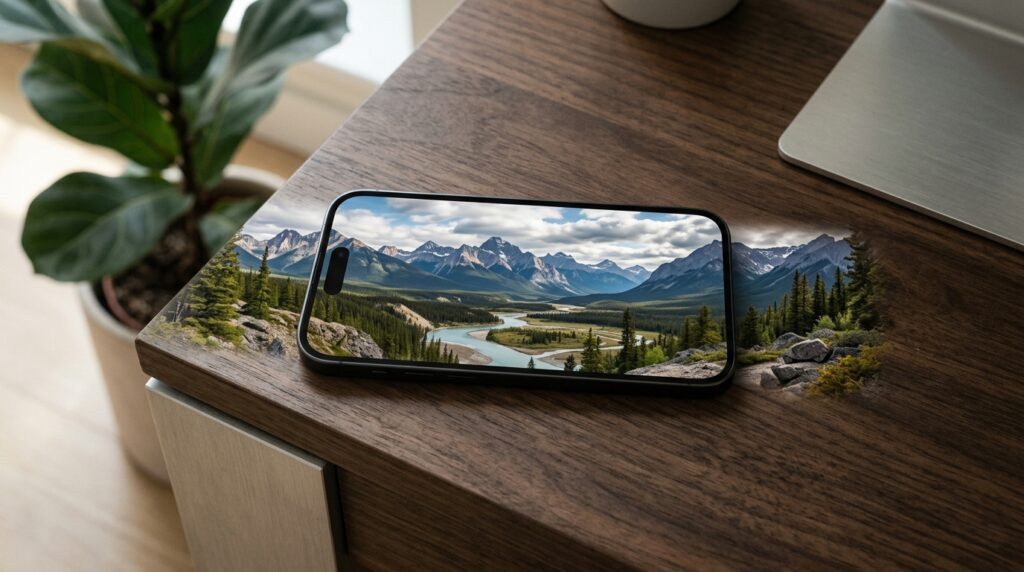
Essentially, frame extension looks like this
How to Remove Unwanted Objects from a Photo on iPhone
The Clean Up tool (object removal) existed before, but in iOS 27 it was significantly improved. The new version handles complex backgrounds better: someone else’s elbow in the frame, a trash can in the background, or a detail you only noticed at home on a big screen.
Here everything is even simpler:
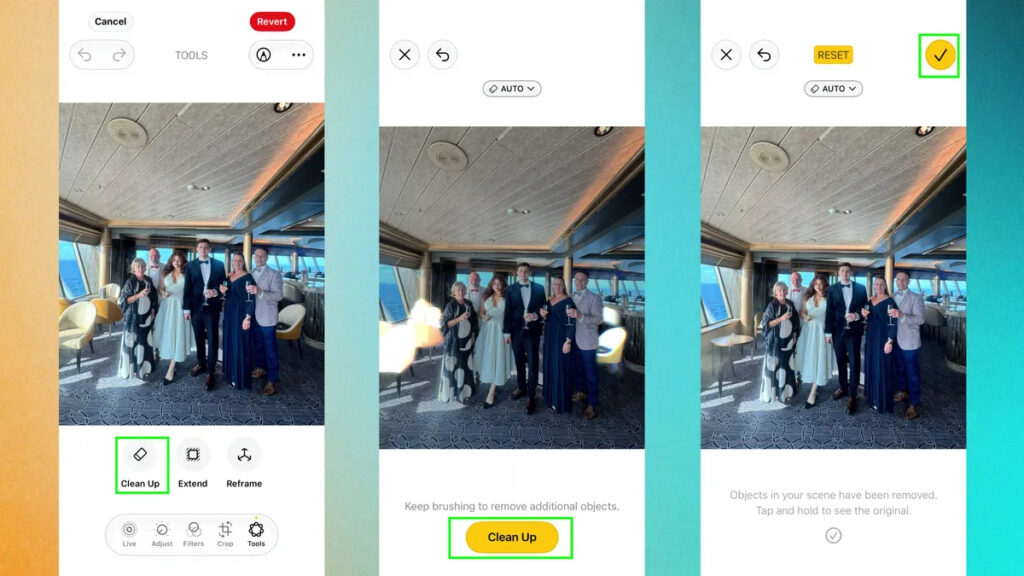
The new eraser works much better than the old one
- Select Clean Up from the Apple Intelligence toolset in editing mode.
- Tap the object you want to remove.
- Let the system analyze the background and fill in the freed-up space.
On simple backgrounds, Clean Up works instantly. Complex scenes with texture, shadows, and many small elements used to give themselves away with blurry patches, but now they are processed more accurately thanks to improved recognition. This is the main difference of the new version from the previous one.
When the AI Photo Editor on iPhone Is Actually Useful
These three functions address the most common everyday shooting mistakes: a crooked horizon, an unwanted person in the background, a too-tight frame. If you constantly shoot on the go and don’t like reshooting, edits right in Photos save time and eliminate the need for third-party editors.
It’s worth repeating the general limitation once more. The missing parts of the frame are drawn in by AI, which means the final photo partially stops being an honest shot. For social media and family archives, this isn’t a problem at all, but documentary or work-related shots with such edits should be treated more cautiously.
Updating just for these tools alone isn’t necessary. But if you take a lot of photos on iPhone, they will genuinely simplify editing unsuccessful shots. And for those who shoot rarely and don’t trust automatic fill-ins, you can safely pass on this.