A small green dot at the top of an Android screen means an app is actively using the camera or microphone at that moment. On Android 12 and newer, the indicator appears in the status bar whenever an app accesses one of these sensors, and tapping it reveals which app or service is responsible. If you missed the dot, Android’s Privacy Dashboard keeps a timeline of camera, microphone and location access, and per-app permission settings let you revoke access without deleting anything. Here is how the source author uses these built-in tools when the dot appears.
What you need to know
- The green dot is a privacy indicator built into Android 12 and newer; it lights up whenever an app actively uses the camera or microphone.
- Swiping down and tapping the indicator shows which app is accessing the sensor; tapping again opens that app’s permission settings.
- The Privacy Dashboard (Settings > Security & privacy) shows a history of camera, microphone and location access, even for moments you weren’t looking at the screen.
- According to the source, Android 16 QPR3 adds a blue indicator for location access, so a blue dot may mean an app is using your position.
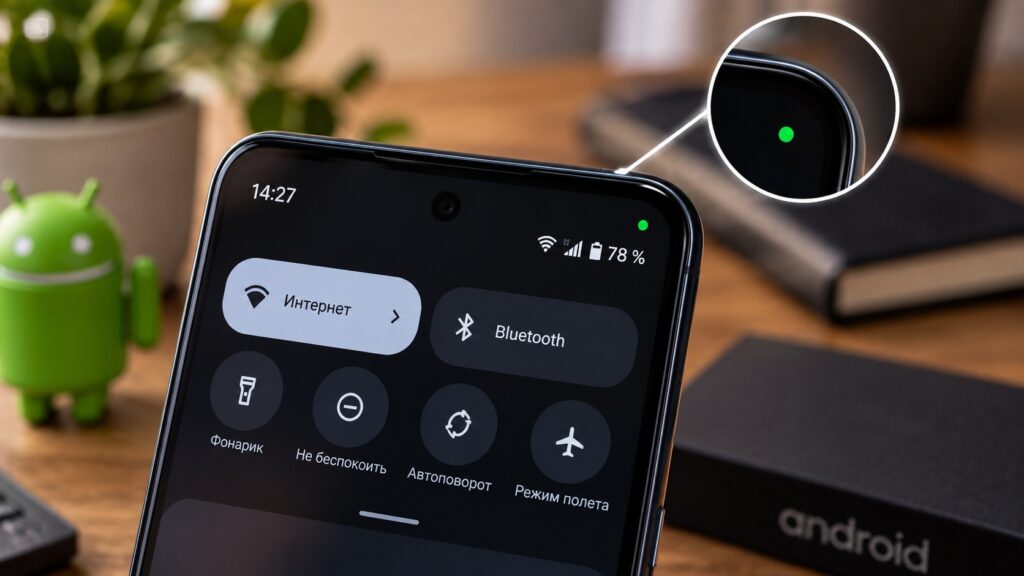
The green dot on an Android phone screen
What the green dot in the corner of the screen means
The dot is a privacy indicator that Google added to Android several years ago. The mechanism is simple: when an app requests the camera or microphone, a green icon appears at the top of the screen. On Android 12 and newer, the indicator shows up in the status bar every time an app actively accesses one of these sensors. It is deliberately small so it does not get in the way, which also makes it easy to miss: it is a tiny mark in the corner, not a full notification demanding attention.
The indicator does not always remain an obvious camera or microphone icon. Android may show the icon first and then shrink it to a small dot while access is still active. The exact appearance also varies between phones, so the specific symbol depends on the device and Android version.
The source author frames the dot as a warning sign worth acting on, since the app using the sensor could in principle be malicious. The indicator itself does not tell you whether the access is legitimate; it only tells you that access is happening.
Finding out which app turned on the camera or microphone
The most useful feature is that the dot is tappable. When an app is using the camera or microphone, the indicator appears in the top-right corner of the screen. Swipe down and tap it, and the system shows which app or service is currently accessing the sensor. Tapping again takes you to that app’s permission settings. The source author reports using exactly this route to review and remove five apps he had previously trusted.

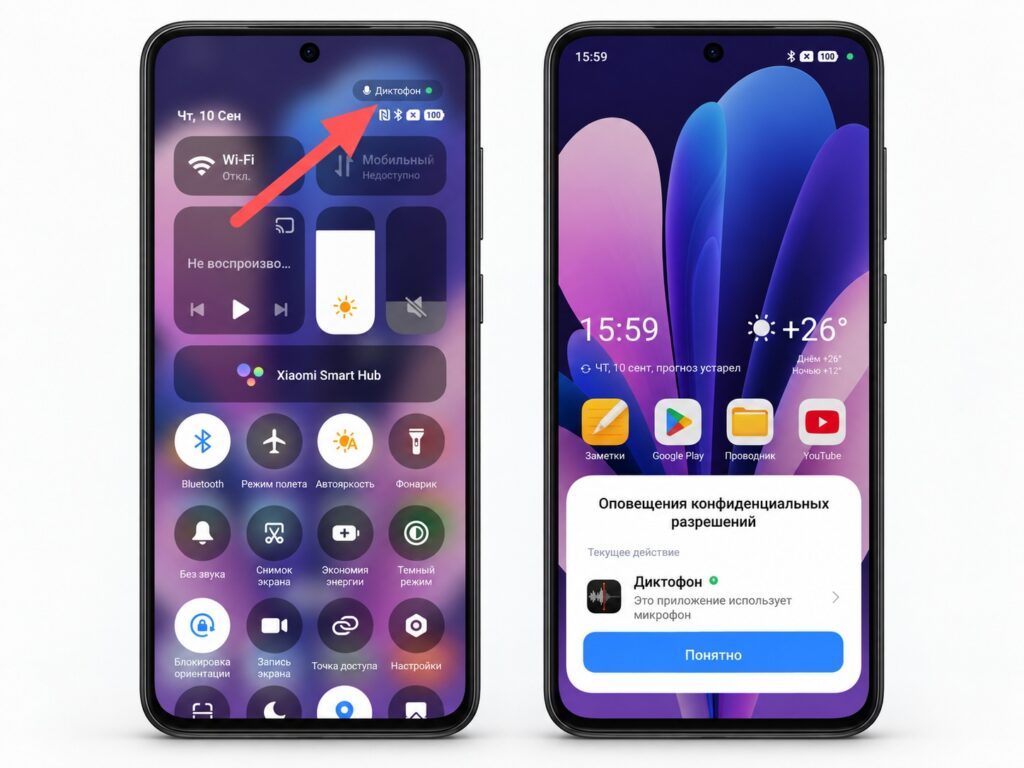
The voice recorder using the microphone on Android
The advantage is that you do not have to guess from your recently opened apps or dig through settings to find the culprit. The source also notes a recent addition: in Android 16 QPR3, Google added a blue indicator for location access, so a blue dot may mean an app is using your location.
Checking access history in the Privacy Dashboard
The dot only helps if you happen to be looking at the screen at the right moment. If an app used the microphone or camera while you were not watching the phone, the Privacy Dashboard covers that gap: it provides a timeline of permission activity, so you can go back and see which apps used the camera, microphone or location. To find it:
- Open the phone’s Settings.
- Go to Security & privacy.
- Open Privacy Dashboard (it may be labelled Permission manager or similar).
- Select the permission you want to check.
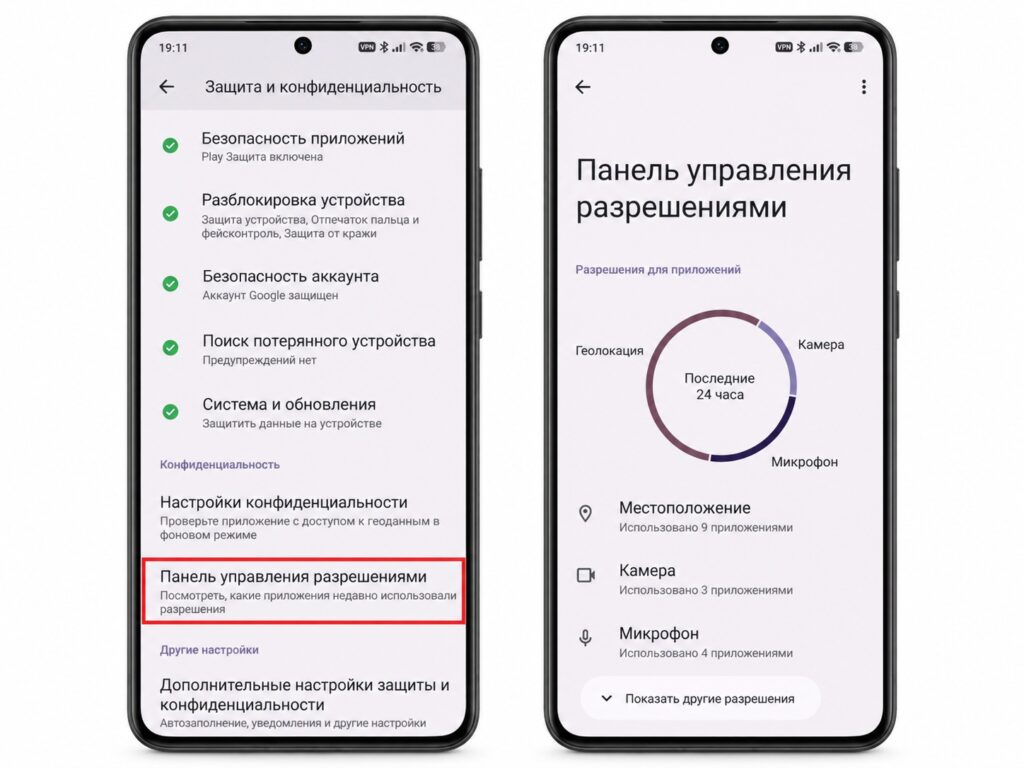
Checking permissions through the Android Privacy Dashboard
Menu names differ slightly depending on the manufacturer’s software skin and the Android version, but the logic is the same everywhere. The source cites a colleague who used the Privacy Dashboard to identify and delete an app that had been tracking him.

Reviewing the permissions you have already granted
After going through his own permissions, the source author reports a simple realisation: it is very easy to tap “Allow” once and never think about it again. You install an app, see a prompt, grant access because you need the feature, and then forget you ever gave it.
The good news is that there is more control than it seems. You can open the permission settings for a specific app, see exactly what is allowed, and change individual permissions without uninstalling the app. For the camera and microphone, the options are: allow only while using the app, ask every time, or deny entirely.
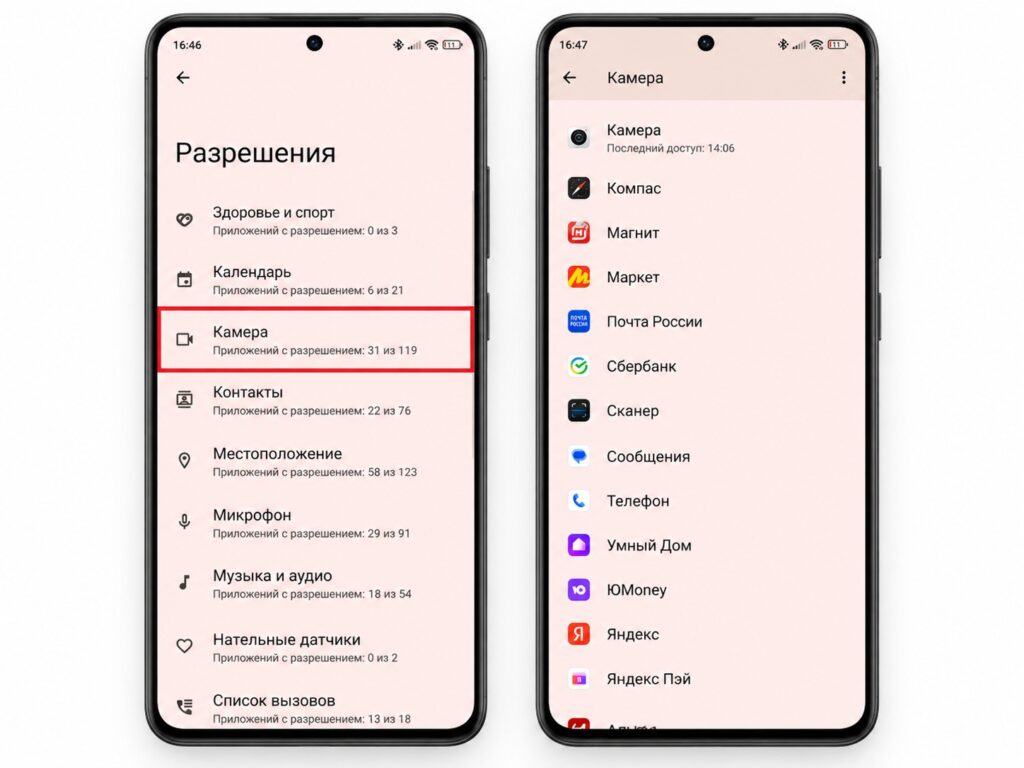
Revoking unnecessary permissions on Android
There is also a safety net for apps you have stopped using: Android can automatically reset permissions for unused apps. Even so, the source author says he prefers to check important permissions manually rather than relying entirely on that feature.
Who benefits from the privacy indicator
Taken together, you have several tools: the dot itself catches access as it happens, the Privacy Dashboard shows the history, and per-app permission settings plus a general on/off switch give you control. This is particularly useful if you notice unusual sensor activity, install many apps from different sources, or simply want to understand what your phone is doing.
Nothing needs to be downloaded separately; all of this is built into Android 12 and newer. So the next time a green dot flickers in the corner, the source author’s advice is to spend a second checking which app lit it up.


