I previously covered how to set up Android lock screen. It’s a basic protection without which you risk far more than you think. But here’s another scenario: the phone is already unlocked, you get distracted for a second, and someone picks it up to “check the time” or “make a call.” Is a minute a lot or a little? I break it down by specific seconds to show what can realistically be discovered.
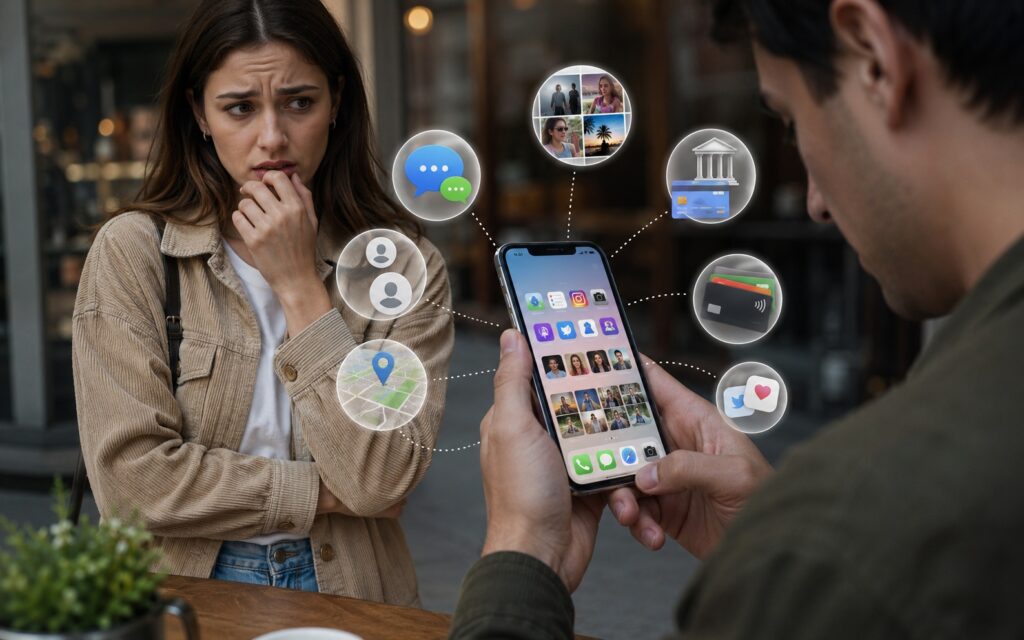
How dangerous is it to let other people use your smartphone?
What Can Be Learned from a Phone in One Minute
Intuition tells you: nothing terrible can happen in a minute. That very feeling is what makes it dangerous. I tested it personally — I took my phone and timed it. In 60 seconds on an unlocked phone, you can realistically: browse the latest photos in the gallery, read several recent messages, find out the geolocation, and photograph the screen with another device.
For most of this, you don’t even need to specifically search for anything — it’s enough to simply open what’s right on the surface. Someone picks up the phone and they already get the first data about you before they’ve consciously opened anything.
What’s Visible Through Android Notifications
On the lock screen, notification contents are displayed by default. But we’re talking about an unlocked device here — notifications are shown in full right in the notification shade.
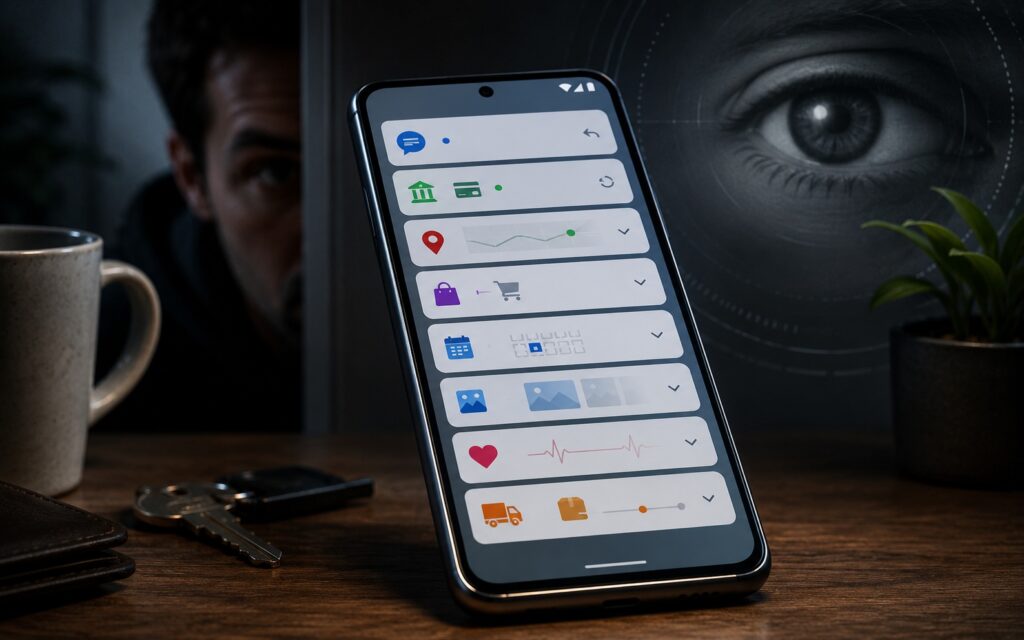
Even through the lock screen, a lot can be learned about you
What’s usually there: names of people from messengers with conversation fragments, confirmation codes from banks, transaction notifications with amounts, geolocation reminders like “You’re near home.” In 10-15 seconds of scrolling through the notification shade — someone grabs the unlocked phone — and it’s already clear who you communicate with, how much money you spent today, and approximately where you are.
Solution: in notification settings, set the mode to “Hide content” — then even on an unlocked screen, the notification shade will only show titles without text. Android lock screen is useful, but configuring notification content is separately important.
Apps Without Passwords — Why They’re Dangerous
Most apps don’t require re-entering a password if they’ve already been opened in the current session. This means: the gallery, browser with history and autofill, email, messengers — everything opens instantly. Android protection at the system level doesn’t help if apps are already authorized.
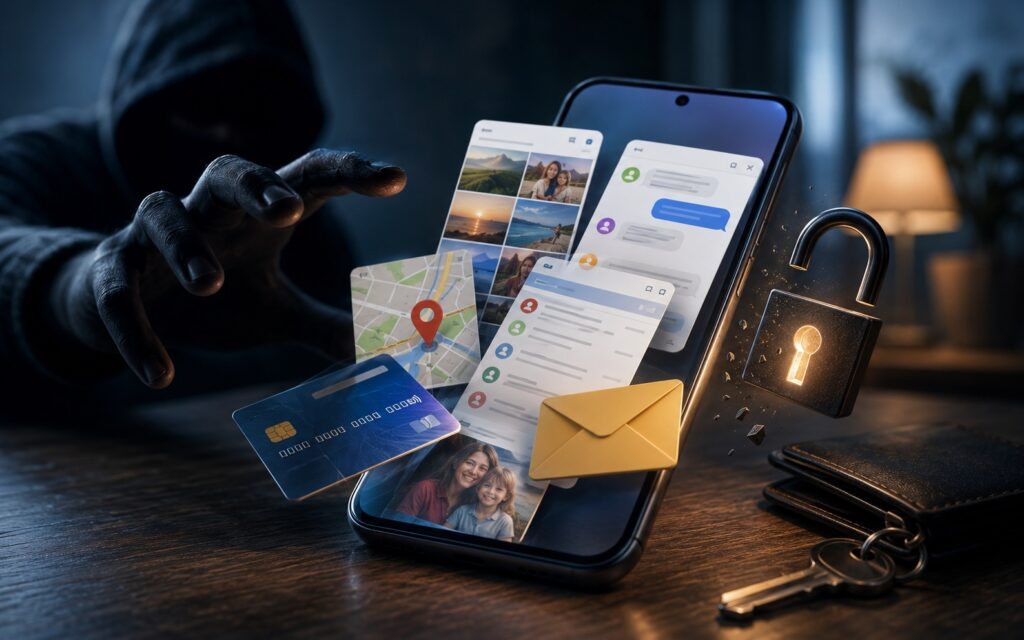
If you don’t password-protect your apps, all your data will be at risk
The gallery is the most vulnerable spot. Recent photos and videos are immediately available in chronological order, geotags if enabled, screenshots with passwords, QR codes, and documents that people photograph “for safekeeping.” Meanwhile, browser history reveals interests and visited sites, open tabs show unclosed purchases and searches.
How Android App Protection Works
App lock is a separate layer of protection on top of the system lock screen. You can learn separately about how to set a password on an app. In short: on most Android smartphones, this is done through built-in tools.
Specific settings you should configure right now:
- password on apps — gallery, banking apps, and messengers first;
- hide notification content: “Settings — Notifications — On lock screen — Hide content”;
- disable message previews in messengers — in each app’s settings separately;
- Xiaomi and Samsung have a built-in app lock function through security settings (which is often unjustly neglected).
Android app protection through built-in tools takes only 10 minutes. Don’t forget that unlocking the Android screen shouldn’t automatically grant access to all device contents.
What to Do If Someone Else Took Your Phone
Don’t hand your smartphone to strangers
If smartphone protection wasn’t set up in advance and the phone was in a stranger’s hands for some time, here’s a specific checklist to review:
- check which apps were opened most recently and in what order;
- check for new tabs and visited addresses;
- gallery — sort by creation and viewing date, screenshots especially;
- settings — sometimes sync parameters are changed or accounts are added;
- go to “Settings — Privacy — Permission Manager” and check recently granted permissions.
A locked screen is the minimum protection, but even with it, most of the described scenarios become irrelevant. Screen lock plus passwords on key apps is already a serious barrier. Android theft protection is a separate topic, but it starts precisely with these basic settings, not with complex scenarios.


