Since the iPhone switched to USB-C, plugging in a flash drive or external SSD to offload photos or watch a movie has become routine, which raises a simple question: can you just pull the drive out? There is no “Eject” button in iOS or iPadOS, and the original report describes that as a deliberate design choice rather than an omission. Apple’s position is that an external drive connected to an iPhone or iPad can simply be pulled from the USB-C port. The catch is that this only holds when the drive is idle. Unplugging a flash drive or external SSD while files are still being written can leave you with a half-copied file, a corrupted folder or, in the worst case, a drive the iPhone no longer recognizes. Below is what actually happens at the moment of disconnection and how to avoid data loss.
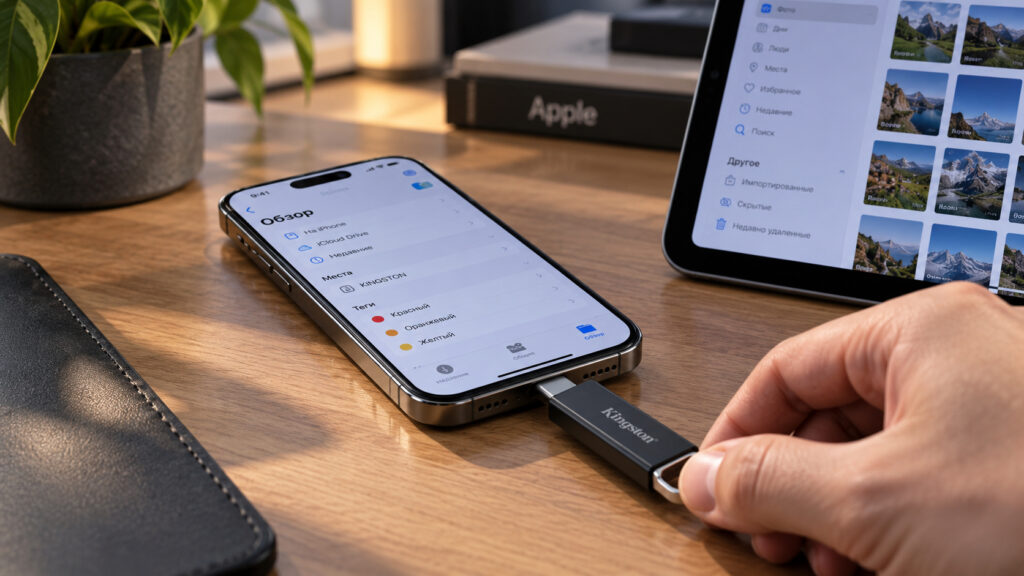
A flash drive being pulled out of an iPhone’s USB-C port
What you need to know
- iOS and iPadOS have no “Eject” option for external drives; Apple’s long-standing guidance is that drives can simply be unplugged when idle.
- Pulling a drive mid-write can produce incomplete files, damaged folders or an unreadable drive, and iOS has no built-in tool to repair a corrupted file system.
- External SSDs are more vulnerable than simple flash drives because many use an internal write cache that the iPhone does not flush before disconnection.
- Waiting for transfers to finish, closing the Files app and checking the drive’s activity light eliminates most of the risk.
Why the iPhone has no “Eject” button
On a computer the routine is familiar: click “Eject,” wait, then remove the drive. In iOS and iPadOS there is no such button at all. This is an intentional decision by Apple, which has said for years that external storage does not need to be ejected in software and can simply be removed from the port. Formally, then, unplugging a drive without ceremony is allowed.
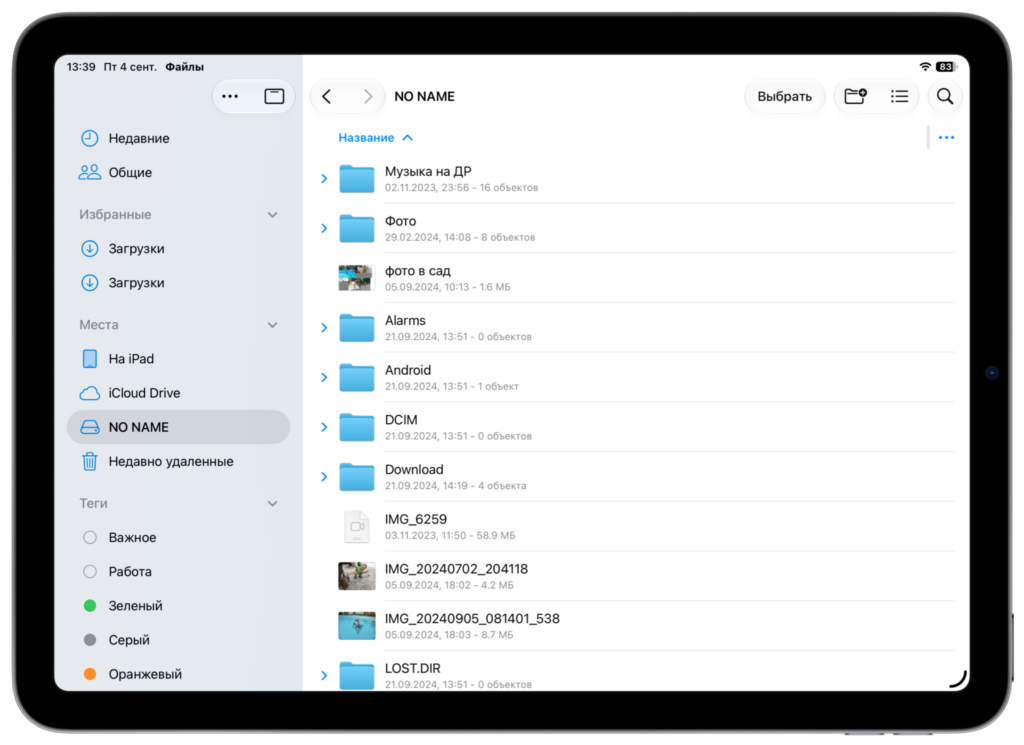
There is no eject option in the Files app
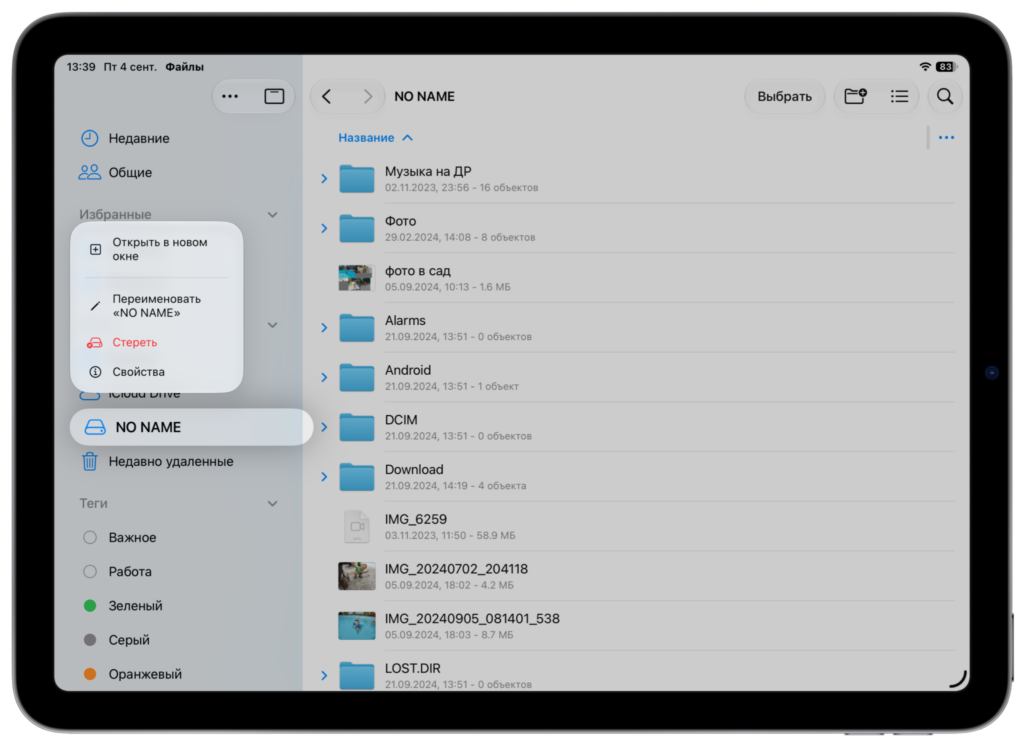
No safe-eject option in the additional menu either
There is one qualification that gets far less attention. The freedom to remove a drive at any moment applies only when the drive is not doing anything at that instant. While a copy operation is in progress, yanking the drive becomes a gamble.
What happens if you unplug a drive during a write
The short answer: it depends on what the drive is doing at that moment. If you were just browsing photos, or had already closed every app that was using the drive, nothing bad should happen. The drive disconnects and the files remain intact.
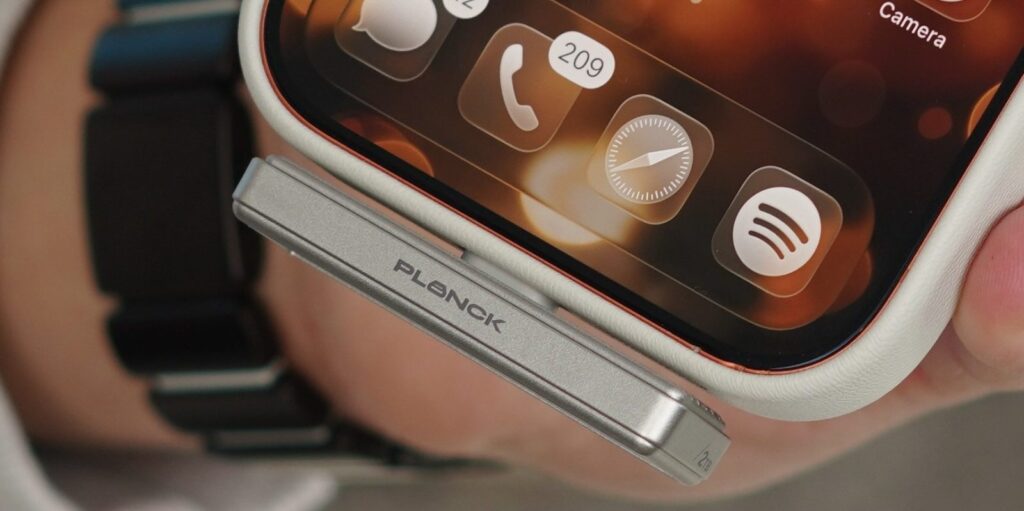
An external drive connected during a file transfer
Problems arise when the drive is pulled while data is actively being written. The iPhone is still copying a file, part of the data is sitting in a buffer, and the connection is cut. The outcome is unpredictable: an incomplete file, a corrupted folder or, in the worst case, a drive the iPhone can no longer see at all. This exposes an awkward limitation: iOS cannot repair a damaged file system. Unlike Windows and macOS, it ships no built-in disk-repair utility, so the drive has to be taken to a computer and checked there.
Why an external SSD is riskier than a basic flash drive
Not every drive tolerates a rough disconnection equally well. A simple USB flash drive without complex electronics forgives almost any carelessness: if nothing is being written, it can be pulled freely. External SSDs are more sensitive, and many of them have an internal write cache.
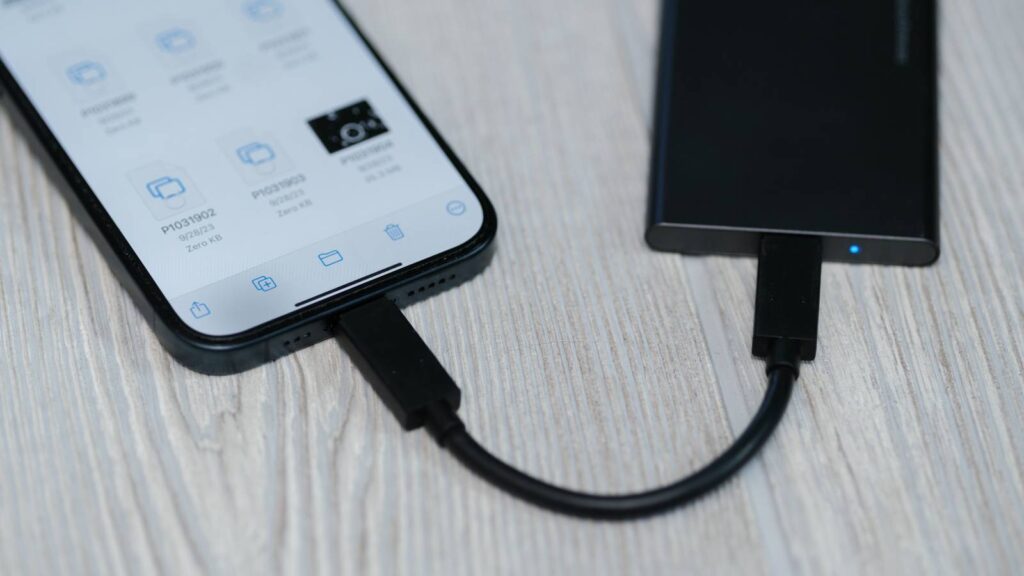
An external SSD connected during a file transfer
The issue is that a fast SSD does not always commit data to permanent storage immediately. Data lands in a buffer first and is moved to flash memory from there. Before ejecting, a computer instructs the drive to flush that buffer completely. An iPhone does not do this: it simply gives the drive no warning that it is about to be disconnected. If the SSD is pulled at the wrong moment, some cached data never reaches permanent storage and the file system is flagged as damaged. This is the origin of the frequent complaints that a drive used with an iPhone will not open until it has been “repaired” on a computer.
How to disconnect a drive safely
Avoiding these problems does not require anything complicated. A few simple habits, which apply equally to iPhone and iPad, keep both the drive and the files intact.
- Wait for copying to finish. While a file-transfer indicator is showing on screen, leave the drive alone.
- Close the Files app before pulling the drive. This ensures the system stops accessing the disk.
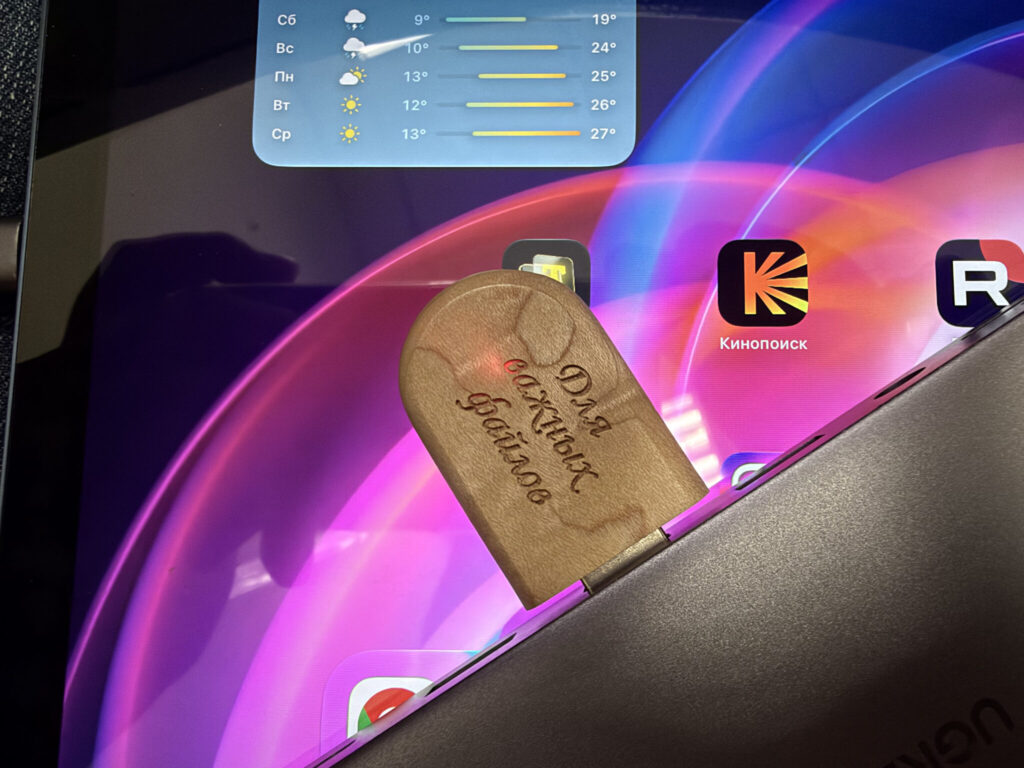
A steadily lit indicator on a connected flash drive
- Check the indicator light on the flash drive or SSD itself. If it is blinking, data is still being exchanged; give it a few seconds.
- For extra peace of mind, lock the screen or, better still, power the device off entirely before removing the drive.
Followed consistently, these steps erase the practical difference between “just unplugging” and “safely ejecting.” If a drive does stop opening after a bad disconnection, the remedy is to run a disk check on a Windows or macOS computer, since iOS offers no repair tool of its own. Otherwise, there is no reason to be wary of USB-C storage on an iPhone: handled with care, external drives work without complaint.


