Uninstalling an Android app normally removes its program files, private data and cache, so leftovers are not always the reason storage barely changes. Apps can, however, save files outside their own data, such as exported videos, saved photos, documents or extra folders in shared storage, and those files can remain after the app is gone. You can usually find them with the phone’s built-in file manager or with a cleanup tool such as SD Maid 2/SE. Review anything before you delete it, because folder names can be misleading and some folders are shared by several apps.
What you need to know
- A standard uninstall should delete an app’s executable files, private data and cache, including its directories in Android/data, which are access-restricted on modern phones.
- Files an app saved separately in shared storage, such as exported projects, saved media and documents, can remain after the app is removed.
- A gap between an app’s listed size and the space freed does not prove leftovers exist, because the storage figure may update late.
- Archiving an app through Google Play keeps some user data on purpose so the app can be restored later. That data is not leftover junk.
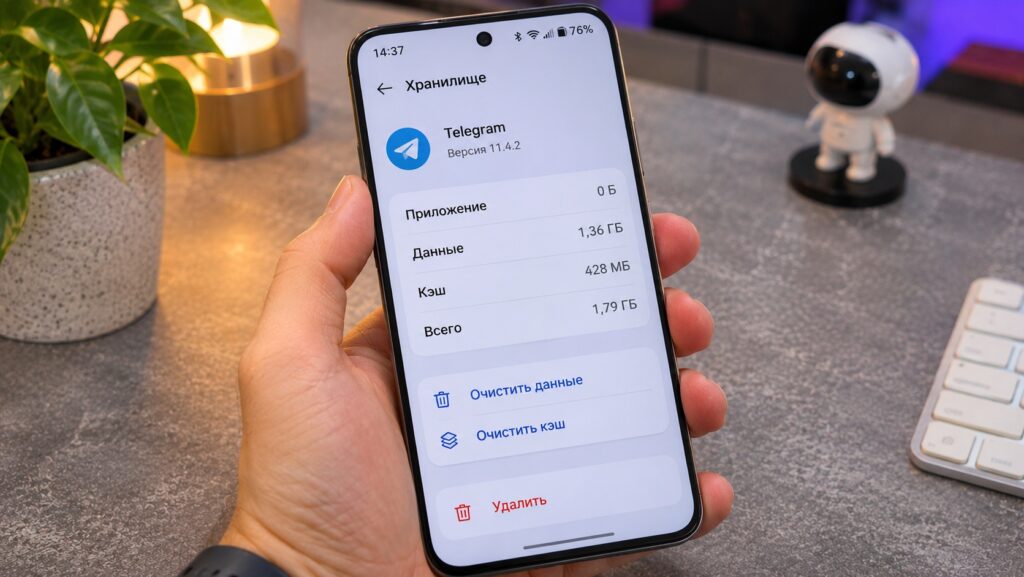
The Telegram app takes up a lot of space on Android
What Android removes, and what it can leave behind
Deleting an app is often the first thing people try when a phone runs low on storage, especially if the app is a large game or a program they have not opened in a long time. Sometimes the app disappears but very little space comes back. It can look as though Android removed only the icon and left everything else behind.
That impression is only partly right. A standard uninstall should erase the app’s executable files, its private data and its cache. This includes the app’s own directories in Android/data, which modern phones restrict access to. The common belief that every uninstall leaves gigabytes of junk in those folders is not accurate.
Apps can, however, save files separately from their own data. For example, a video editor might export finished clips to shared storage, a messenger might save photos there, and a game might use extra folders for user-created content. Files like these can survive the uninstall. The most common leftovers are:

- extra folders the app created in shared storage;
- saved videos, photos and documents;
- exported projects and other output from the app;
- resources the app placed outside its own system directories.
A gap in freed space does not prove leftovers exist
There is an important caveat. Suppose you uninstall a 5 GB game and only 2 GB is freed. That does not prove 3 GB of leftover files remain. The system’s storage figure can take time to recalculate, and the size Android shows for an app does not always predict exactly how much space you will get back.
How to look for leftover folders manually
You do not need extra software to check whether anything remains. The built-in file manager is enough to start:
- Open the phone’s built-in file manager.
- Go to the phone’s internal storage.
- Look for a folder named after the deleted app or its developer.
- Open the folder and check what is inside.
- If you no longer need the files, select them and delete them.
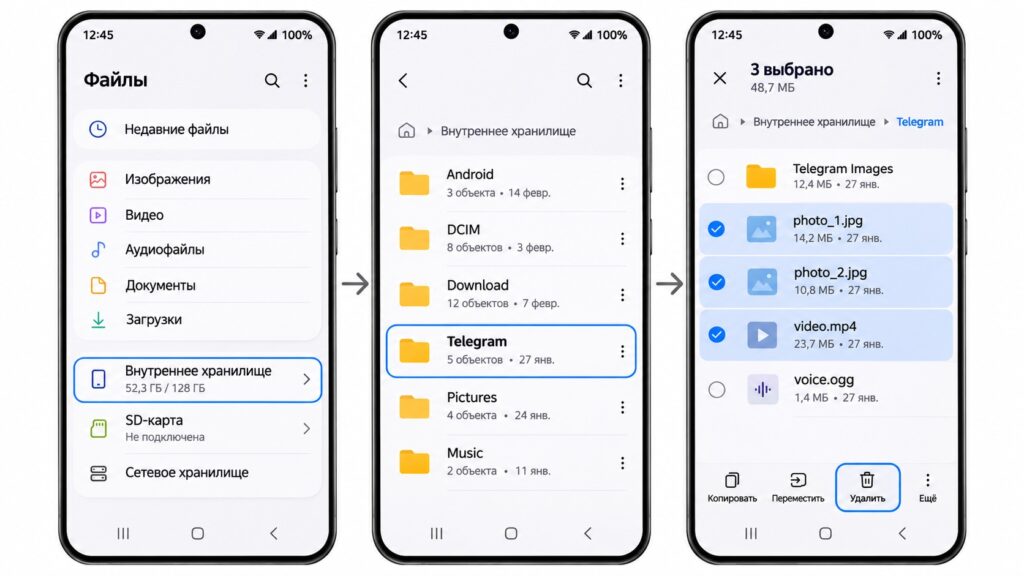
Deleting files from an app folder
For example, a deleted video editor may leave behind exported clips that it wrote to a separate folder. A deleted game may leave user files stored outside its standard app directory.

Do not delete folders blindly. A folder’s name does not always show which app its files belong to, and some directories are used by several programs at once.
Using SD Maid 2/SE to find leftovers automatically
If you have installed many apps over time, searching folder by folder is tedious, and not every directory is named after the app that created it. One tool for this task is SD Maid 2/SE. It includes a feature called CorpseFinder, which is designed to find likely remnants of uninstalled apps. CorpseFinder scans the files and folders it can access and tries to work out which ones no longer belong to any installed app.
To use it:
- Install SD Maid 2/SE from a trustworthy source, such as its Google Play listing.
- Open the app and grant the file-access permissions it asks for.
- Open the CorpseFinder tool.
- Run a scan and wait for the list of leftovers it finds.
- Check the names and contents of the folders, then delete only the ones you do not need.
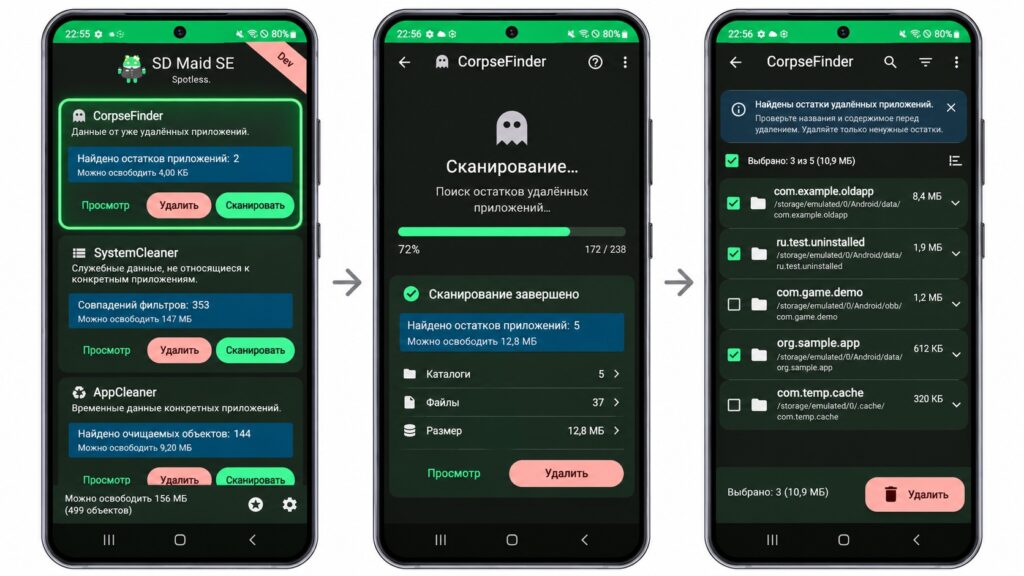
Removing unneeded app files with SD Maid 2/SE
Limitations of automatic cleanup
- Whether you can delete the files SD Maid finds depends on the app version and on which paid features you have.
- SD Maid cannot get around all of Android’s restrictions on access to other apps’ system directories.
- Automatic detection makes mistakes. Not every folder the app flags as a leftover should actually be deleted.
Review the scan results carefully before cleaning anything.

Sometimes there is nothing left to delete
The opposite can also happen. You may be sure an app left a lot of junk behind, yet the file manager finds nothing and SD Maid shows no suspicious folders. In that case, Android may well have already removed all the app’s data correctly. It is worth checking just a few things:
- the app was actually uninstalled, not just removed from the home screen;
- you did not archive it through Google Play, which keeps user data;
- no files you deliberately saved from the app remain in shared storage;
- the system has had time to update its free-storage figure after the uninstall.
The difference between uninstalling and archiving matters most. When you archive an app, Android keeps some of its data on purpose so the app can be restored later. This is intended behavior, not junk left behind by mistake.
Avoid hunting for leftovers with questionable file managers that ask for extended permissions. On modern versions of Android, apps’ system directories are protected, and you usually do not need to force-clean them.
The bottom line
If storage barely changes after you delete an app, do not start by wiping your whole phone. Start by checking for files that this particular app created. In most cases, Android removes everything it needs to on its own. When leftovers do exist, you can find them manually or with a dedicated tool, as long as you review them before deleting anything.