Downloading UBRiR on iPhone is once again possible directly from the store, and this is not a joke. The bank’s client app has returned to the App Store, only it’s hiding under the neutral name “RUbli.” The app is genuine and fully functional — we verified this — but nobody is making a big deal about it: Apple cleans out such clients quickly, so the less noise, the longer the link survives.
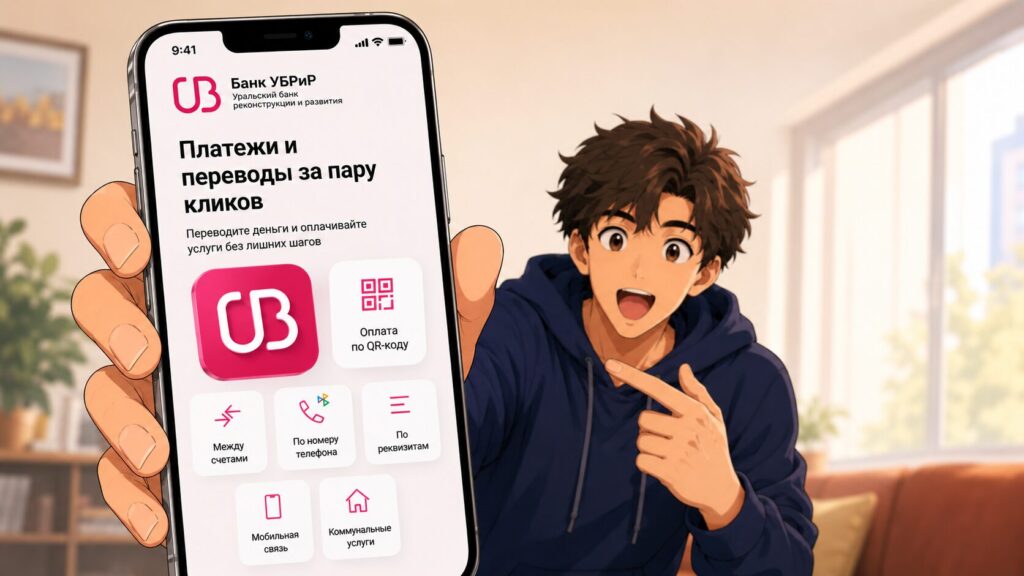
UBRiR is back in the App Store. But downloading it is a bit trickier than it seems
The story is painfully familiar. After sanctions, Russian bank apps disappeared from the App Store one by one, and developers started re-uploading them disguised as budget trackers, planners, and other harmless financial utilities. UBRiR for iPhone took the same path, but its return has a nuance worth knowing about in advance.
What Is the RUbli App and Why the New UBRiR Isn’t Being Publicized
In the store, the client sits under the name “RUbli” and formally looks like a simple personal finance tracking app. Inside, however, you’ll find the familiar UBRiR mobile bank with all its features: cards, payments, transfers by phone number, transaction history, and QR code payments. We installed the new UBRiR for iPhone, logged in with our account, and ran through the main scenarios. Everything works just like in the old client — no catches inside.
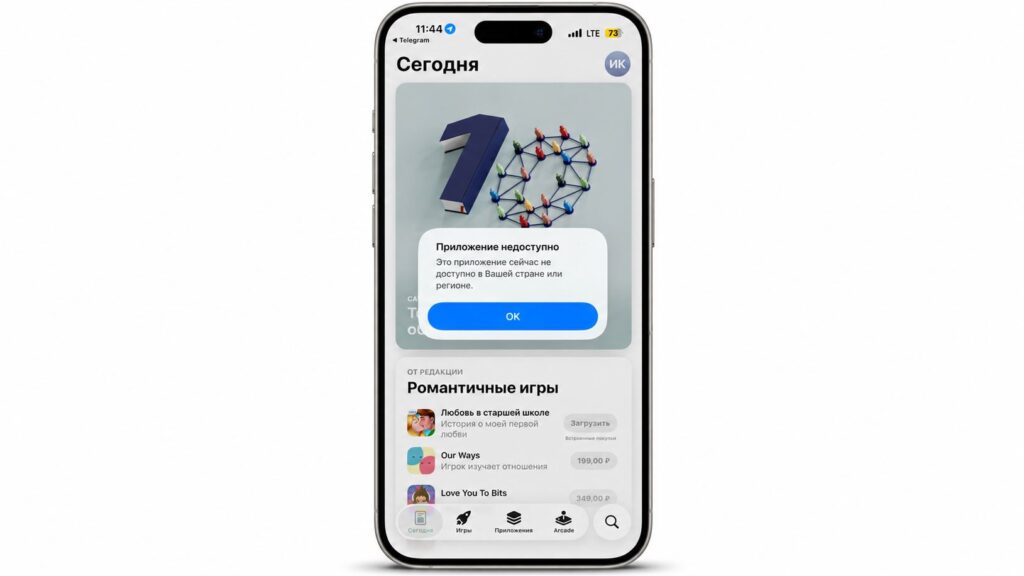
The bank’s app is unavailable in the Russian App Store
So why the silence? It’s simple. As soon as such an app gains popularity and catches Apple’s attention, it gets removed from the store. That’s why the bank and media try not to draw unnecessary attention to it, so the download window stays open longer.
Can’t Download UBRiR on iPhone — What to Do
Now here’s the trick. Unlike recent clients from Sber or T-Bank, the “RUbli” app from UBRiR is unavailable in the Russian App Store. If you simply type the name into search with your account, the store won’t show it, so you can’t download UBRiR directly. To reach the client, you’ll need to temporarily change your App Store region. It sounds scarier than it actually is: the whole operation takes a couple of minutes.
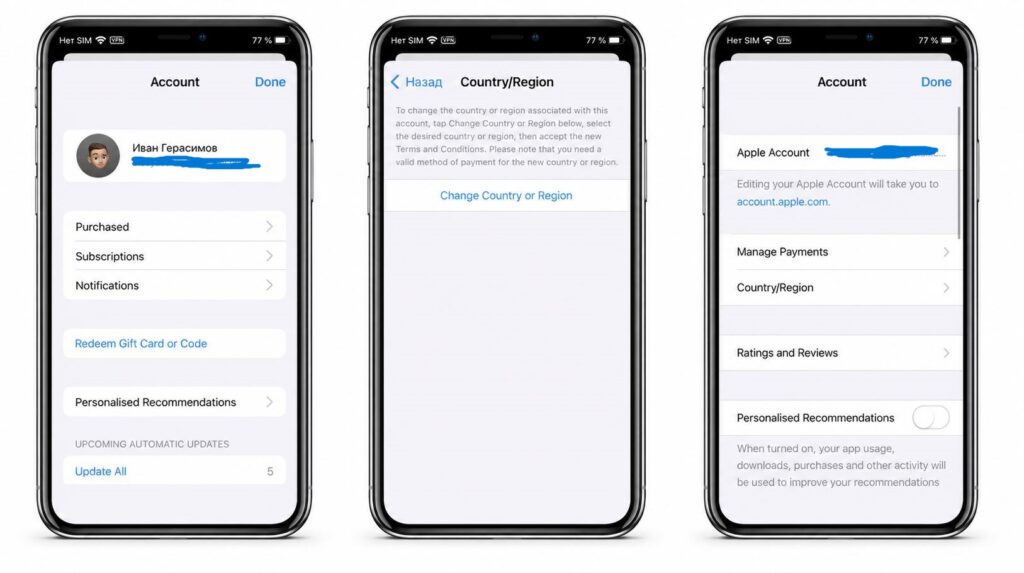
To download UBRiR on iPhone, simply change your App Store region
And right away, something important: you don’t necessarily need to change your Apple ID region. It’s enough to simply change the country in the App Store, and right after you can safely switch back to Russia.
- Open “Settings” and tap your name at the very top of the screen.
- Go to the “Media & Purchases” section and select “View Account.”
- Open the “Country or Region” option.
- Tap “Change Country or Region” and choose a different country from the list, for example Belarus.
- Agree to the App Store terms for the new region.
- Fill in the payment method details that the store will request on the next step.
This is where the key moment lies. When changing regions, the App Store will ask you to specify a payment method and a billing address in the new country. A real card isn’t needed, but the system checks the address format. The easiest way is to take a ready-made correct address from a generator: it produces plausible data for the selected country that the App Store accepts without issues.
Open the generator, select the same country as in your settings (Belarus in our example), copy the postal code, city, street, and phone number, then paste them into the App Store form. The payment method can be left empty if the store gives you the option to select “None.” By the way, you can choose any country you like.
How to Download UBRiR on iPhone and Switch the Region Back to Russia
Once the region is changed, go back to the App Store and search for the “RUbli” app. Now the store will display it: download and install it like any regular free app. That’s how you download UBRiR on iPhone, bypassing store restrictions. After installation, the client won’t go anywhere, even if Apple later removes it from the App Store.
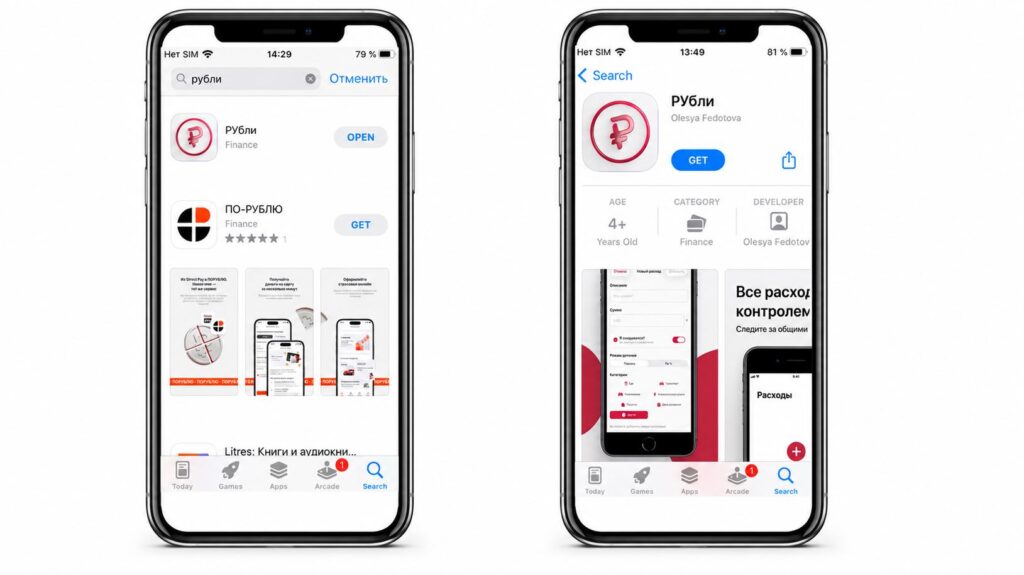
The app really is in the App Store. But finding it is tricky
Right after downloading, switch your region back to Russia via the same settings path. This has no effect on the already installed app: it will continue to work, and you’ll regain access to the familiar Russian App Store. Log into your UBRiR personal account with your username and password, just like in the old client, and start using it.
One more thing. If you still have the old bank client on your iPhone, after installing the new one you should delete it. This way you won’t get confused about which version is the working one, and you won’t run into extra bugs when logging in.


