If ChatGPT keeps changing your face when it places you in a new scene, the author of the original article suggests starting the prompt with /face preserve. This is not an official OpenAI command. It is a prompting habit that, in the author’s single test, carried his facial features over almost unchanged. A second tag, /humanize, is meant to make results look less like a glossy render and more like a real photograph. Below is how the author used both tags, what he reports they did, and where the approach falls short.
What you need to know
- ChatGPT does not edit an uploaded photo. It generates a new image and uses your picture as a reference, so it often smooths skin, reshapes the eyes or sharpens the cheekbones.
- The author says ChatGPT has no slash-command menu for images and that he has not seen OpenAI describe a feature like this. In his view, the tag works only as a strong emphasis in the prompt.
- Results depend most on the source photo. Profile shots, sunglasses, masks, poor lighting, beauty filters and group photos work worst.
- The tag should be repeated in every new message. Otherwise the face may drift in follow-up generations.
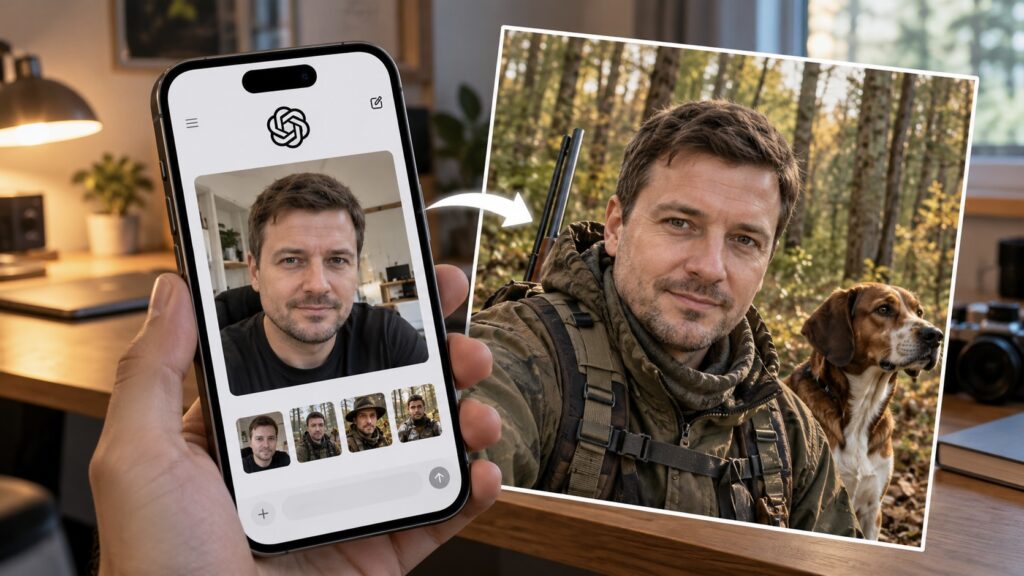
Preserving facial features when generating images in ChatGPT
Why ChatGPT changes your face
The problem comes from how ChatGPT handles images. It does not edit the uploaded snapshot. It draws a new image from scratch and treats your photo as a hint. As a result, the face often comes out as a loose interpretation of the original. The model may smooth the skin, slightly change the shape of the eyes or make the cheekbones more pronounced. The result can look similar, yet people who know you may not be sure it is you.

ChatGPT app icon on an iPhone screen
What the /face preserve tag does, and what it is not
The suggested fix is to put /face preserve at the very start of the prompt. Then you describe what you want: different clothes, a new background, accessories or an entire scene. According to the source, the facial features should stay the same, and only the elements you asked for should change.
The author stresses that this is not an official command. He says ChatGPT has no slash-command menu for images, and he has not seen OpenAI describe such a feature. His explanation is that the model treats a short tag at the start of a prompt as a clear instruction and tries to leave the face alone. He compares it to writing “IMPORTANT” in an email to a colleague. Nothing formally changes, but that part gets more attention. This explanation is the author’s interpretation. It is not a documented mechanism.
The author’s test: a realistic hunting portrait
The author chose a realistic image for the test because cartoon styles hide distortions more easily. He started with an ordinary portrait: a black background, a grey T-shirt and a direct look into the camera. He uploaded it and wrote a prompt that, translated from Russian, reads /face preserve draw me in a forest in a hunter's outfit. He added no further details because he wanted to see how the model would handle the task on its own.
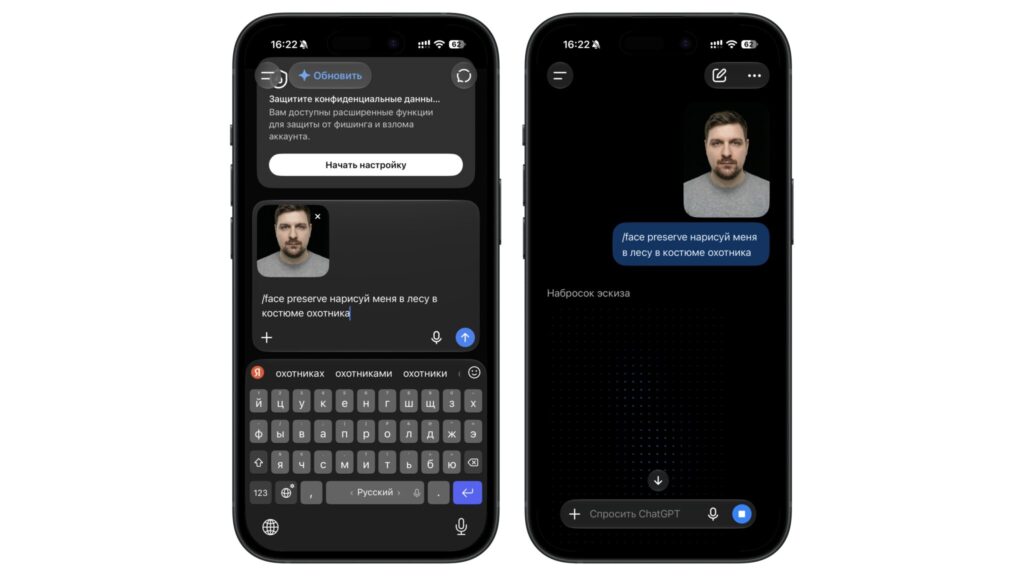
Generating an image with the /face preserve tag
Steps described in the source
- Open a new chat in ChatGPT and tap the plus button next to the input field.
- Upload a photo in which your face is clearly visible.
- Start the prompt with /face preserve.
- After a space or on a new line, describe the scene, clothing and setting.
- Send the prompt and wait for the result.
The author reports that the result surprised him. The image showed an autumn forest, a hooded camouflage jacket, a backpack and a rifle with a telescopic sight. The main point, he says, is that his face was carried over almost unchanged. The beard and moustache had the same shape, the hairline was the same, the eye colour matched, and even a slight asymmetry remained. He notes that image models usually try hard to “correct” that kind of detail.
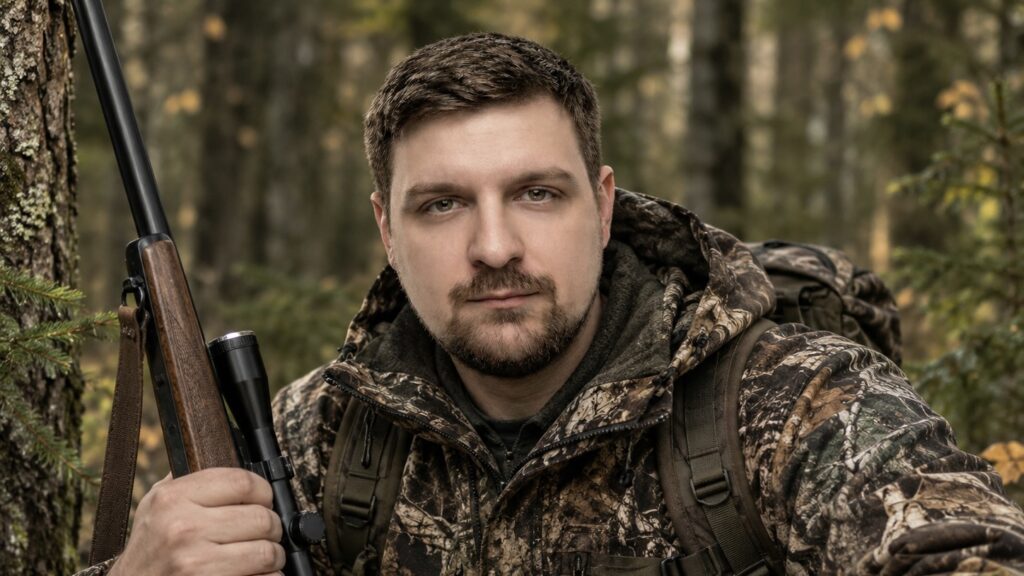
A photo generated by ChatGPT without altering facial features
According to the author, ChatGPT did not simply cut out his head and paste it onto a new body. It turned him slightly, replaced the studio lighting with soft daylight, added natural shadows and tousled his hair a little. He says the face fit the scene but still looked like him.
He also credits the source image for much of the success. His portrait was shot in even light without harsh shadows, so the model had plenty of detail to work from. He suggests that a plain wall and an inexpensive ring light are enough to take a similar photo at home.
This is one person’s test with one photo, so results may differ for other users, other images and other prompts.
The /humanize tag for a less “plastic” look
The second tag is aimed at realism. The author notes that ChatGPT images often give themselves away through overly smooth skin, perfect lighting and a glossy sheen. According to him, adding /humanize to the prompt makes the image look more like a real photograph.
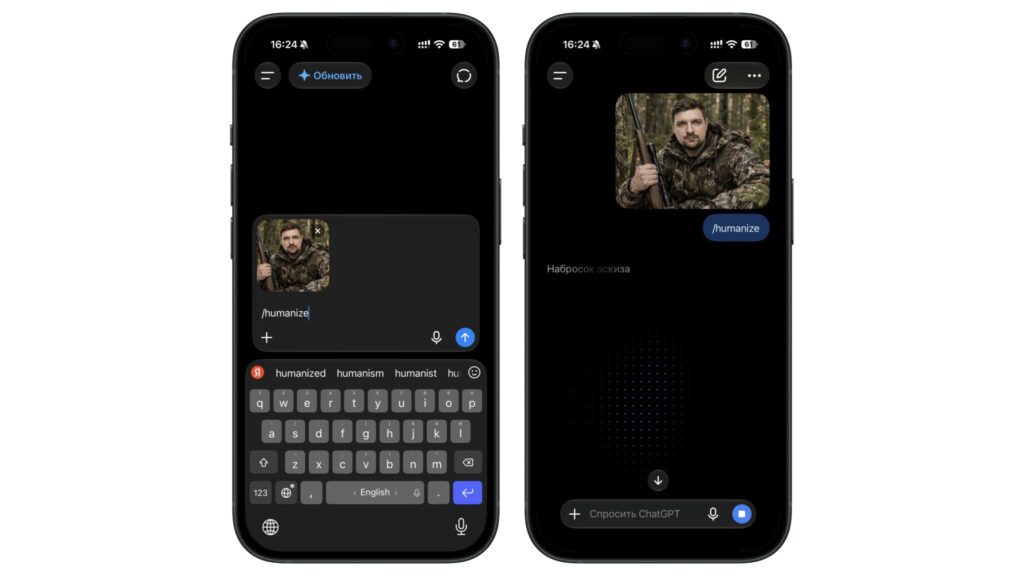
Generating an image with the /humanize tag
The source says the difference is usually noticeable right away. Without the tag, a portrait often looks like an advertising render. With it, skin texture, small imperfections and more natural shadows appear. The face looks less doll-like, and the frame is less obviously AI-generated.
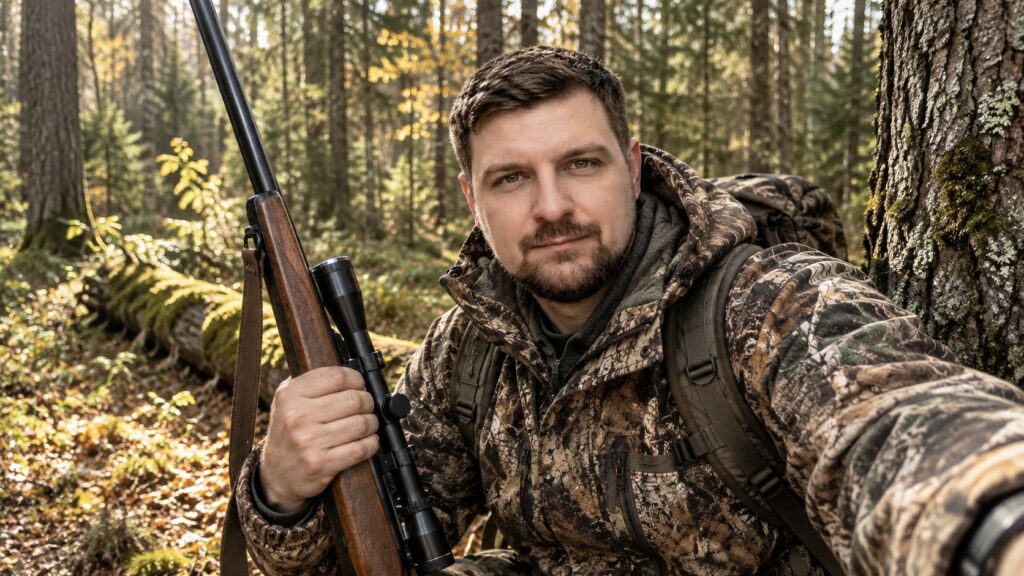
Result of generating a photo with the /humanize tag
Using both tags together
The two tags can be combined, for example: /face preserve /humanize draw me in a forest in a hunter's outfit. The first tag is meant to keep the facial features, and the second to stop the image from looking drawn. The author says his image already looked fairly photographic without /humanize. He still recommends adding it if a result looks plastic.
Like /face preserve, /humanize is not a magic button. According to the source, it only adds emphasis to the prompt. If an image still looks artificial, the author suggests spelling out what you want in plain words, such as “natural light”, “no retouching” or “shot on a phone”. He says these phrases work alongside the tag and make results more predictable.
Each generation attempt uses up your usage limit, and the source notes that the limit is noticeably lower on the free plan. It is worth checking your plan’s limits before you start experimenting.
Where the approach fails
The tags have limits. According to the source, the quality of the original photo matters most. If the model lacks information about the face, it fills in the gaps itself, and no tag can prevent that. The author says these photos work worst:
- profile shots or photos with the head strongly turned;
- photos with sunglasses, a mask or a fringe covering the eyes;
- images taken in poor light or with heavy noise;
- photos processed with beauty filters;
- group photos in which the face takes up only a small part of the frame.
The prompt itself can also work against you. If you ask the model to age you by 30 years or turn you into a cartoon character, it will change your features anyway, because that is what you requested. The source says the closer the idea is to the original photo, the more accurate the transfer.
The author also advises repeating the tag in every new prompt. If you follow the first image with something like “now put me by a campfire”, ChatGPT may drift from the original instruction and the face may start to change. His suggestion is to begin every message with /face preserve.
A note on privacy and consent
The author points out that uploading a portrait means sending it to OpenAI. He says ChatGPT’s settings let users opt out of having their data used for model training. He also advises against uploading other people’s photos without their consent, because a generated image with a recognisable face is easy to pass off as real.