Google Maps on Android does three things by default that many users never notice: it keeps a running record of everywhere you go (Timeline), it refreshes offline maps and downloads recommended regions over mobile data, and it tailors promoted business pins to your search and viewing activity across Google services. According to the source article, none of these affects navigation itself: routes, traffic and place search keep working exactly as before. Turning them off saves mobile data and storage and reduces how much information Google gathers about your trips. Below is each setting, where to find it, and the trade-offs.
What you need to know
- Timeline records places, time spent and routes continuously in the background; the source notes Google now stores this history on the device rather than in the cloud, so it consumes phone storage.
- Offline maps are updated and recommended regions are downloaded over both Wi-Fi and mobile data by default; a settings toggle limits this to Wi-Fi only.
- Promoted Pins on the map are targeted using location, search history and activity in other Google services such as YouTube; there is no dedicated switch inside Maps, so the source points to the account-level Web & App Activity setting.
- All three changes are reversible and do not touch navigation or road-safety features.
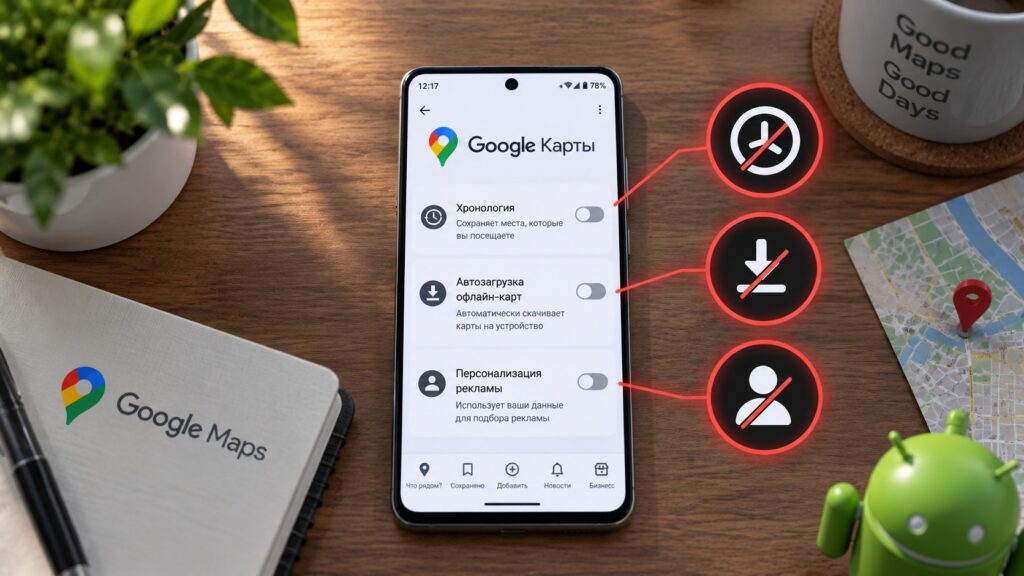
Three Google Maps features on Android that many users can do without
1. Timeline records every trip, even when the app is closed
Timeline stores every place you have visited, how long you stayed and which routes you took, and it does so continuously in the background. The source author reports having been unaware the feature was on for a long time, and then discovering a detailed diary of years of movements: a navigation app knowing more about their travels than they could remember themselves.
There is a practical angle as well. According to the source, Google currently keeps Timeline history on the device rather than in the cloud, and that data gradually eats into phone storage. Local storage is arguably better for privacy, but it has a downside: if the phone is lost or stolen, the entire travel history ends up in someone else’s hands.

How to turn off Timeline
- Open Google Maps and tap your profile icon in the top-right corner.
- Select Timeline.
- Go to the location and privacy settings.
- Open the Timeline section and tap Turn off.
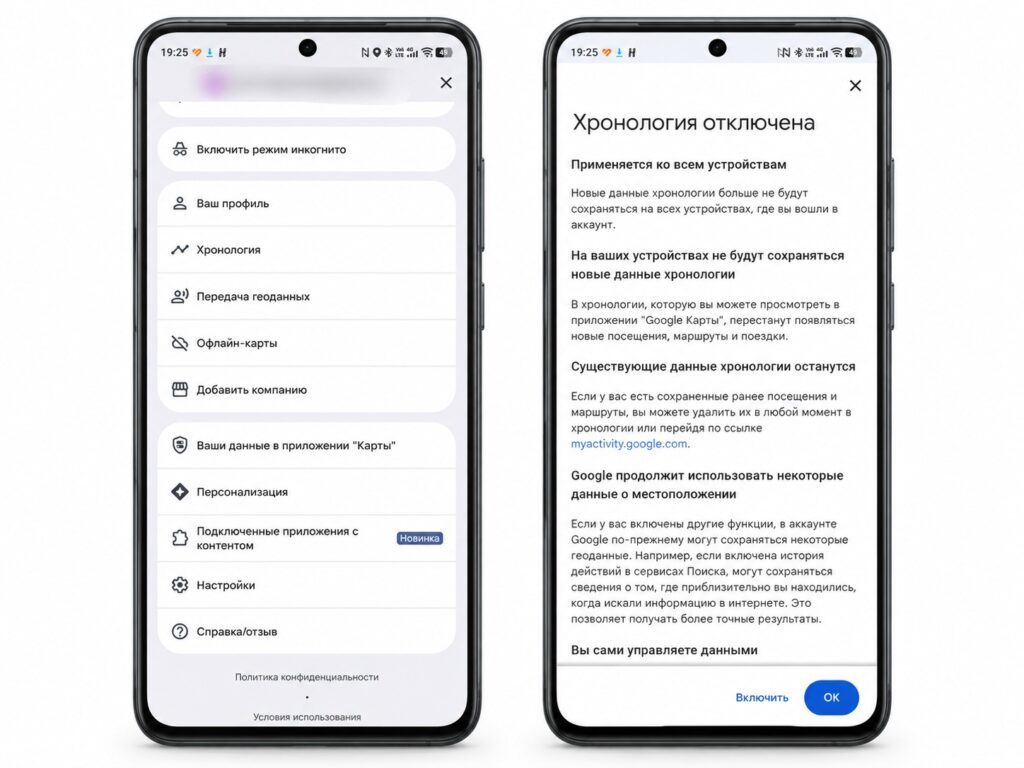
Turning off Timeline in Google Maps on Android
If you enjoy looking back at where you went on holiday, you do not have to disable the feature entirely. On the same screen you can enable auto-delete with a three-month window, so Maps keeps only recent trips and erases older ones automatically. The source notes that switching off Timeline does not affect other account settings such as personalized recommendations, so nothing else should break.
2. Offline maps update over mobile data
Offline maps are indispensable when connectivity is unreliable, but they come with a setting almost nobody touches. By default the app refreshes saved maps and downloads additional recommended regions over both Wi-Fi and mobile data. That means background data, battery and storage are being used even though nothing about these updates is urgent.
The source author’s reasoning is simple: maps can be updated at home over Wi-Fi, the same way music services refresh downloaded playlists. You will not notice any difference on the road, but you will stop wondering where megabytes from your data plan are going.

How to stop automatic downloads
- Tap your profile icon in Google Maps.
- Select Offline maps.
- Tap the gear icon in the top-right corner.
- Turn off automatic updating of offline maps and automatic downloading of recommended maps.
- In the download settings, choose Wi-Fi only.
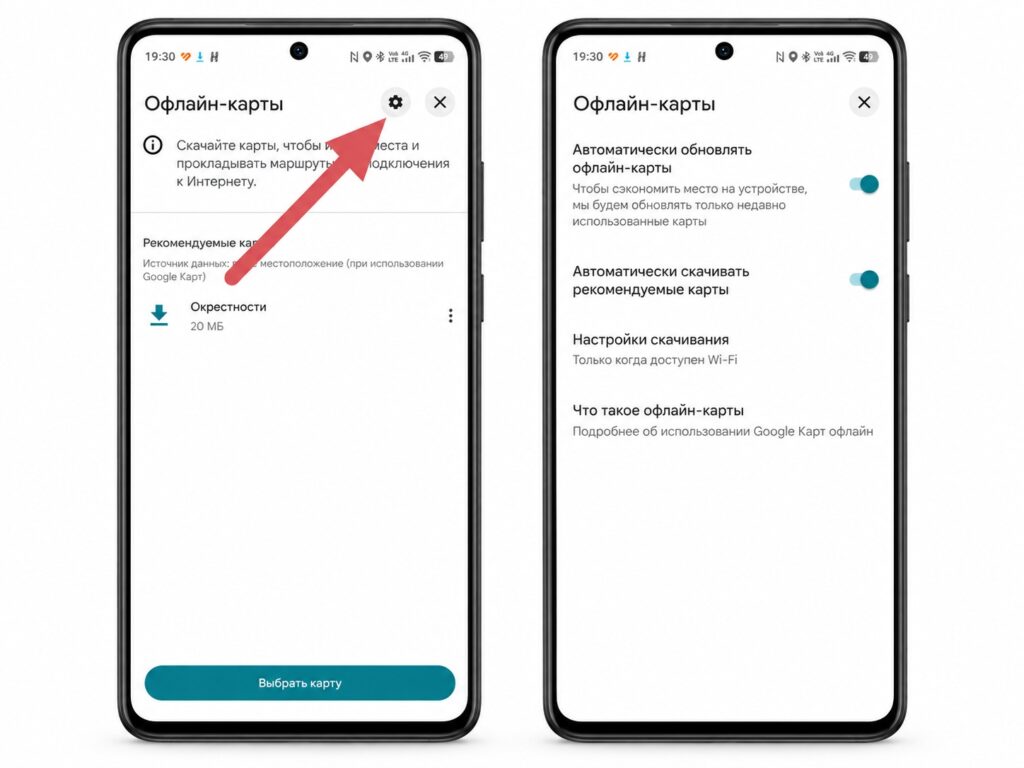
Disabling automatic map downloads in the app settings
The trade-off: after this change, maps must be updated manually or will wait for a Wi-Fi connection. If you are heading somewhere without coverage, open the offline maps section beforehand and check that the area you need is not out of date. Previously this happened on its own; now you have to remember.
3. Ads in the navigator are tuned to your searches and videos
The third point concerns advertising, where the source author is most emphatic that it has no place in a navigation app. Google Maps displays so-called Promoted Pins, which appear as logos or square business icons on the map. They do not pop up over the screen like conventional banners, but they are selected using your data: current location, search history and activity in other Google services, including YouTube and Search.
What bothered the source author was seeing points of interest during a daily commute that were clearly based on things they had recently searched for or watched. According to the source, this cannot be switched off inside Maps itself: the relevant setting is tied to Web & App Activity in the Google account, not to the navigator. There is no separate option in Maps, and the author describes it as a case of Google keeping the control deliberately out of the way.

How to turn off the personalization, as described by the source
- Open your Google account settings and go to Data & privacy.
- Select Web & App Activity.
- Tap the option to turn off search history.
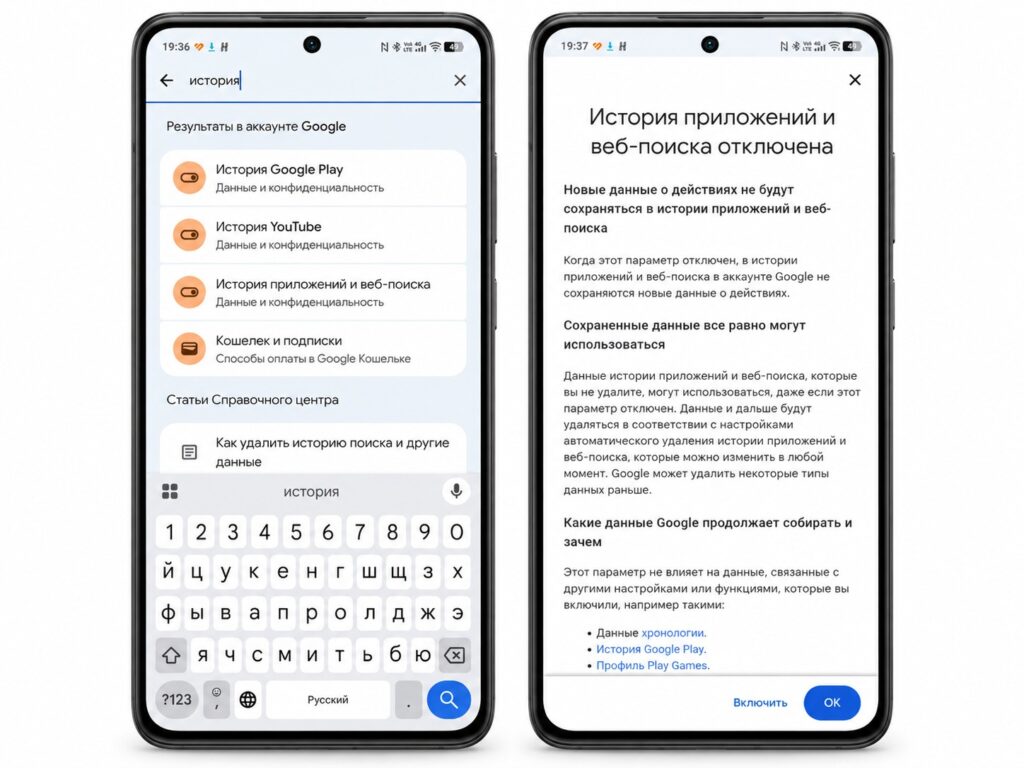
Turning off ad personalization in Google account settings
What this achieves, per the source: Maps will stop drawing on your visual searches (for example, those made through Google Lens). Advertising will not disappear from the map entirely, but it should become less precisely targeted. Note that this is an account-wide setting: it will also affect recommendations in Search and other Google services, not just Maps. The source adds that Google’s own help documentation warns it is gradually updating history settings across its services, so menu labels on your device may differ slightly from those listed here.
Who should leave these settings alone
All three changes can be undone, but they are not equally useful for everyone. Timeline is handy for people who log business trips, look up forgotten addresses or like to revisit travel routes; for them, keeping it on with three-month auto-delete is the more sensible choice. Automatic offline-map updates over mobile data make sense if you have an unlimited plan and are often away from Wi-Fi. And turning off visual search history will degrade personalization in other Google services, not just in the navigator.
None of these settings has anything to do with safety on the road. This is about control over what the app does in the background: how much data it collects and how much traffic it consumes without your knowledge.


