When you have dozens of apps installed on your smartphone, the home screen turns into a chaotic mess. Samsung has an additional tool for keeping things organized. One UI on Samsung smartphones has long had a built-in tool that solves this problem without third-party launchers. It’s the Edge panel (Edge panels) — a sliding side panel where you can hide almost your entire app collection and keep the home screen empty.
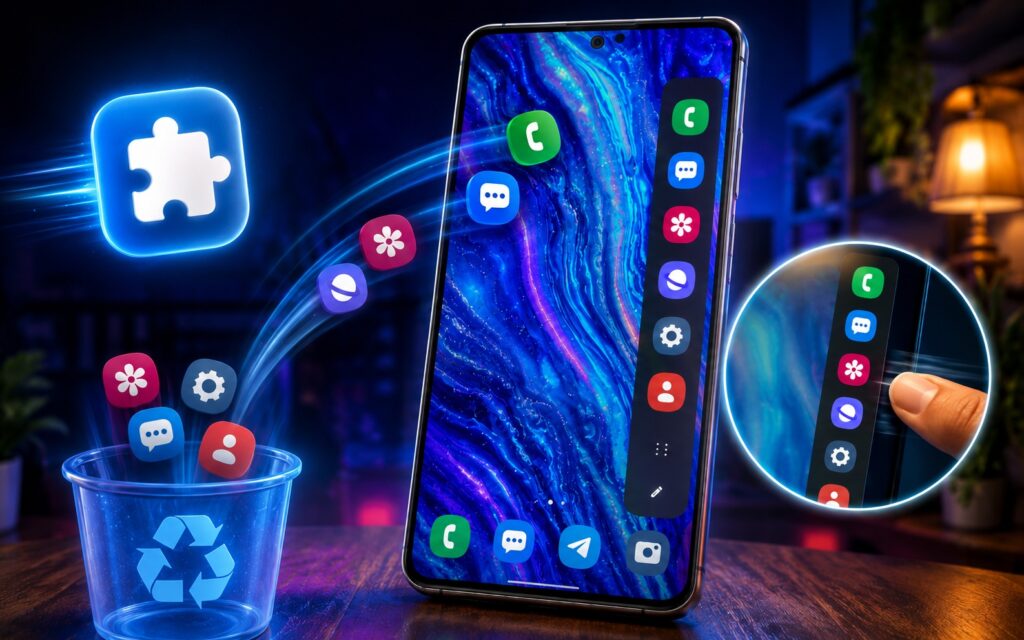
Here’s how I set up the Edge panel
What the Edge Panel Does on Samsung Smartphones
The Edge panel is a strip with shortcuts that slides out from the side of the screen. A thin semi-transparent handle remains along the edge of the display, which you swipe inward to pull out the panel. When the panel is closed, there are no icons or widgets hanging on the home screen. The feature is available on all Samsung smartphones, including the popular Galaxy S26.
The panel holds up to 22 apps, which is more than enough even for those who used to keep a dozen and a half shortcuts on their home screen. Apps you use most often can be left as individual icons, while the rest can be grouped into folders — just like on a regular home screen: drag one icon onto another, then give the folder a name.
How to Move Apps from the Home Screen to the Edge Panel
The main inconvenience: you can’t drag an icon directly from the home screen into the panel. Apps have to be added to the panel manually, and then their duplicates need to be removed from the home screen separately. Because of this, my transfer took some time.
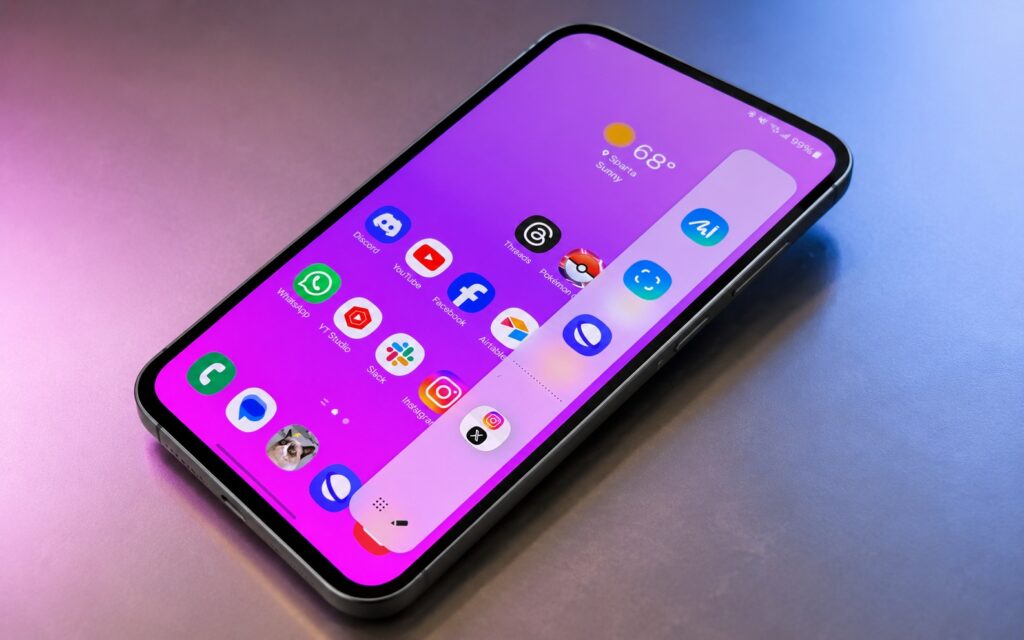
You need to tap the pencil icon at the bottom
The process looks like this:
- Open the Edge panel by swiping the handle on the edge of the screen.
- Tap the pencil icon at the bottom of the panel to enter editing mode.
- Drag the apps you need into the panel.
- To remove extras from the panel, tap the “minus” icon in the upper left corner of the icon.
- Delete the remaining app duplicates from the home screen.
After this, the home screen stays empty, and all apps are opened from the side panel. Useful? That’s an understatement!
How to Enable the Edge Panel in One UI
If there’s no handle on the edge of the screen, the feature is turned off. It can be enabled in a few seconds through the settings search.
- Open “Settings.”
- Type “Edge” or “Edge panels” in the search bar.
- Turn on the toggle directly from the search results.
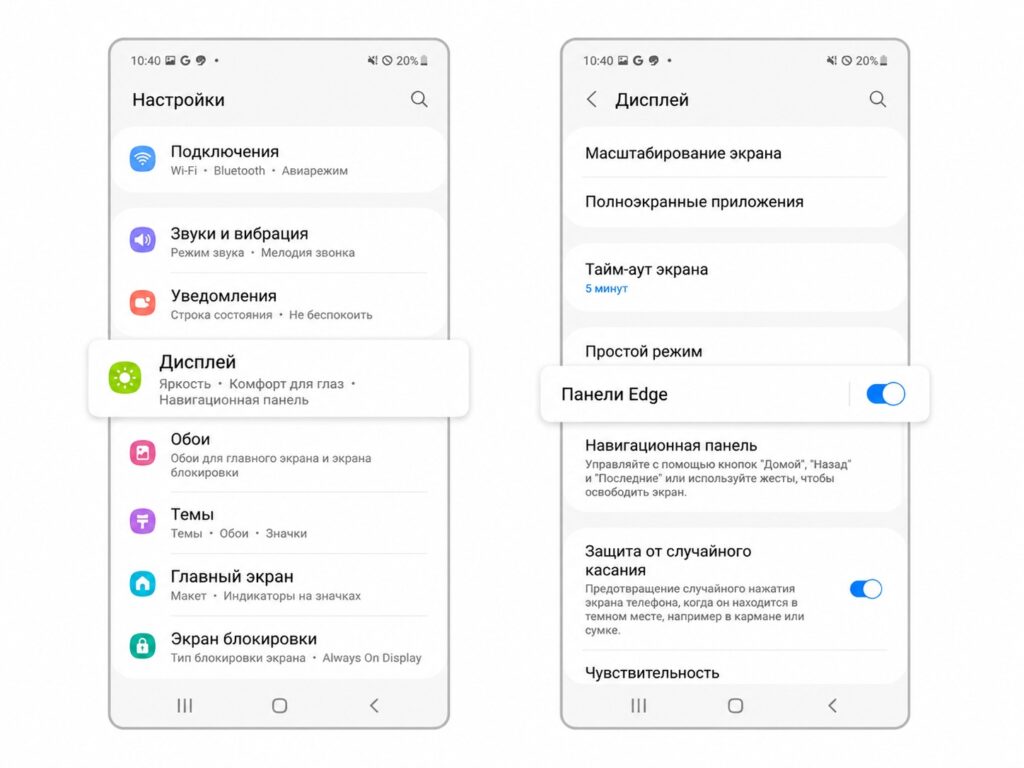
In case the panel is disabled
After that, the panel can be customized to your liking. I recommend locking the handle position so you don’t accidentally move it, and keeping it on a convenient side: right-handed users find it easier to reach with their thumb on the right. In dark mode, it makes sense to make the handle white and noticeable, and set the transparency lower. The size and width of the handle can also be adjusted.
Edge Panel Functions on Samsung — What Else Is There
Besides shortcuts, you can add favorite contacts, tasks, weather, reminders, and other quick tools to the panel. So the side panel works not only as a home screen replacement but also as a quick access center for the things you need.
But there’s an important limitation. The same panel cannot simultaneously store both apps and, for example, favorite contacts — different content requires different panels. This is the main drawback of the feature for those who would like to have everything in one place.