I’ve already covered which app drains battery on Android, and back then I discovered that the culprit hides in the background, consuming resources without your knowledge. The story with internet data is the same. Your data runs out ahead of schedule, and you have no idea where it’s going. Here’s how to find the app that’s eating your data, and what to do about it.
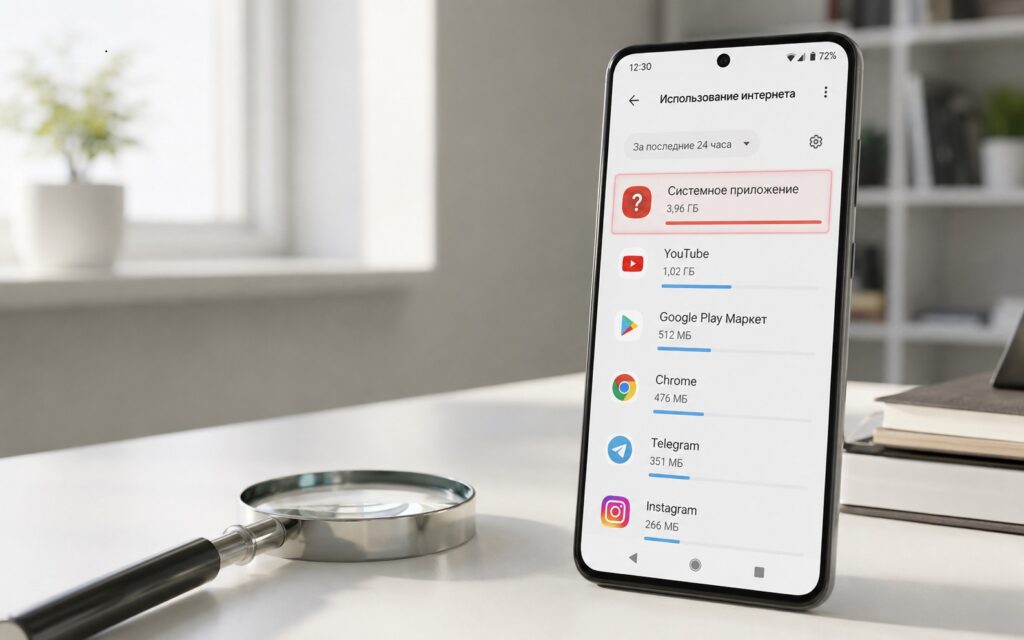
Searching for the secret data hog on Android
How to Tell If an App Is Using Data in the Background
Signs that something is quietly eating your phone’s internet data:
- mobile data runs out faster than usual (even though you’re using your smartphone normally);
- your carrier sends a data usage notification at night, when your phone was just sitting on the table;
- unexpected gigabytes appear in your carrier’s usage history with no obvious source;
- the smartphone noticeably heats up in standby mode — a sign of background activity.
Important caveat: the network icon in the status bar doesn’t prove anything by itself. Android periodically transmits service data: sync, push notifications, time updates. This is normal and uses negligible amounts of data. The problem starts when background usage amounts to hundreds of megabytes or gigabytes.
Where to Check Data Usage on Android
The standard path: “Settings — Network & Internet — Data Usage.” On different Android skins, it varies slightly:
- Samsung One UI: “Settings — Connections — Data Usage”;
- Xiaomi HyperOS: “Settings — SIM Cards & Mobile Networks — Data Usage”;
- realme UI: “Settings — Data Usage — Statistics”;
- HONOR MagicOS: “Settings — Mobile Network — Data Usage”;
- Google Pixel: “Settings — Network & Internet — Internet — Data Usage”.
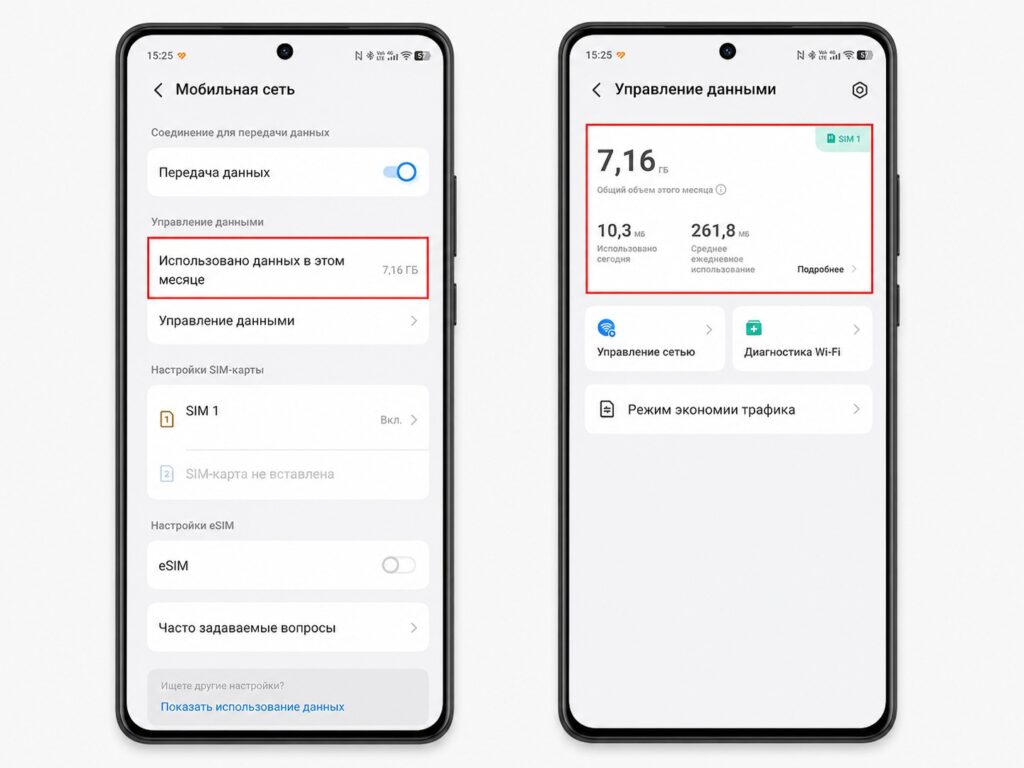
Here you can view internet usage statistics
What to look for inside the section: select the desired period (current month or last 30 days). Check statistics separately for mobile data and Wi-Fi (these are different things). Below the usage graph, there will be a list of apps sorted by the amount of data consumed. This is where the culprit lives.
Which App Is Eating Data in the Background
Found a suspicious app in the list — tap on it. A detail card will open. Look at two figures: active mode traffic and background data transfer. If background usage is comparable to or exceeds active usage — that’s not normal.
Typical offenders and why they do it:
- Telegram and other messengers (auto-downloading media files);
- Google Photos and cloud drives (background sync);
- YouTube (preloading videos for offline viewing, caching recommendations);
- browsers (background tab refresh, link preloading);
- marketplace apps (updating catalog and prices in the background);
- VPN apps (if VPN is active, all traffic goes through it and may be counted twice);
- ad-supported apps (constantly loading ad blocks in the background);
- update services (Google Play and manufacturers download updates without your permission).
A sharp increase over the past few days with stable usage patterns is a signal that something has changed: you installed a new app, updated an existing one, or an app received new background tasks.
How to Block an App from Using Mobile Data
Found the culprit — take action. Here are several levels of restrictions from soft to hard.
Disable background data transfer for a specific app:
- Open “Settings — Apps.”
- Select the offender.
- Tap “Data Usage” or “Mobile Data Usage.”
- Disable “Background Data” — the app will only work when you have it open.
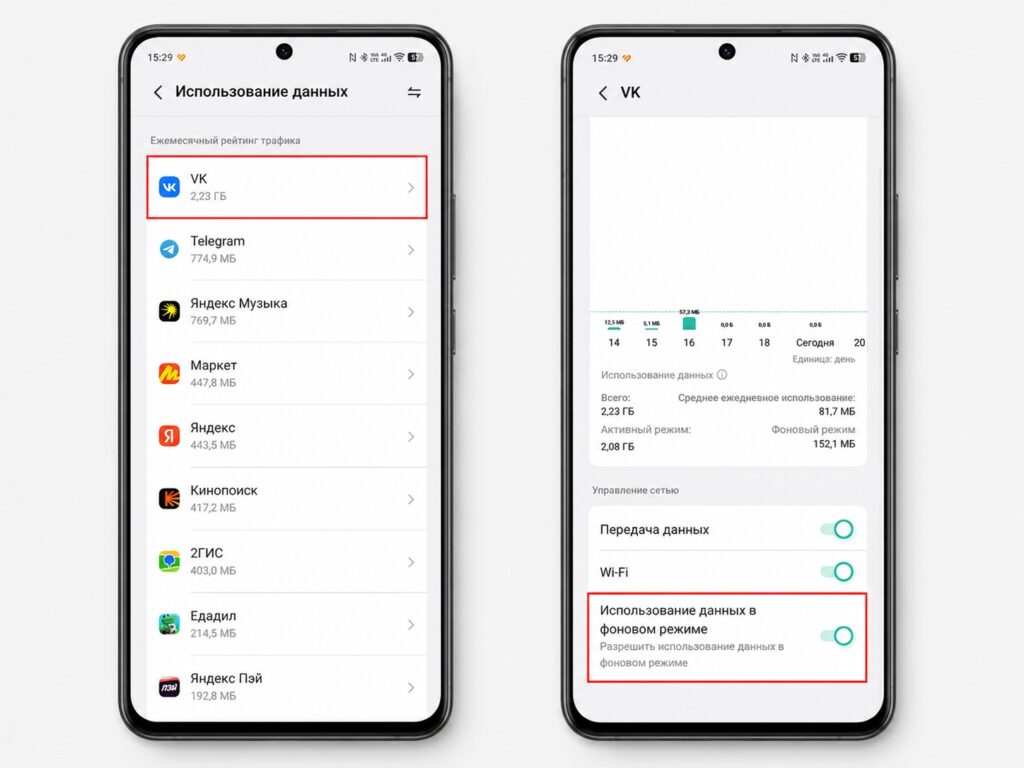
You can restrict the data hog’s background internet access
Additionally, you can:
- block mobile data entirely, leaving only Wi-Fi;
- enable Data Saver on Android;
- disable auto-download of media in messengers;
- disable background cloud sync.
Important warning: after restricting background data, the app will stop receiving push notifications and updating data in the background. For messengers, this means messages will only arrive when you open the app.
How to Set a Data Limit and Stop Overpaying
The most reliable way to control your data limit on Android is to set it up once and forget about it.
Set a warning and a hard limit:
- Open “Settings — Network & Internet — Data Usage.”
- Tap “Data Warning & Limit.”
- Enable “Set Data Warning” — you’ll get a notification when this threshold is reached. Set it to 80% of your data plan.
- Enable “Set Data Limit” — mobile data will be automatically disabled when this amount is reached. Set it to the full package volume.
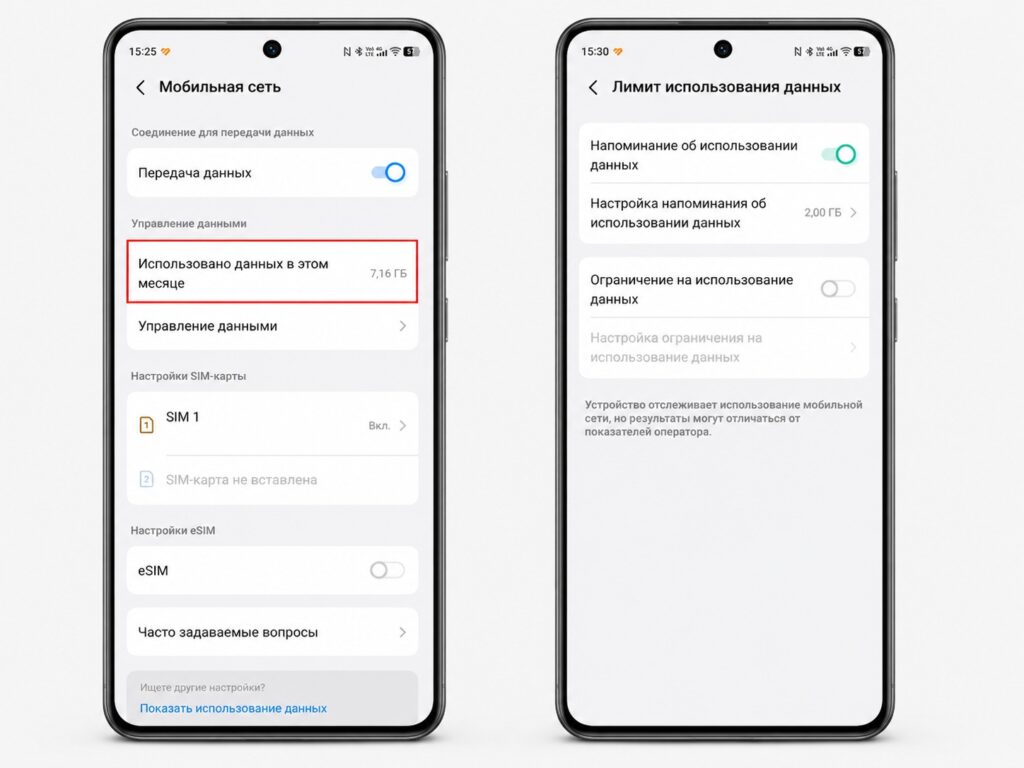
Setting a data limit practically solves the problem entirely
Finally, you can set the billing cycle start date. In the same section, find “Billing Cycle” or “Reset Date” — set the date when your carrier renews your data package. This way, statistics will reset in sync with your plan, and you’ll see actual usage for the current period, not an arbitrary month.
Limiting data usage on your phone through the system limit is a guarantee that running out of data won’t catch you off guard at the end of the month. Set it up once — and the system will handle everything automatically.


