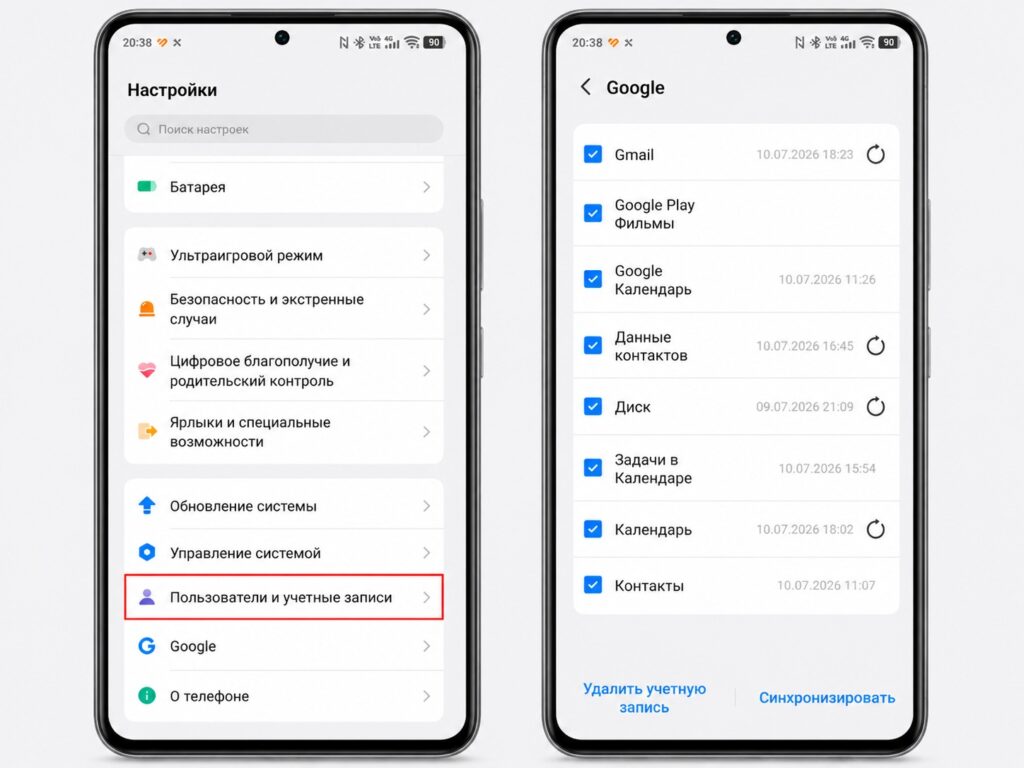
We’ve already talked about how to find out which app is eating your battery, and almost always the same one ends up at the top. Not YouTube, not TikTok, not navigation. Google Play Services. An app you’ve never deliberately opened, never installed, and most likely never even noticed. Let me explain why this happens and what to do about it.
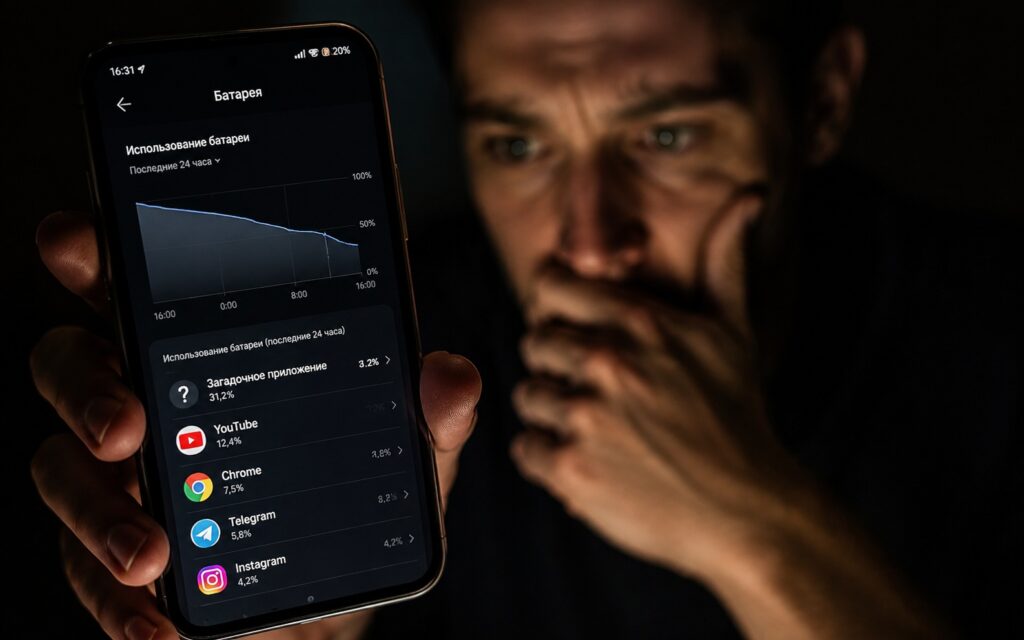
This is the app that ruins your battery
What Are Google Play Services
Google Play Services is not a regular app. It’s a system layer between Android and everything else. Let me explain in simple terms: when any app wants to show you a notification, determine your geolocation, sign in via a Google account, or save a backup — it calls on Google Play Services.
The following work through Google Services:
- push notifications from all apps;
- authorization via Google account;
- geolocation and Google Maps;
- Play Protect — antivirus scanning of apps;
- data backup;
- nearby device search via Bluetooth;
- app updates through the Play Store.
You cannot delete or completely disable Google Play Services without consequences — more on that at the end.
Why Google Play Services Drain Your Battery
Google Services drain your battery because they run constantly — 24 hours a day, even when your smartphone is sitting with the screen off.
Revealing the essence of Google Play
Main reasons for battery drain:
- account sync: contacts, calendar, and email update in the background regularly;
- push notifications: services maintain a constant connection with Google servers for instant push delivery;
- geolocation: if even one app has requested location access, services periodically determine coordinates;
- Play Protect: periodically scans installed apps for viruses;
- nearby device search: Bluetooth scanning for the Find My Device feature;
- backup: copies data to Google Drive at night.
Normally, all of this combined should take up 3-8% of battery charge per day. If Google Play Services are using 15% or more, something has gone wrong.
How to Check How Much Battery Google Play Services Use
The standard path on Android:
- Open “Settings.”
- Go to “Battery.”
- Tap “Battery usage” or “Charge consumption.”
- Find “Google Play Services” in the list.
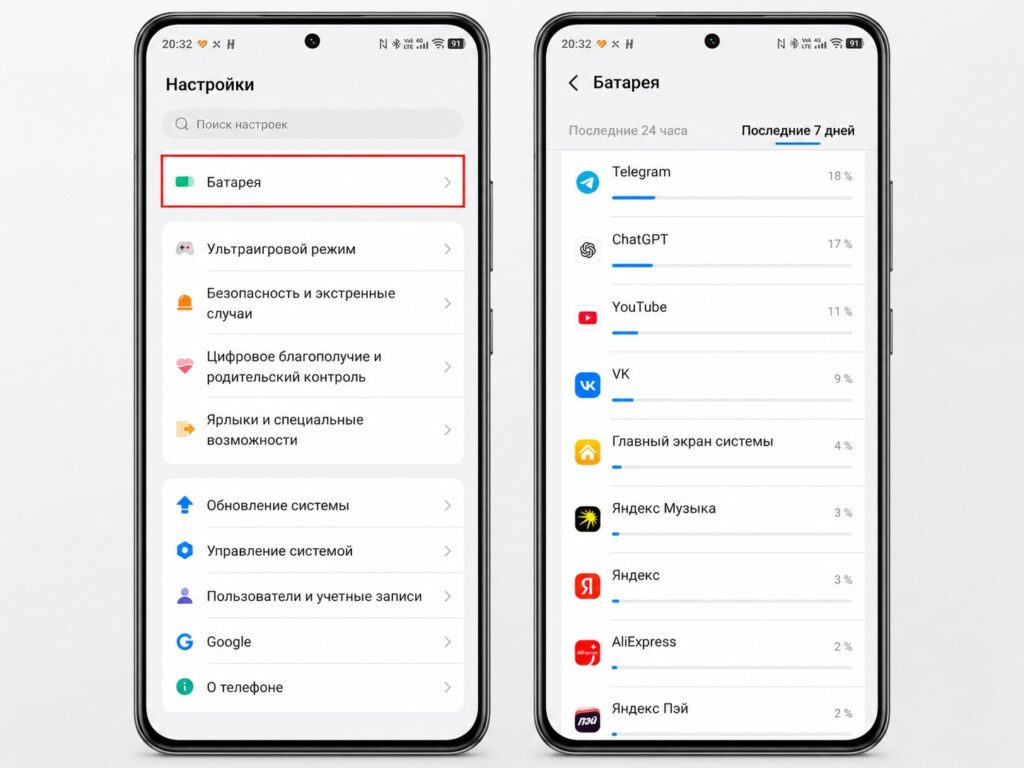
Look for Google Play Services here
The path differs across different skins:
- Samsung One UI — “Settings — Device care — Battery — Battery usage”;
- Xiaomi HyperOS — “Settings — Battery — Battery charge level — tap on the chart”;
- realme UI — “Settings — Battery — Battery usage statistics”;
- HONOR MagicOS — “Settings — Battery — details”;
- Google Pixel — “Settings — Battery — Battery usage.”
If you can’t find it — type “battery usage” in the settings search. Check the usage for the last 24 hours or since the last charge.
What to Do If Google Play Services Are Draining Your Battery Fast
If the app is draining battery abnormally — take action in order from simple to complex.
Step 1 — update apps:
- Open Google Play.
- Go to “Settings” — “About.”
- Tap “Update Google Play.”
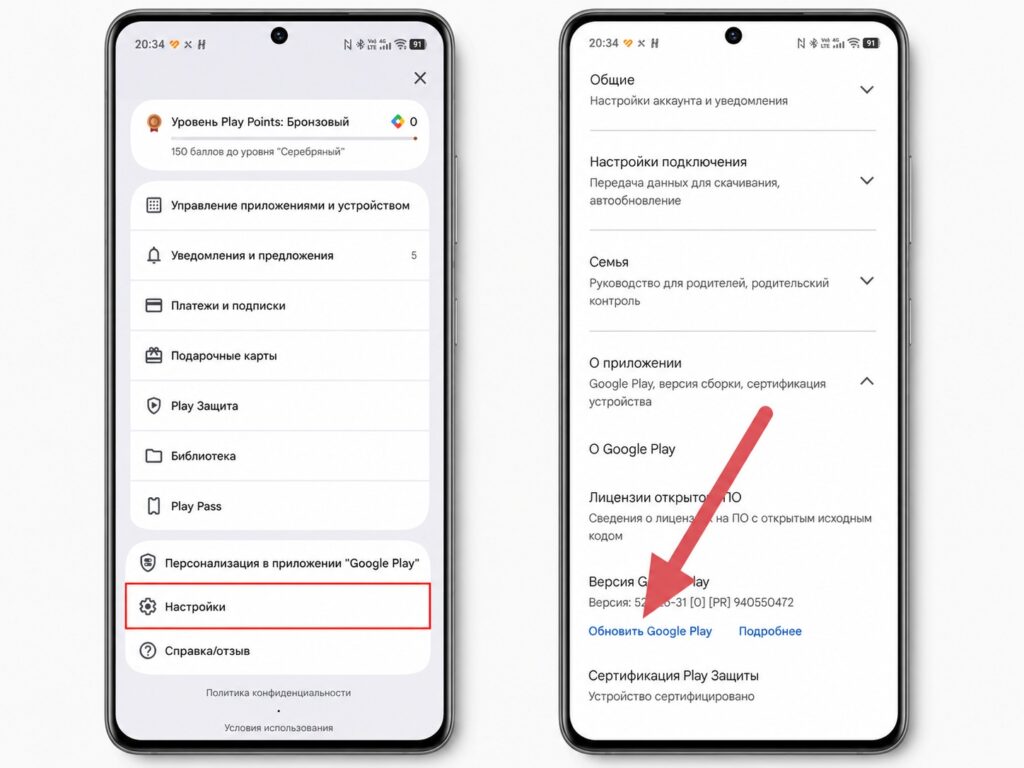
Update Google Play Services
Step 2 — restart your smartphone:
A simple restart eliminates up to 70% of abnormal consumption cases — stuck background processes get reset.
Step 3 — check geolocation:
- “Settings — App permissions — Location.”
- See which apps have “Always” access — these are the biggest battery hogs.
- Switch unnecessary apps to “Only while using” mode.
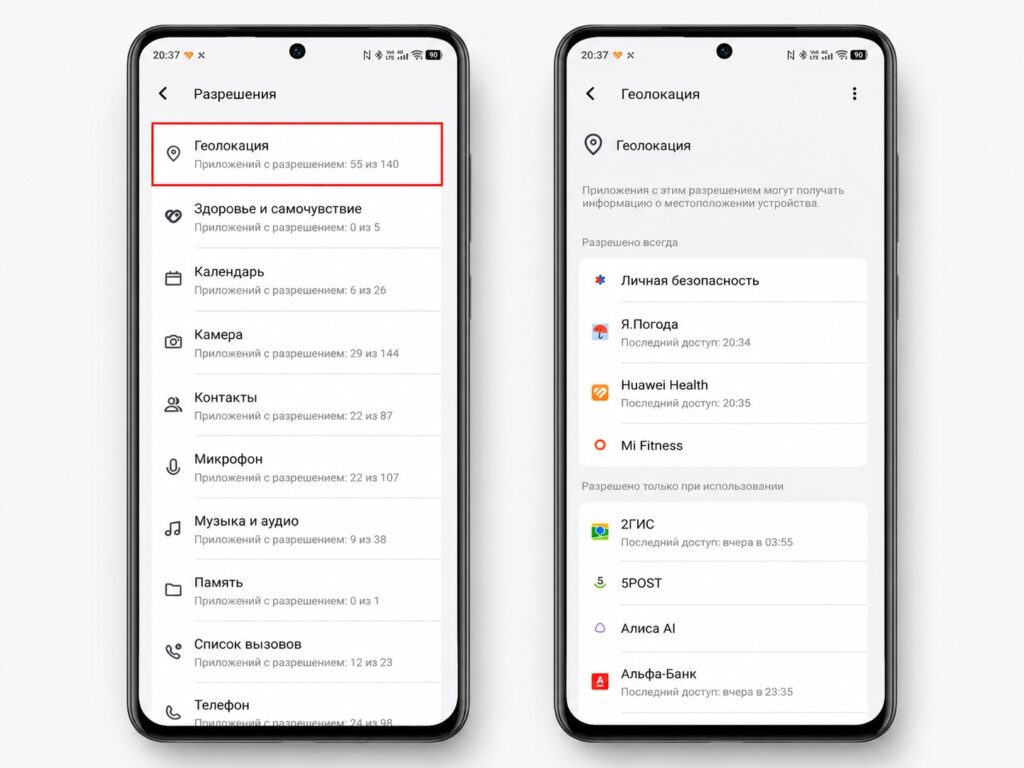
Revoke unnecessary location permissions
Step 4 — disable unnecessary sync:
- “Settings — Accounts — Google.”
- Turn off sync for services you don’t need — for example, nearby device search or app history.