Telegram Web is a full-featured version of the messenger that works right in your browser and doesn’t require installation. It’s suitable for situations when you can’t log into the app or need to quickly check messages from someone else’s computer or a work laptop. Below is a detailed guide for Telegram Web: you’ll find tips on logging in using all available methods, setting up the language, and solving common problems.

Telegram Web: How to Log In to the Web Version — By Phone Number, QR Code, in Russian Language
What Is Telegram Web and How It Differs from Telegram Desktop
Telegram Web is the web version of the messenger, available at web.telegram.org. It opens in any modern browser: Google Chrome, Firefox, Safari, Edge, and others. No installation is needed — just go to the link and log in.

Telegram Web is ideal for certain cases when there’s no time to install the app
Visually, the web version is almost identical to the mobile app. It has chats, channels, bots, calls, file sharing up to 2 GB, and even animated stickers. There are two official builds — Web A and Web K, which you can switch between directly in the menu. Both support dark theme, chat folders, and core features. The difference between them is minimal: they are developed by different teams within Telegram.
The main limitation of the Telegram web version is that you can’t use multiple accounts simultaneously. The Telegram Desktop app doesn’t have this limitation and generally works more reliably for regular use: it processes notifications faster, handles large files better, and supports keyboard shortcuts. If you need Telegram on your computer every day, the desktop client will be more convenient. The web version is more of a tool for quick access when installing the app is impossible or undesirable.
Logging Into Telegram Web by Phone Number — Step-by-Step Guide
This is the most common way to log in. It requires that your Telegram account is already active on some device — a smartphone, tablet, or desktop app. That’s where the confirmation code will be sent.
Logging into Telegram Web works the same as logging into the regular app
- Open your browser and go to web.telegram.org.
- Click on the “Log in by phone number” text.
- Enter your phone number with the country code and click “Next.” If you use this computer regularly, check the “Remember me” box.
- A confirmation code will be sent to the device where you’re already logged into Telegram — it will appear in the messenger’s service chat.
- Enter the received code in the field on the website.
- If you have two-factor authentication enabled, you’ll need to enter your cloud password — the one you set up in Telegram’s security settings.
- After that, the web version is fully ready to use.
Cloud password is an additional account protection. If you haven’t set it up, this step will be skipped automatically. But for security, it’s recommended to configure it: it will protect your account even if SMS is intercepted. And don’t forget to update Telegram on time.
Logging Into Telegram Web via QR Code Using Your Smartphone
This method is even faster — you don’t need to enter a phone number or wait for a code. Just point your smartphone camera at the computer screen. But there’s a condition: QR code authorization only works through the Telegram mobile app.
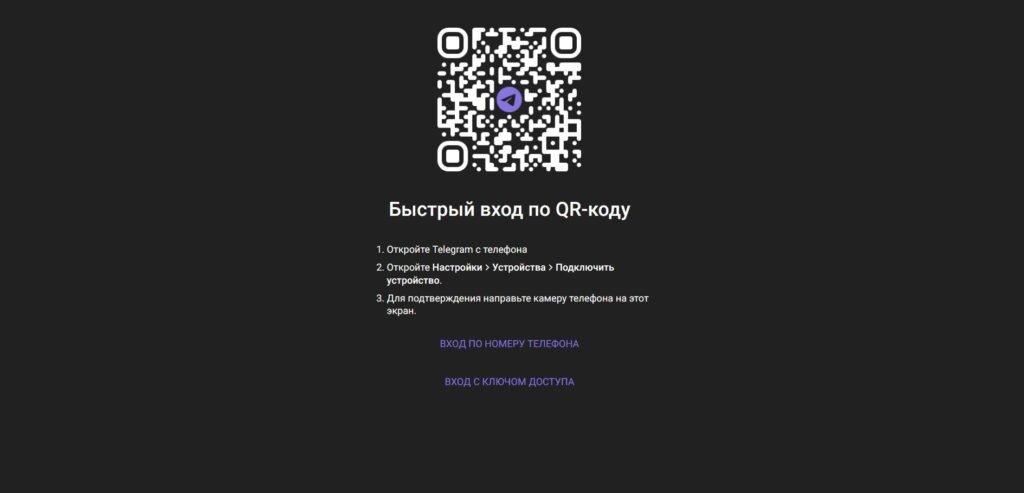
The easiest way to log into Telegram Web is by QR code
- Open web.telegram.org in a browser on your computer. A QR code will appear on the screen.
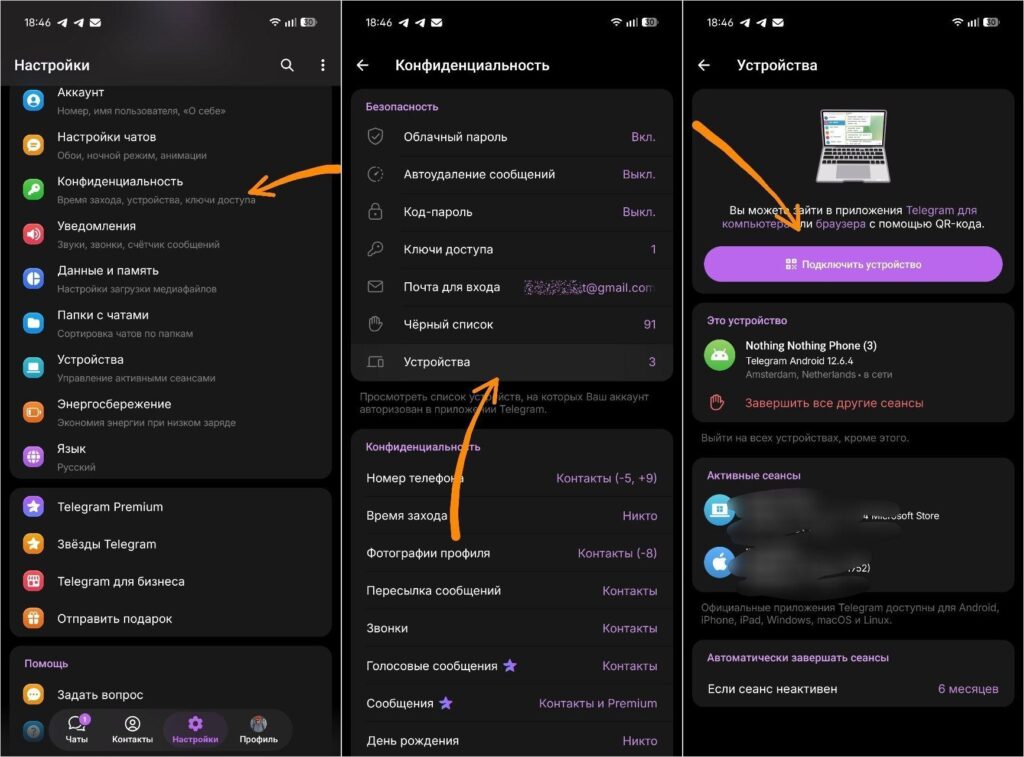
- Open the Telegram app on your smartphone.
- Go to “Settings,” then to the “Devices” section.
- Tap “Link Device” — the camera will open.
- Point the camera at the QR code on the computer screen.
- In a couple of seconds, authorization will happen automatically. If two-factor authentication is enabled, you’ll need to enter your cloud password.
This method is convenient because it doesn’t require entering any data from the keyboard. It’s especially useful if you’re logging in from someone else’s computer and don’t want to leave your phone number behind.
Logging Into Telegram with a Passkey
A relatively new method is logging in with a Passkey. This is a cryptographic key stored on your device that allows you to authenticate using a fingerprint, Face ID, or PIN code instead of a one-time SMS code.
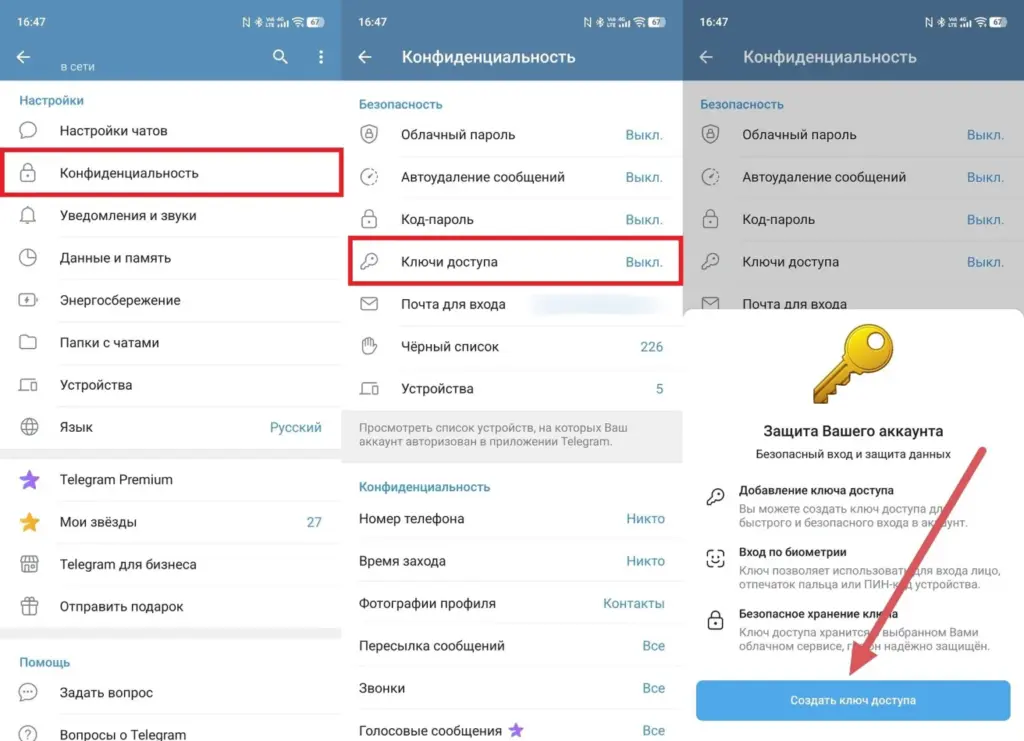
Logging in with a Passkey is probably the safest and fastest method
To use this method, you first need to create a Passkey in Telegram:
- In the Telegram mobile app, go to “Settings,” then “Privacy and Security,” and then “Passkeys.”
- Tap “Create Passkey” and confirm the action.
- After that, on the Telegram Web login page, select “Log in with Passkey.”
- Confirm the login using biometrics or the PIN code of the device where the key is stored.
Passkey is the most secure of all login methods, but it’s not supported on all devices. For most users, logging in by phone number or QR code remains the optimal option.
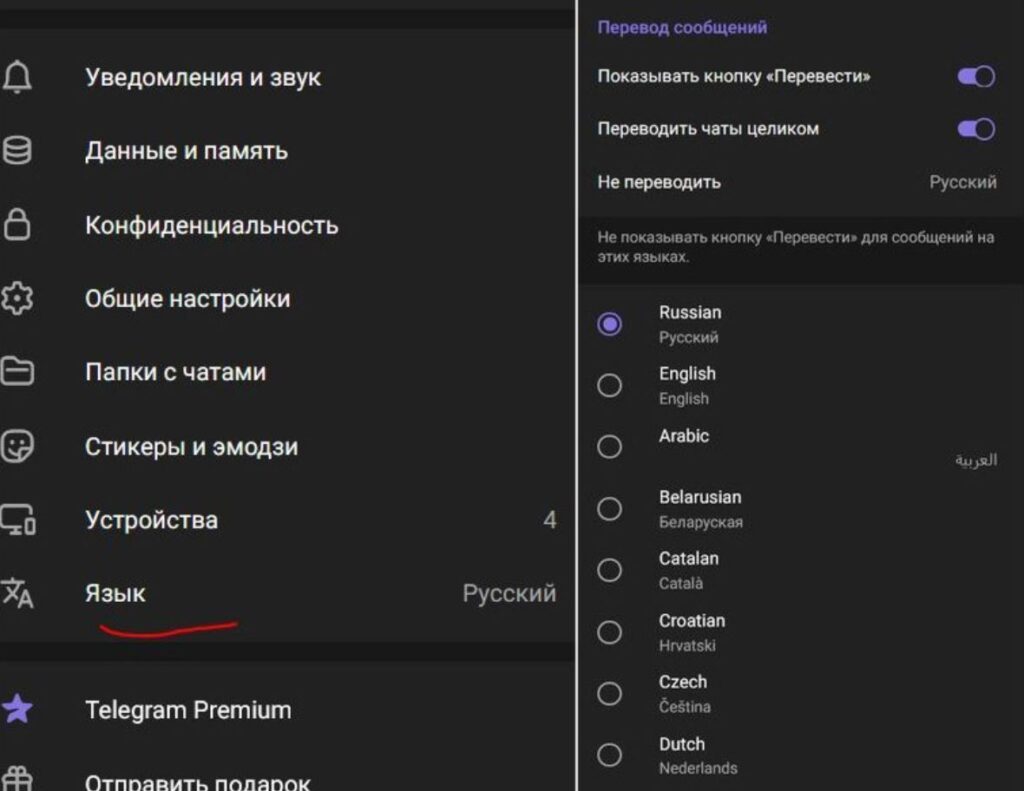
Telegram Web in Russian — How to Switch the Language
Telegram Web automatically adjusts to the browser and system language. If the interface opened in English, you can switch the language manually.
- To do this, click on the three horizontal lines (menu) in the upper left corner.