You’ve probably come across advice like “delete your VPN and your phone will work better.” It sounds logical — fewer apps, less strain. But is that really the case? Recently, we thoroughly investigated whether VPN actually breaks iPhones, and came to a definitive conclusion. Now we’ll tell you what actually happens with your device and what to do if Russian apps refuse to launch.
Don’t rush to delete VPN from your iPhone — read our article first
How VPN Affects Your iPhone
Let’s start with the main point: installing a VPN app on your iPhone doesn’t affect anything. It’s a regular application that sits in memory and doesn’t interfere with the system in any way until you launch it. It doesn’t slow down iOS, doesn’t drain the battery, and doesn’t overheat the device. As long as the VPN is turned off — it’s as if it doesn’t exist.
It’s a different story with an active VPN connection. When you connect to a VPN server, all your iPhone’s traffic starts going through an encrypted tunnel. This can indeed affect a few things, but none of them are critical.

VPN isn’t dangerous, but there are some nuances worth knowing
First, data usage increases. Encryption adds service information to each data packet, causing the volume of transmitted data to grow by approximately 5–15%. If you have an unlimited plan — you won’t even notice. If your mobile data is limited, it’s worth keeping this in mind.
Second, internet speed may decrease slightly. Data passes through an additional node — the VPN server — and is encrypted in both directions. With good paid services, the difference is barely noticeable. With free ones, it can be significant, especially if servers are overloaded.
Third, with a constantly enabled VPN, the battery drains slightly faster due to continuous encryption and decryption of traffic. But we’re talking about an additional 3–5% drain per day — that’s not the kind of difference worth giving up VPN for.
Why People Advise Deleting VPN and Whether You Should
Recently, there have been a lot of VPN scare stories on the internet. Supposedly it overheats your phone, drains the battery in two hours, and can even break your smartphone. Let’s figure out where this came from.
People have indeed been complaining more about overheating and fast battery drain. But the culprit isn’t VPN itself, but low-quality free VPN apps. Some of them run in the background more aggressively than necessary, constantly reconnect to servers, display ads, and consume device resources. Equating such apps with a proper VPN service is like comparing a quack with a doctor.
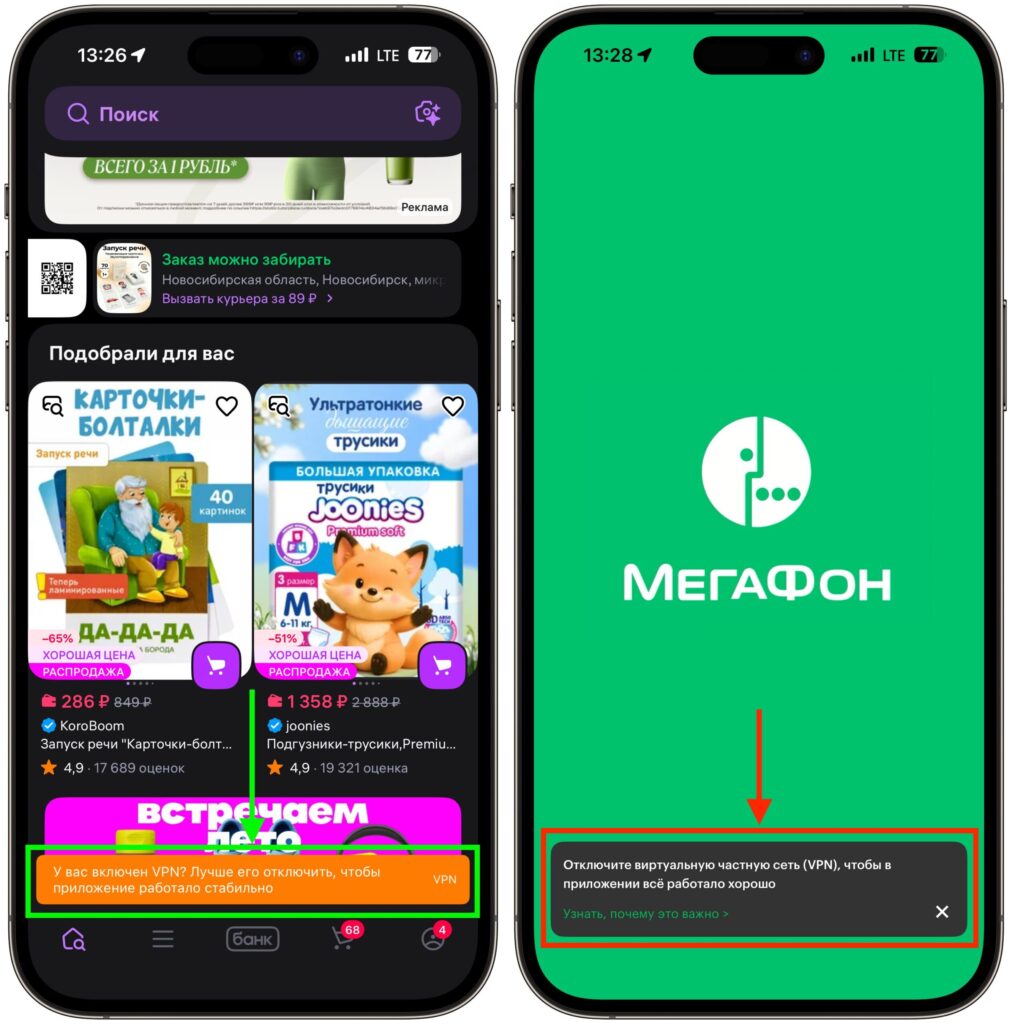
Some Russian apps refuse to work with VPN. Some simply detect it, while others won’t open at all
There’s also a context that many people forget. Since spring 2026, the Ministry of Digital Development has been actively fighting VPN usage in Russia. Major companies — Sber, Yandex, Ozon, Wildberries, Avito, and others — received recommendations to restrict access to their services for users with active VPN. And many of them followed these recommendations. Against this backdrop, numerous “just delete your VPN” tips appeared, which don’t actually solve the problem but merely create a false sense of security.
The short answer is no, you don’t need to delete VPN. An installed VPN app doesn’t affect your iPhone’s performance in any way. It doesn’t harm the system, doesn’t break other apps, and poses no threat to the device. All you need to do is learn to turn it off at the right time. Opening Sberbank — disable VPN. Opening Ozon or Wildberries — disable it too. Done — turn it back on. That’s the only inconvenience, and it can be fully automated.
Apps That Don’t Work with VPN
If you have VPN enabled with a foreign IP address, a number of Russian apps may work incorrectly or not work at all. Here are the main categories.
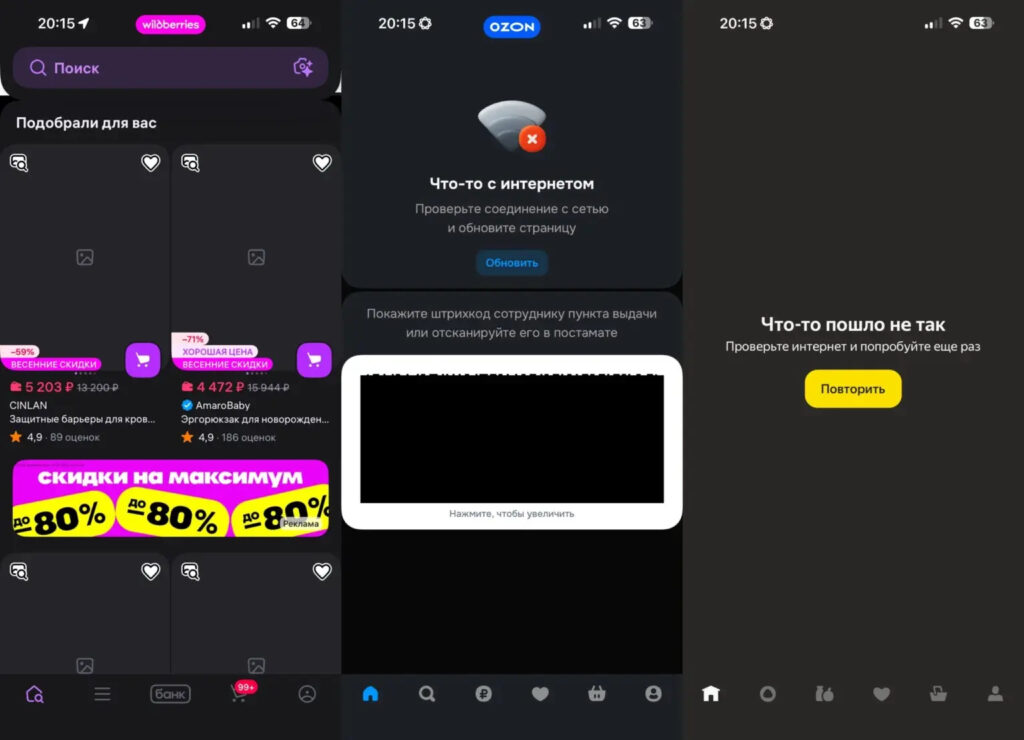
You might encounter a screen like this, but it largely depends on which VPN you’re using
Marketplaces and delivery. Ozon with an active VPN displays an access restriction message and asks you to disable it. Wildberries warns that the app may work unstably. Some users experience issues with product cards and images not loading.
Banking apps. Sberbank Online, T-Bank, VTB, and other banks may deny access or work with errors. However, this doesn’t always happen — it depends on the specific VPN service and server.
Yandex services. Yandex Pay, Kinopoisk, and other ecosystem products have also started reacting to VPN connections. Yandex Browser and Yandex Maps, according to researchers, use the largest number of VPN detection methods.
Mobile carriers. MTS, MegaFon, and Beeline recommend disabling VPN in their apps for proper functionality.
Government services. Gosuslugi and some government websites may also fail to open with an active VPN.
An important nuance: the blocking applies specifically to apps. Web versions of the same marketplaces and banks through a browser usually work with VPN without issues. So if you urgently need to access Ozon but don’t want to turn off VPN — try through Safari. Also, keep in mind that Apple has removed a number of VPNs from the App Store, so make sure in advance that your service is still available.
Automatic VPN Disabling for Specific Apps
iOS has a built-in Shortcuts app that allows you to automate VPN switching. The idea is simple: VPN turns off when you open a specific app. Here’s how to set it up:
- Open the Shortcuts app. If you deleted it — download it again from the App Store, it’s free.
- Tap “Add Action,” search for “VPN” and select “Set VPN” (or “Set VPN Connection” — depending on your version).
On the “Shortcuts” tab, tap the “+” in the upper right corner.
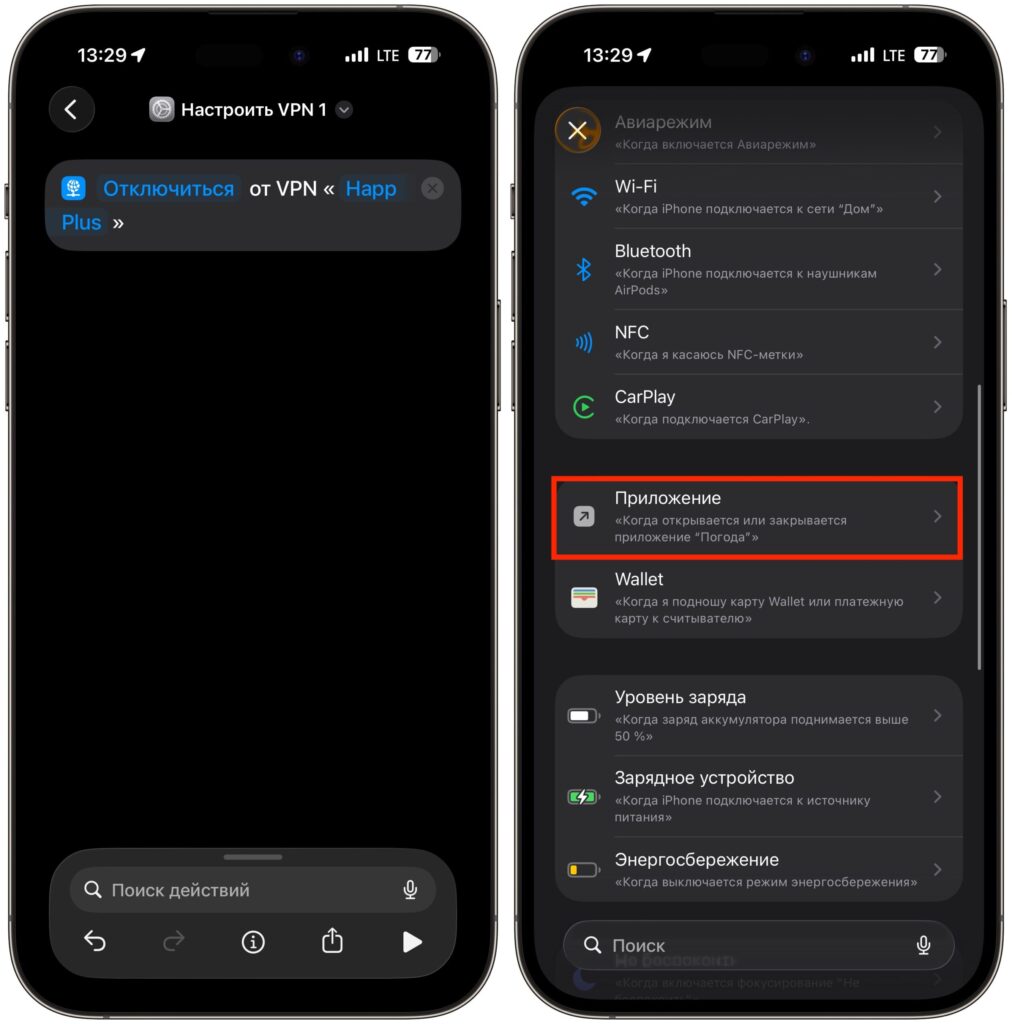
Create a one-action shortcut and start building automation


