Installing SberBank Online on Android usually goes smoothly. The difficulties start afterward: the app is installed but won’t open, throws an error, or freezes on the loading screen. SberBank stops working at the worst possible moment, and this seems to be a law of nature. Let me break down the causes and specific solutions for each situation.
Learn how to launch SberBank even when the app isn’t working
Why SberBank Doesn’t Work on Android
All the reasons why SberBank Online doesn’t work fall into two camps: a problem on the bank’s side or a problem on the user’s side. This is a fundamental distinction, and it determines what to do next.
Before you start fixing — determine whose problem it is: the bank's or the phone's.
Problems on the bank’s side:
- maintenance (scheduled or unscheduled);
- mass server outage;
- security system update;
- overload during peak periods (beginning of the month, paydays).
Problems on the user’s side:
- outdated app version;
- outdated Android version;
- VPN or proxy enabled;
- overloaded app cache;
- weak or unstable internet connection;
- login blocked after several incorrect PIN entry attempts.
SberBank Won’t Open: What to Check First
The first step for any SberBank Online malfunction is to check whether the service is down entirely. To do this, open the website Detector404.ru.
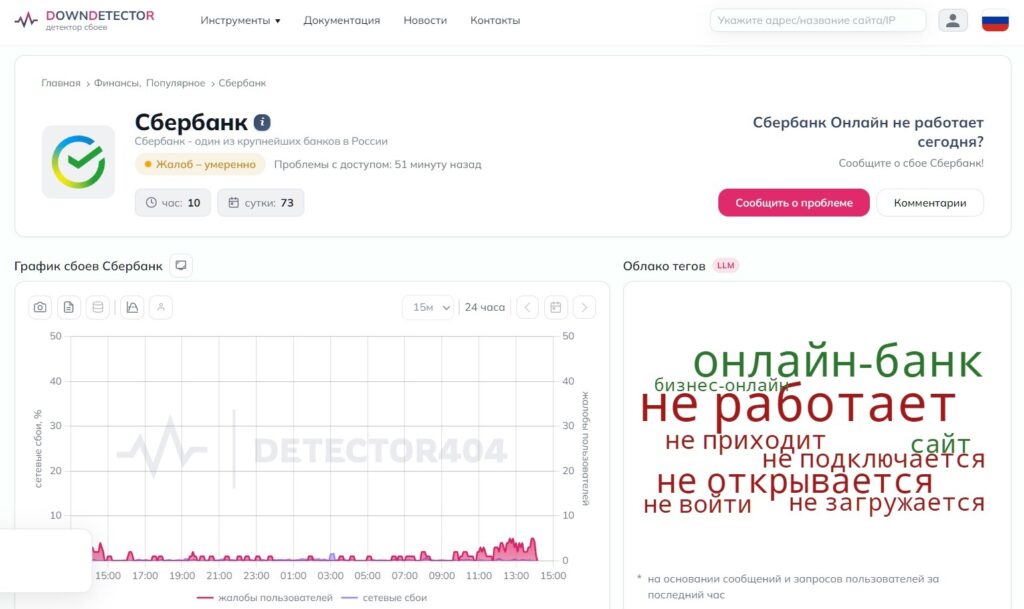
At the time of publication, there are no major outages
The website shows user complaints in real time. If there are hundreds of reports in the last hour, the problem is on the bank’s side, and all you can do is wait.
Most often the problem is on the bank's side.
If there is no mass SberBank outage today, the problem is on your end. Follow these steps in order:
- Disable VPN on your phone if it’s enabled: the SberBank app on Android blocks operation through foreign servers.
- Check your internet: open any other website or app and make sure the network is working properly.
- Update the app through RuStore: an outdated version is a common cause of errors.
- Clear the cache: “Settings — Apps — SberBank — Storage — Clear Cache.”
- Restart your smartphone — after a reboot, some system errors resolve themselves.
- Try switching from Wi-Fi to mobile data or vice versa.
Most cases where the SberBank app won’t open are resolved within the first three steps. The rest is for stubborn cases. It’s important to remember: when there are problems with the app, your finances are safe.
SberBank Error Codes and What They Mean
SberBank Online error codes are not random sets of numbers but specific pointers to the cause of the problem. Let me break down the four most common ones.
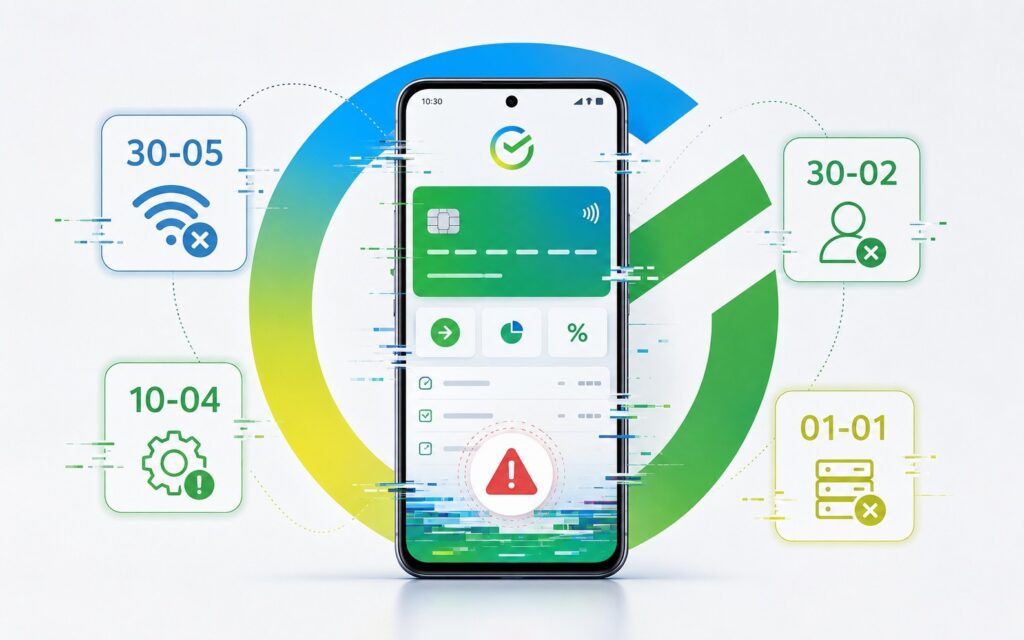
Breaking down the main SberBank error codes
Error 30-05 indicates a device identification problem. The bank cannot verify that you are logging in from a trusted device — this most often happens after a factory reset, SIM card replacement, or app reinstallation. What to do:
- Completely uninstall the app.
- Restart your smartphone.
- Reinstall SberBank from RuStore.
- On first login, complete the full verification procedure via SMS code.
Error 30-02 is related to a session problem — the app cannot establish a secure connection with the bank’s server. It often occurs with an unstable internet connection or after the app has been idle in the background for a long time. What to do:
- Force close the app and reopen it.
- Check your internet connection — switch between Wi-Fi and mobile data.
- Disable VPN if it’s enabled.
- If the error persists — clear the app cache and try again.
Error 10-04 is a technical failure on the bank’s side. The app receives a response from the server, but it’s incorrect or incomplete. There’s practically nothing the user can do on their own in this situation. What to do:
- Wait 15-30 minutes and try again — in most cases, the issue is resolved quickly.
- Check Detector404.ru — make sure it’s a widespread problem and not just yours.
- If the error persists for more than an hour — call 900.
Error 01-01 occurs with authorization problems — incorrect PIN, expired session token, or data conflict after an app update. What to do:
- Make sure you’re entering the correct PIN (five incorrect attempts will lock access for one hour).
- If you’ve forgotten your PIN — don’t guess, immediately restore it through “Forgot code” in the app.
- If the error appeared after an update — clear the app data: “Settings — Apps — SberBank — Storage — Clear Data.” Warning: this will reset your PIN and biometric settings.
- Reinstall the app if clearing data didn’t help.
SberBank Login Blocked — What to Do
SberBank login is blocked most often after five incorrect PIN entry attempts in a row. This is automatic brute-force protection. The block lasts one hour — after that, access is restored automatically.
Even if login is blocked, the problem can be solved
If you don’t want to wait an hour or SberBank Online login is blocked for another reason:
- Call the hotline 900 (an operator will unlock access after verifying your identity).
- Use the web version at online.sberbank.ru — it has a separate authorization system that is not affected by the app block.
- Restore access through an ATM.


