Samsung Galaxy phones do not run games at full power unless the owner chooses it. Until you select Performance mode in Game Booster, which is part of the Gaming Hub app, games run in a balanced or power-saving mode. The setting is drawing new attention because South Korea’s Fair Trade Commission has fined Samsung about $15.1 million. The regulator says Samsung advertised gaming features on several Galaxy devices without disclosing that its Game Optimizing Service (GOS) limited performance in demanding games. Samsung removed the forced throttling in 2022, but GOS is still built into Galaxy phones.
What you need to know
- South Korea’s Fair Trade Commission fined Samsung about $15.1 million over 2021–2022 advertising for the Galaxy S21, Galaxy S22 and Galaxy Tab S8. Samsung disagrees with the decision and plans to challenge it.
- According to the regulator, the devices limited CPU and GPU performance in advance when demanding apps launched, sometimes to around 30% of maximum.
- A March 2022 update removed the forced limit. Unless you pick Performance mode in Game Booster, games run in a balanced or power-saving mode.
- Performance mode removes software-based power saving. It cannot prevent the throttling that any phone applies when its chip overheats.
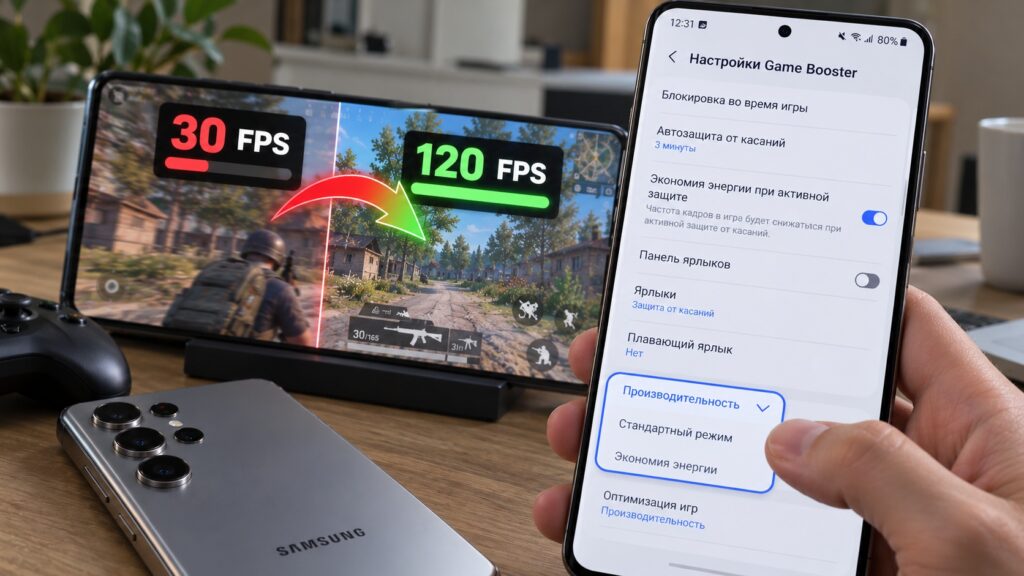
Changing Game Booster settings on a Samsung smartphone
Why South Korea fined Samsung
South Korea’s Fair Trade Commission based its case on Samsung’s 2021–2022 advertising for the Galaxy S21, the Galaxy S22 and the Galaxy Tab S8 tablet. The ads emphasized gaming capabilities. According to the regulator, they did not mention that the devices ran well below full power in heavy games.
The regulator says the system cut processor and graphics performance in advance whenever demanding apps were launched, sometimes to roughly 30% of maximum. Samsung disagrees with the decision and intends to challenge it. The controversy did not begin with regulators, however. It began with complaints from owners.

The service that decides how much power a game gets
The limit came from the Game Optimizing Service, or GOS. This Samsung system service monitors games and adjusts performance so the phone runs cooler and the battery lasts longer. In 2022, users noticed that GOS applied power saving to thousands of apps on a list, even before the phone had started to heat up.
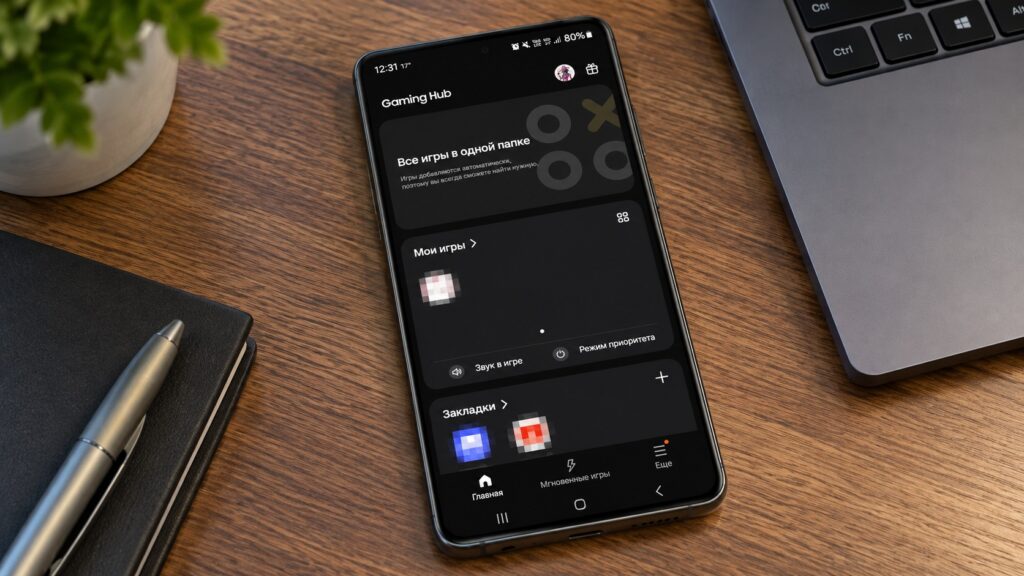
The Gaming Hub app, part of Samsung’s gaming services
GOS is still part of Galaxy gaming features, and you cannot uninstall it the normal way. Some online guides suggest stripping the service out using a computer. The source advises against this, because the game settings stop working once GOS is removed. In its view, configuring the service properly is usually better than removing it altogether.
The hidden throttling is gone, but power saving still applies until you change it
In March 2022, after the controversy, Samsung released an update that removed the forced limit and gave owners a choice. It added a maximum-performance mode to Game Booster, but only in the experimental Labs section, which few people visit. Starting with One UI 7, the option moved to a dedicated section of the Gaming Hub app.
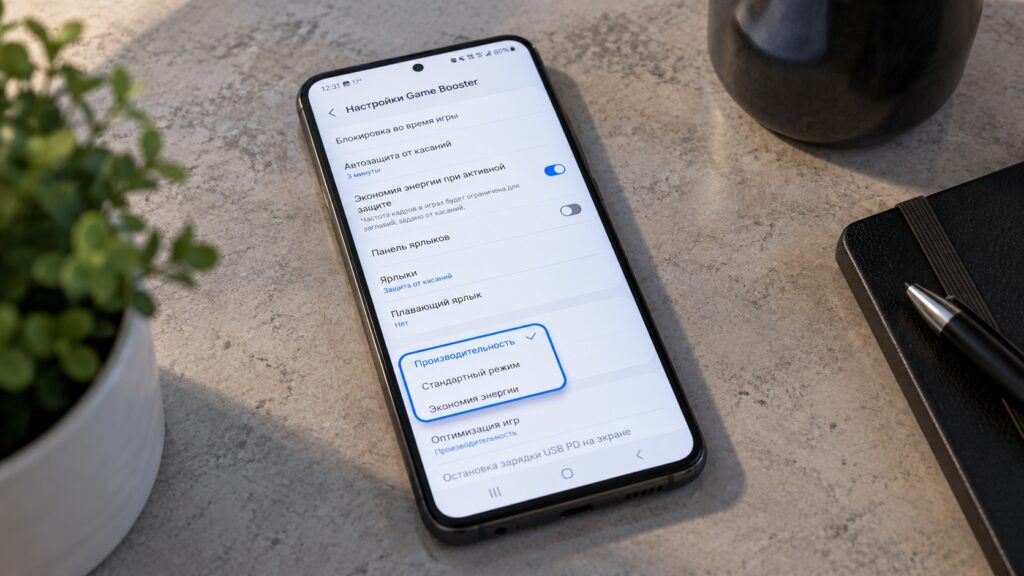
Available Game Booster modes

The game optimization settings now offer three modes:
- Performance: maximum power in games, at the cost of faster battery drain.
- Standard: a balance between game speed and battery use.
- Power saving: some features run at reduced performance to extend battery life.
Secret throttling is gone. However, the phone keeps games within the balanced or power-saving limits until you choose the maximum mode yourself. According to the source, Samsung itself recommends choosing Performance if you want games to run faster.
Why your phone will still lower clock speeds
Keep your expectations realistic. Performance mode removes software-based power saving, but it does not override physics. If the processor overheats, any phone will lower its clock speeds, not just a Samsung. Otherwise, the chip would fail.
As a result, the difference is most noticeable in the first minutes of play and in short sessions. For longer sessions, the source suggests a few simple steps:

- Remove a thick case.
- Avoid gaming while the phone is charging.
- Keep the phone out of direct sunlight.
- Install the latest software update. After major system releases, Galaxy phones sometimes develop glitches that later patches fix.
How to turn on Performance mode for all games
You set Performance mode in the Gaming Hub app, which includes Game Booster. The app is on the Apps screen or in the Samsung folder. To enable maximum performance for all games:
- Open the Gaming Hub app.
- Go to the More tab.
- Select Game Booster.
- Open Game optimization.
- Select Performance.
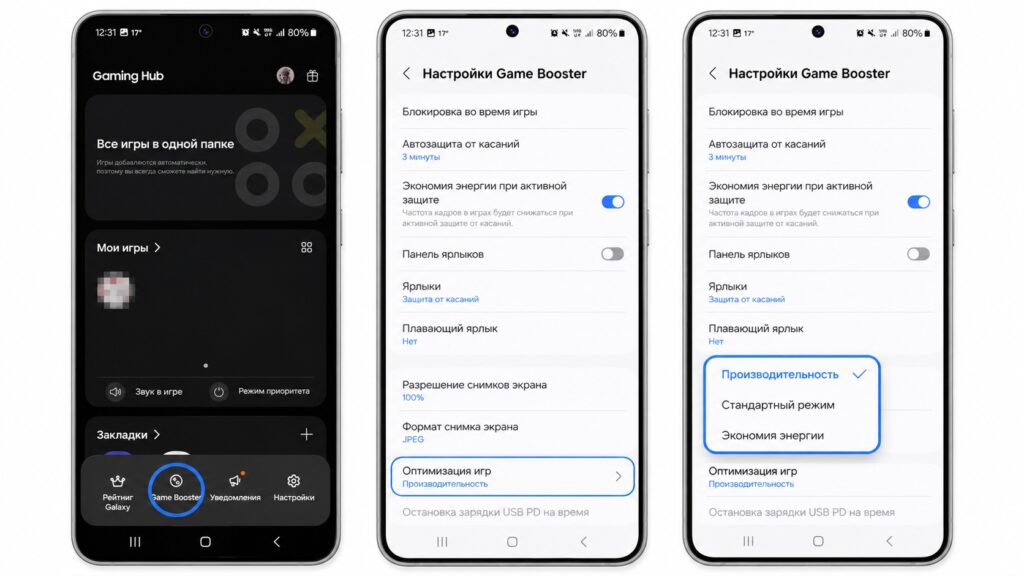
Setting Performance mode in Game Booster
Using Performance mode only for demanding games
If you don’t want faster battery drain in every game, you can apply the maximum mode only to heavy titles:
- In the same Game Booster section, open the settings for individual games.
- Select a game.
- Set its optimization mode, frame rate and resolution.
- Tap Save.
Menu names may differ slightly depending on your phone model and One UI version.