In the MAX messenger, everything is tied to a phone number: the account itself, conversations, bank codes, and Gosuslugi (government services) notifications. And now that Russia is preparing to tie SIM cards to specific iPhones through an IMEI database, the question of “whose number is this and whose device is it” is becoming even more pressing. This isn’t a made-up story: some people try to log in under someone else’s number deliberately, while others simply mistype a digit during registration. Let’s go through each scenario.

What happens if you register in MAX under someone else’s number?
Can You Register in MAX Under Someone Else’s Number
The system doesn’t check at all whether the phone number in MAX is actually yours. The logic is simple: the app sends an SMS with a code to the specified number and waits for you to enter that code. If you have access to the number and the code is in your hands — registration goes through. No access — the SMS goes nowhere, and you won’t move any further.
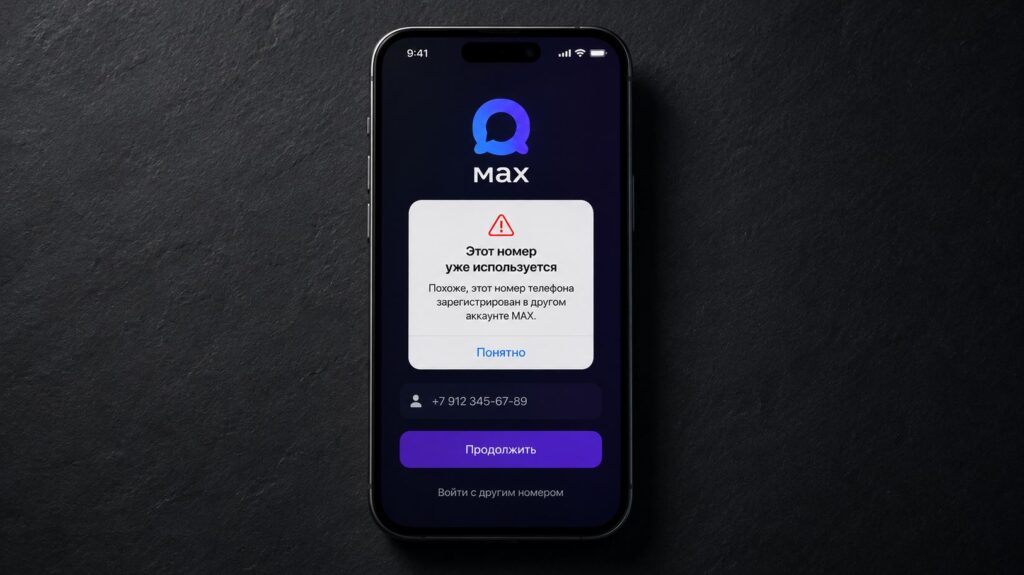
You simply can’t register an account on just any number
The conclusion: registering in the MAX app with someone else’s number without physically holding the phone or SIM card is simply impossible. There’s no brute-forcing codes or bypassing through guessing here. On iPhone, the mechanism is exactly the same: SMS verification in MAX works the same way as in any other messenger on the App Store.
What Happens to Your Number in MAX If Someone Else Uses It
As soon as someone enters your number in MAX for registration, you instantly receive an SMS with a code. This is the first warning sign: someone is trying to log in under your number.
What happens next depends on whether you already have a MAX account. If you do, you’ll receive a notification about a login attempt from a new device and can immediately terminate that session. If you don’t have an account yet, the situation is even simpler: you can register at any time and take full control of the number, kicking out whoever managed to log in before you.
A MAX Account on Someone Else’s Number: What Happens Next
Let’s imagine that access to someone else’s number was obtained: the phone was handed over for a minute, the code flashed on the screen. Someone else’s number in MAX allowed a profile to be created. The problem is that such a MAX profile is inherently unprotected. Account recovery in the messenger always goes through the phone number.
By creating an account based on someone else’s number, you always take a risk
This means the real owner can request a code at any convenient moment, receive it on their SIM card, and take over the entire account. Moreover, all the contents (conversations, contacts, message history in MAX) will go to them along with the profile.
Consequences of Using Someone Else’s Number in MAX
Registering with someone else’s phone number in MAX is not a harmless technical prank. Under Russian Federation law, the risks of creating an account this way are quite serious. And this is no laughing matter.

Obviously, using someone else’s number in MAX is simply a violation of the law
Through the MAX messenger, Gosuslugi notifications, bank confirmation codes, and official government messages are delivered. If you log in with someone else’s number specifically to intercept such information, this could fall under Article 272 of the Criminal Code of the Russian Federation — unauthorized access to legally protected information. This is not an administrative fine but a criminal offense, where the basic charge carries a sentence of up to two years.
Even if there’s zero malicious intent and you went there “just to take a look,” traces still remain: IP address, login time, device model. The app carefully logs all sessions, and if necessary, this data can be retrieved.
How to Protect Your Number in MAX
The good news is that without your SIM card, registering in MAX is impossible. But if your phone could have ended up in someone else’s hands, it’s worth checking active sessions:
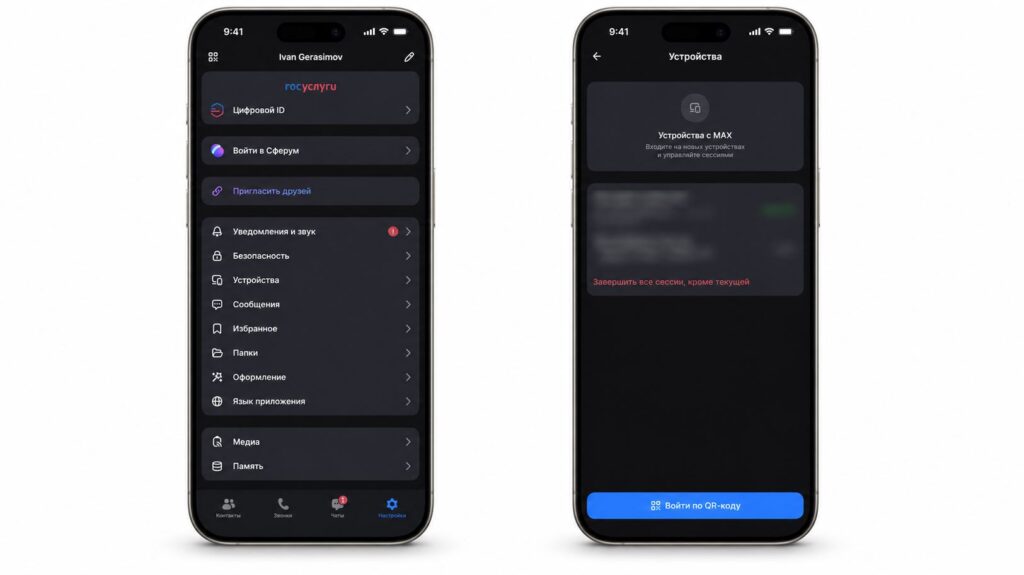
The simplest way to protect your MAX account
- Open MAX on your iPhone and go to the “Profile” section.
- Select “Settings,” then open the “Devices” option.
- Review the list: an unfamiliar device or unknown city is a reason to be concerned.
- Tap “Terminate all other sessions” if anything looks suspicious.


