We figured out statuses in MAX — it turned out things aren’t so simple with them. With reactions, the situation is different: they work fully and without limitations. Emoji under messages in MAX, reaction counters, a list of those who liked — it’s all there. I’ll explain how to use this feature from start to finish so you have no questions left.

Understanding reactions in MAX on Android
What Are Reactions in MAX
Reactions in the MAX messenger are emoji marks under messages. Any chat participant can quickly react to a message without sending a text reply: add a heart, like, laugh, or any other emoji from the available set. Visually, reactions in MAX are displayed right under the message as small icons with a numerical counter next to them. The counter shows how many users have added a particular mark. This works in private chats, group chats, and channels. Although the mechanics differ slightly depending on the type of conversation.
Reactions are one of the simplest ways to give feedback in a chat without cluttering it with extra messages. By the way, in addition to reactions, the MAX app has another quick communication tool. I covered how to use stickers in MAX separately. Stickers and reactions complement each other perfectly.
How to Add a Reaction to a Message in MAX
Adding a reaction in MAX on Android is easier than it seems:
- Open the desired chat in MAX on Android.
- Press and hold the message you want to react to.
- In the menu that appears, select the desired emoji from the suggested row of reactions.
- The mark will appear under the message with your name in the counter.
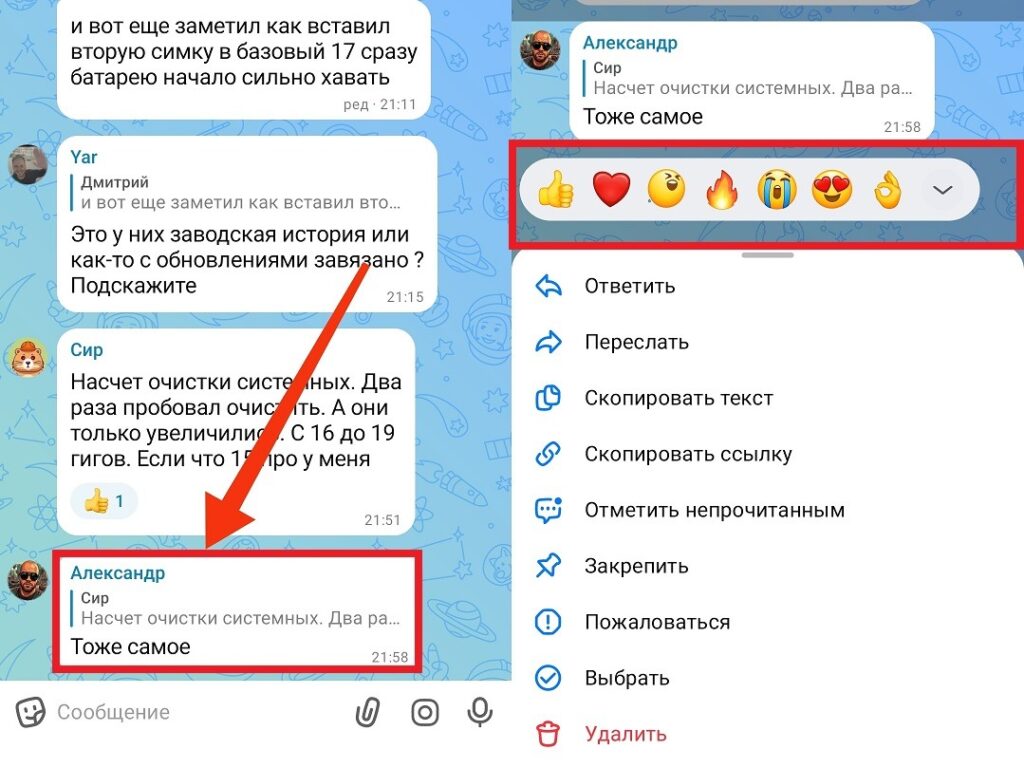
Tap on a message to see the list of available reactions
If the emoji you need isn’t in the quick row — tap the “+” icon next to the suggested reactions. A full list of available emoji will open for selection. A like in MAX is also a reaction, just in the form of a heart or thumbs up. There’s no difference in mechanics — it’s added the same way as any other emoji.
How to Remove a Reaction in MAX
Removing a reaction in MAX is just as easy as adding one:
- Find the message with your reaction underneath it.
- Tap the same emoji mark that you added.
- The reaction will be removed immediately, and your name will disappear from the counter.
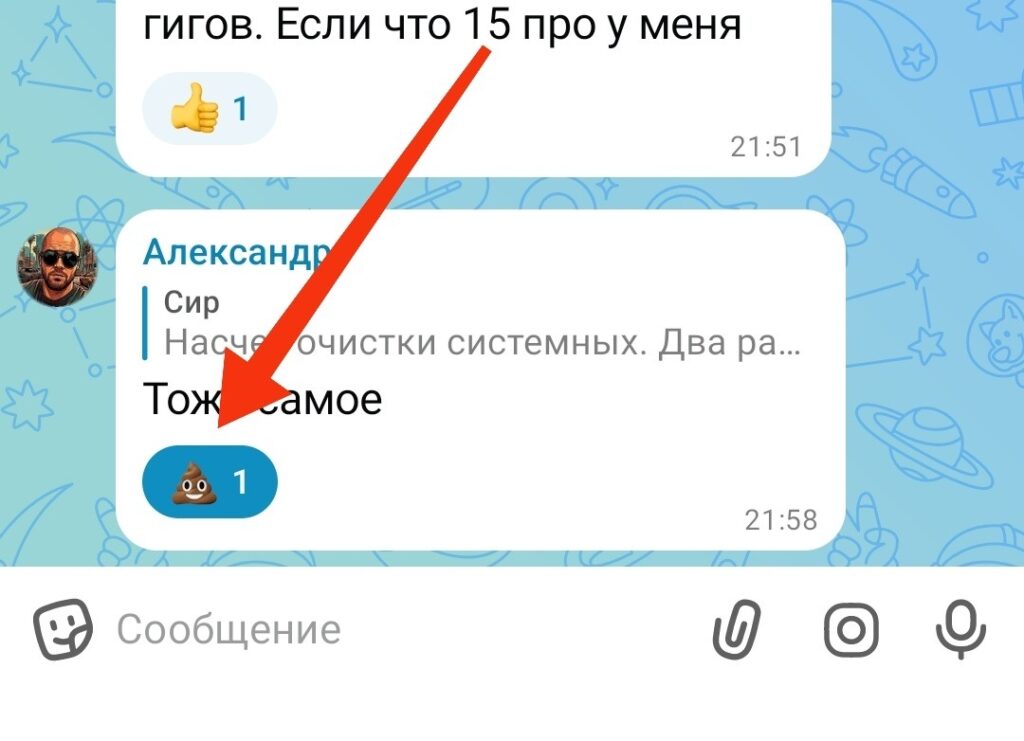
An impulsive reaction can always be removed
This only works with your own reactions. You cannot remove a reaction in MAX that someone else added, which makes perfect sense. One nuance: if a message is deleted from the chat, all reactions under it disappear along with it. This is worth keeping in mind if the conversation is later cleared.
How to See Who Added a Reaction in MAX
This is the main question that interests most users. Who added a reaction in MAX — you can find out, and this works in group chats:
- Find a message with reactions in a group chat.
- Tap the reaction icon (emoji with counter) under the message.
- A list of all users who added that mark will open, with names and avatars.
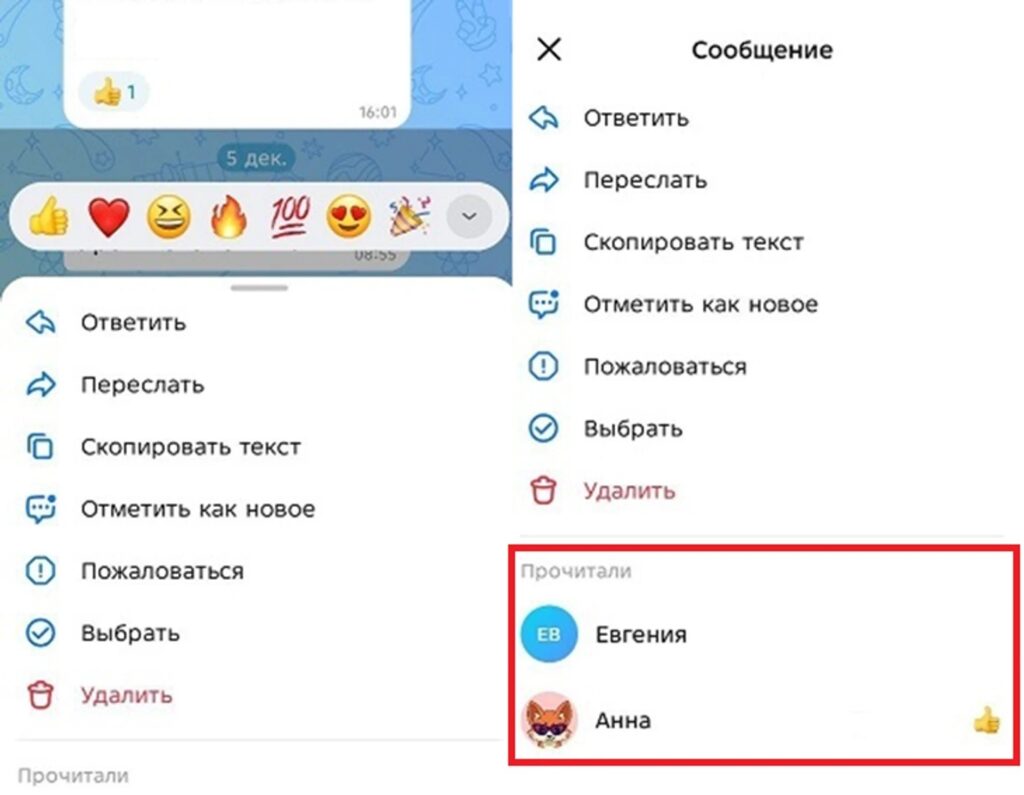
If the message is yours, you can find out who reacted to it
An additional method is real-time notifications. When someone adds a reaction to a message in MAX, the app sends a notification with the user’s name. For this to work, check in “Settings — Notifications” that they are enabled. An important point: viewing the reaction list does not notify the person who added them. Browse freely — no one will know.
Why Reactions Are Not Visible in MAX
If reactions are not visible in MAX, there are several reasons. Let’s go through each one in order so you can solve the problem for sure. First, an outdated version of the app. The reactions feature didn’t appear right away — if the app hasn’t been updated in a while, reactions may simply not be available. Go to Google Play or RuStore and check for updates.
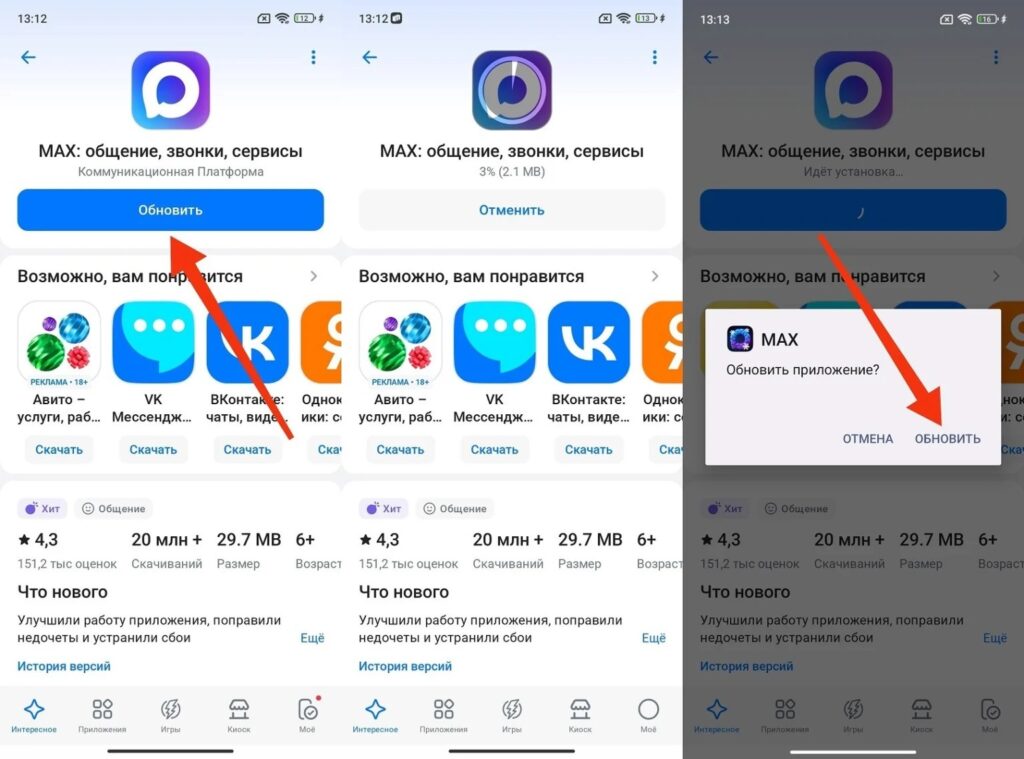
Don’t forget to update MAX on Android
Reactions are disabled by the chat administrator. In some group chats and channels, administrators can disable the ability to add reactions. In this case, the option simply won’t appear when you hold a message. Reactions in MAX channels work differently. There, they are often limited or available only to subscribers — it depends on the specific channel’s settings.
A technical glitch. If reactions disappeared suddenly and were working before, there may be a server issue. About what a major MAX outage looks like and how to understand that the problem isn’t on your end — read separately. Restart the app and check your internet connection.
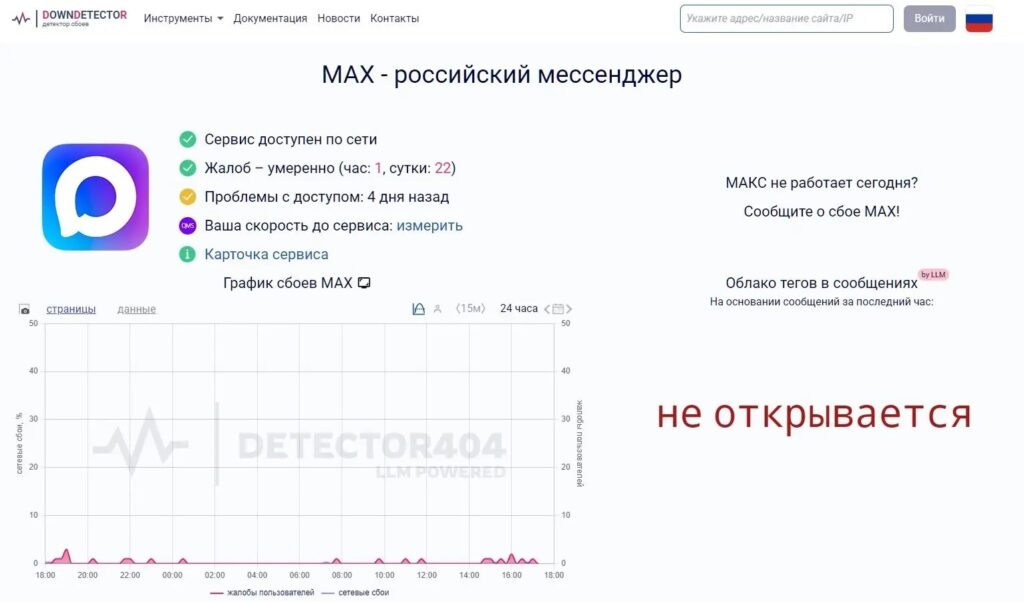
A MAX outage could be the culprit
Finally, app cache. Clear the cache via “Settings — Apps — MAX — Storage — Clear Cache” and restart the messenger.