I have plenty of reasons not to use the national messenger, and I wrote about that in detail in an article about why I don’t want to use MAX. But now the government app is mandatory for pre-installation on all Android smartphones in Russia, and whether you like it or not, it’s already on your phone. That’s exactly why I’ve analyzed it in such detail that I now answer questions about the national messenger more often than I’d like. Here’s what I’ve accumulated: how to properly set up MAX on Android, which permissions to grant, which ones not to, and how to make sure the messenger doesn’t know more about you than necessary.
Here’s how you should set up the MAX app on your phone
Where to Find MAX Settings on Android
First, let’s figure out where to find MAX settings on your phone. The messenger’s interface is organized in an unusual way, but the basic parameters are straightforward:
- Open the MAX app on Android.
- In the bottom navigation bar, tap the far-right tab “Settings.”
- Select the desired section.
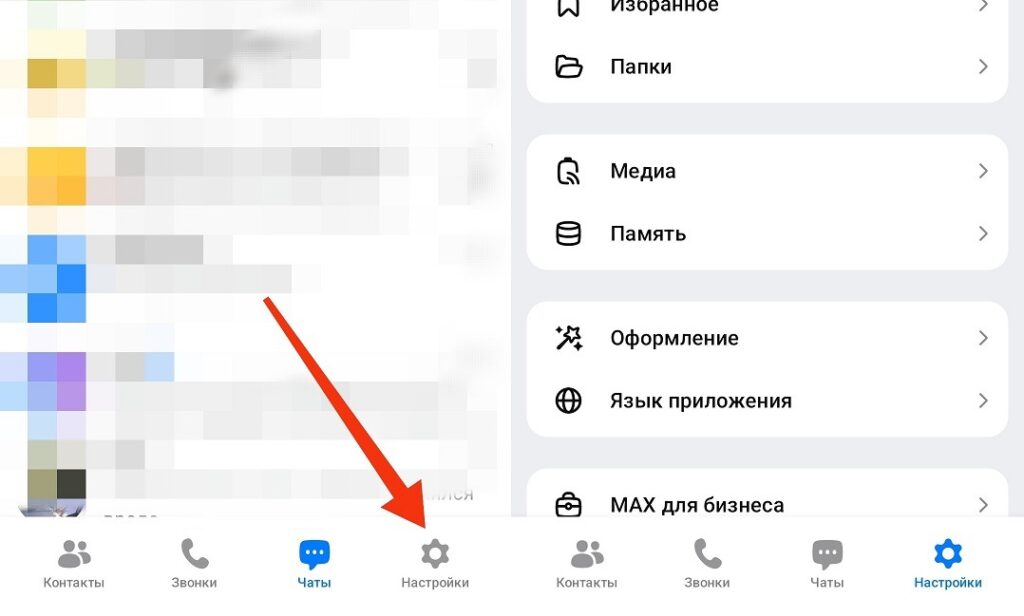
This is where the main messenger settings are hidden
From here, all sections are accessible: notifications, privacy, security, permissions, and other parameters. This is the menu where everything discussed below is located. MAX app settings are divided into logical blocks. You can figure it out, but you’ll need to spend a few minutes exploring.
MAX Doesn’t Display Contacts — What to Do
One of the first problems new users encounter: MAX contacts setup doesn’t work without the appropriate permission. If the contact list is empty or acquaintances don’t appear as MAX users — most likely the app simply didn’t get access to the phone book:
- Open Android “Settings” on your smartphone.
- Go to the “Apps” section and find MAX in the list.
- Tap “Permissions.”
- Find the “Contacts” option and switch it to “Allow.”
- Return to MAX and go to the contacts section (the list will update automatically).
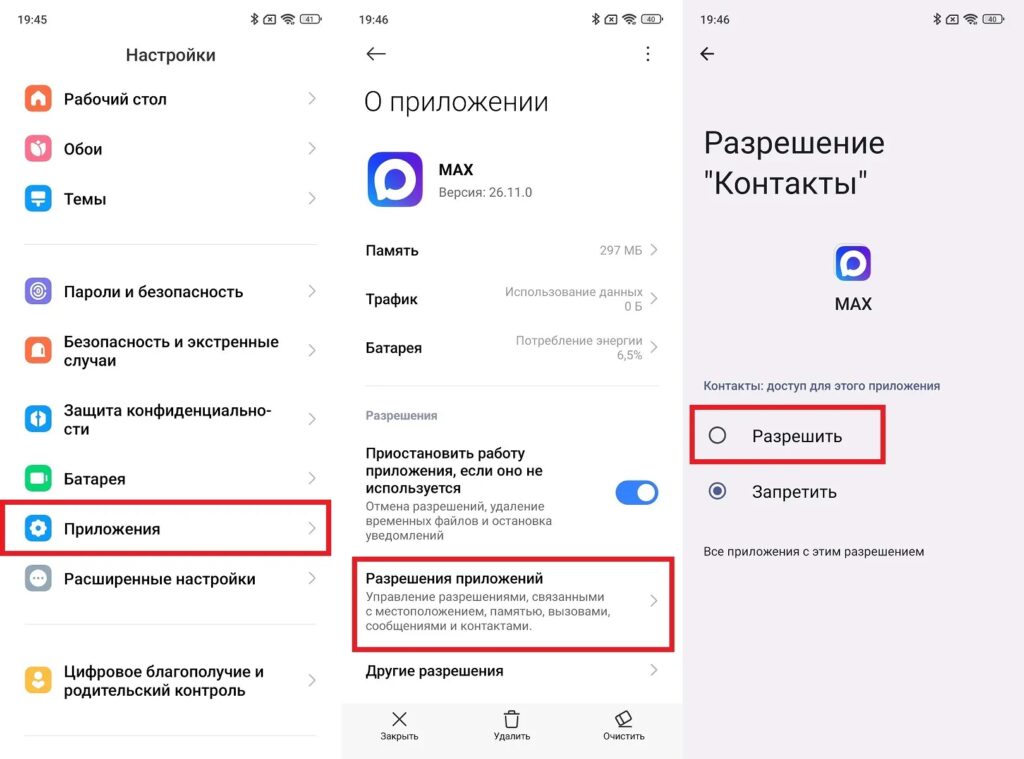
This is how you grant permission to access contacts in MAX
If contacts still haven’t appeared, go to MAX settings within the app itself and find the “Contacts” section — there may be a forced sync button.
How to Set Up MAX Notifications
Setting up notifications in MAX should be done right after installation, otherwise the messenger will either stay silent at the worst possible moment or bombard you with alerts every five minutes:
- Open MAX settings in the app.
- Go to the “Notifications” section.
- Make sure notifications are enabled for personal messages and calls.
- Separately configure notifications for group chats and channels — it’s more convenient to set them to silent mode or turn them off completely.
- If notifications aren’t coming through at all, check system permissions: “Android Settings — Apps — MAX — Notifications” and make sure they are allowed at the system level.
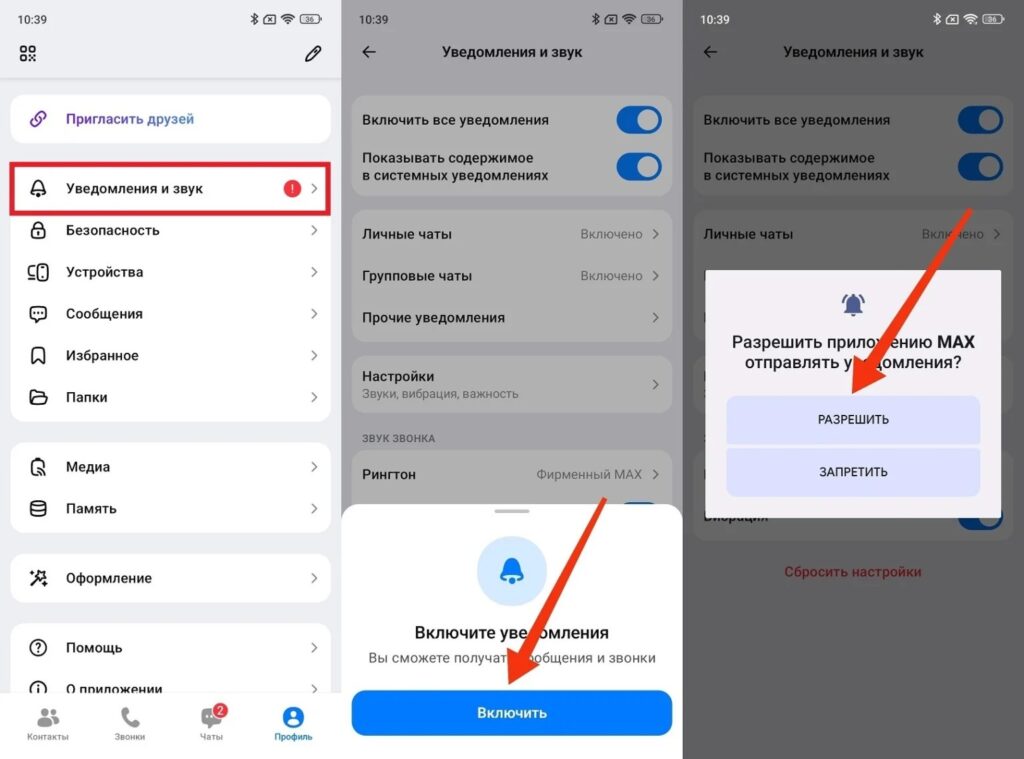
The main thing is to grant all the permissions
On some Android skins — MIUI, HyperOS, Samsung skins — apps are additionally restricted in background activity. If you can’t set up notifications in MAX the standard way, go to “Settings — Battery — App Activity Management” and add MAX to exceptions. This will give the messenger the right to work in the background without restrictions.
Other MAX Permissions on Android
This is where things get really interesting. Privacy settings in MAX directly depend on which permissions you’ve granted to the app. You shouldn’t grant everything indiscriminately, especially considering that the messenger collects data and may share it with third parties.
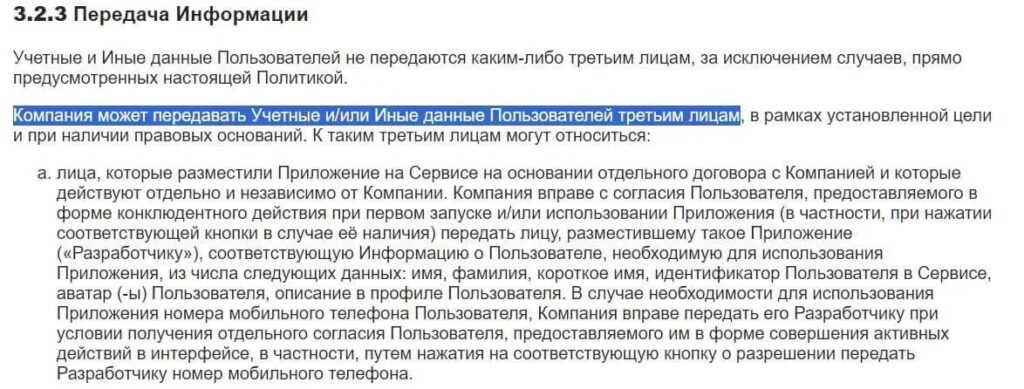
MAX really does share data with third parties. Source: legal.max.ru
Open “Android Settings — Apps — MAX — Permissions” and configure each option consciously:
- Contacts: allow, otherwise the messenger won’t work properly;
- Microphone: allow only while using the app, not always;
- Camera: allow only while using the app;
- Notifications: allow, otherwise messages won’t come through;
- Location: deny or allow only while using the app, if you share geolocation;
- Phone: deny if you don’t use the calling feature through MAX;
- Files and media: allow access only to selected files, so the messenger can’t see unnecessary files.
The key principle: the “Only while using” mode is safer than “Allow always.”
How to Set a Password on MAX Messenger
Thousands of users deal with MAX account hacking on Android every day. That’s why additional protection for the messenger won’t hurt. A password on MAX will help with that:
- Open MAX settings in the app.
- Go to the “Security” or “Privacy” section.
- Find the “Login password” option.
- Create a password and set it.
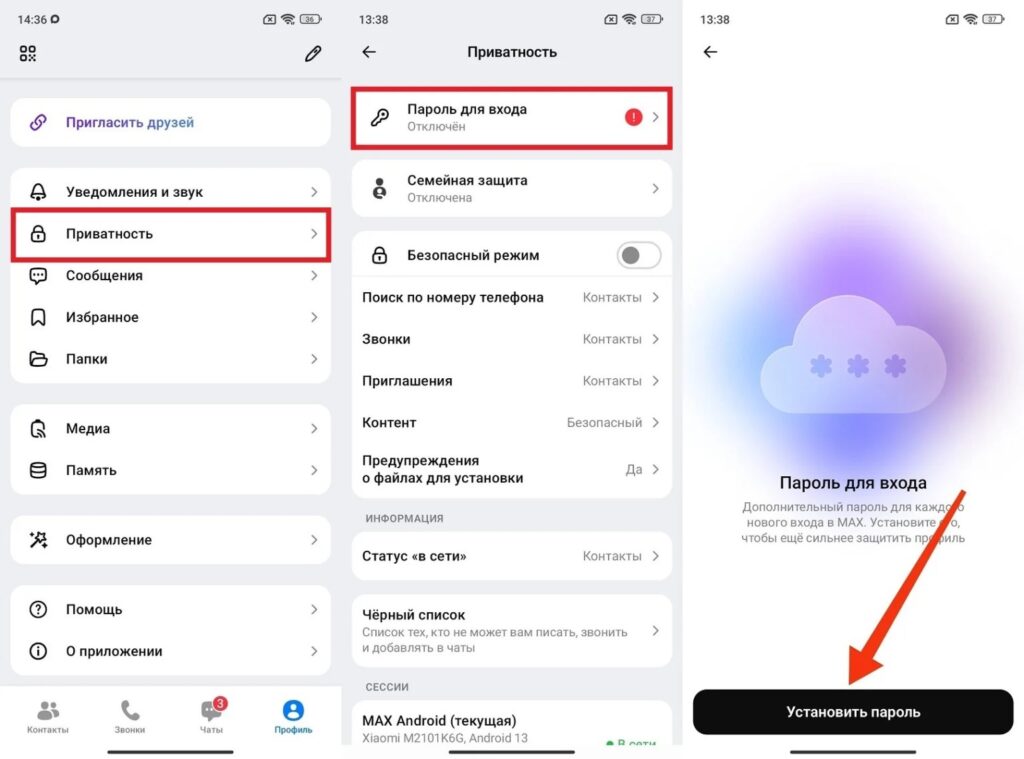
A login password can really save you
The MAX app password activates every time the messenger is opened on a new device. This makes it harder for an attacker to hijack your account.
How to Hide Last Seen Time in MAX
Last seen time in MAX is visible to all contacts by default. If you don’t want acquaintances to know when you last opened the messenger, this can be disabled in a few steps.
- Open MAX settings.
- Go to the “Privacy” or “Security” section.
- Find the “See online status” option.
- Select “nobody.”
Showing “Was recently online” in MAX instead of the exact time is the softest option. If you want to hide it completely, choose “Nobody.” Keep in mind: if you’ve hidden your visit time


