If a smartphone that used to reach half a charge in under half an hour is now well behind schedule while the fast-charging icon is still showing, the most likely cause is not the phone or the power adapter but the USB-C cable. That is the conclusion the source author reached after a vivo X300 with 90 W charging began gaining only about 35-38% in 30 minutes instead of the usual 50%. Swapping the adapter changed nothing; swapping the cable immediately restored the normal pace. Along the way, the author also found lint in the charging port and reviewed two other common culprits — heat throttling and battery settings — that can quietly slow charging without any warning on screen.
What you need to know
- The source author’s vivo X300 (6,040 mAh battery, up to 90 W charging) dropped from roughly 50% in 25-30 minutes to about 35-38% in the same time, with the fast-charging indicator still displayed.
- A different 100 W adapter did not help; a different USB-C cable did — the old cable was the culprit despite showing no visible damage.
- The author also found pocket lint inside the USB-C port and recommends cleaning it only with a wooden or plastic toothpick or compressed air, never metal objects.
- Other causes the author lists: automatic power reduction when the battery gets hot, and settings such as a disabled fast-charging toggle, bypass charging, or an 80% charge limit.
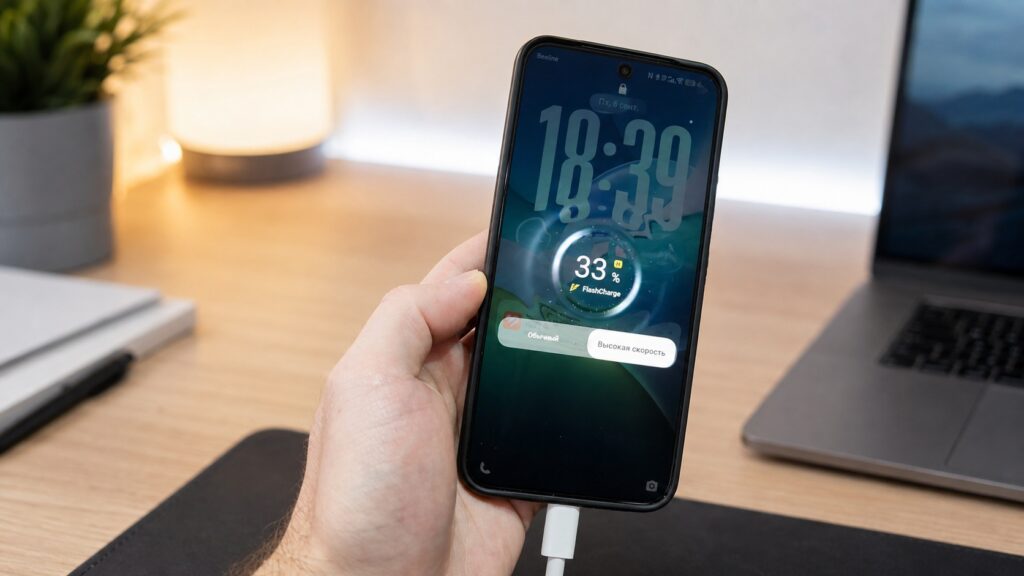
The author’s vivo X300 began charging more slowly even though it still displayed the fast-charging indicator
Why the slowdown is easy to miss
The vivo X300 supports charging at up to 90 W. According to the source author, it normally went from empty to about 50% in 25-30 minutes — a typical pace for its 6,040 mAh battery. On the day in question, the same 30 minutes yielded noticeably less, roughly 35-38%. The catch was that the fast-charging icon never disappeared from the status bar and no warning appeared. The author notes that only a habit of checking how many percentage points accumulate over a set time exposed the problem; otherwise it could have gone unnoticed for weeks. The diagnosis then proceeded from the simplest possible causes to the more involved ones.
Step one: the adapter, then the cable
The first suspect was the hardware. The author connected a spare 100 W UGREEN adapter using the same cable. Charging speed did not change, so the power brick was ruled out.
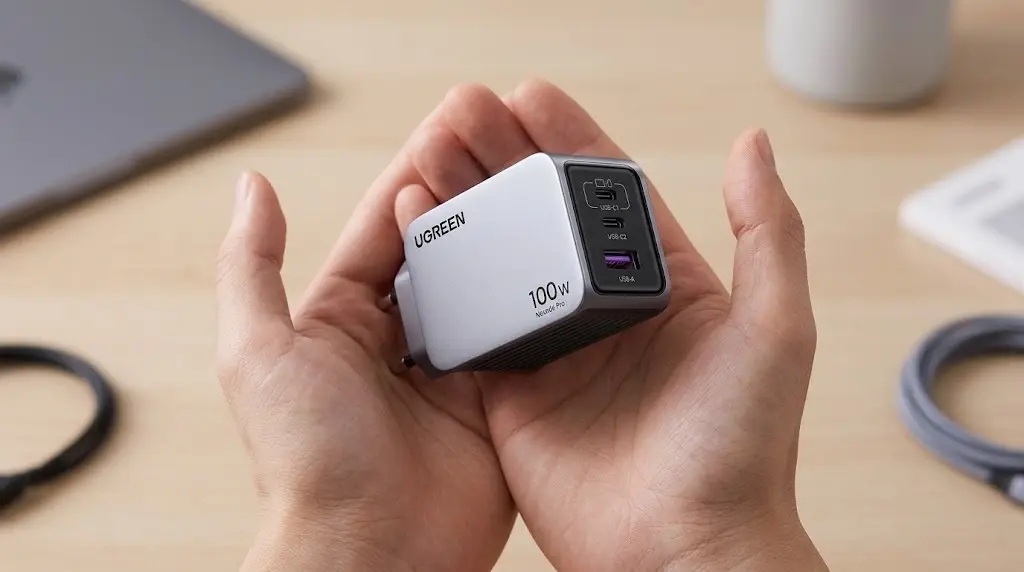
The spare UGREEN power adapter the author used to rule out the charger
Next came the cable. The author swapped in a different USB-C cable from the same drawer, and the charging rate rose noticeably. The cable was the culprit.
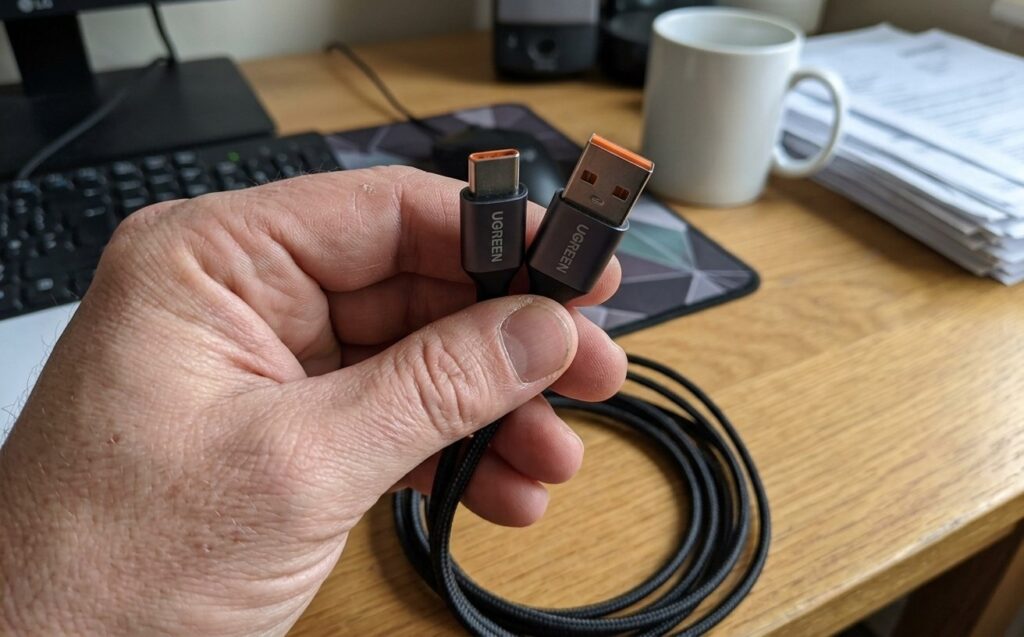
With this replacement cable, charging sped up again

Why a cable can fail without looking damaged
The author describes this as the most common and least obvious cause of slow charging. The failing cable looked intact: the sheath was not torn and the connectors showed no visible damage. The author’s explanation is that a cable contains several internal conductors, and the one carrying power may have been partially broken or oxidized at a bend point. Nothing shows on the outside, but the cable can no longer sustain the required power — the author puts it at something like 15-20 W instead of the 90 W the phone can accept. The source does not say this figure was measured.
The author’s rule of thumb: cables wear out sooner than people expect, especially those coiled and uncoiled every day, so it is worth testing charging speed with a replacement cable roughly every six months.
Step two: check the port for lint
While working on the cable, the author also inspected the USB-C port on the phone. It looked clean at a glance, but a flashlight revealed a small ball of pocket lint inside. Lint and dust prevent the plug from seating fully on all contacts, so the connection is loose and power drops. The author calls this a very common cause, since a phone spends all day in jeans or jacket pockets and the port gradually fills up.
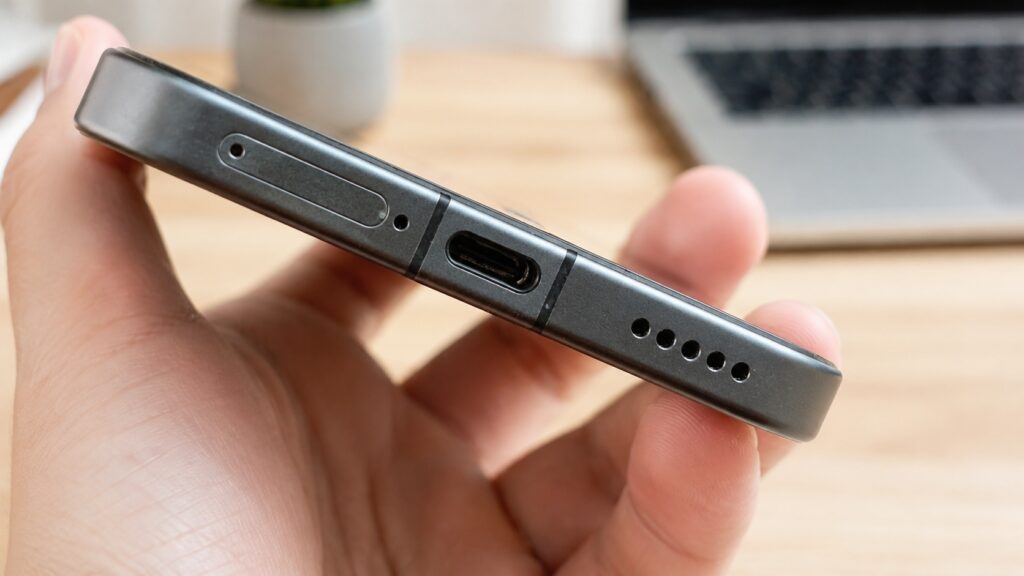
The port held enough dust and lint that it had to be cleaned out
How the author recommends cleaning the port:
- use a wooden or plastic toothpick to gently hook and pull out the lint;
- use a can of compressed air if one is available;
- never use metal objects such as needles, paper clips, or keys.
Step three: heat throttling
In this case the cable was to blame, but the author flags temperature as an important check because it had caused slow charging before. According to the author, Android reduces charging power when the battery overheats. This is a protective measure: high temperature combined with high charging current accelerates battery degradation, so the system cuts power automatically and without any notification. Situations the author lists as causing heat during charging:

- gaming or navigation while charging;
- running a Wi-Fi hotspot while charging;
- charging under a pillow or in a case with no ventilation;
- a hot room or direct sunlight.
If the phone feels warm, the author’s advice is to remove the case, place it on a hard surface, and leave it alone for about 10 minutes; once the temperature drops, charging power should recover.
Step four: battery settings
The final check is the phone’s own settings, which the author says are sometimes the real cause. On the vivo X300 this means Settings > Battery, where the author looks at three things:
- Fast charging toggle — on vivo this is a separate switch that can occasionally get turned off after a settings reset or firmware update;
- Bypass charging — when enabled, the battery barely charges while the phone is in use. That is intended for gaming, but if left on, charging crawls;
- Charge limit — with an 80% cap, charging slows sharply at that mark; the phone does not move to 81% but very slowly tops up toward the limit.
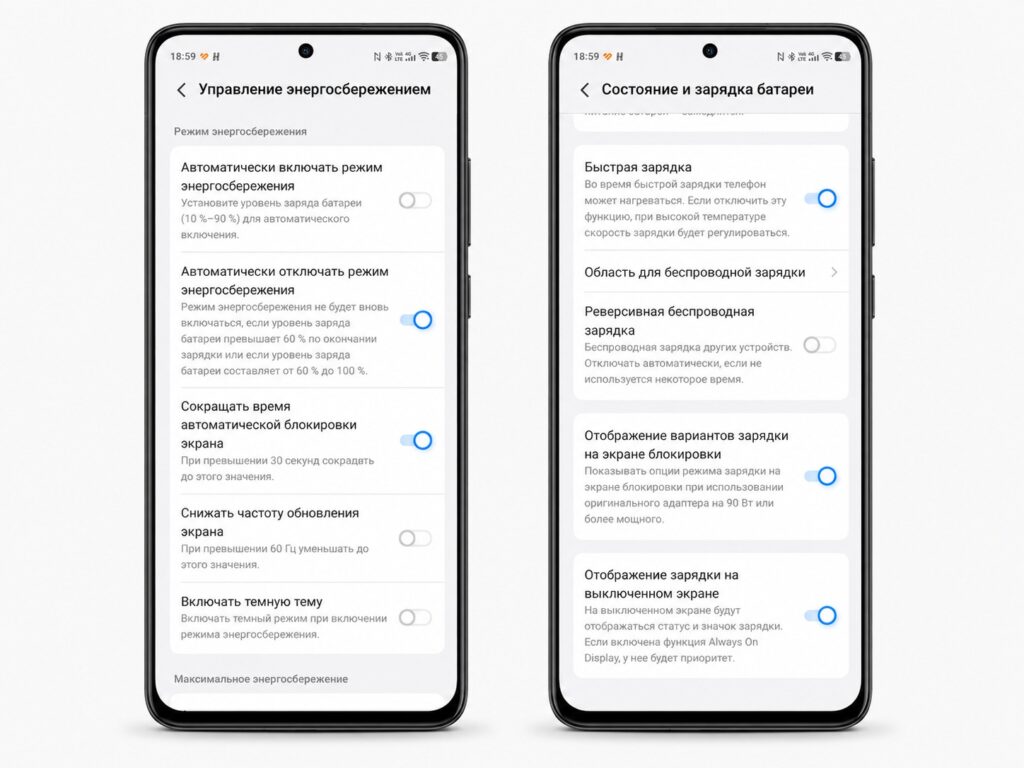
The author checked the phone’s charging settings and recommends doing the same
On other brands the names and locations differ. The author says Samsung labels the relevant options “Battery protection” and “Adaptive charging” under Settings > Device care > Battery, while Xiaomi has “Optimized charging” under Settings > Battery. Menu names can vary by software version, so the exact wording may differ on your device.
The outcome and a checklist
In the author’s case the cause was as mundane as it gets: an old cable that could no longer carry the required power. After replacing it with a new cable with a metal connector, charging returned to the usual 50% in 25 minutes. The whole diagnosis took about ten minutes.
The author’s recommended order of checks if your phone has started charging more slowly:
- Replace the cable — the author calls this the number-one cause.
- Try a different power adapter.
- Clean the USB-C port.
- Let the phone cool down if it is warm.
- Check the fast-charging and charge-limit settings.
The cable is the most frequent culprit, so checking it first is the quickest route to an answer. Keep in mind that this is one user’s diagnosis on one device, and results may differ on other phones.


