I’ve been working on a MacBook Air M2 for a long time, and for a while I genuinely believed the trackpad was all I needed. Apple makes the best trackpads in the industry, so why bother with a mouse? But one day I decided to try using this familiar device, and my work speed changed dramatically. Now a mouse sits in my backpack next to my laptop. If you’re just about to buy a new MacBook, think about getting a mouse ahead of time. Here’s why the MacBook trackpad didn’t work for me as a permanent solution and which mouse replaced it.
What did you choose?
What’s More Comfortable for Working with Text on a MacBook
My main work is text. Lots of text. Articles, editing, layout. And this is where the trackpad’s main problem begins: selecting text fragments. It seems like the simplest operation, but on a trackpad it turns into a struggle.
Have you ever tried to precisely select two words in the middle of a paragraph? With a mouse — one movement. With a trackpad — your finger either overshoots or falls short. It’s especially inconvenient when you need to select a fragment and replace it with other text. With a mouse I do this automatically, but with the trackpad I feel like I’m fighting the device every time.
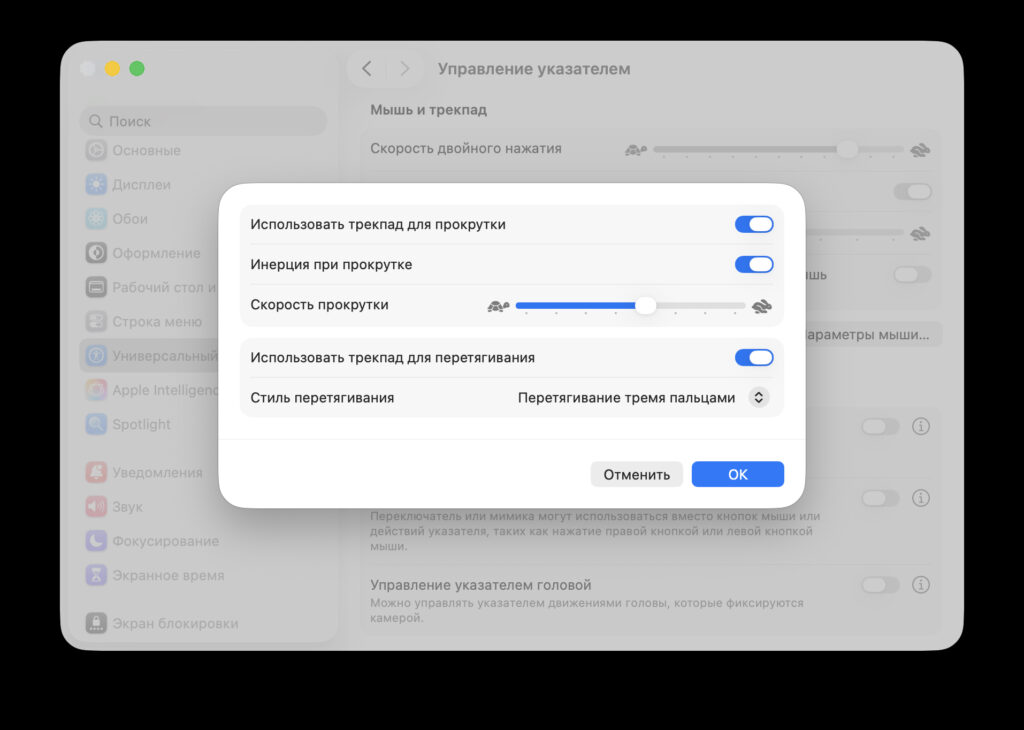
Yes, I know about three-finger selection. I enabled this setting in macOS, tried it — and was impressed. It’s a really cool feature: you place three fingers and drag across the trackpad, and the text gets selected. It’s a useful MacBook trackpad setting that everyone should enable. But even with this feature, the mouse remains more precise. The triple touch requires a bit more concentration, while with a mouse everything happens reflexively.
Why a Mouse Is More Comfortable for Working on a MacBook
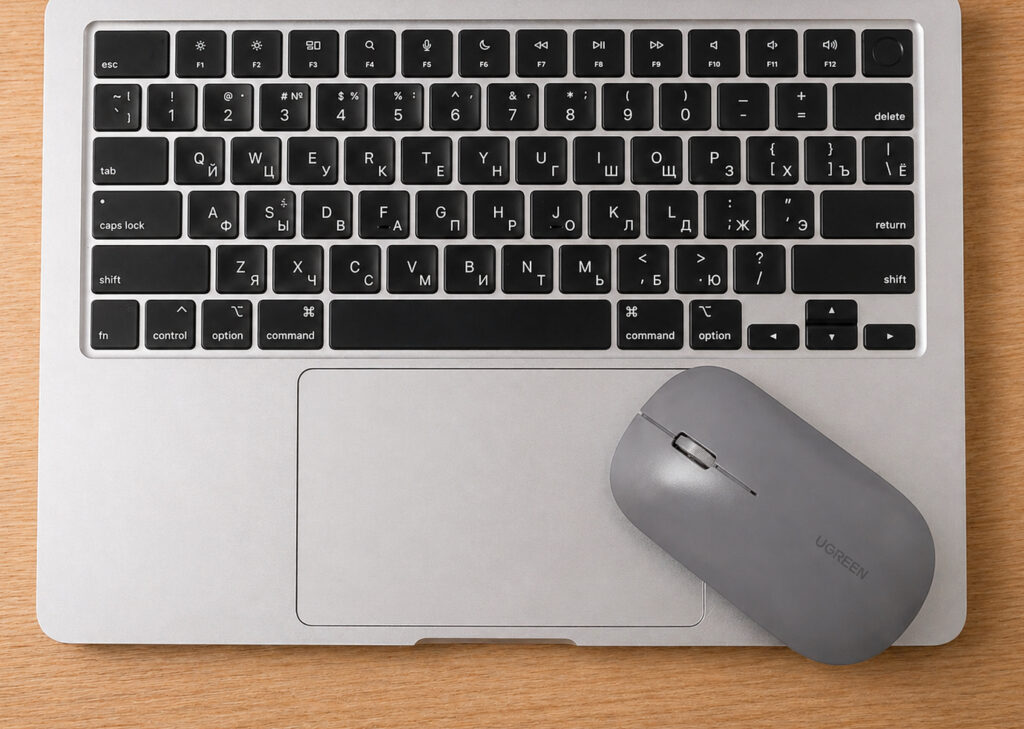
There’s another problem that few people talk about. The MacBook trackpad is located in the center of the body, right below the keyboard. And if it’s important to you that one hand stays on the keyboard while the other is on the pointing device, at some point your hands start getting in each other’s way.
Your right hand is on the trackpad, and your left hand needs to reach some key in the upper center area, and your hands bump into each other — whether you want it or not. This is unnoticeable in the first five minutes, but after several hours of work, your hands get much more tired than they should. By the way, there are also other non-obvious MacBook trackpad gestures that can make things a bit easier.
Use this setting — it makes the trackpad more comfortable
A mouse solves this problem easily. It sits to the right of the laptop, each hand is in its own place, they don’t interfere with each other. Left hand on the keyboard, right hand on the mouse. A classic setup that just works.
An Affordable Bluetooth Mouse for MacBook Air
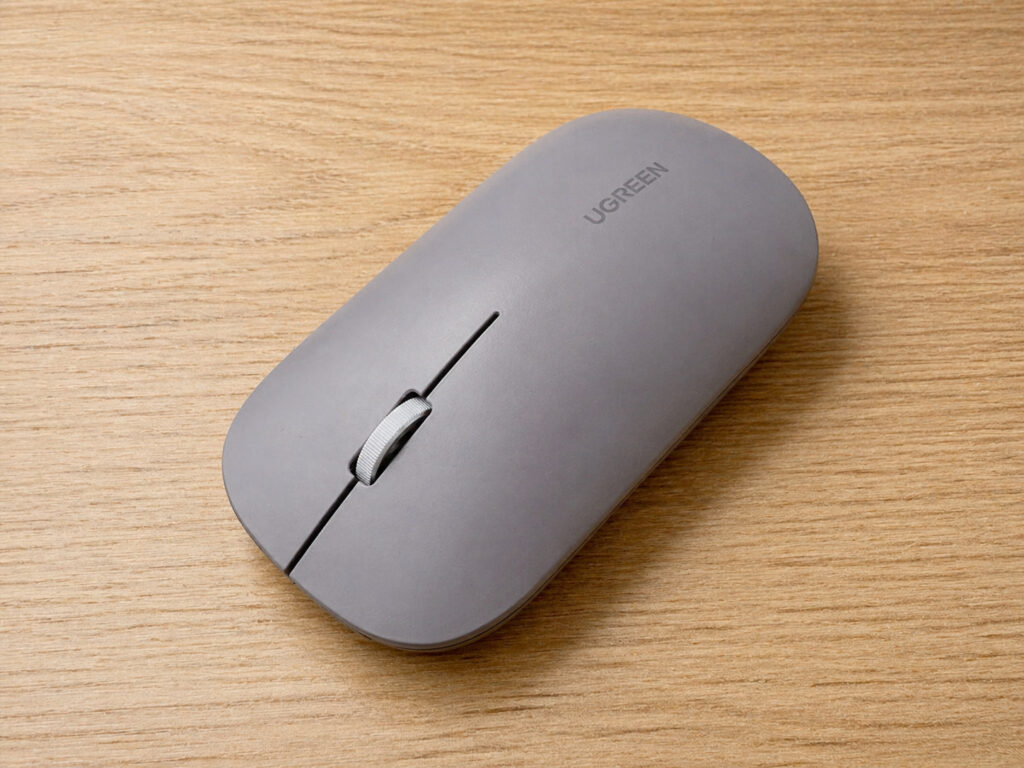
I chose the UGREEN MU006 — a wireless mouse with Bluetooth 5.0 and a 2.4G USB receiver. I connect it to the MacBook via Bluetooth, no dongles needed, and the USB-C port stays free.
A very comfortable mouse that I recommend to everyone
Here’s what I like about it:
- Silent clicks — noiseless buttons, you can work in a café or library without annoying those around you
- Compact body — takes up almost no space in a bag, weighs next to nothing
- Long battery life — runs on a single AA battery, and it lasts a very long time. Haven’t changed it once in several months
- 4 DPI levels — you can adjust sensitivity from 1000 to 4000 DPI for specific tasks
- Price around 1,270 rubles — more than reasonable for a mouse of this quality
As for downsides — the side buttons don’t work in macOS. This is a system limitation, not a mouse issue, but keep this in mind if you’re used to using the “forward” and “back” buttons in your browser.
When the MacBook Trackpad Is More Convenient Than a Mouse
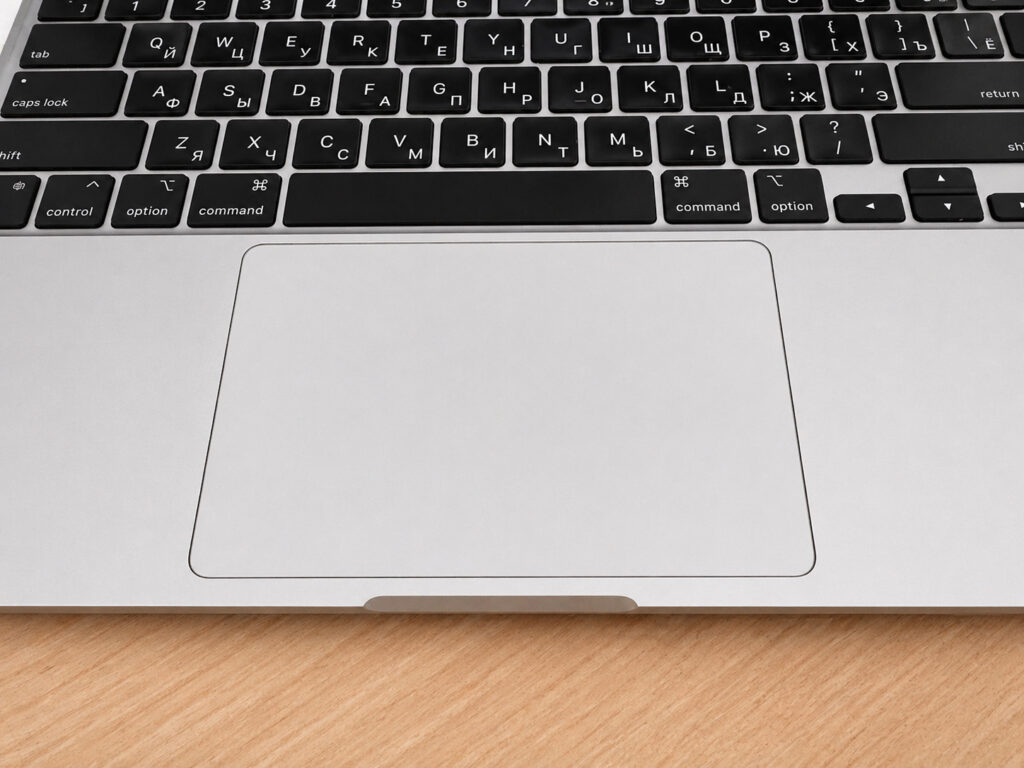
I’m not calling for completely abandoning the trackpad. There are situations where it’s irreplaceable. For example, on the go — on a train, on a plane, in a queue. You pull out the MacBook, open the lid — and you’re working. There’s nowhere to put a mouse, and there’s no proper surface anyway.
There are moments when the trackpad still turns out to be better than a mouse
And this is where three-finger selection became a real lifesaver for me. Previously, I genuinely suffered when I had to work with text without a mouse. Now I’ve enabled this setting — and the trackpad has become at least usable for editing. Not ideal, but tolerable.
You can find this option in System Settings — “Accessibility” — “Pointer Control” — “Trackpad” — enable “Three-finger drag”.
So here’s how it works out. If you work with text, spreadsheets, or layout — get a mouse. The MacBook trackpad is great for scrolling, gestures, and everyday tasks, but for precise work with text selection, it loses even to an inexpensive wireless mouse. My setup is UGREEN MU006 on the desk and the trackpad on the go. The mouse costs next to nothing, weighs almost nothing, and makes working on a MacBook noticeably more comfortable. And three-finger selection is a must-have setting that’s worth enabling in any case, even if you also use a mouse.


