After MAX was removed from the App Store, iPhone owners lost the most important feature — push notifications. Messages would arrive, but you’d only find out about them when you opened the messenger yourself. You can’t call that convenient, especially if you use MAX for work chats or family conversations. Missing an important call or an urgent request in such a situation is all too easy.
Push notifications in MAX can be restored
The good news is that the problem has finally been solved. Notifications now work in the web version of MAX, and they arrive just like from a regular app. I tested everything on my iPhone, and yes, push notifications come through reliably. With a banner on the lock screen and with sound. They even arrive on Apple Watch, but more on that later. Previously, the only way not to miss messages was to keep the messenger open or check it regularly. Now that workaround is no longer needed. Just set everything up once, and MAX will alert you exactly when it should.
How to Enable Notifications in MAX on iPhone
The trick is to add the web version to your home screen as a standalone app. This is a so-called PWA, and it’s in this form that MAX gets permission to send push notifications. A tab simply opened in the browser won’t show notifications, so follow the steps carefully.
- Open the address web.max.ru in your browser.
- Tap the “Share” button.
- From the list, select “Add to Home Screen”.
- Launch the added web app from the home screen.
- Sign in with your phone number, just like a regular login.
- When the app asks if it can send notifications, tap “Allow”.
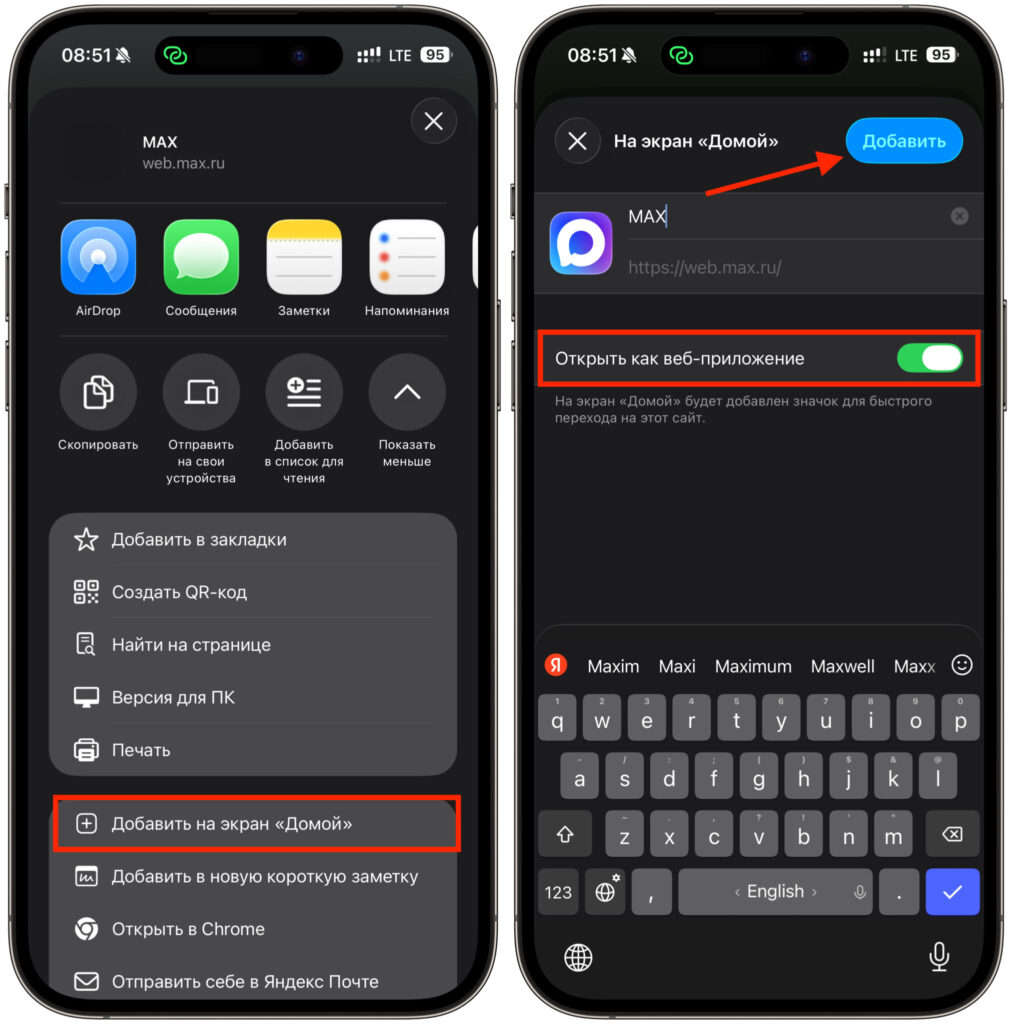
Add the web version to your home screen
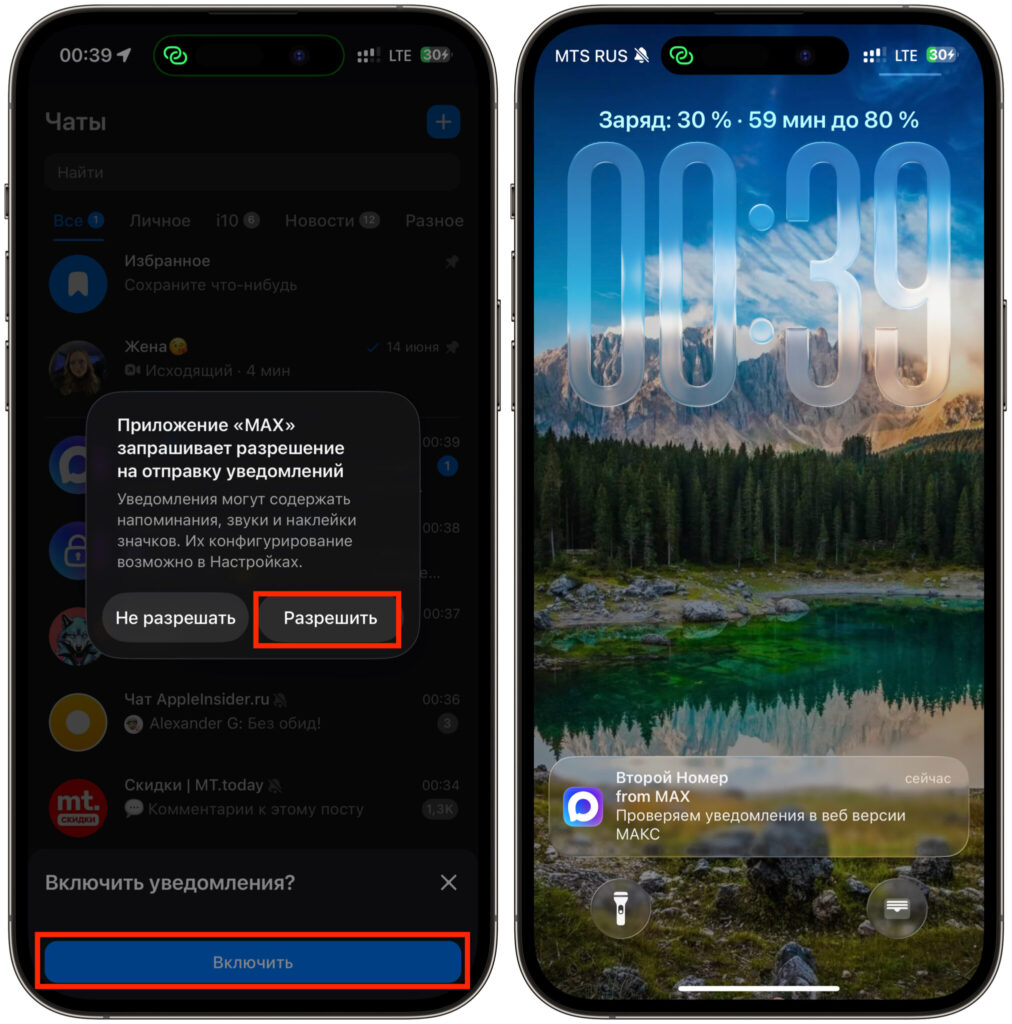
Allow notifications and you’re done
That’s it. From this point on, notifications will arrive just as you’re used to — with banners, sound, and a badge counter on the icon. The same permission prompt you used to see in the full app now appears in the PWA as well. Tap “Allow” and forget about the problem.
An important note — after installation, you must launch MAX from the icon on the home screen, not from a browser tab. Only in this mode does the web app function as a standalone application and have the right to display push notifications. If you open the same address as a regular tab, the system will treat it as just a website, and you won’t receive any notifications.
This isn’t the only working method, by the way. If PWA doesn’t suit you for some reason, you can restore notifications through iMessage — we have a separate guide on that. And if you accidentally tapped “Don’t Allow,” don’t worry — notifications can be enabled manually through settings, more on that below.
Which Browser Is Best for Installing MAX on iPhone
There’s a nuance here that will save you some frustration. It’s better to add the web app through Chrome, not Safari.
The reason is simple. When you add MAX to the home screen from Chrome, the icon gets a proper messenger logo, just like a regular App Store app. But Safari for some reason doesn’t pull in the icon, and you end up with a bland, generic shortcut on your screen. This doesn’t affect how notifications work — push notifications arrive in both cases. But if you want MAX on your home screen to look clean and not stand out from the rest of your icons, install it from Chrome.
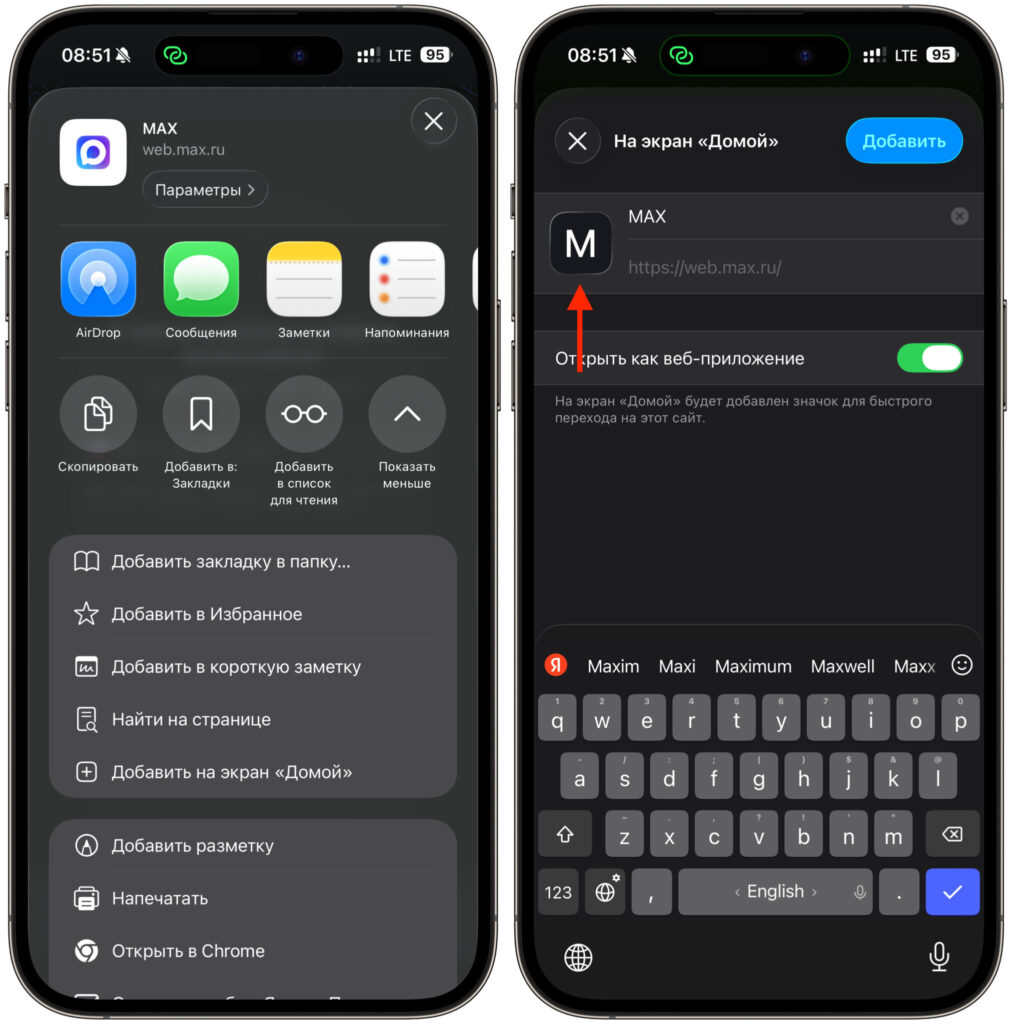
Safari for some reason doesn’t create a nice icon
The process itself is identical. Share menu, “Add to Home Screen,” launch, sign in with your number, and allow notifications. The only difference is how the icon looks.
If you previously added the Safari version, take the time to delete it and recreate it through Chrome. That way you’ll have one neat icon instead of two different ones. Also check that you’re signed in with the correct number — sometimes after recreating it you’ll need to sign in again.
Where to Configure MAX Notifications on iPhone
From here, everything works by the familiar iOS rules. The system treats the added web app almost like any other, so notifications are configured in the usual place.
Go to “Settings” — “Notifications”, find MAX in the list, and adjust the parameters to your liking. You can turn off sound, remove banners from the lock screen, hide text previews, or conversely, bring everything to the forefront. Delivery styles are also available — a temporary banner that disappears on its own, or a persistent one that stays until you dismiss it. Focus modes and schedules also apply, so nighttime messages can easily be set to silent.
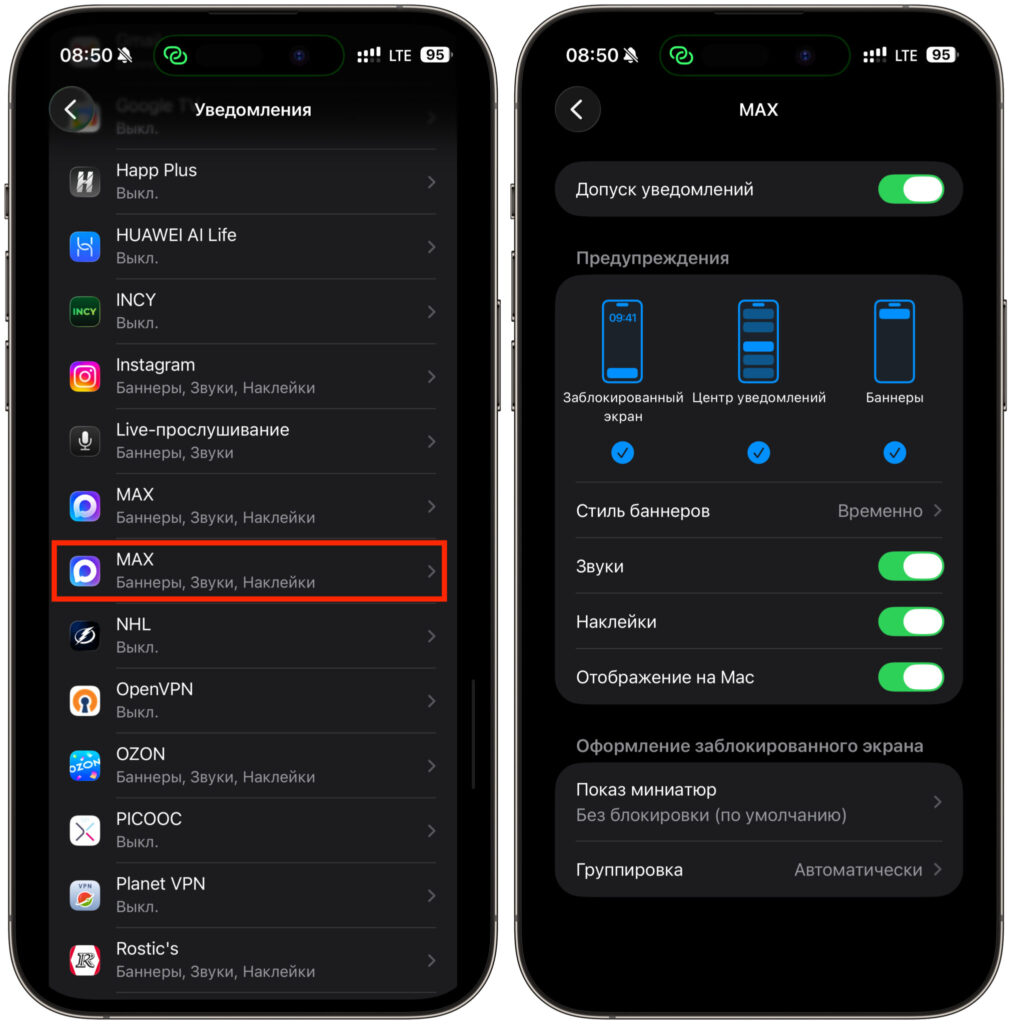
All settings are in place too
What’s especially nice is that push notifications also reach Apple Watch. If your iPhone is in your pocket or on the charger, notifications from MAX arrive on the watch without any issues, and you can read or dismiss them right from your wrist. You don’t need to install any additional apps on the watch itself — everything works through notification mirroring from iPhone. For those who live by wrist notifications, this closes the last inconvenient gap.
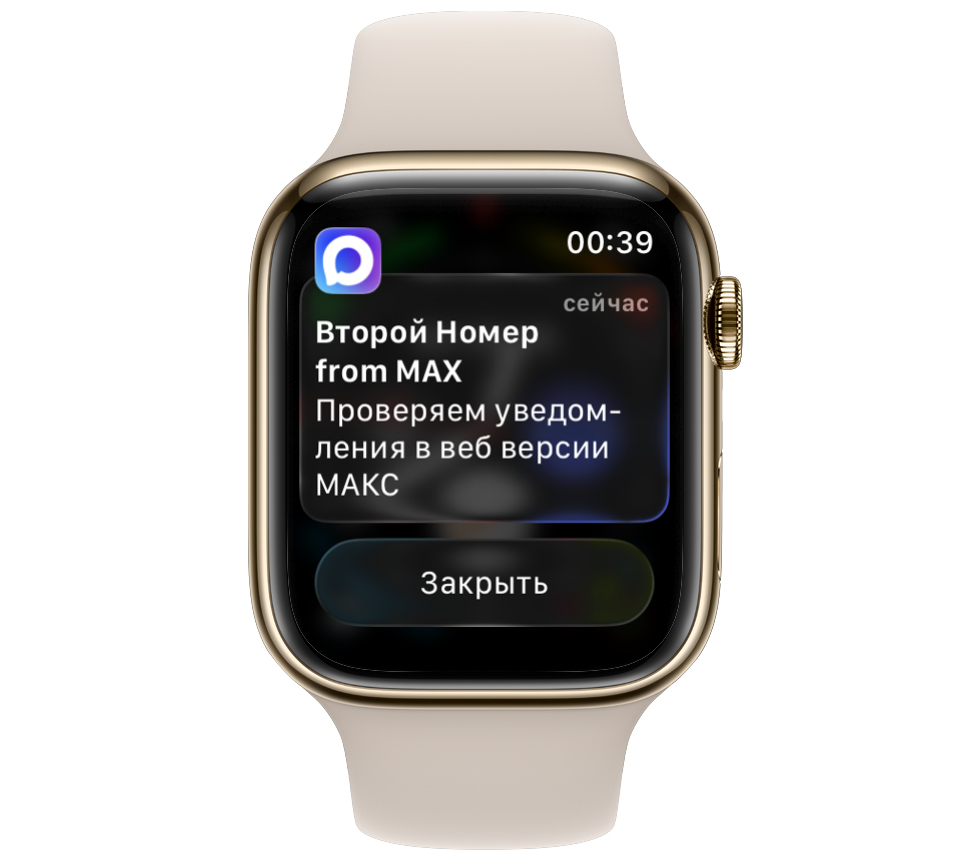
Even Apple Watch displays them beautifully
The bottom line is this. We don’t have a full App Store app yet, but the web version with working push notifications almost completely replaces it. A couple of minutes to add it through Chrome, one tap on “Allow,” and MAX is back to alerting you about new messages on time. If notifications were your main source of frustration, there’s no longer any reason to put up with the inconvenience.