Many iPhone owners, after the disabling of mobile phone balance payments, switched to foreign Apple ID accounts. The logic was simple: change the region — get access to everything. But now this strategy is working against you. MAX Messenger, without which life in Russia is becoming increasingly difficult in 2026, simply doesn’t appear in foreign versions of the App Store. Let’s figure out why this happens and what to do about it.
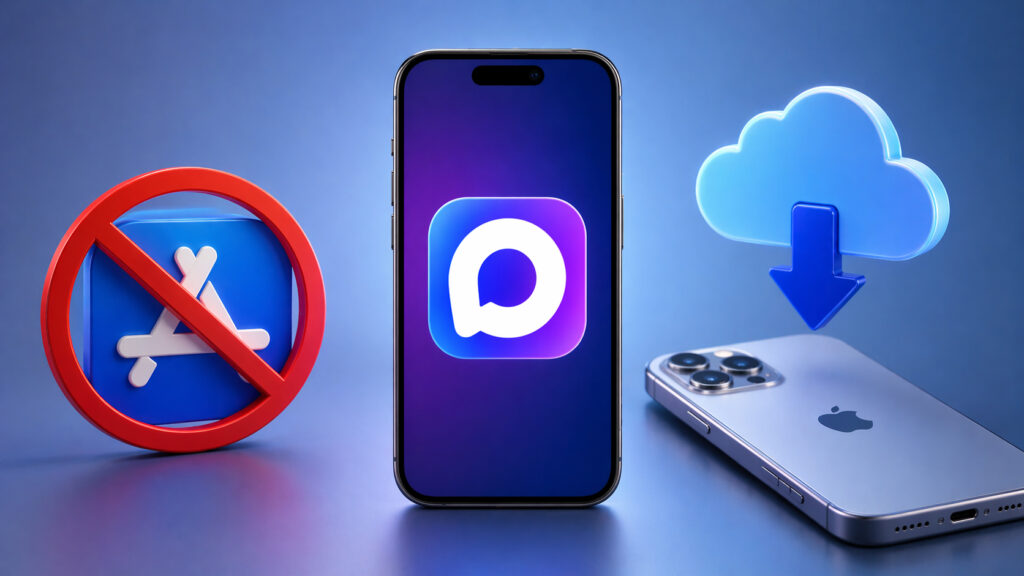
Many unexpectedly couldn’t find MAX in the App Store
MAX Not Showing in App Store: What to Do
The thing is, developers themselves choose which countries to publish their app in. MAX, which was literally just recently renamed from MAX, originally appeared only in the Russian App Store. Over time, VK began expanding its geography, but it’s doing so gradually and selectively.
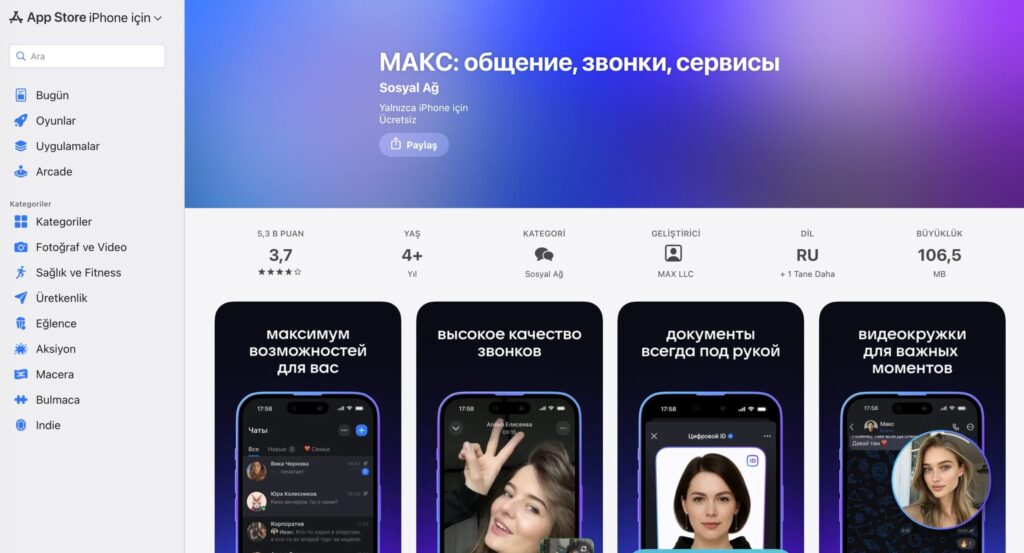
MAX is definitely available in the Turkish App Store. Another reason to choose this region
At the time of writing, the messenger is available in approximately 40 countries. Among them are Russia, Belarus, CIS countries, Turkey, UAE, India, Vietnam, Indonesia, Thailand, and a number of African and Latin American countries. However, it’s not in the US or German App Store. Nor in the stores of most European countries.
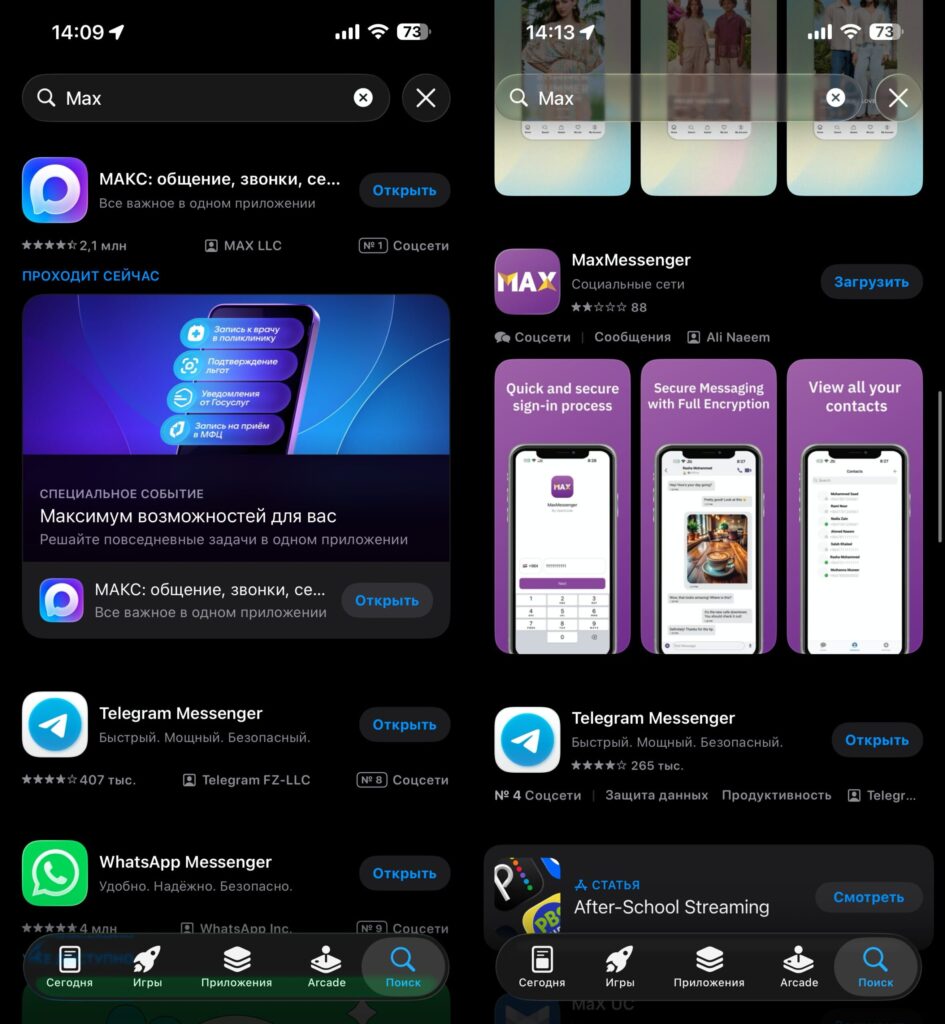
Left is Russia’s App Store, right is the US. No MAX
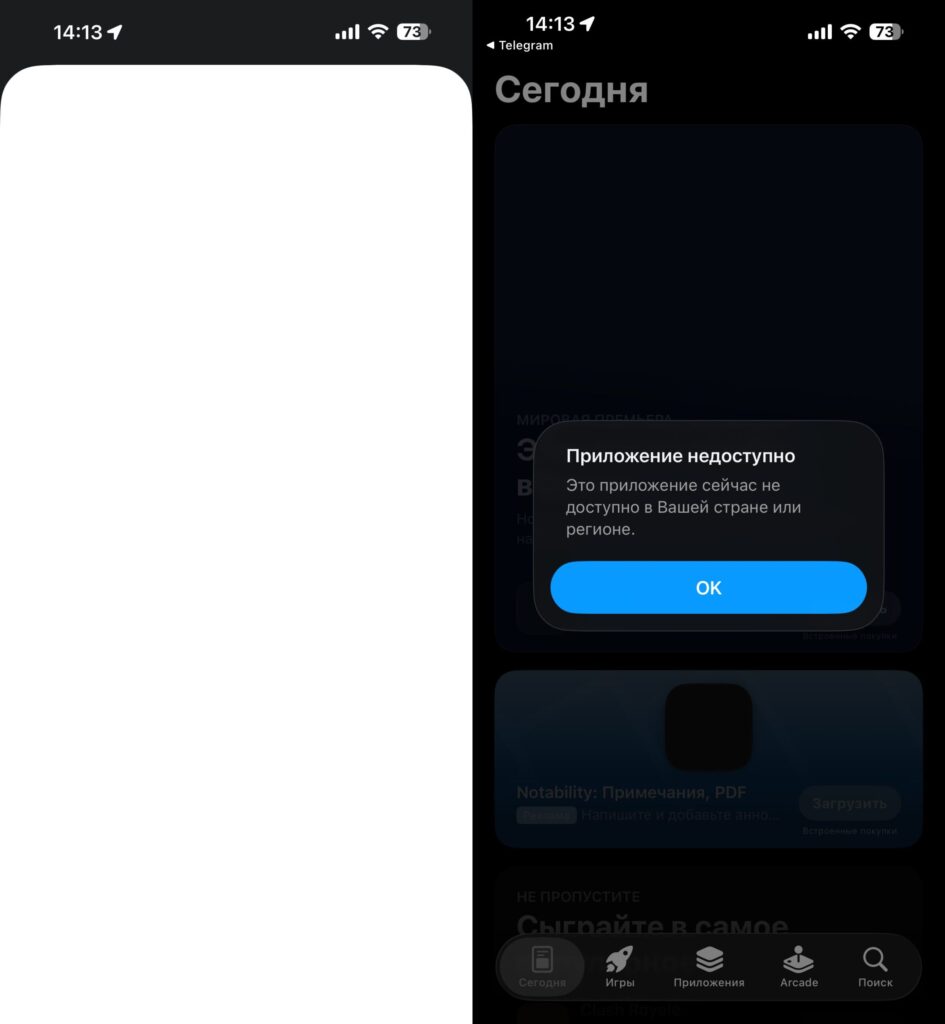
Following a direct link won’t work either
If your Apple ID is linked, for example, to the US or German App Store, you simply won’t find MAX in search. Even a direct link to the app will show an error — “The app is not available in your country or region.”
Which Apple ID Region Do You Need for Russian Apps
The App Store is designed so that you only see the store that corresponds to your Apple ID’s country. If the account is registered in the US — you see the American App Store. You can change the region, but it requires many steps. The procedure is simple on one hand, but you can’t do it regularly either. Apple may block your account for this.
That’s exactly why changing the country of your main Apple ID for just one messenger is a bad idea. There’s a better solution, and you’ll definitely like it more, as it requires fewer unnecessary actions and doesn’t limit your use of the Apple ecosystem. It’s having two different Apple IDs on one iPhone.
A Second Apple ID for MAX Messenger
The best option is to create a separate Russian Apple ID. It’s free, legal, and takes a couple of minutes. Here’s what you need to do:
- Open the App Store on your iPhone, tap on your avatar in the upper right corner. Then tap your name and at the very bottom tap “Sign Out.” Don’t worry — your data won’t go anywhere, you’re just temporarily signing out of the account.
- Go to the appleid.apple.com website and create a new Apple ID. Specify Russia as the country. You don’t need to add a payment method — it’s not required for free apps.
- Sign in to the App Store with the new account. You don’t need to change the Apple ID across the entire system — just sign in specifically in the App Store. Tap the profile icon in the upper right corner, sign out of the current account, and sign in with the Russian one.
- Find MAX in the App Store search and download it.
- After downloading, sign out of the Russian Apple ID in the App Store and switch back to your main account.
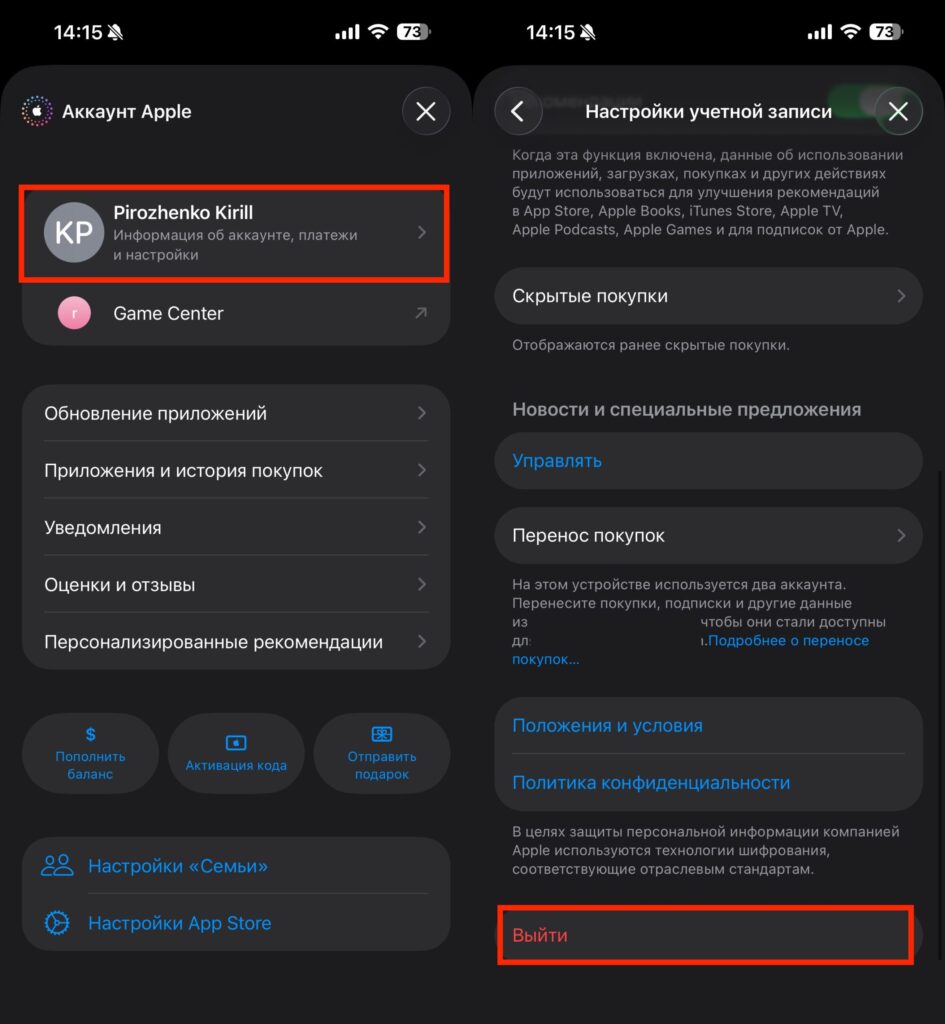
Sign out of the old account in the App Store
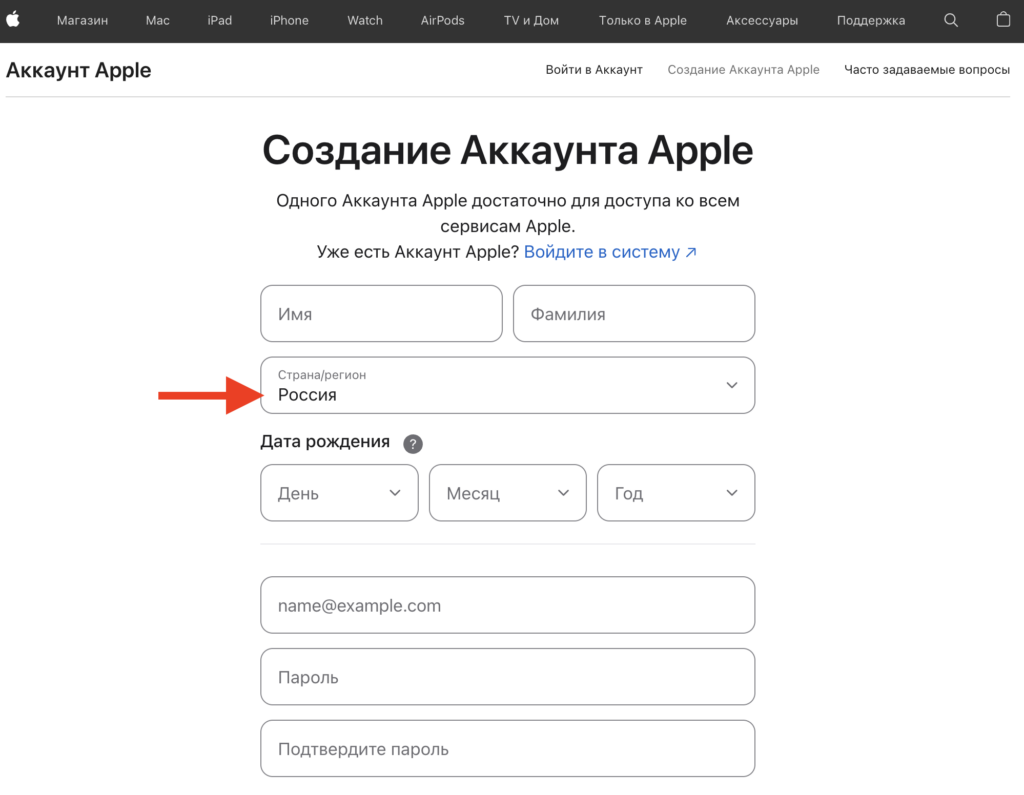
Create a second account
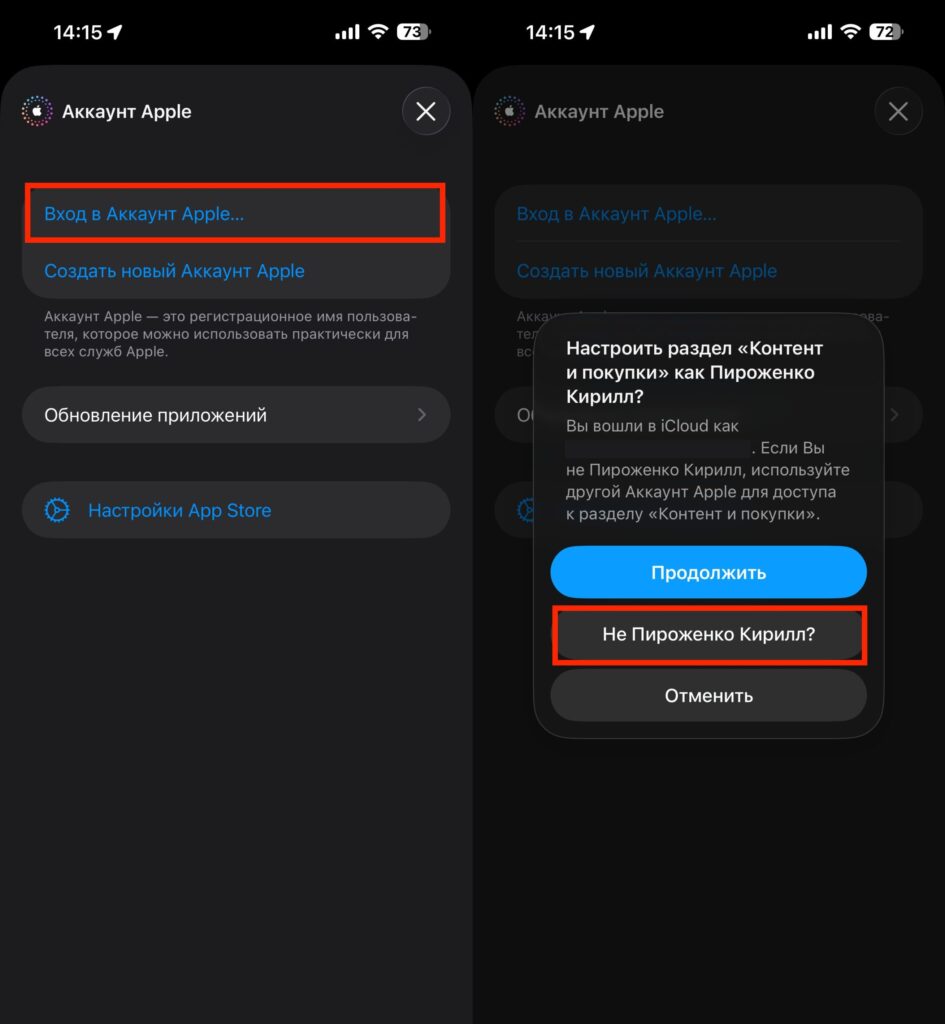
Sign in with the new ID in the App Store
The app will remain on your iPhone and will work normally. The only caveat is that to update MAX, you’ll need to temporarily switch to the Russian account again.
How to Update MAX on iPhone
Downloading is only half the battle. Sooner or later an update will appear in the App Store, and that’s where the nuance begins. The app is tied to the account from which it was downloaded. If you downloaded MAX through a Russian Apple ID, you can only update it through that same account.
In practice, it looks like this: you go to the App Store, see that an update is available for MAX, press the button — and get an error. The App Store asks you to sign in to the account from which the app was installed. To update, you need to switch back to the Russian Apple ID in the App Store, update the messenger, and return to your main account.
The procedure is straightforward.