The MAKS messenger by VK has long since stopped being just a messaging app. People use it to access government services, sign documents, verify their age, and even pay for public transportation. As of May 2026, the platform’s daily audience has exceeded 85 million people, and the total number of installations has surpassed 120 million. Like it or not, living without MAKS in Russia is becoming increasingly difficult. We’ve already covered how to install MAKS on your phone and computer, and now let’s walk through the registration process itself — on iPhone, computer, and via the web version.
You need to not only download MAKS but also register in it
Phone Number for MAKS Registration
Before you start creating an account, make sure you have everything you need. Registration is tied to a phone number — you can’t create an account without one. Moreover, the messenger doesn’t accept virtual numbers, so there’s no way to cheat.
Initially, registration was only possible with a Russian or Belarusian number. But in March 2026, VK significantly expanded its geography — now registration is available to residents of 40 countries. The list includes Kazakhstan, Armenia, Turkey, India, UAE, Saudi Arabia, and several dozen other countries in Asia, Africa, the Middle East, and Latin America.
An important note: one number — one account. You cannot create multiple profiles with one phone number. And if you’re abroad with a Russian SIM card — registration will work in roaming too, as long as you can receive SMS messages.
Download MAKS on iPhone
Downloading the app on iPhone is straightforward — provided your Apple ID is linked to the Russian region. If at some point you switched to a foreign account to access other apps, you might not find MAKS in the store. We covered in detail what to do if MAKS isn’t in the App Store — in that case, you’ll need to either create a second Apple ID for Russia or try the Turkish store.
As for compatibility — MAKS requires iOS 15.5 or newer. This means iPhone 7 and all newer models work without issues. So owners of very old smartphones are left with only the computer application.
The download itself takes literally a minute:
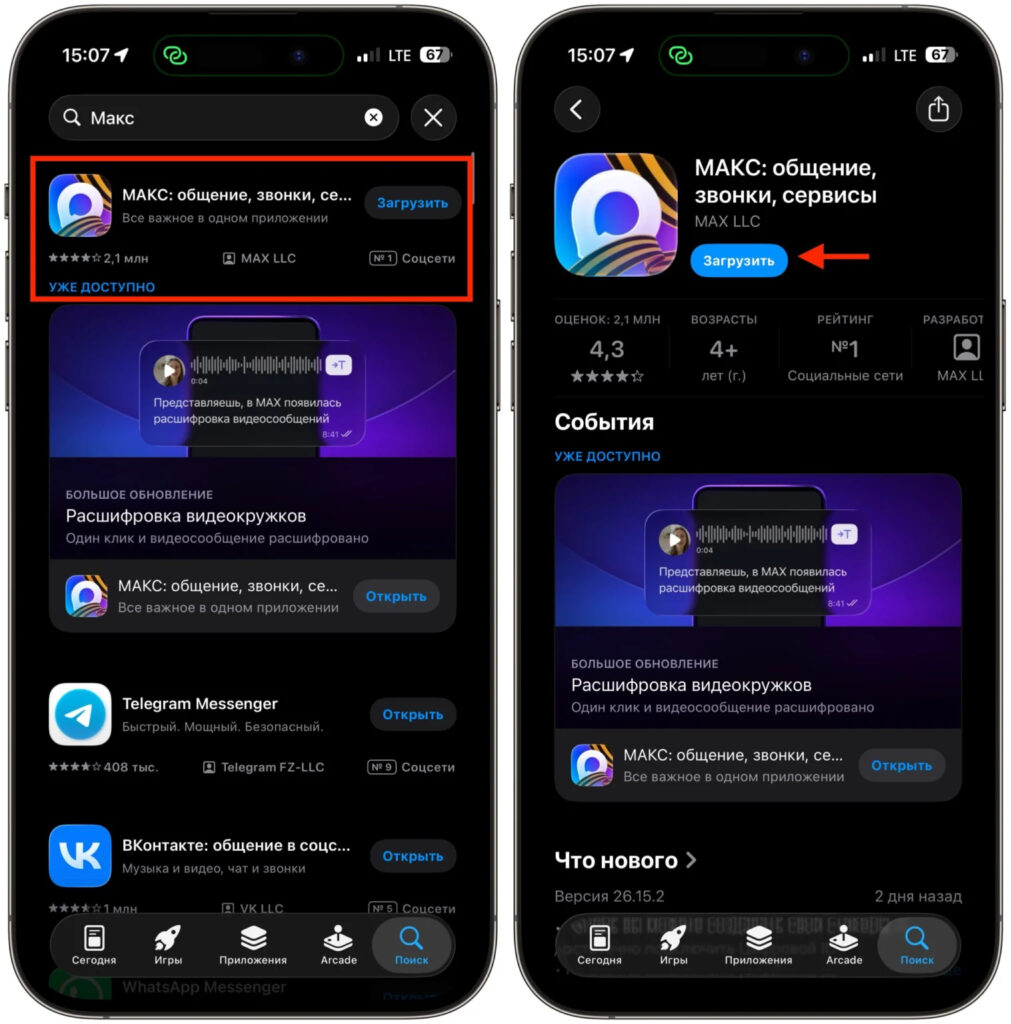
MAKS is available in the App Store
- Open the App Store on your iPhone.
- In the search bar, type “MAKS” or “MAKS messenger” or simply follow this link.
- Tap “Download” (or the cloud icon if you’ve previously downloaded the messenger).
- Confirm the installation via Face ID, Touch ID, or your Apple ID password.
- Wait for the download to complete and open the app.
After installation, updates will arrive automatically if you have automatic app updates enabled in the App Store settings. I recommend keeping it on — the developers release new versions quite frequently. If you encounter any difficulties with updating, we have a separate guide on updating MAKS.
How to Create a Profile in MAKS Using a Phone Number
The app is installed — now it’s time to create an account. The process is as simple as possible and takes just a couple of minutes. You don’t need to come up with any passwords — all authorization is based on SMS codes.
- Launch the MAKS app on your iPhone.
- On the start screen, select your country and enter your phone number.
- Tap “Continue”.
- Wait for an SMS with a six-digit confirmation code. The message usually arrives within a minute. If the code doesn’t come — wait a couple of minutes and request it again. Sometimes it helps to check the “Spam” folder in your SMS app.
- Enter the received code.
- Enter your name — this is how other users will see you in chats. Adding a last name is optional.
- Optionally, upload a profile photo. You can skip this step and come back to it later.
- The app will ask you to grant access to your phone contacts. This is optional but useful — MAKS will show you who from your phone book already uses the messenger. The app works without contact access too — you can search for people by username or by link.
- Allow notifications so you don’t miss incoming messages and calls.
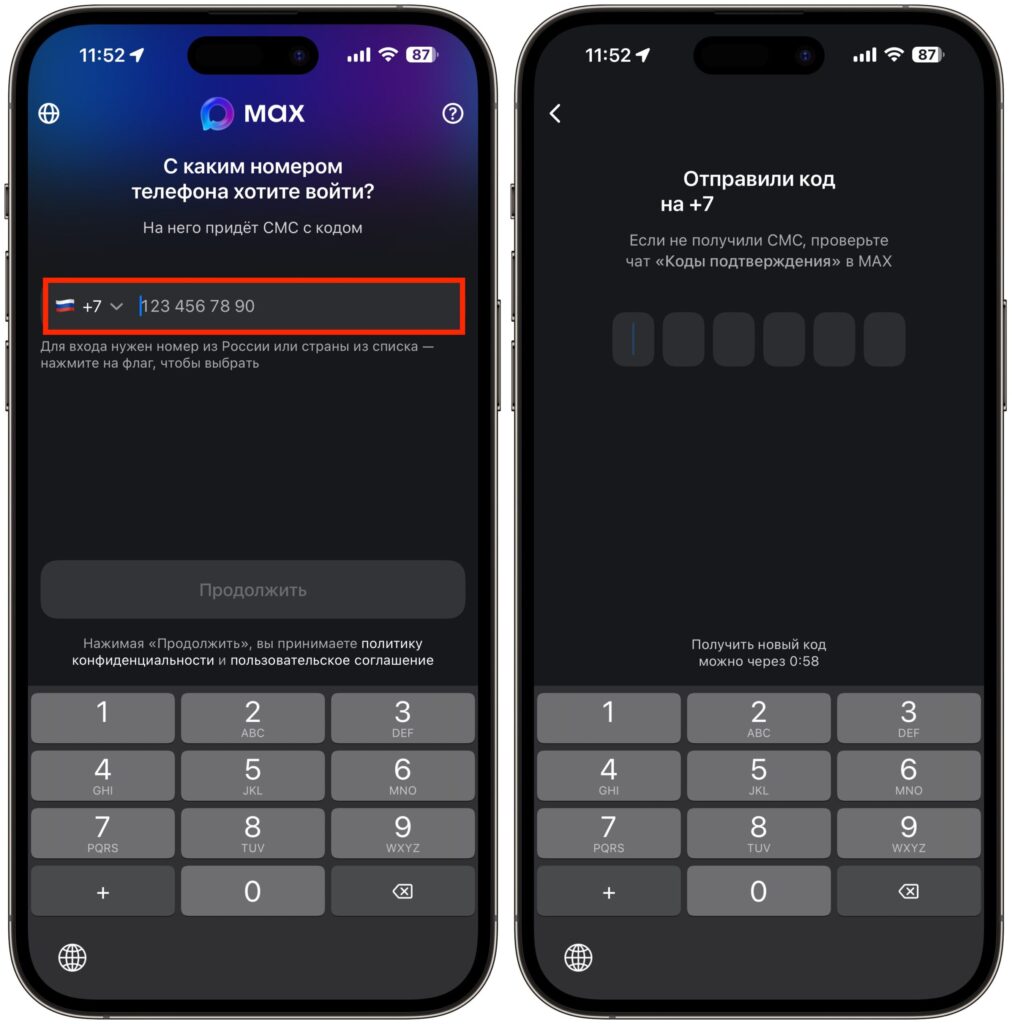
Enter your number and wait for the confirmation code
Done — you’re in MAKS. Next, you can configure your privacy settings: who can find you by phone number, who can call you, and who can add you to group chats. All of this is located in the “Profile” — “Security” section.
How to Create a MAKS Account on Windows and Mac
There’s one fundamental point here that confuses many users. The web version and the desktop application are different things, and their registration capabilities differ.
The desktop application for macOS and Windows allows you to both log into an existing account and create a new one directly from your computer. All you need is access to a phone to receive an SMS confirmation code — installing the mobile app itself is not required.
However, you cannot register through the web version at web.max.ru. The browser version is intended exclusively for logging into an existing account. This is a deliberate decision by the developers — QR code authorization provides an additional level of security. If you have a Mac, keep in mind: MAKS requires macOS 14 Sonoma or newer. The desktop client won’t launch on older macOS versions. For Windows, you’ll need version 10 (1809) or 11.
- Go to the download.max.ru page and download the application for your operating system. On Mac, it will be a .dmg file, on Windows — .msi.
- Install the application using the standard method for your platform. On Mac, drag the icon to the Applications folder; on Windows, simply follow the installer instructions.
- Launch MAKS. On the start screen, you’ll see a QR code and a “Log in with phone number” button.
- Click “Log in with phone number”.
- Enter your number and wait for an SMS with a six-digit confirmation code.
- Enter the code, specify your name, and optionally add a profile photo.
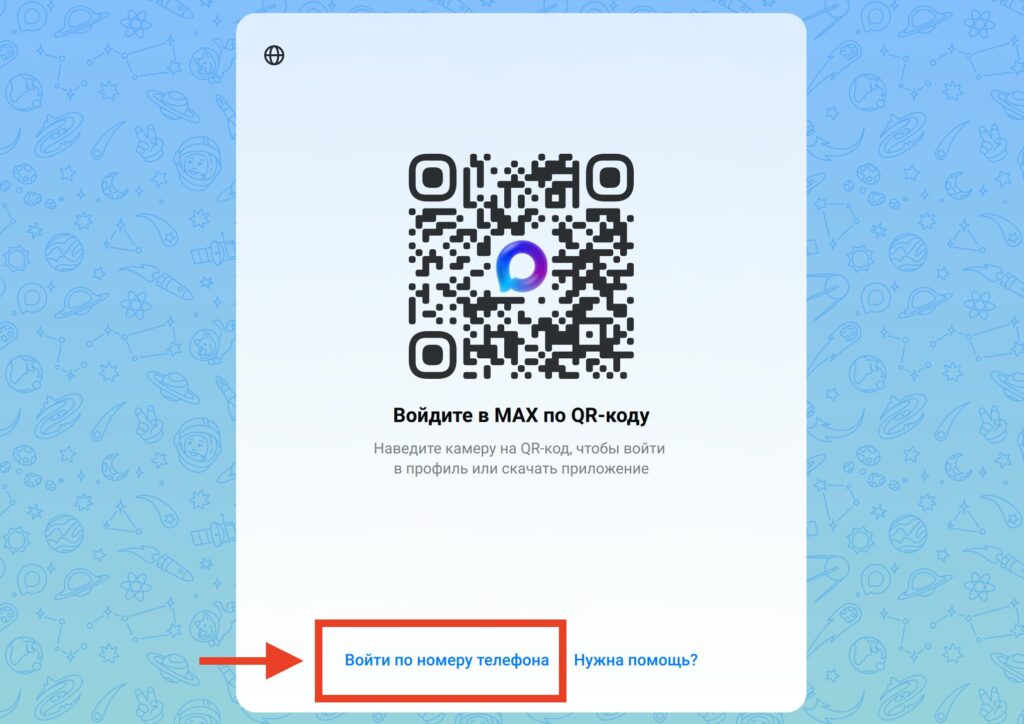
Switch to phone number
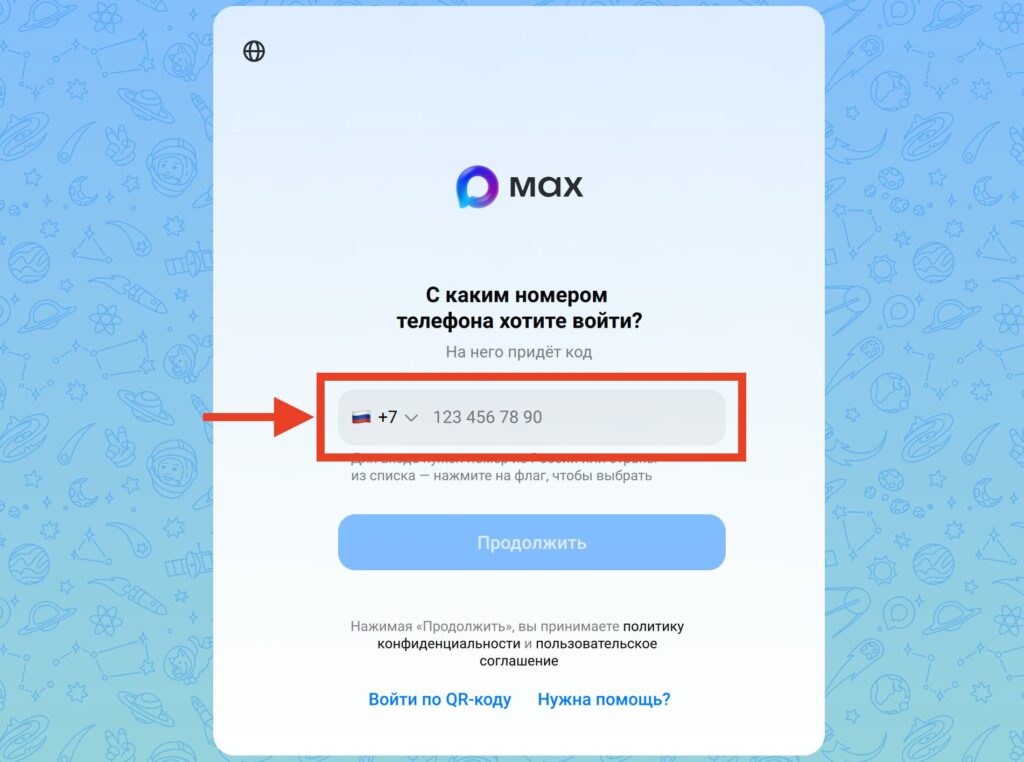
Enter your phone number and create a MAKS account
After that, the account will be created, and you’ll be able to use MAKS from your computer. You don’t need to install the mobile app — the desktop client is fully self-sufficient.
Logging into the MAKS Web Version via QR Code
The web version is an ideal option for those who don’t want to install extra software.


