Apple has released macOS Tahoe 26.7 and macOS Sequoia 15.8 on the same day as macOS 27 Golden Gate, giving Mac owners a choice: jump to the new major release with its batch of new features, or install a smaller security-focused update and stay on the current branch. Tahoe 26.7 is aimed at owners of older Macs and at anyone not ready to move to Golden Gate yet. According to the source, it is essentially a collection of security patches, most likely the same ones Apple shipped in macOS 27, and the fixes include vulnerabilities in Sign in with Apple, AirPods sensor data, Bluetooth, Screen Sharing, Mail, and certificate validation.
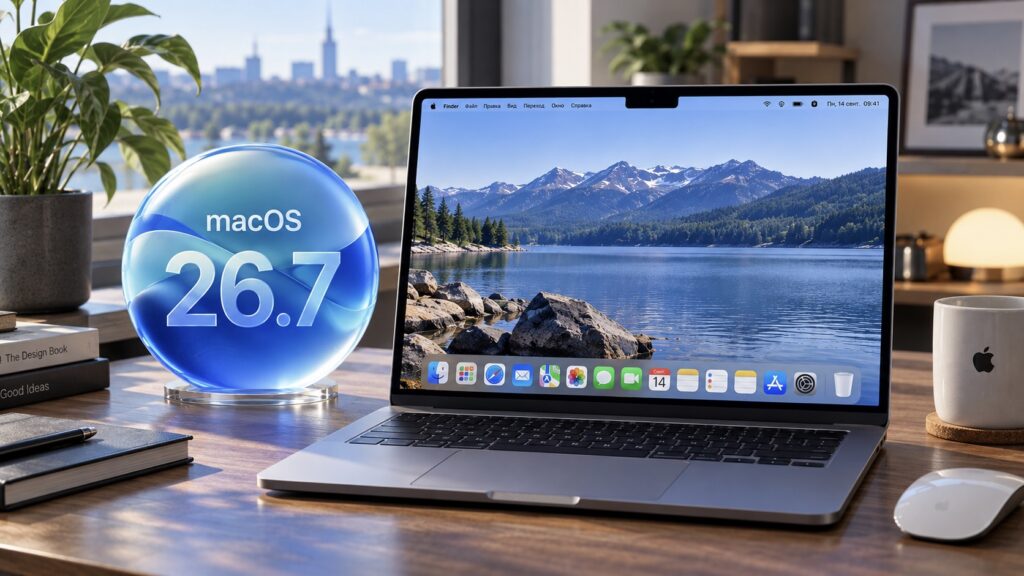
macOS 26.7 logo next to a MacBook
What you need to know
- macOS Tahoe 26.7 and macOS Sequoia 15.8 were released alongside macOS 27 Golden Gate as security-focused updates for users who are staying on older branches.
- The patches address several dozen issues, including a flaw that let a third-party app interfere with Sign in with Apple, a Bluetooth bug allowing remote code execution, and a Screen Sharing weakness that let attackers on the same network join a session without a password.
- Macs that support both releases will show two updates in Software Update; choosing the Tahoe 26.7 entry keeps you on the current branch instead of moving to macOS 27.
- The source author plans to stay on Tahoe 26.7 on an 8 GB MacBook Air M2 until reports from similar machines show how Golden Gate performs.
What Apple fixed in macOS Tahoe 26.7
The update targets Macs that either cannot run Golden Gate or whose owners do not want to migrate yet. Formally it is a set of security fixes, and the source suggests they are most likely the same ones Apple documented for macOS 27. Devices eligible for the new major version will see both updates in settings, so they are hard to confuse. Sequoia 15.8 closes a similar list of holes, but the details below focus on Tahoe.
Several of the patched vulnerabilities look genuinely serious. One allowed an unrelated app to insert itself into the Apple ID sign-in process and potentially reach the user’s account. Because Sign in with Apple is used to authenticate with dozens of third-party services, the potential damage from that flaw is significant. Headphones were affected too: another issue let an app read motion-sensor data from AirPods without consent. Head position on its own may sound trivial, but it is still tracking the user never agreed to.
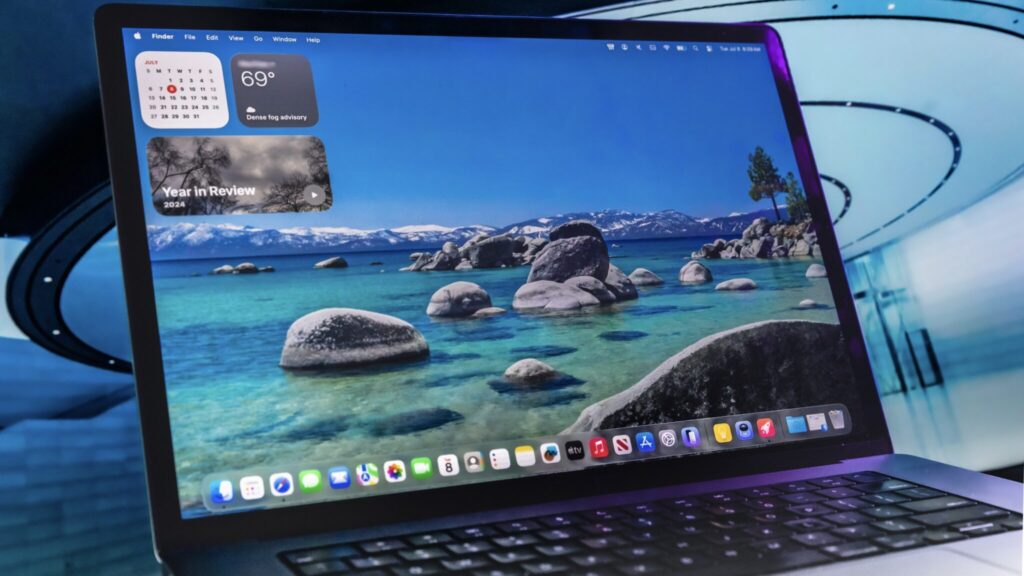
macOS Tahoe on a MacBook Air M1
A separate Bluetooth vulnerability allowed a remote attacker to crash an application or execute arbitrary code. Over-the-air attacks are always alarming, which is why this is one patch worth getting quickly. In the same category is a fix for Screen Sharing: previously, an attacker on the same network could connect to a session without a password, a risk that is especially acute on public Wi-Fi. Apple also closed a loophole that let malware determine the user’s current location.
Mail was not spared either. A pair of problems allowed an app to read data it was not supposed to access, and under the right circumstances an attacker on the network could extract fragments of correspondence. Add to that a flaw in the security stack: an attacker positioned between the user and a server could intercept network traffic because of weaknesses in certificate validation. Individually, each hole rarely turns into a real-world attack, but preventing them from being chained together is precisely why Apple ships updates like this one.
In total the list contains several dozen fixes, most of them affecting system mechanisms the average user never thinks about. Going through all of them is not necessary; the overall picture is clear enough: the patches are serious, and there is little reason to delay installation.
How to install the update
The source recommends enabling automatic updates once so you do not have to check manually in future. The installation itself takes roughly fifteen minutes and requires no special steps.
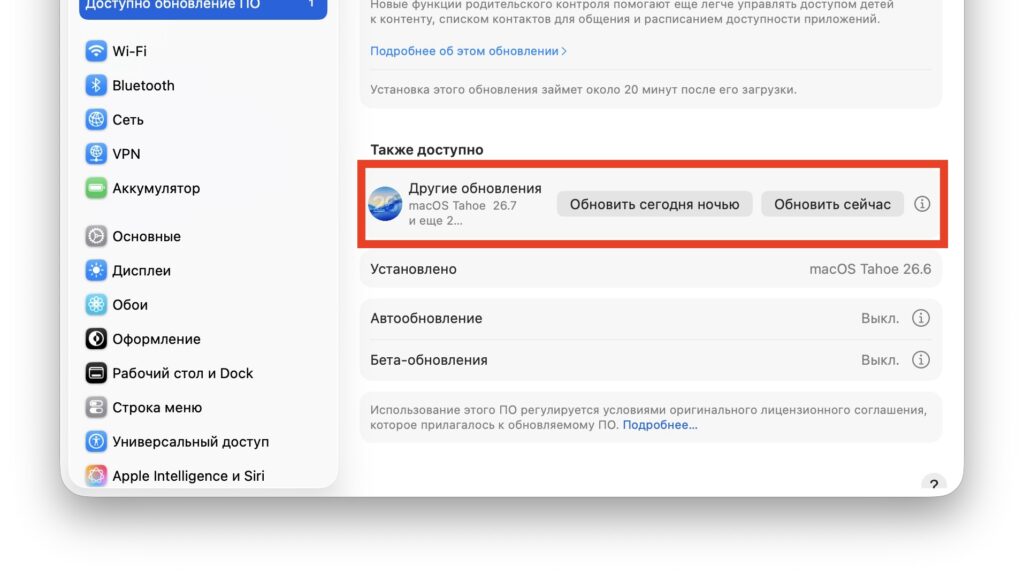
macOS 26.7 installation screen
- Connect your Mac to power and a stable Wi-Fi network.
- Open the Apple menu in the top-left corner and go to System Settings.
- Select General, then Software Update.
- Wait for the system to find macOS Tahoe 26.7.
- Click Update Now and enter your Mac password.
- Do not close the lid until the computer restarts and shows the desktop.
If your Mac also qualifies for Golden Gate, both updates will appear in the list. Select the Tahoe 26.7 entry specifically; otherwise the system will move you to macOS 27. The source also advises making a Time Machine backup before any major update so you can roll back without losing data if something goes wrong.
Which update should you choose?
If your system is running smoothly and nothing on the machine is mission-critical, the source argues the security patches should be installed right away; they are the main point of this release.
The source author’s own decision is to update a MacBook Air M2 to Tahoe 26.7 rather than macOS 27. The reasoning is simple: the machine has 8 GB of RAM, and Golden Gate may well prove too demanding for that configuration. Rather than jumping to the new system blindly, the author intends to read feedback from owners of similar machines, see how macOS 27 behaves on base-model Airs, and only then make a final call, staying on Tahoe in the meantime.
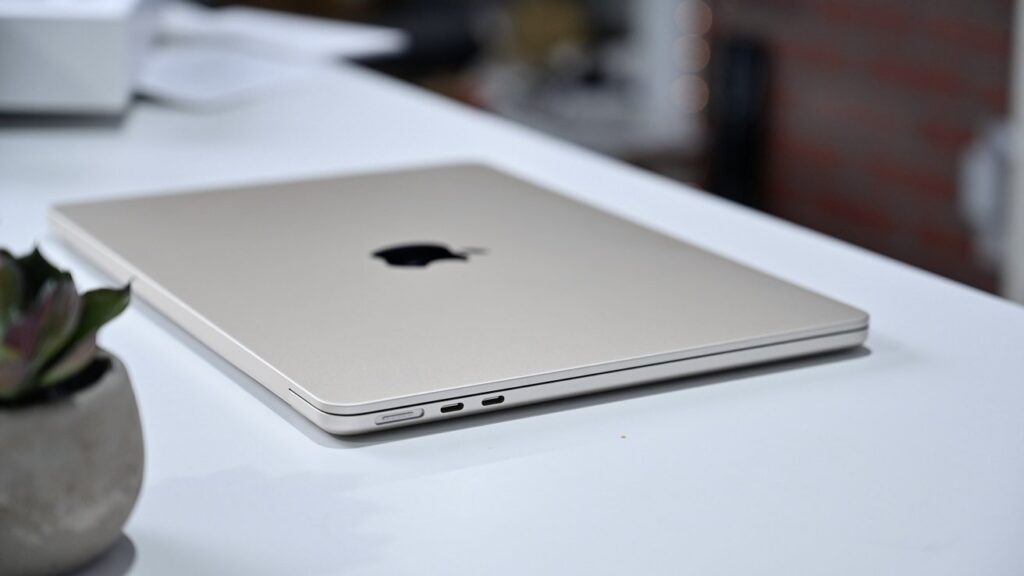
13.6-inch MacBook Air M2 with 8 GB of RAM
The logic, as the source puts it: new features are welcome, but stability and memory headroom matter more, especially on a work computer. The first days after a major release often bring minor bugs, reduced battery life, and individual apps that stop working, and those problems are typically fixed in subsequent point releases. Spending a week or two on the previous branch and watching how early adopters fare is usually a better deal than being among the first to hit the surprises.
For owners of newer Macs with 16 GB of memory or more, the source considers the situation different: moving to macOS 27 looks considerably safer there, and the new capabilities are worth it. For older Macs that Golden Gate no longer supports, Tahoe 26.7 is the only way to keep up-to-date protection, so there is nothing to deliberate. In short, base the decision on your hardware and how you use it, not on the urge to have the highest version number.


