If you have installed watchOS 27 and cannot find the new watch face in the gallery, it is not a bug. Siri Modular, the only new face in this release, does not show up in the face gallery until the new Siri assistant is enabled on your devices. According to the source, that is a hard requirement, not a recommendation. Below is what the face looks like, which Apple Watch models support it, how to configure it, and how the Apple Watch Ultra version differs from the one on regular Series models.
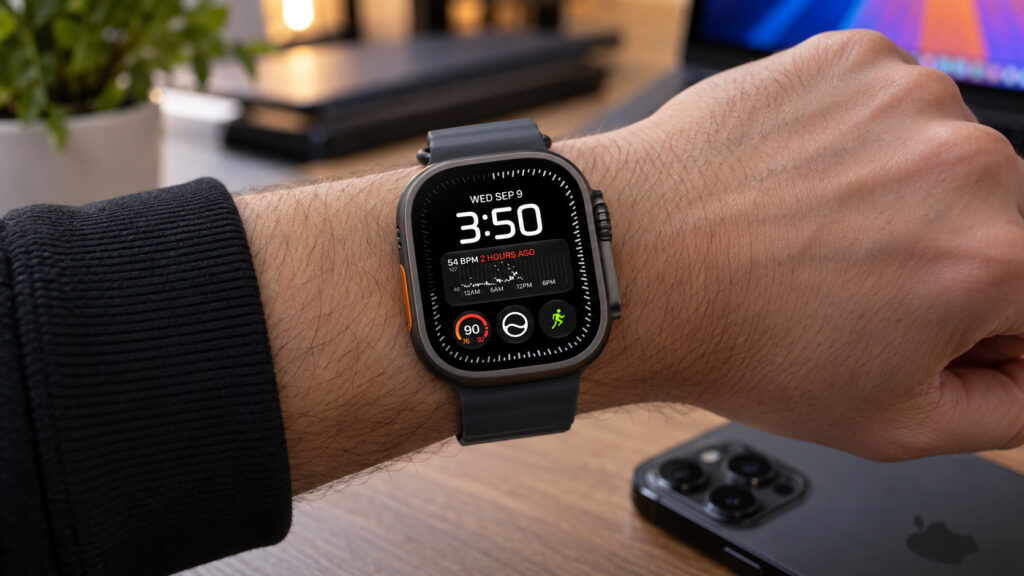
The new Siri Modular watch face on Apple Watch Ultra
What you need to know
- watchOS 27 adds only one new watch face, Siri Modular, and it works on both Apple Watch Series and Apple Watch Ultra.
- The face is hidden from the gallery until the new Siri AI assistant is enabled; the layout is built around a wide Siri Suggestions widget.
- There are three clock-height styles, but none of them shows seconds.
- Ultra owners get extra options: bezel styling and an exclusive Ultra font on top of the Modern, Classic and Rounded fonts available on Series models.
What Siri Modular is and which watches support it
watchOS 27 brings just one new watch face, Siri Modular. It is available on regular Apple Watch Series models as well as Apple Watch Ultra, so owners of either line get it. The two versions differ in customization details, not in the core design.
The basic layout is the same on Series and Ultra. A single-line linear widget sits at the top center. Below it is the time, also centered. Under that is a wide Siri Suggestions widget, which gives the face its name. At the very bottom is a row of three circular widgets, the small blocks that display data such as weather, heart rate, calendar or activity. In total that is four widgets plus the wide Siri block, so a substantial amount of information fits on screen.
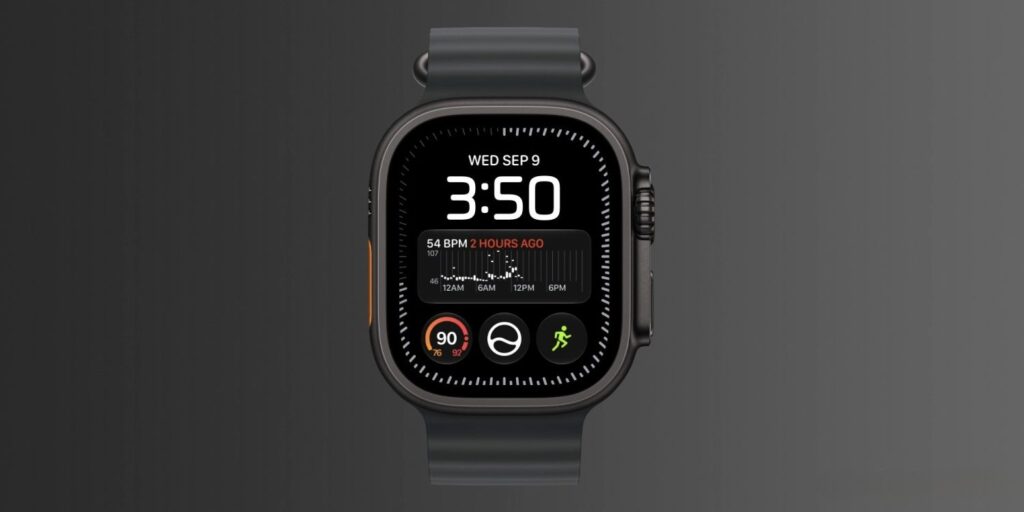
The Siri Modular face with widgets configured
The Siri Suggestions widget in the center is the core of the face. It surfaces whatever the assistant considers relevant at the moment: the next event, a reminder, a timer or a suggested action. This is why the face depends on the new Siri rather than merely sitting alongside it. The result, in the source author’s description, is a dense modular grid that fits a lot of information at a glance without looking cluttered.
On Apple Watch Ultra, this set is extended with bezel customization, as on other faces Apple makes exclusive to the Ultra. The other differences are covered below.
How to enable and configure Siri Modular
One point must come first, because nothing else works without it: Siri Modular will not appear in the watch face gallery until the new Siri is enabled. The face is directly tied to the assistant, and the source describes this as a mandatory condition. The original publication covers enabling the new Siri AI in a separate guide; do that before looking for the face, or the entry simply will not be in the list.
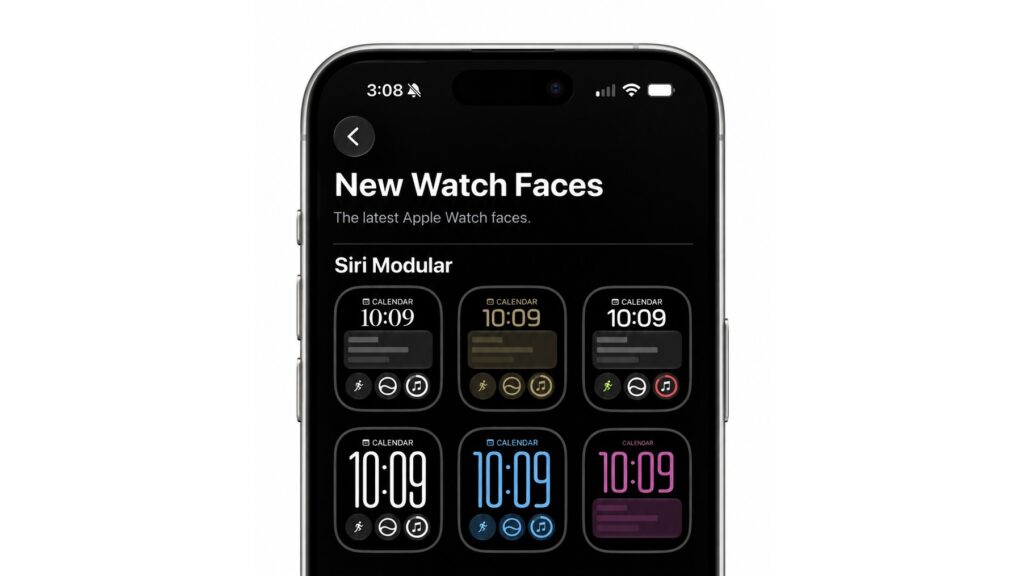
The Siri Modular face in the Watch app
After that, the process is the familiar one:
- Update your iPhone to iOS 27 and your Apple Watch to watchOS 27.
- Enable the new Siri AI; without it the face will not appear.
- Open the Watch app on your iPhone.
- Go to the Face Gallery tab.
- Scroll to Siri Modular and open its settings.
- Choose one of the three clock-height styles.
- Configure the widgets: the linear widget at the top and the three circular ones at the bottom.
- Set the font and the face color.
- On Apple Watch Ultra, optionally add a bezel style.
The three styles
Step six offers three layouts. The first uses the largest clock with three circular widgets beneath it. The second uses a compact clock, the wide Siri Suggestions widget and the same three circular widgets. The third uses a medium-height clock and a single wide widget. The top linear widget is available in all three modes, so you keep that information regardless of which layout you pick.
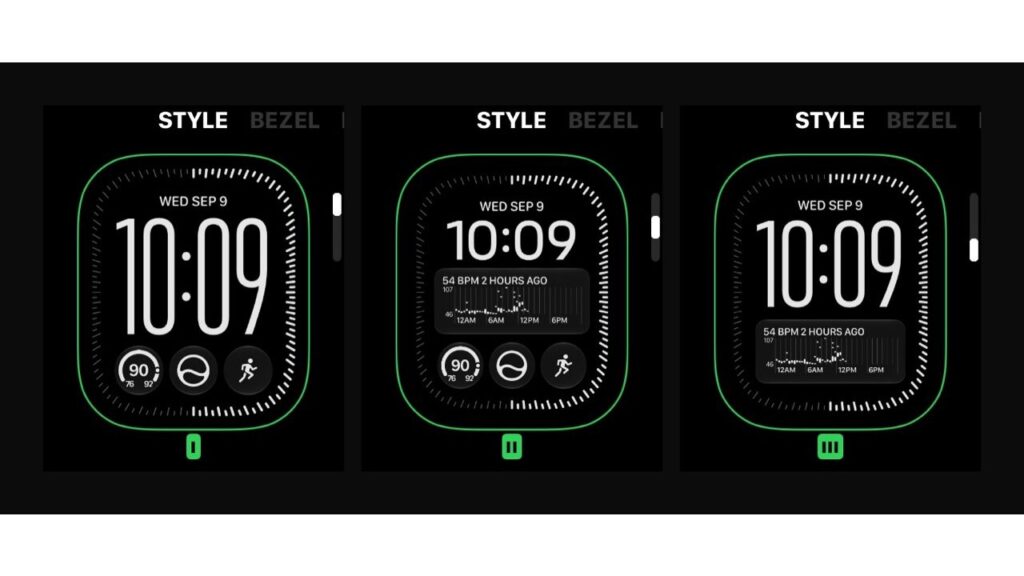
The three styles of the new watch face
One limitation stands out: seconds are not displayed in any of the three modes. If you are used to glancing at a running seconds counter, Siri Modular will take some adjustment.
How the Ultra version differs
On Apple Watch Ultra, Siri Modular offers noticeably more room for fine-tuning. The main difference is the bezel options mentioned above. They work the same way as on other Ultra-exclusive faces and provide an additional way to tailor the look.
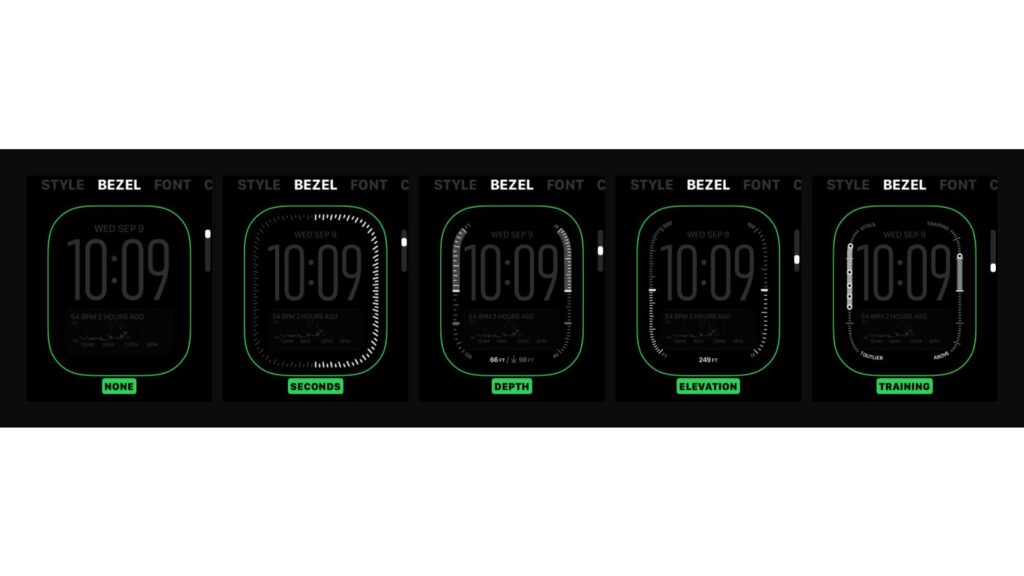
Bezel selection on Apple Watch Ultra
The second difference is fonts. The clock font can be changed on both versions, but the sets differ. Series models offer three options: Modern, Classic and Rounded. The Ultra adds a dedicated Ultra font that is not available on regular models, a small but welcome extra for anyone who wants their face to look distinct.
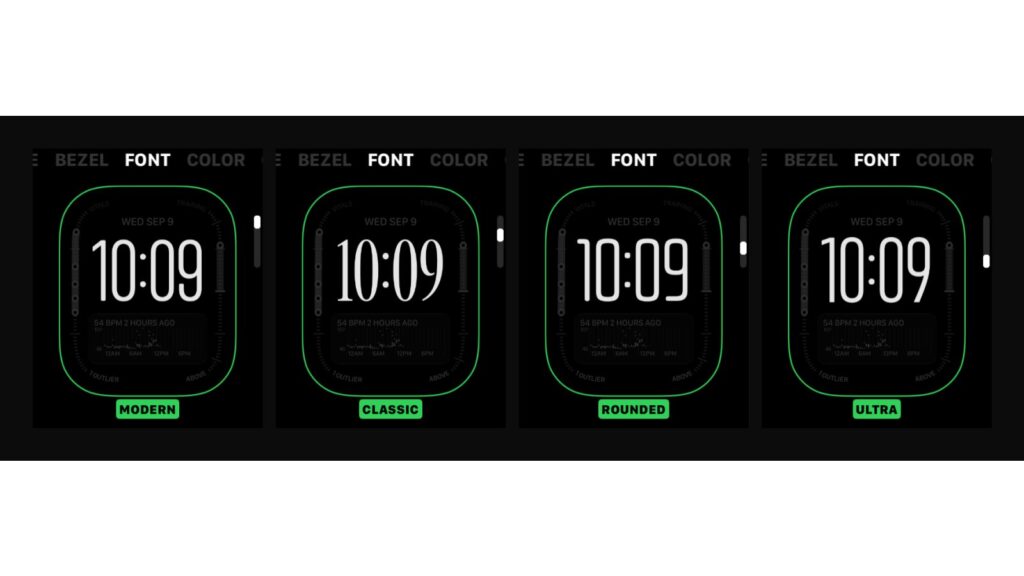
Fonts available on the Siri Modular face
Face color is configured identically on both lines. Apple has added fresh options here, including Dark Bronze and Radiant Gold along with several other new shades. The colors work with all three clock-height styles, so matching the face to a band is quick. Even without the bezel and extra font, a Series model can produce a fairly individual look.
Is it worth updating for one watch face?
The source author’s view is that a single new face is not a reason to rush the update. Siri Modular is a pleasant addition, but watchOS 27 removes features as well as adding them; the original publication has separately covered functions that disappear after updating, and for some users those losses will outweigh any new face.
Siri Modular is most likely to appeal to people who actively use Siri Suggestions and have already enabled the new assistant. Ultra owners get slightly more: the bezel, the exclusive font and the same new colors offer greater freedom in styling. Everyone else can take time to read feedback, weigh the pros and cons, and decide whether to move now or wait. One important caveat from the source: unlike iOS, watchOS cannot be rolled back to an earlier version once installed.