In summer, it’s not just people who overheat — computers do too. And while an iPhone or iPad will warn you in advance that they’re too hot, a Mac can simply shut down unexpectedly without any warning. Let’s figure out how to spot the problem early and prevent your device from emergency shutdowns.
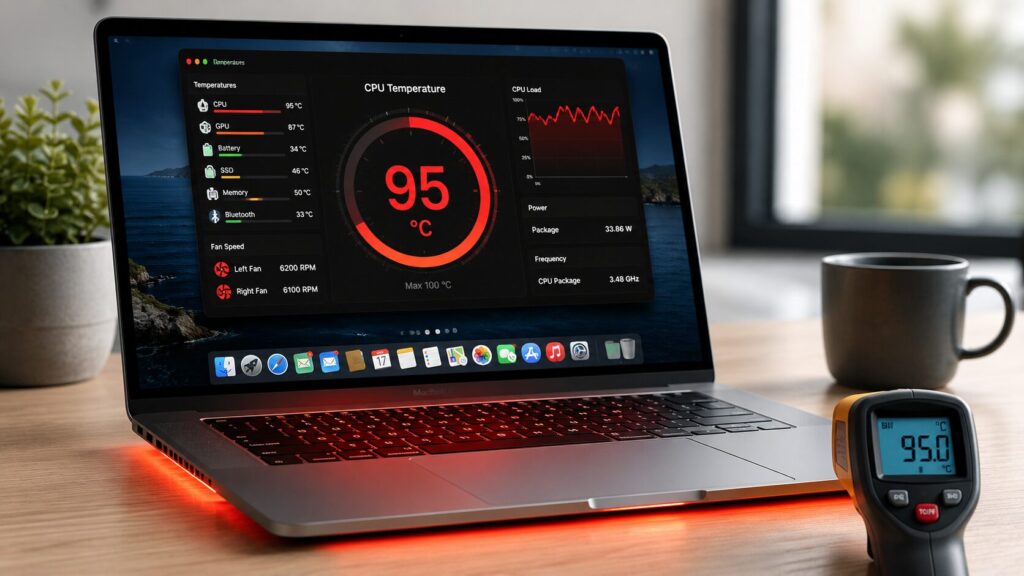
Mac overheating? Sometimes you might not even notice
Why Mac Overheating Is Dangerous
The main issue is that a Mac doesn’t behave like Apple’s mobile devices. iPhone and iPad will display an overheating warning and only then shut down, whereas a Mac in a critical situation can simply go dark at the worst possible moment — in the middle of work or video export.
There’s also a less obvious scenario. If the computer doesn’t shut down but constantly runs at its limit, it wears out internal components faster. Because of this, some parts may fail later — in a different season, when you won’t even connect the breakdown with the summer heat.
What Temperature Is Normal for a Mac
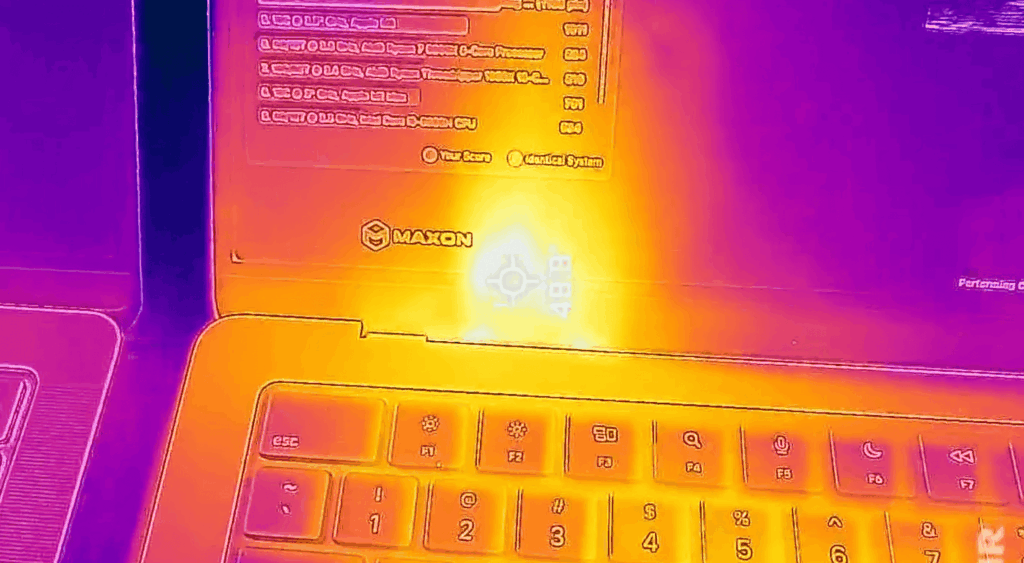
Sometimes a Mac can literally burn you, and that’s definitely not normal
Knowing the temperature is only half the battle. It’s important to understand which values are considered normal. Apple recommends using a Mac at an ambient air temperature between 10 and 35 °C and humidity no higher than 95%. This is the room temperature, not the temperature inside the case.
Internal components heat up significantly more than the surrounding air. Under normal home conditions, around 40 °C is the lower threshold at which components typically operate. The processor, graphics, ports, and other elements should not exceed approximately 89 °C for extended periods.
If the temperature reaches 100 °C — the boiling point of water — you should either find what’s putting such a heavy load on the computer or shut it down for a while. Why does this happen, you ask? Well, most often the browser is to blame. To figure out which application is heating the system the most, use the built-in “Activity Monitor” utility — it has an “Energy” section with a load column.
How to Check Mac Temperature Using Built-in Tools
The simplest way without installing anything is to open “Activity Monitor” and take a look. But here’s the problem: temperature measurement natively works only on Macs with Intel processors.
Since the vast majority of Apple computers today run on M-series chips, we’ll use third-party software. For example, Stats. This is a free application that lets you see the temperature of individual components of your Mac, from the processor to the RAM, which also tends to heat up.
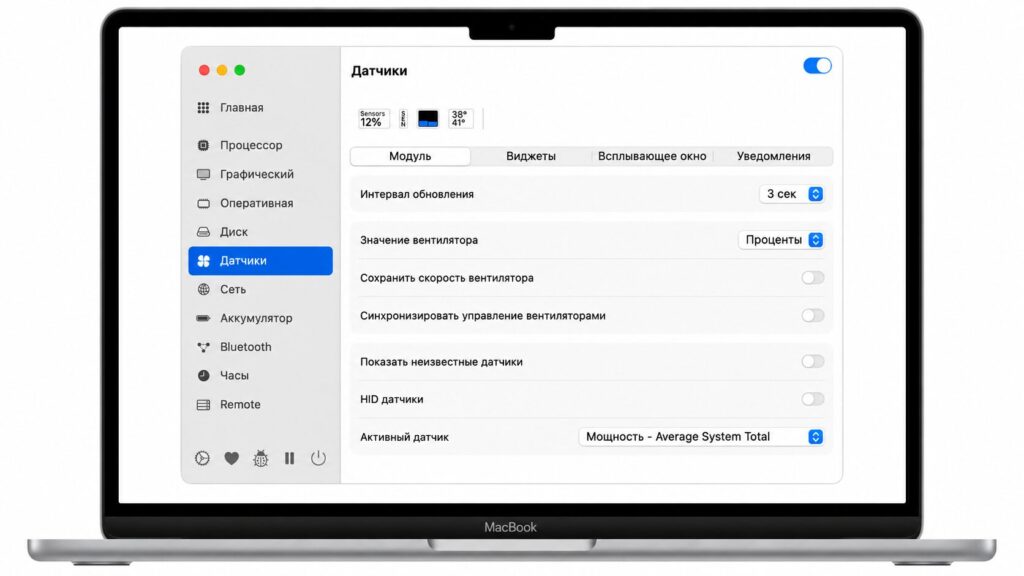
The two numbers you see are the CPU and GPU temperatures
- Download Stats to your Mac from this link;
- Install and launch it;
- After that, the app module will appear in the menu bar;
- Enable the temperature monitoring feature for the desired components;
- Track the heating and overheating of your Mac.
What to Do If Your Mac Is Overheating
If your Mac is getting hot — and significantly so — you need to find the cause. Open “Activity Monitor,” go to the “Energy” section, and see which application is putting the most load on the system. In most cases, it’s the browser with dozens of tabs or a heavy website. In this case, simply closing the excess tabs is enough, and the temperature will start to drop.
If there’s no heavy load but the Mac is still getting hot, check the conditions around it: don’t keep the laptop on a blanket or pillow that blocks ventilation, and don’t work in a room hotter than 35 °C. Also keep in mind that vibe coding also causes heating, especially on MacBook models without active cooling. In this case, it’s enough to briefly pause operations and wait for the computer to cool down.
Although in most cases, the Mac should handle it on its own. If you have a laptop with a built-in cooler, it will spin up the fans to cool the computer’s internals. And if it’s a MacBook Neo or MacBook Air, the laptops will simply activate the throttling mechanism, which forces the processor to reduce its clock speed and thereby lower the heat.


