If your Android phone goes missing, you may not always get it back, but you can almost always cut off access to it if you act in the right order. Call your own number, locate the phone with Google Find Hub at android.com/find, and mark it as lost. Then ask your mobile carrier to block your SIM and lock down your bank, Google, email, and messaging accounts. A remote wipe should come last, because once the phone is reset you can no longer track it. In these first minutes, protecting your money and messages matters more than finding the device.
What you need to know
- Google Find Hub, formerly Find My Device, is available at android.com/find and as an app on all certified Android phones.
- “Mark as lost” locks the screen with your PIN, password, or pattern. It also signs out of your Google account on the phone and shows a message with a contact number.
- The SIM card is the most valuable part of a lost phone, because the codes used to reset passwords are sent to your number.
- A factory reset through Find Hub erases the phone, but you can no longer locate it through the service afterward.
A person searching for a lost smartphone
Step 1: Call your number and check the map
Start with the simplest step and call your own number from someone else’s phone. If the phone is nearby, or an honest person has found it, the problem may be solved in a minute.
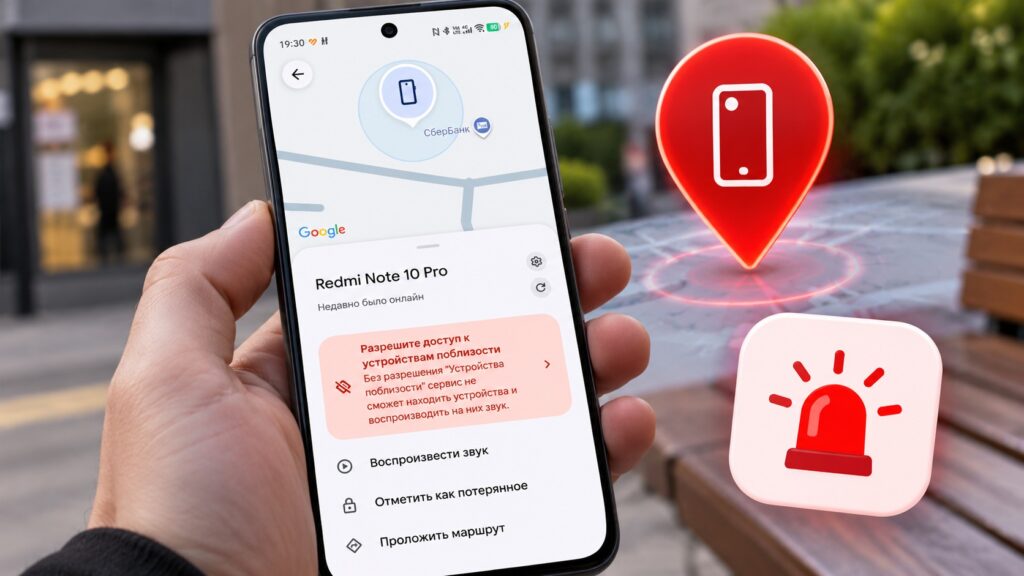
If no one answers, open Google Find Hub at android.com/find on any computer or on another person’s smartphone. The service used to be called Find My Device. The Find Hub app is now available on all certified Android smartphones.
Sign in with the same Google account used on the missing phone, then select the phone from the list. The map shows the approximate location where the phone was last detected.
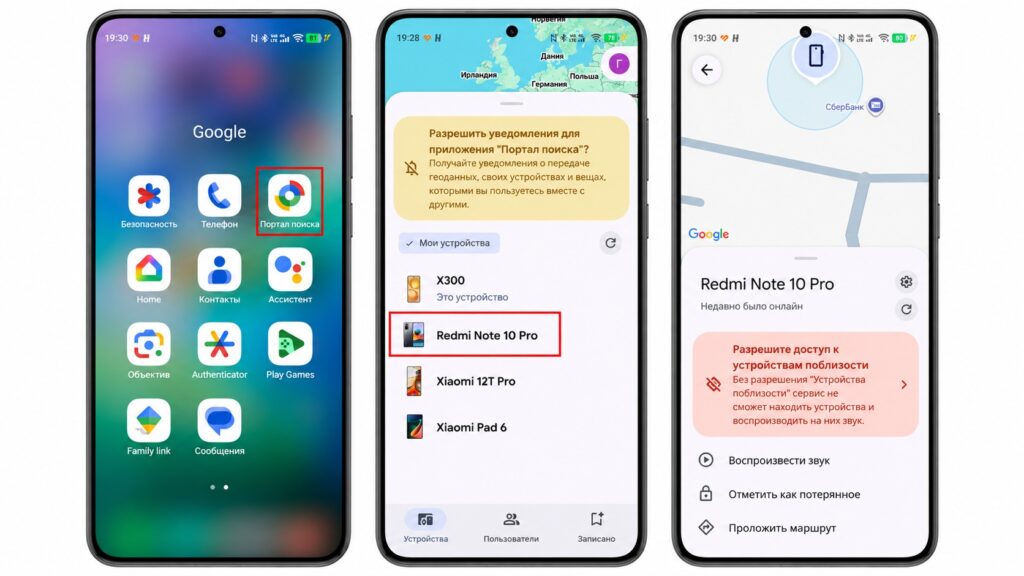
Locating a smartphone with Find Hub
If the phone seems to be somewhere in your home or car, choose “Play sound.” The phone will ring at full volume for five minutes, even if it is set to silent. Samsung owners also have a separate finding service from Samsung.
Step 2: Lock the screen and leave a contact number
If the map shows that the phone is not at home, the next step is to cut off access to it. In Find Hub, use the “Mark as lost” option. It does three things at once:
- it locks the screen with your existing PIN, password, or pattern;
- it signs your Google account out of that phone;
- it displays a message and a phone number someone can use to reach you.
Enter a relative’s or friend’s number rather than your own, since your own number cannot be reached at that point. If the phone was simply lost, the finder then has a way to return it. If it was stolen, a locked phone is no longer easy pickings for a thief.
Step 3: Call your carrier before your bank

A person who lost their smartphone calls their mobile carrier

The most valuable part of a lost phone is the SIM card, not the handset. Verification codes from banks, government services, and most other online services are sent to your number. If someone puts your SIM card into another phone, they could use it to reset passwords and sign in to your accounts.
For that reason, call your mobile carrier right after locking the screen and ask it to block the number. The number can be restored later, either with the same SIM card or with a new one issued by the carrier. Procedures vary by carrier, so check your own provider’s process.
Step 4: Secure your bank, Google account, email, and messaging apps
Once the number is blocked, the next task is to sign out of important apps on the lost phone. Work through this list from a computer or another person’s phone:
- Call your bank using the number on the back of your card. Ask it to temporarily block your cards and access to its mobile app.
- Sign in to your Google account on a computer, go to Security, then Your devices, select the lost phone, and choose Sign out.
- Change the passwords for your email and your government services account.
- In Telegram and other messaging apps, open the list of active sessions on your computer and end the session on the lost phone.
Once these steps are done, even someone who guesses your screen lock will not be able to move your money or read your messages.
Step 5: Wipe the phone, but not in the first few minutes
Find Hub also has a factory reset option that erases everything on the phone remotely. It may sound like the safest choice, but it has a major drawback: once the phone has been reset, you can no longer locate it through Find Hub.
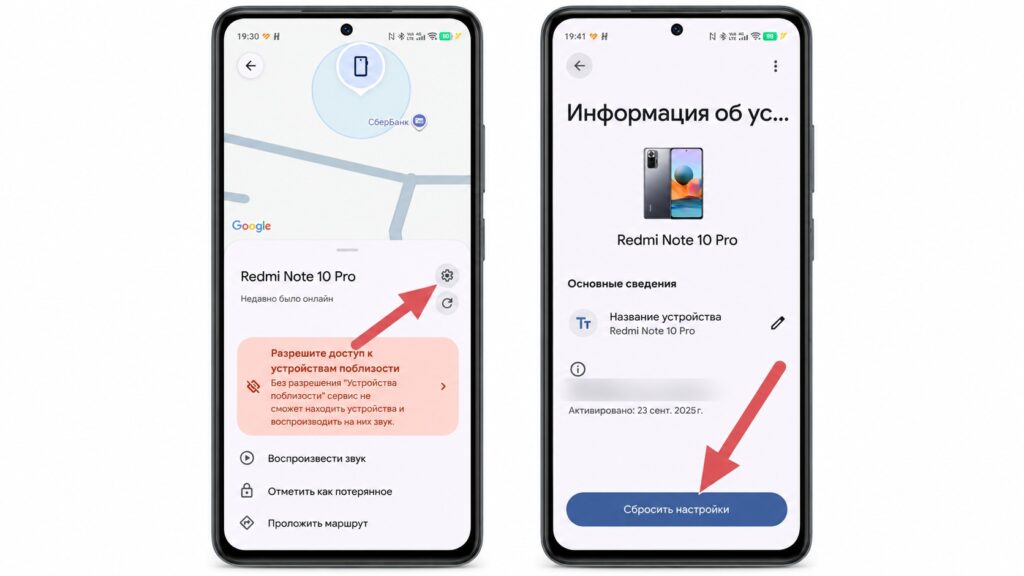
Factory reset through Find Hub
Wipe the phone only when there is no realistic chance of getting it back. For example, the map may show that it has moved to another part of town and has been switched off. Even after a reset, a thief will have trouble using the phone, because it cannot be set up again without your Google account password.
What to set up today, while the phone is still in your hands
The steps above only work if the phone has been prepared in advance. Spend about five minutes on the following:
- Open Settings, find the Google section, then Find Hub or Find My Device, and make sure the feature is turned on.
- In the same place, turn on offline device finding if your phone supports it. This lets you locate the phone even when it has no internet connection or has switched off.
- Set up a screen lock, such as a PIN, password, or fingerprint.
- Turn on a SIM card PIN in your security settings, so the SIM will not work in another phone without the code.
- Write down your carrier’s and your bank’s phone numbers on paper.
Finally, turn on backups. With a backup, a phone that is gone for good costs you only money, not your photos and conversations.