If you open Software Update on your iPhone expecting iOS 27 and instead see a small iOS 26.7 update of less than a gigabyte, the major upgrade has not skipped your device. According to the guide, iOS 27 is still offered on the same screen, but further down, in a section labelled “Also Available” that many users scroll past. iOS 26.7 itself is simply a security update for the older iOS 26 branch, released for people who are not ready to move to the new release. In some cases, however, the guide says the direct path to iOS 27 does not appear at all, and installing iOS 26.7 first is what unlocks it.
What you need to know
- iOS 26.7 is a security patch for the iOS 26 branch, weighing about 477 MB, while the full iOS 27 upgrade is roughly 5 GB, according to the source.
- The iOS 27 upgrade sits in the “Also Available” block at the bottom of Settings > General > Software Update, below the iOS 26.7 offer.
- The source reports that iOS 27 supports every model that ran iOS 26, meaning iPhone 11 and newer plus the 2020 and 2022 iPhone SE.
- If the iOS 27 option is missing on a supported iPhone that is several versions behind, the guide says installing iOS 26.7 first makes the upgrade appear.
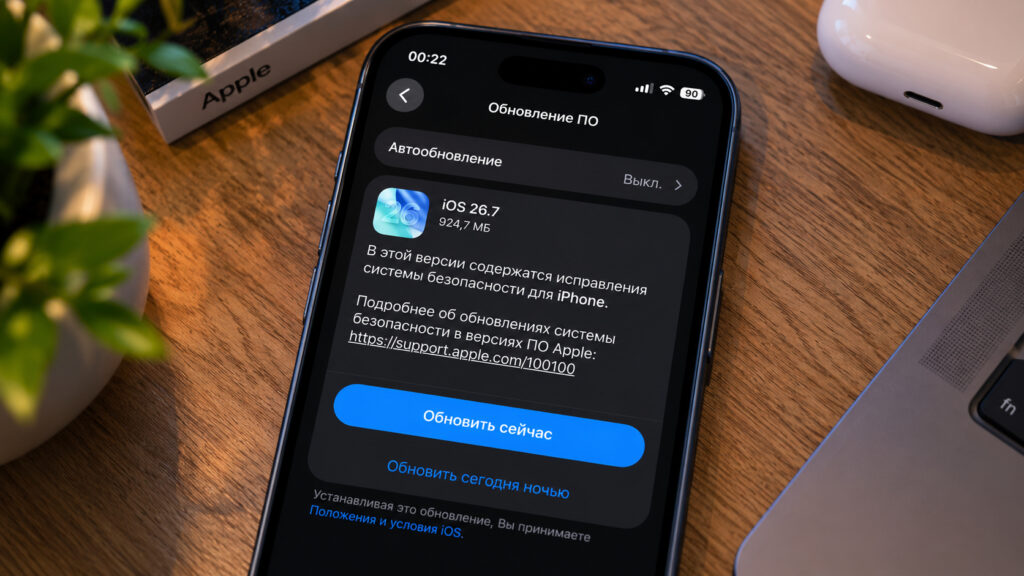
An iPhone offering iOS 26.7 instead of iOS 27
Where the iOS 27 upgrade is located
Before hunting for the button, the source recommends preparing the phone: make a backup and leave at least a couple of gigabytes of free storage. The iOS 26.7 offer at the top of the Software Update screen is not a dead end. Apple publishes such patches for the previous branch so that users who want to stay on iOS 26 still receive security fixes. The iOS 27 upgrade is listed lower on the same screen.
The full upgrade is considerably larger, about 5 GB versus roughly 477 MB for the patch, so the guide advises downloading it over Wi-Fi with the battery above 50 percent. The steps are as follows.
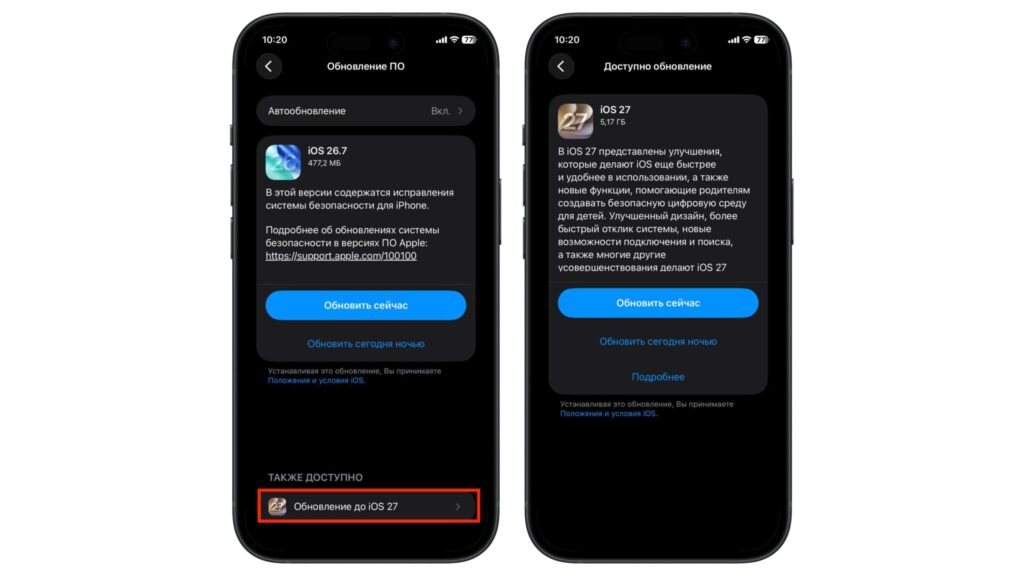
Navigating to the iOS 27 installation
- Open Settings and go to General.
- Tap Software Update.
- Wait while the iPhone contacts Apple’s servers and loads the list of updates; a loading indicator spins on screen during this step.
- Scroll down to the “Also Available” block.
- Tap the “Upgrade to iOS 27” entry.
- On the next screen, tap “Update Now” and enter your passcode.
- Wait for the download and installation to finish; the iPhone will restart running the new system.
The “Also Available” block is the part most people miss. According to the source, many users treat the iOS 26.7 entry at the top of the screen as the only option and leave Settings without ever reaching the upgrade.
Which iPhones support iOS 27
Sometimes the “Upgrade to iOS 27” line is absent entirely. The first thing to check is whether the phone supports the new system at all. The source reports that Apple kept support for every model that ran iOS 26, so if a device took iOS 26 a year ago, compatibility should not be a concern.
In practice, that means iPhone 11 and newer plus the more recent iPhone SE models. The full list, as given in the source, is:
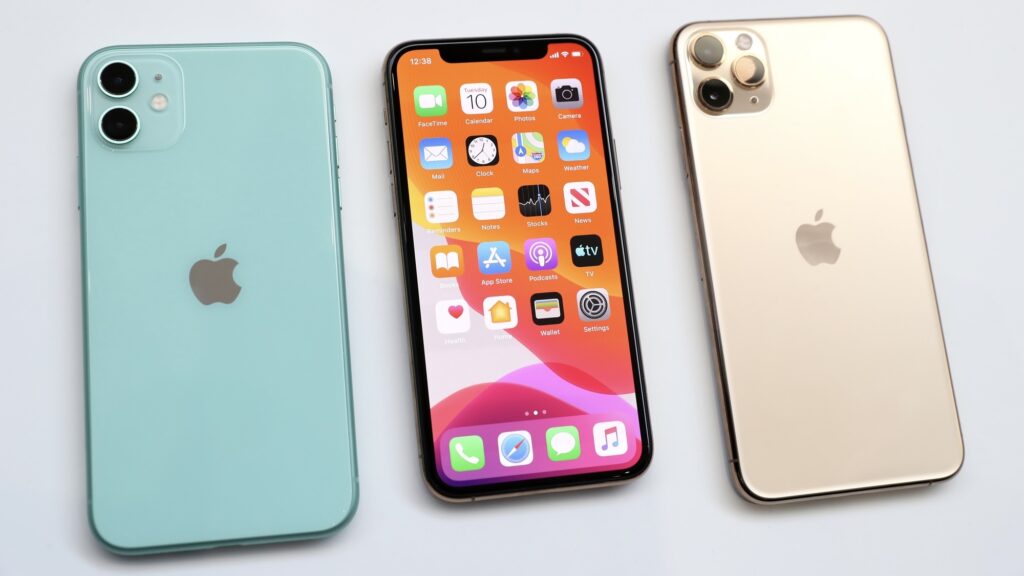
The iPhone 11 lineup
- iPhone SE 2nd generation and newer (2020 and 2022 models);
- iPhone 11, 11 Pro and 11 Pro Max;
- iPhone 12, 12 mini, 12 Pro and 12 Pro Max;
- iPhone 13, 13 mini, 13 Pro and 13 Pro Max;
- iPhone 14, 14 Plus, 14 Pro and 14 Pro Max;
- iPhone 15, 15 Plus, 15 Pro and 15 Pro Max;
- iPhone 16, 16 Plus, 16 Pro, 16 Pro Max and 16e;
- iPhone 17, 17 Pro, 17 Pro Max and iPhone Air;
- iPhone 18 Pro, 18 Pro Max and the foldable iPhone, which the source says ship with iOS 27 preinstalled.
If a model is not on this list, the missing upgrade is not a glitch: the device has simply reached the end of its major-update support, and there is no hidden button to find.
What to do if the upgrade is not listed on a supported iPhone
Suppose the phone is on the list but the iOS 27 upgrade still does not appear. The source says this happens when a device has not been updated for a long time and is running, for example, iOS 18. The system does not always allow a jump across several major versions in a single step. Some users reportedly see the same behaviour on early builds of iOS 26: the device seems stuck between versions and does not show the major update.
The fix described in the guide is straightforward: install iOS 26.7 first, after which the system opens the path to iOS 27. It is an extra step, but the source says it does not take long.
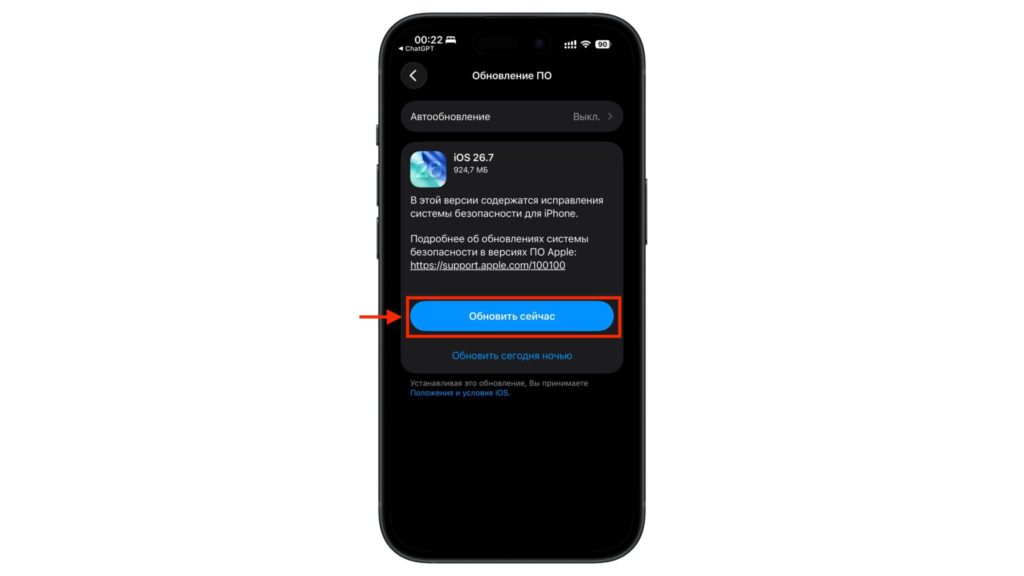
Installing iOS 26.7
- Go to Settings > General > Software Update.
- Wait until iOS 26.7 loads at the top of the screen.
- Tap “Update Now” and enter your passcode.
- Let the iPhone install the patch and restart.
- Open Software Update again and wait a few seconds for the list to refresh.
- The upgrade to iOS 27 should now load.
- Tap the entry, choose “Update Now” and complete the installation.
If the upgrade still does not appear after the patch, the source suggests restarting the iPhone manually and returning to Software Update. The list sometimes takes a while to populate, particularly on a weak connection.
Automatic updates as a longer-term option
To avoid juggling versions manually in future, the guide points to Automatic Updates. When enabled, the iPhone downloads and installs new system versions overnight while it is charging and connected to Wi-Fi.
Users who prefer to control every update can leave the option off and install versions by hand, following the steps above. The source notes there is no universal answer; it comes down to how much you care about being among the first on a new release versus reviewing each update before it lands.
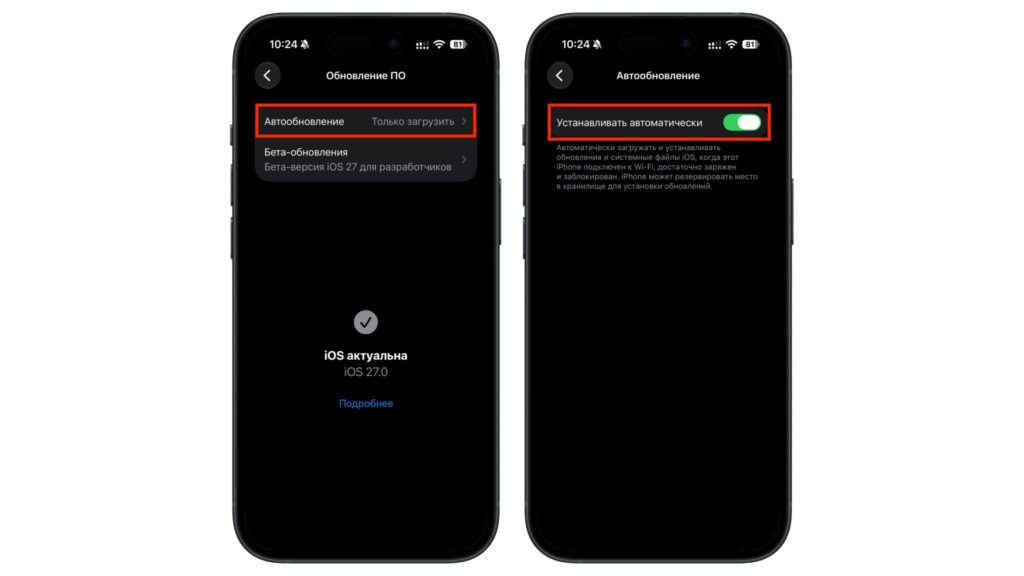
Enabling automatic iOS updates
- Go to Settings > General > Software Update.
- Tap “Automatic Updates” at the top of the screen.
- Turn on the toggles for downloading and installing iOS updates.
Once Automatic Updates is on, the iPhone handles the timing of future upgrades itself. Either way, seeing iOS 26.7 instead of iOS 27 is not a sign that a device has been left behind; per the source, it is simply an intermediate stop on the way to the new release.


