If your iPhone’s Settings icon is showing a red badge and, inside, a prompt to Activate iCloud Storage even though your iCloud account has plenty of free space, you are almost certainly looking at a bug, not a genuine to-do item. According to the source report, some iOS 27 users are seeing this notification regardless of iPhone model, tapping it simply opens the iCloud storage purchase screen, and the badge does not go away after the prompt has been viewed. The source suggests one workaround: signing out of your Apple account and signing back in. It reportedly clears the badge for some users, but not all, and there is currently no built-in way to dismiss the notification.
What you need to know
- The red badge and “Activate iCloud Storage” prompt appear in Settings on iOS 27, and tapping it only opens the screen for buying more iCloud storage.
- The notification appears even on accounts with a 2 TB Apple One family plan that is only about half full, which points to a false prompt rather than a real storage shortage.
- Signing out of your Apple account and back in reportedly removes the badge for some users, but the source stresses it does not work for everyone.
- The badge has been seen on both the release version of iOS 27 and the iOS 27.2 beta; the source expects Apple to fix it server-side rather than through a firmware update.
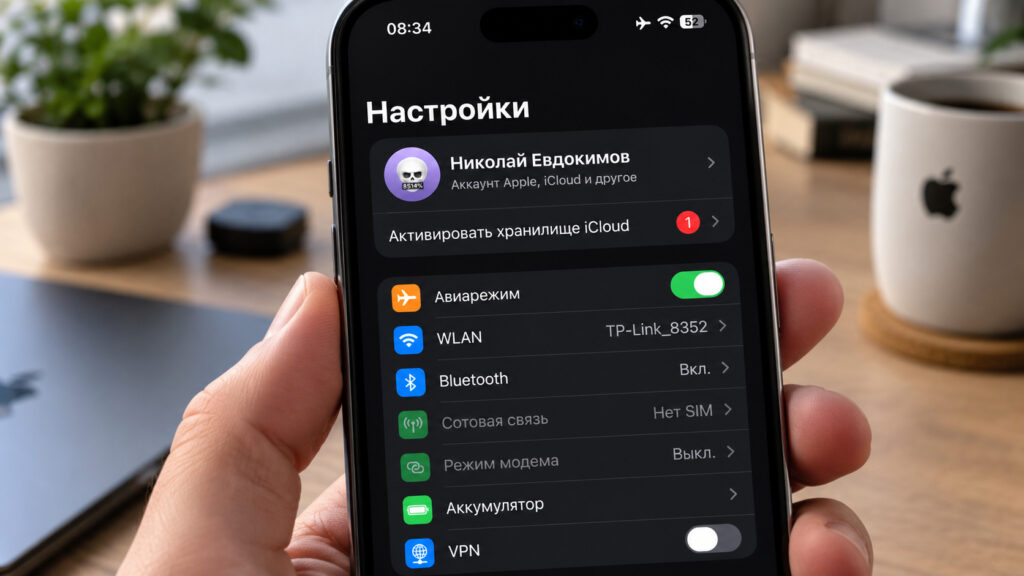
iCloud storage activation notification on an iPhone
Why the Settings icon has a red badge
Normally, a red badge on the Settings icon means the phone needs something from you: a system update, an unfinished setup step, a forgotten password. On iOS 27, however, some users are seeing the badge with a notification inside Settings labelled “Activate iCloud Storage”, an invitation to turn on cloud storage. Tapping it does not explain anything; the phone just opens the screen for purchasing additional iCloud gigabytes. Based on user discussions cited by the source, the issue is not isolated and affects people on different iPhone models.
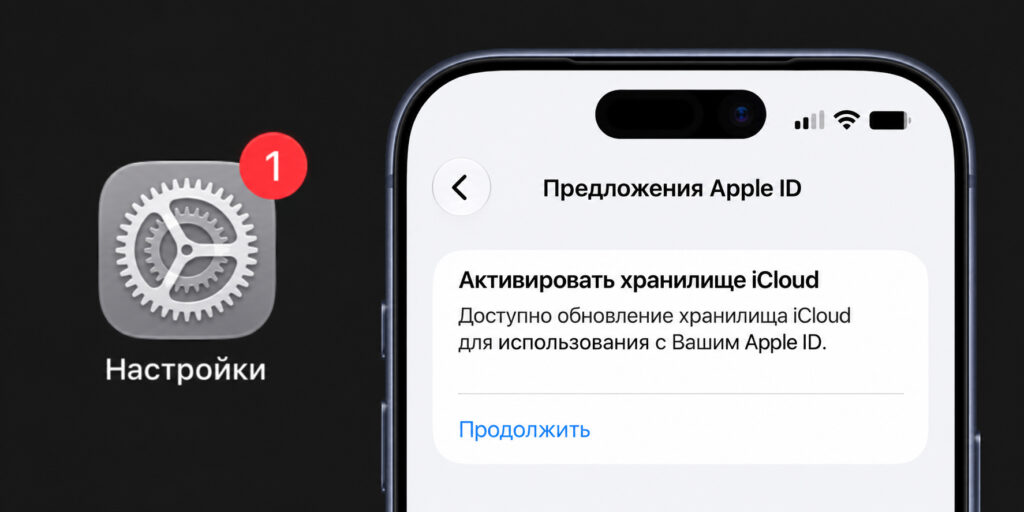
Full text shown after tapping the notification
The frustrating part is that the notification cannot be dismissed. Logically, opening the prompt once should be enough to clear the badge. Instead, closing the purchase screen and returning to the home screen brings the red dot straight back. There is no “got it, don’t remind me” button. The result is a persistent visual nag that creates a false sense that something has been left undone, when in fact no action is required.
Why the badge appears even with 2 TB of iCloud
The bug affects people whose storage situation is perfectly fine. The source reports the notification appearing on accounts with a 2 TB Apple One family plan where the cloud is, at most, half full. In other words, the system appears not to recognise storage that has already been paid for and keeps offering to sell more of it. There is no practical reason for such a prompt in that situation.
Checking your own storage is straightforward: open Settings, tap your account card, go to the iCloud section and look at the storage usage bar. If the bar is far from full, the prompt is misleading and requires nothing from you. The source describes it as a cosmetic glitch that is more alarming than harmful.
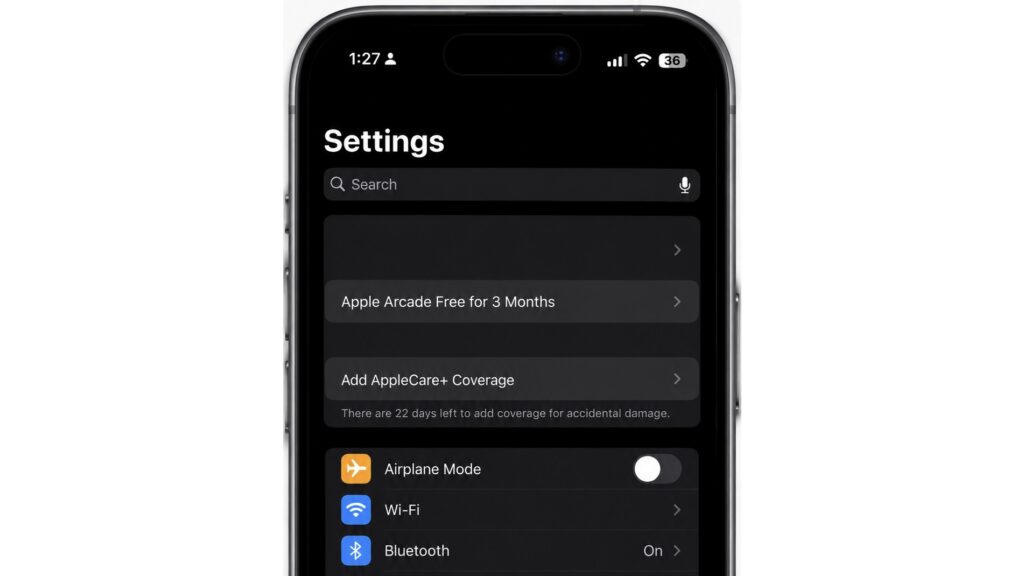
Other notifications in iPhone Settings
Context matters here. Apple does sometimes use Settings as a promotional surface: it shows Apple TV trial offers, reminds users about active AppleCare coverage, and surfaces small service promotions. So the first reaction of many users was predictable: another attempt to push cloud storage disguised as a system notification. But in this case, the source argues, it looks like an ordinary bug rather than a veiled upsell, since pitching paid storage to someone whose plan is already covered for years ahead makes no sense.
How to try clearing the notification now
Apple has not released an official fix, according to the source. In the meantime, some users have noticed a simple pattern: signing out of the Apple account and signing back in makes the red badge disappear. The source is explicit that this does not work for everyone or every time, but it takes about a minute. Per the report, your data stays put: photos and notes remain in iCloud, and the phone will simply ask for your password and a verification code when you sign back in. Make sure you know your Apple account password and can receive the verification code before you start.
The steps are as follows:
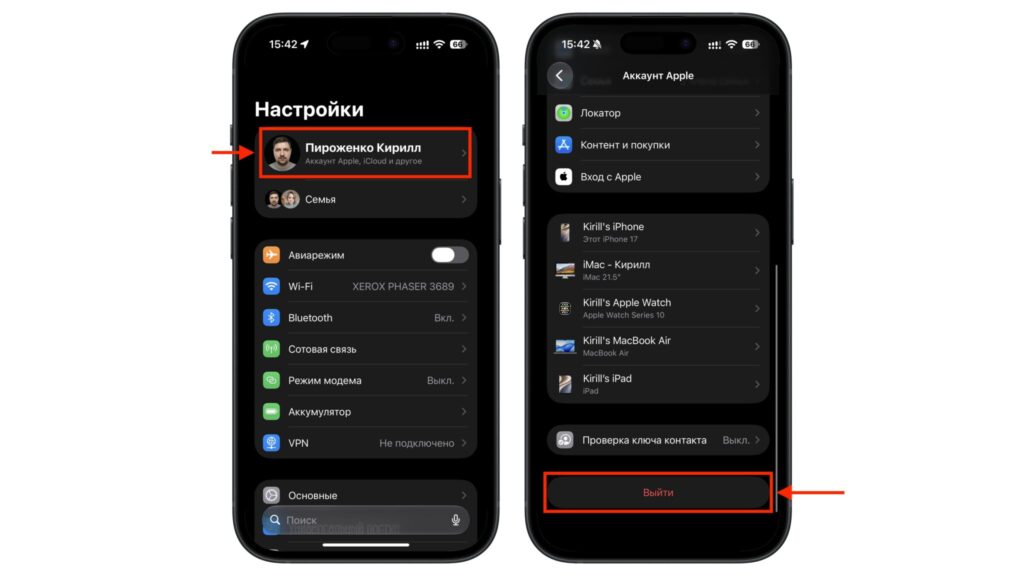
Signing out of an Apple ID
- Open Settings on your iPhone.
- Tap your name at the very top of the screen to open your Apple account card.
- Scroll to the bottom of the page.
- Tap Sign Out.
- Follow the on-screen prompts to complete the sign-out properly.
- Sign back in to your Apple account with the same credentials.
After signing back in, the false notification should disappear and the Settings icon should return to normal. If it does not work immediately, the source suggests waiting a minute and checking the icon again. Note that iMessage and FaceTime reactivate after sign-in and may take a couple of minutes to come back online; that is normal behaviour.
What to do if the badge still won’t go away
Here, patience is the only option. Signing out does not work for everyone: the badge has been seen on both the release version of iOS 27 and the newer iOS 27.2 beta, and there is currently no built-in system setting to turn the notification off. If the red dot returns after re-signing in, the source says the only remaining option is to wait, and describes this as a normal situation. The good news, according to the report, is that Apple typically resolves such server-side glitches fairly quickly and quietly. The most sensible approach is to ignore the badge and let the company fix it.
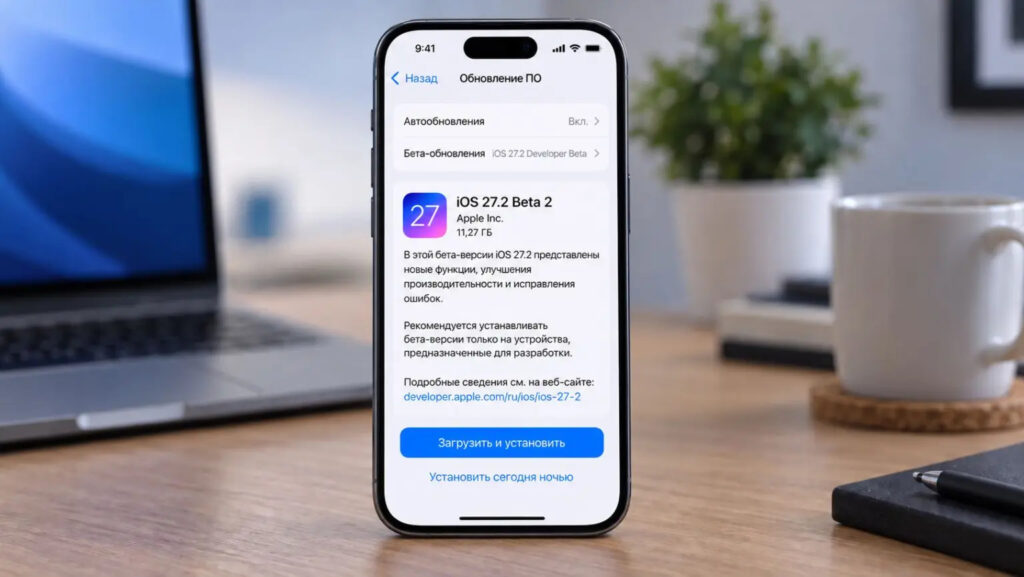
iOS 27.2 installation screen
The source expects the problem to be fixed on Apple’s servers rather than through a separate firmware update. False prompts of this kind are usually corrected with a backend change: at some point the servers stop sending the incorrect signal, and the badge disappears for everyone at once. This is an expectation, not a confirmed plan from Apple. Either way, there is no reason for drastic measures. Resetting the phone, erasing settings, taking the device to a service centre or deleting your account over a single red dot is unnecessary; the badge causes no harm beyond mild irritation.