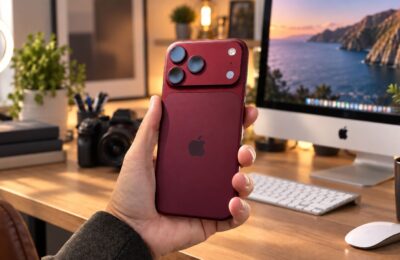
The camera in iOS 27 received a set of small but noticeable improvements that make shooting on iPhone more convenient. Last year, Apple completely simplified the Camera app interface, and now this design has been refined and made even more logical. The camera remains one of the key reasons to update your iPhone, so any change in this app affects millions of users. Here are the 5 main camera changes in iOS 27, from new button placement to the smart Siri mode, so you can immediately understand what’s changed and how to use it.
Let’s see how the iPhone camera has been updated
How the iPhone Camera Interface Has Changed
The overall look of the app remained the same, but some controls moved to more convenient locations. Developers made sure important buttons are within easy reach and don’t get lost.
The main changes look like this:
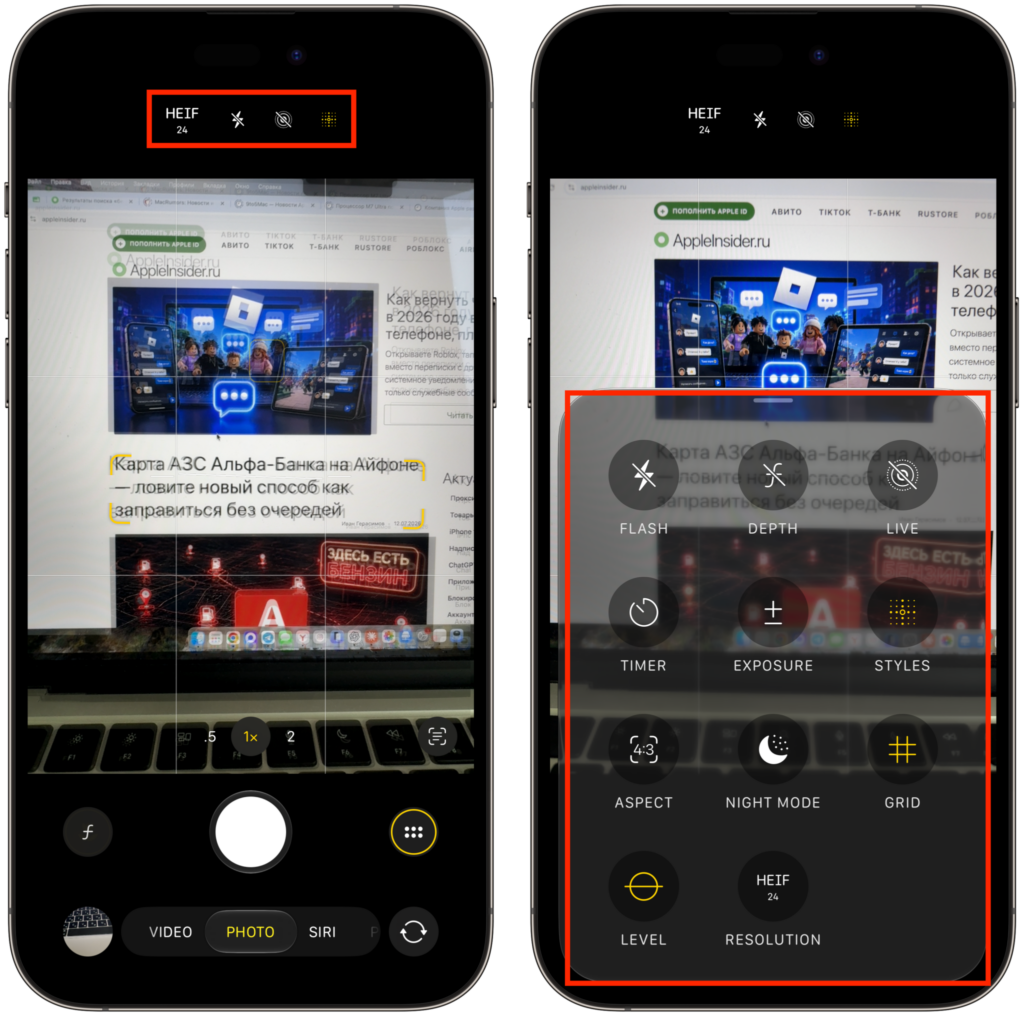
There are slightly more buttons in the camera now
- The macro and portrait shooting button (flower icon and italic letter f) is now located in the black area next to the shutter button, rather than overlaying the camera image. It’s become noticeably easier to find.
- The camera control button (grid icon) moved from top to bottom, on the right side. The same menu can be accessed by tapping the current mode name at the bottom, for example “Photo.”
- Settings at the top — format selection, flash, and Live Photo — are now grouped together in the center.
The camera control menu now includes toggles for portrait mode depth, night mode, grid, level, and format. Previously, the grid and level could only be enabled through Settings and the Camera section, but now everything is accessible right during shooting. According to rumors, later this year there will be an option to choose which buttons to show in the menu and which to leave at the top of the screen.
Object Recognition Through the iPhone Camera
Apple merged the Visual Intelligence feature with the Camera app. Previously, these were two separate systems that many people simply didn’t know about or found confusing. Now on models that support Apple Intelligence (iPhone 15 Pro, iPhone 16 and newer), a new Siri mode has appeared in the camera, alongside the familiar Photo and Video modes. It helps get information directly through the camera:
- The “Ask” button on the left lets you ask questions about what you see on the screen.
- The “Search” button helps visually find an item through Google, eBay, and Amazon.
- The central Siri button automatically suggests a useful action depending on what you captured.
In practice, this works like this:
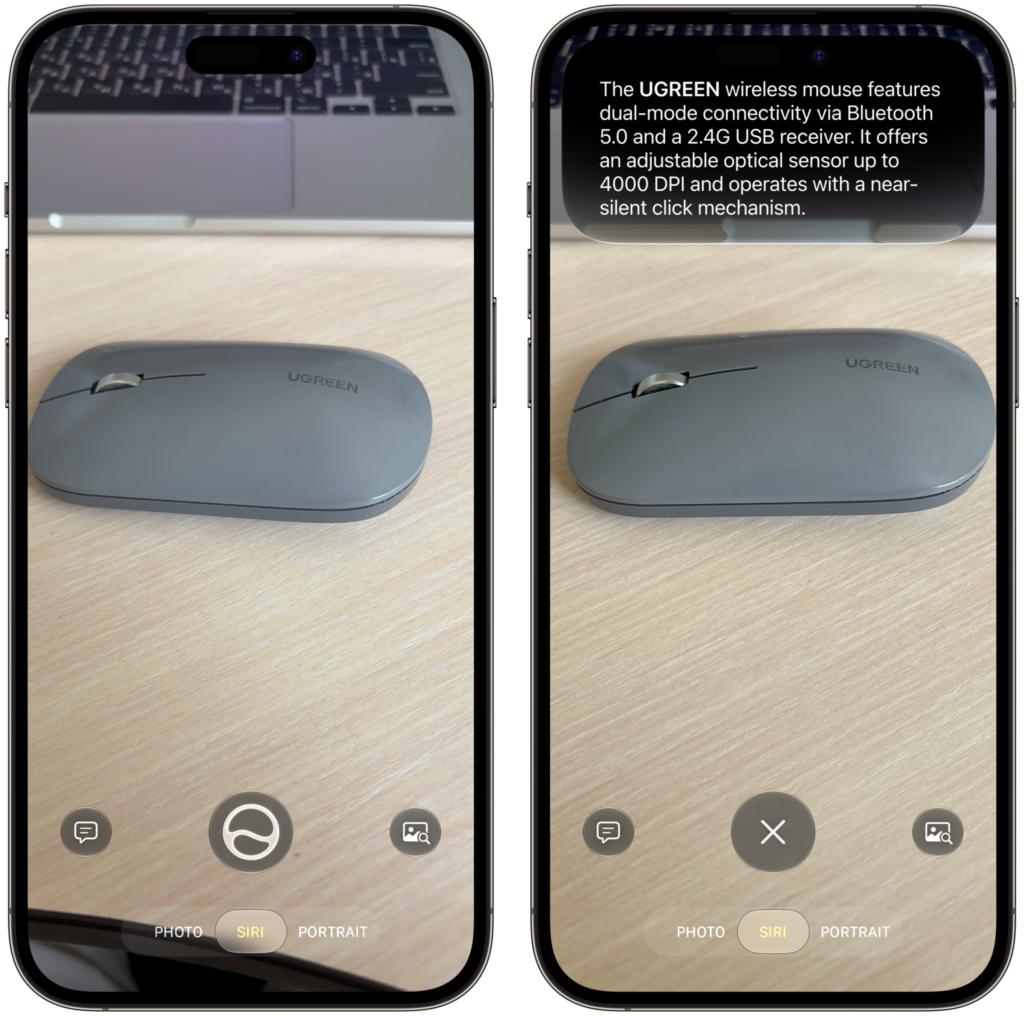
Scan the desired object and get all information about it
- Point the camera at an object, and the phone will identify what it is and tell you about it.
- Capture text — it can be copied, summarized, translated, or links can be opened.
- Photograph a concert poster or event — event details can be added directly to the calendar.
- Capture a receipt — the app will help split the bill and request money from friends via Apple Cash.
- Point the camera at an animal or plant — the phone will try to identify the breed or species.
It’s important that this mode is available not on all iPhones, but only on models that support Apple Intelligence. If you have an older model, the Siri mode in the camera won’t appear.
Smooth Zoom When Shooting Video on iPhone
Professional iPhone models have three separate lenses on the back with different characteristics. But Apple wants you to perceive them as a single camera: you simply zoom in or out, and the phone itself crops the image and switches to another lens at the right moment.
Previously, these transitions could be abrupt and noticeable. In iOS 27, Apple promises smoother transitions between lenses when zooming. Based on first impressions, the difference isn’t always noticeable yet, so it’s quite possible that Apple will refine this in future builds.
Correct Photo Orientation When Shooting on iPhone
A familiar problem: when you point the camera straight down to photograph something on a table or floor, the phone doesn’t always understand which orientation is needed. As a result, it keeps the previous orientation.
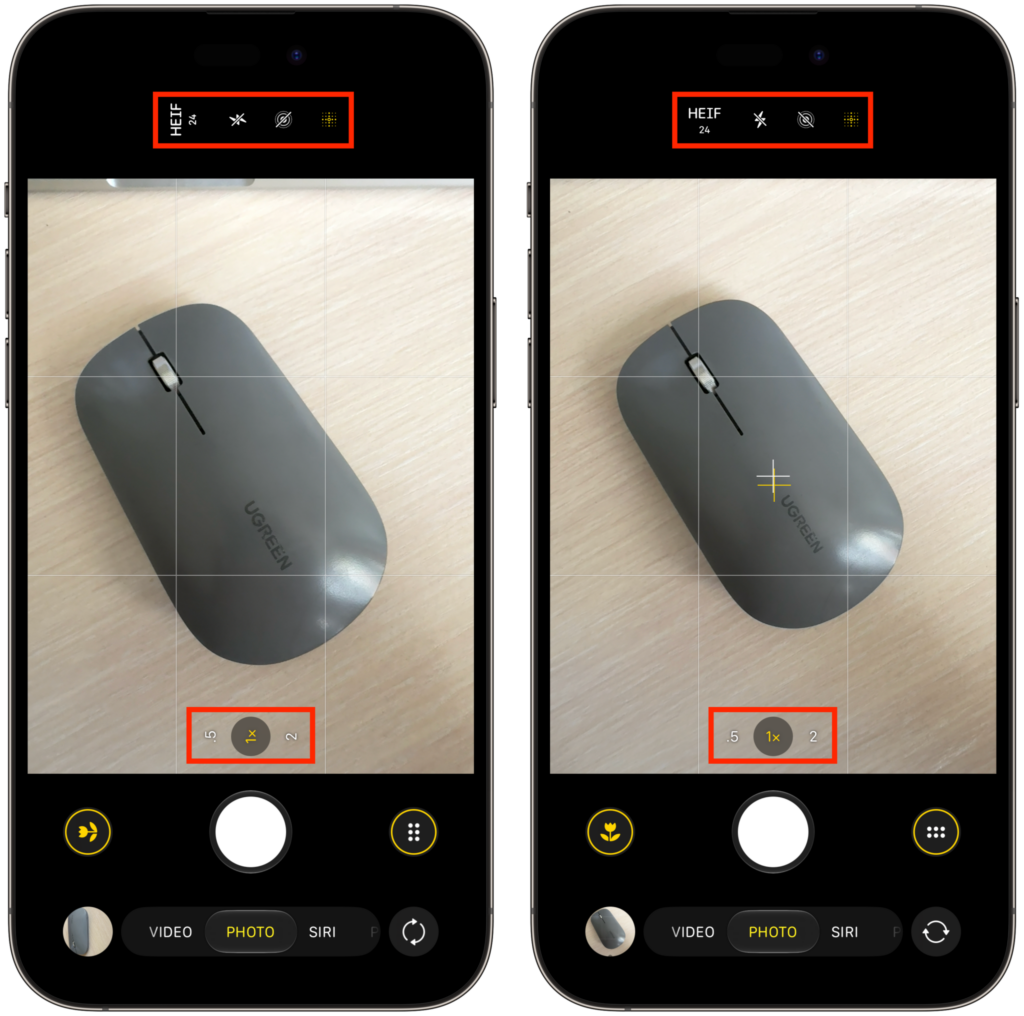
The interface more accurately adjusts to orientation
If you notice this before shooting, you have to raise the phone and lower it again to reset the orientation. And if you don’t notice, you’ll have to rotate the photo during editing. A small thing, but annoying. In iOS 27, Apple improved orientation detection, so this situation should occur less frequently.
Quick Camera Launch at Low iPhone Battery
The camera is one of the most power-hungry apps on iPhone. Processing each shot requires a lot of computation, and therefore battery charge. If you’re conserving battery life, the usual advice is to enable Low Power Mode. In iOS 27, the camera works noticeably better specifically in Low Power Mode: the app launches faster and consumes less energy. This is convenient when the battery is running low.