If your iPhone automatically starts playing music through your car speakers when you get in, it’s due to auto-connecting via Bluetooth or wireless CarPlay. Let’s figure out how to stop music from auto-playing. Below is a detailed guide: we’ll set up an automation in the Shortcuts app, add a separate scenario for CarPlay, and explain what to do if your head unit starts playing radio on its own when the engine starts.
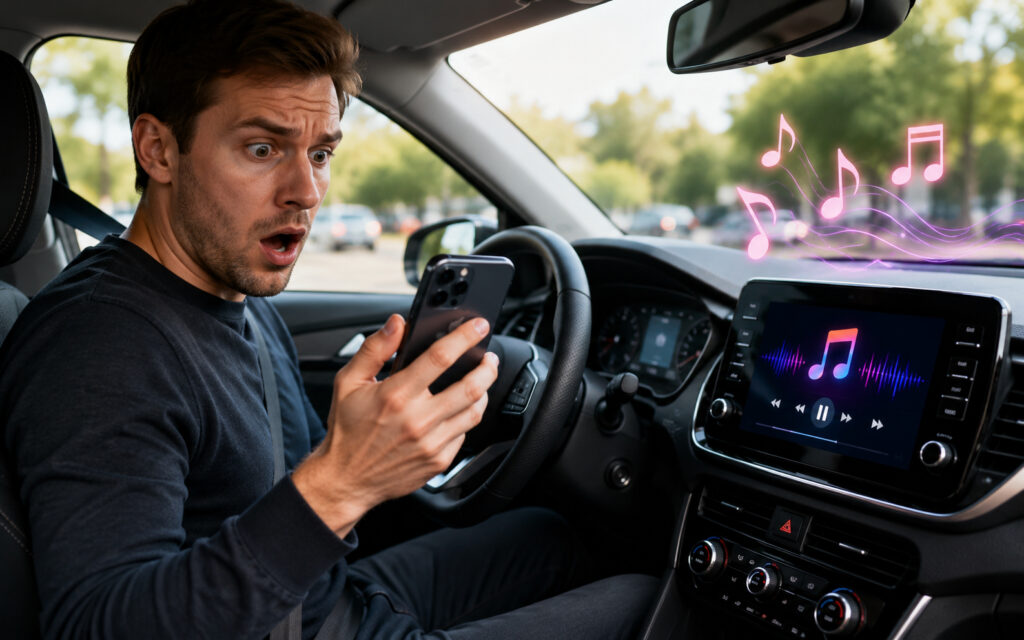
Preventing iPhone from playing music when connecting to the car
Why Music Starts Playing Automatically When iPhone Connects to the Car
Most often, the reason is simple: you recently listened to something in Apple Music, Spotify, YouTube Music, or another player, paused it, and then got into your car. As soon as the car started, its multimedia system automatically connected to the iPhone via Bluetooth or wireless CarPlay and resumed playback from where you left off.
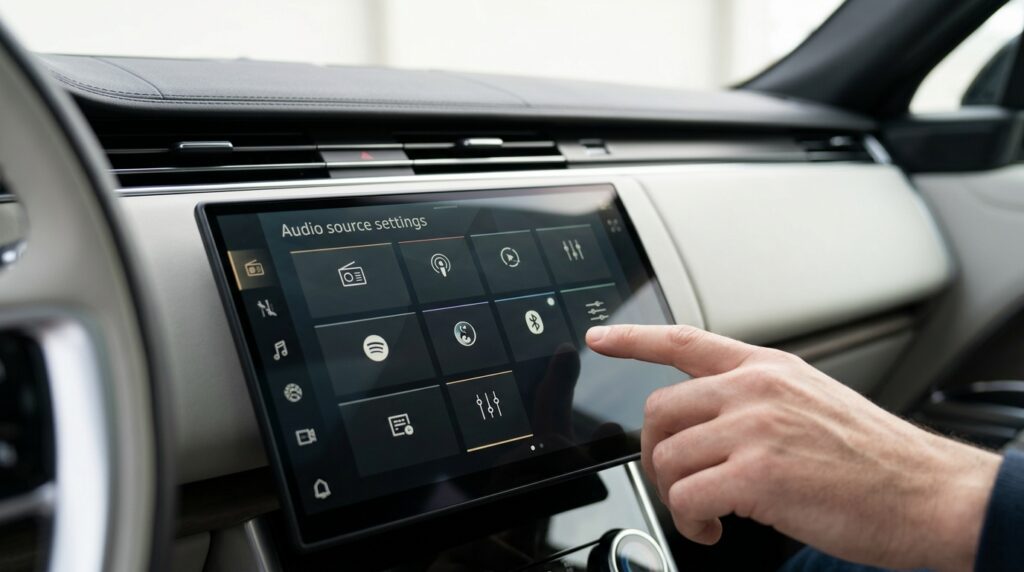
Why iPhone automatically plays music in the car
The second possible reason is a previously set up automation. Someone (possibly you) may have created a scenario that launches a specific playlist when connecting to the car. In this case, simply open the Shortcuts app, go to the “Automations” section, and delete or disable the relevant scenario.
How to Pause Music When iPhone Connects to the Car
The most reliable method is to create an automation in the Shortcuts app that will pause any playback the moment your iPhone connects to the car’s Bluetooth. The scenario works for all media apps at once: Apple Music, Spotify, Yandex Music, podcasts, YouTube, and so on.
Important: your car must have been paired with your iPhone via Bluetooth at least once, otherwise it won’t appear in the list of devices.
- Open the Shortcuts app on your iPhone and go to the “Automations” tab.
- Tap “New Automation” or the plus icon in the upper right corner.
- In the list of conditions, select “Bluetooth.”
- In the “Device” section, tap “Choose” and select your car from the list of paired devices.
- Keep the checkmark next to “Connects” and uncheck “Disconnects.”
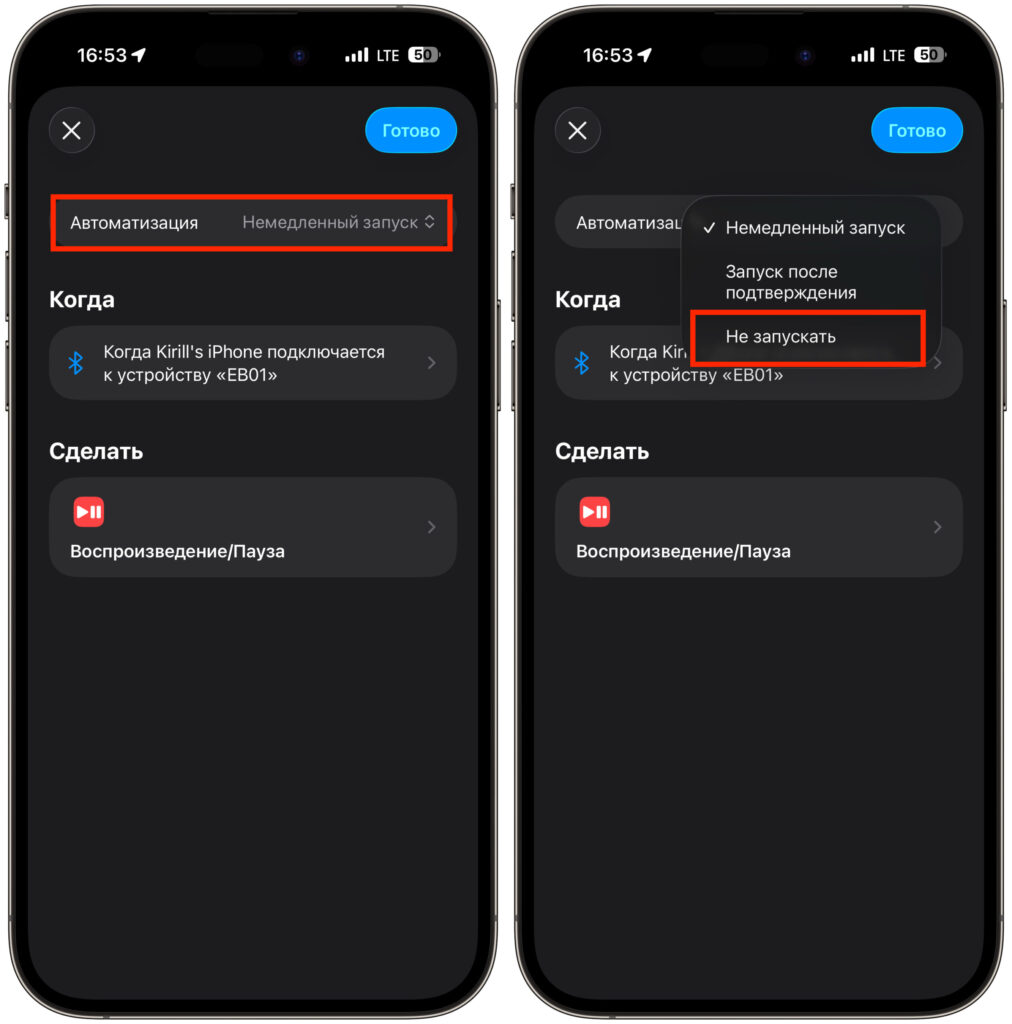
- Enable the “Run Immediately” option so the automation triggers without confirmation, and tap “Next.”
- Tap “New Blank Shortcut.”
- In the action search bar, find “Play/Pause” and add this action.
- Open the action parameters and set the value to “Pause.” If later the pause doesn’t work, go back and change the value back to “Play/Pause.”
- Tap the checkmark to save the automation.
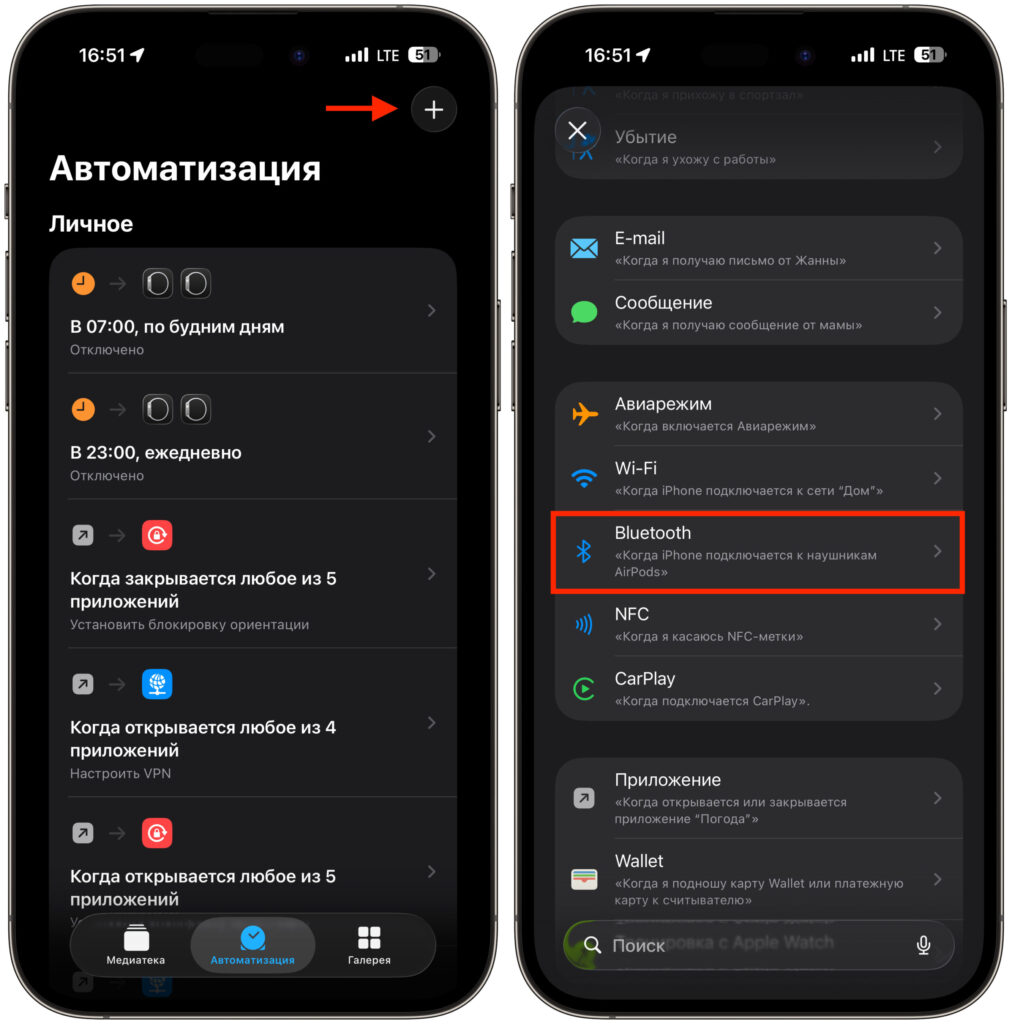
Create a new automation
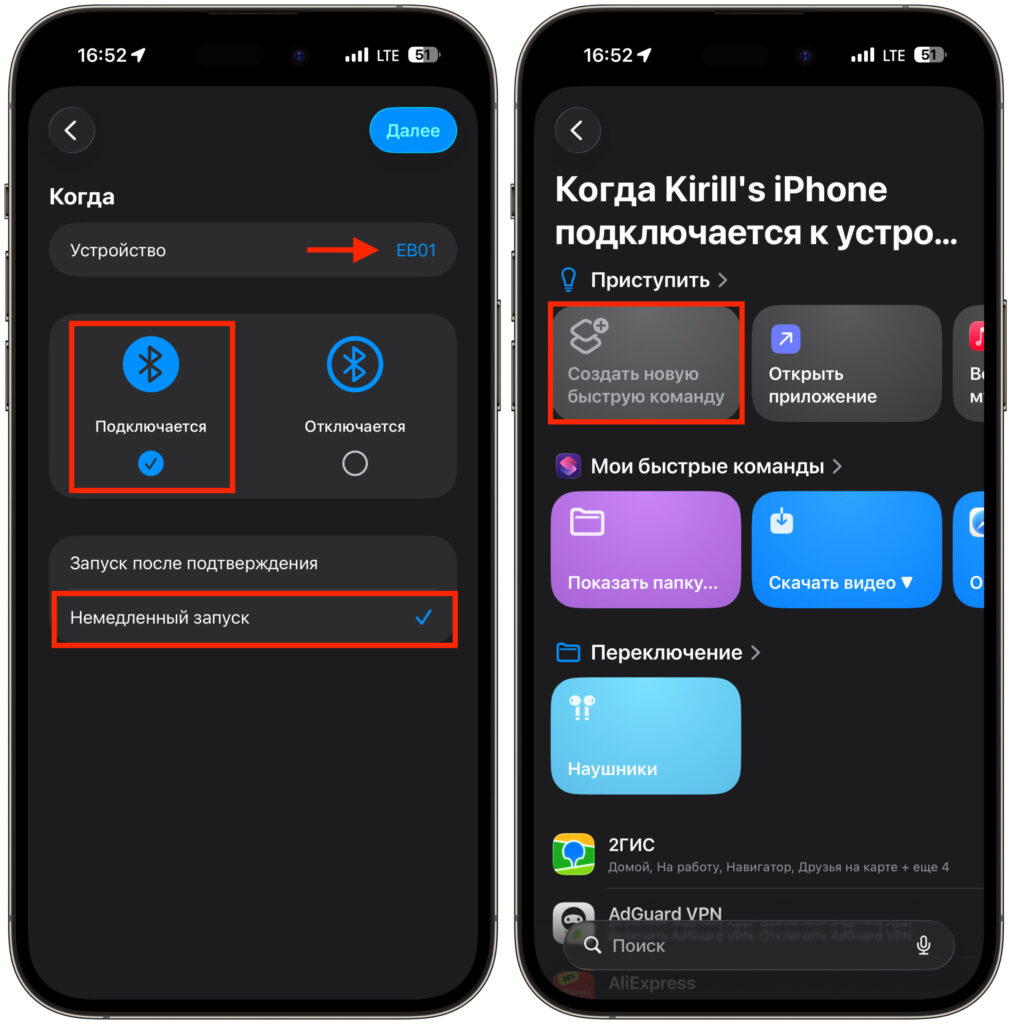
Link it to a new blank shortcut
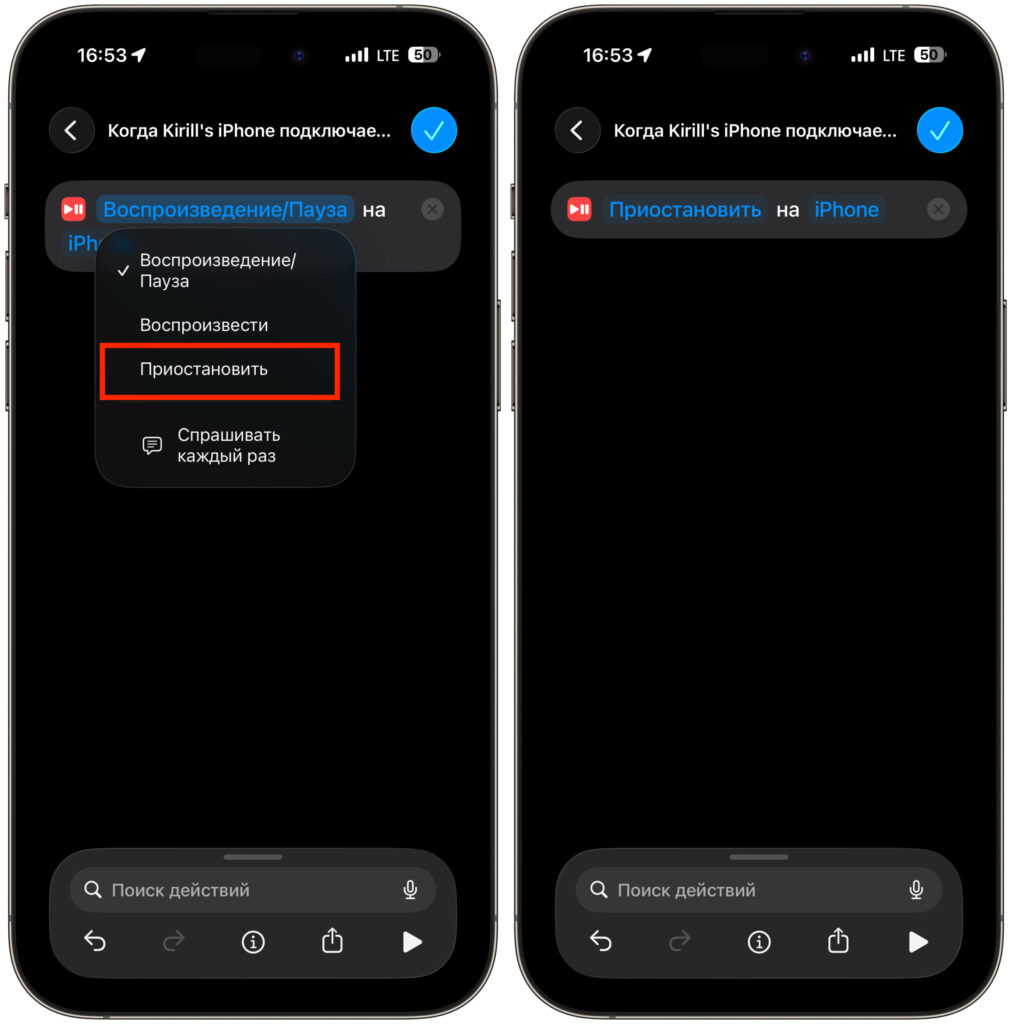
And configure just one attribute
Now every time your iPhone connects to the car’s Bluetooth, any playback will be automatically paused. You no longer need to reach for your phone to stop an accidentally launched track or podcast.
How to Stop Music When iPhone Connects to CarPlay
If your car has wireless CarPlay and music starts specifically because of it, you need a separate automation. The steps are the same as for Bluetooth, but on the third step, instead of “Bluetooth,” select the “CarPlay” condition. Then set the action to “Pause” and save the scenario.
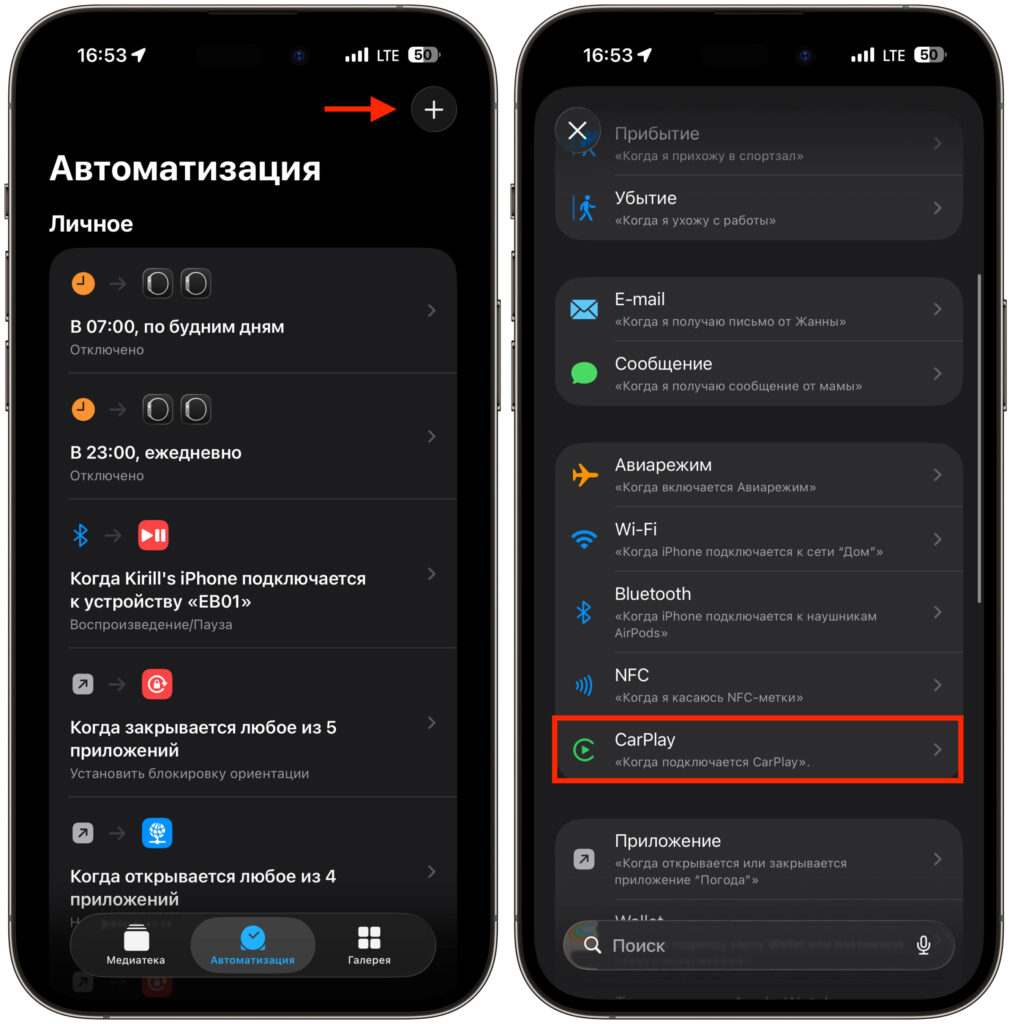
If you have CarPlay, select this option
You can create both automations at the same time — for Bluetooth and for CarPlay. They don’t conflict with each other, and the double safeguard is especially useful if your car has multiple connection modes (for example, wired and wireless CarPlay alongside regular Bluetooth audio).
A separate note: the CarPlay automation only works on iPhones that support this feature and only when CarPlay is set up in your car. If you use CarPlay via a cable, the connection condition will also work correctly.
Disabling Bluetooth or CarPlay Automation on iPhone
If music doesn’t just resume but the same playlist or specific track starts every time, it’s almost certainly due to a previously created automation. You can check and delete it in under a minute.