If your Android phone’s battery drains faster than you’d like, a few background features may be partly to blame. One user reports disabling three common Android functions — present on most manufacturer skins — that run in the background but provided little personal benefit. Here’s what each feature does, why you might consider turning it off, and the trade-offs involved.
What you need to know
- Always On Display, RAM extension, and battery protection are three features available on most Android skins that can affect daily battery life or charging behavior.
- Disabling Always On Display yields the most noticeable savings when the phone sits idle for long periods.
- RAM extension (virtual memory swap) has the smallest battery impact and may slow app-switching for heavy multitaskers if turned off.
- Battery protection caps charging (often at 80%) to preserve long-term battery health; disabling it gives you a full 100% charge each morning at the cost of slightly faster capacity degradation over time.
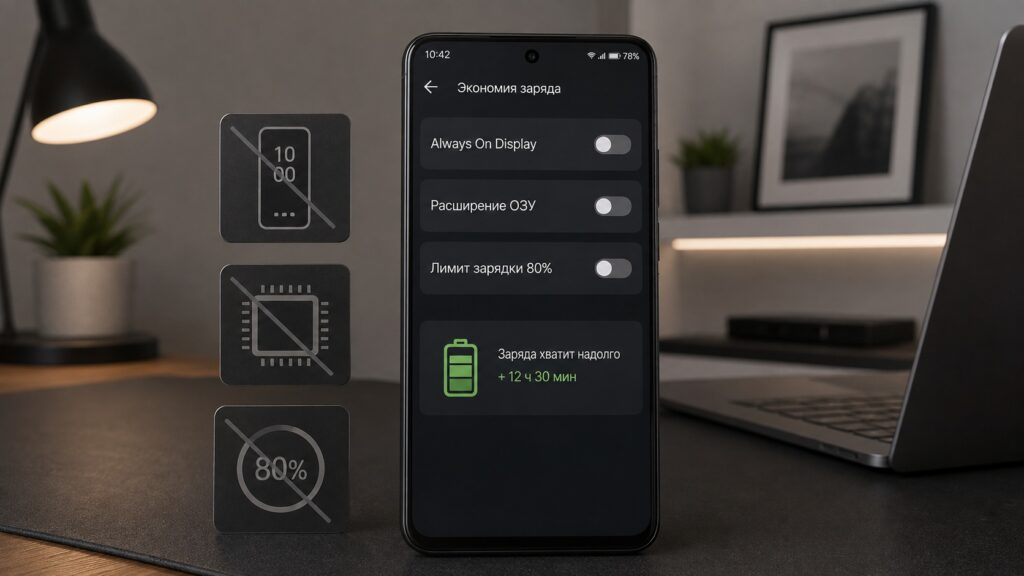
Three Android features worth reconsidering for battery savings
Always On Display drains battery all day long
Always On Display (AOD) keeps part of the screen lit while the phone is locked, showing the clock, notifications, and battery percentage. It’s convenient for a quick glance without unlocking, but it means a portion of the display is illuminated around the clock.
Manufacturers have optimized AOD significantly, so its power draw is modest. Still, disabling it means the display consumes zero power while locked, and the savings add up — especially when the phone sits idle on a desk for hours.
How to disable Always On Display:
- Open Settings.
- Go to the lock screen settings section.
- Find Always On Display.
- Toggle it off.
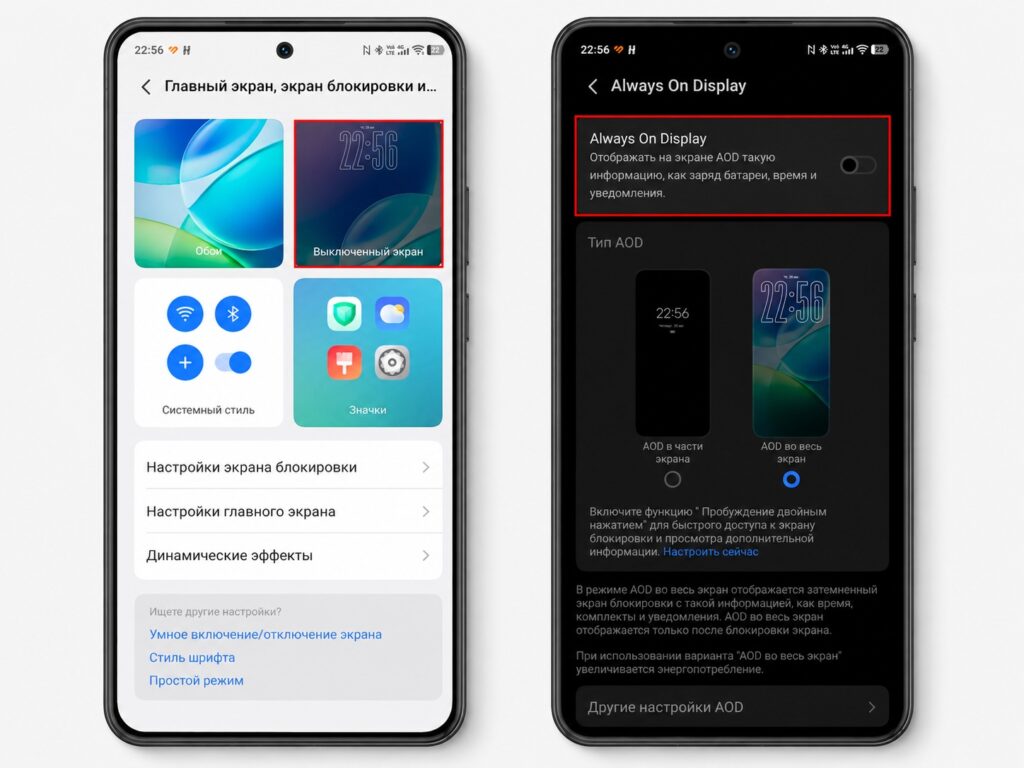
Always On Display can noticeably drain the battery over a full day

Effect on battery life: Most noticeable when the phone lies idle for long stretches. During active use the gain is small but consistent throughout the day.
RAM extension is unnecessary for most users
Many Android skins offer a feature that extends RAM by using part of the internal storage as virtual memory — similar to a swap file in Windows. It goes by different names depending on the manufacturer (Samsung calls it RAM Plus, for example). The idea is to keep more apps open in the background.
According to the source author, based on earlier personal testing, this feature had no meaningful effect on phone speed or the number of apps kept alive in the background. For typical tasks — email, messaging, YouTube, social media — the built-in RAM was more than sufficient.
How to disable RAM extension:
- Open Settings.
- Go to the device care or memory section.
- Find the RAM extension option (often labeled RAM Plus or similar).
- Toggle it off.
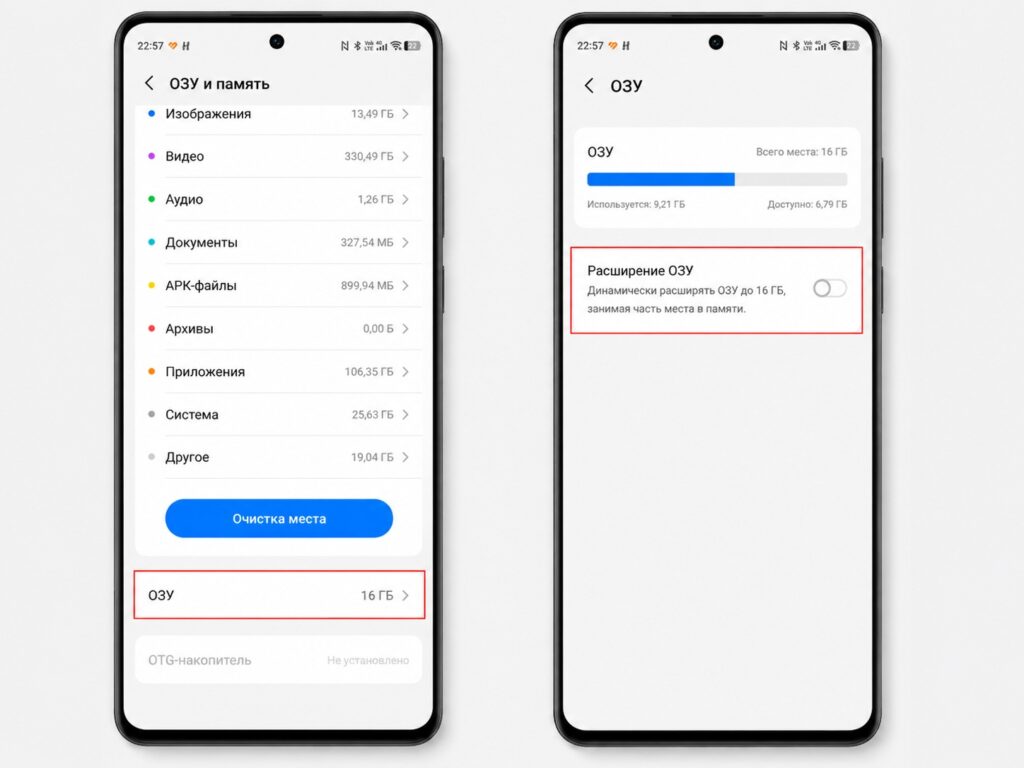
RAM extension uses resources for swap operations but may offer little real-world benefit
Effect on battery life: The smallest of the three. How much it matters depends heavily on usage patterns. Heavy multitaskers who keep dozens of apps open may actually experience slower app-switching if this feature is disabled. For lighter users, the system simply stops spending resources on unnecessary swap operations.
Battery protection may not suit an irregular schedule
Battery protection (sometimes called Optimized Charging) limits the charge level — often to 80% — to reduce long-term wear on the battery. Keeping a lithium-ion cell at 100% for extended periods can indeed accelerate capacity loss over months and years.

Many skins include a “smart” mode that learns your sleep schedule and tops the battery up to 100% just before your usual wake-up time. However, this only works reliably if your schedule is predictable. With an irregular routine — waking at 9 AM one day and 11 AM the next — the phone may still be at 80% when you need to leave early, potentially leaving you short on battery by evening.
How to disable battery protection:
- Open Settings.
- Go to the Battery section.
- Find Battery Protection (or Optimized Charging).
- Toggle it off.
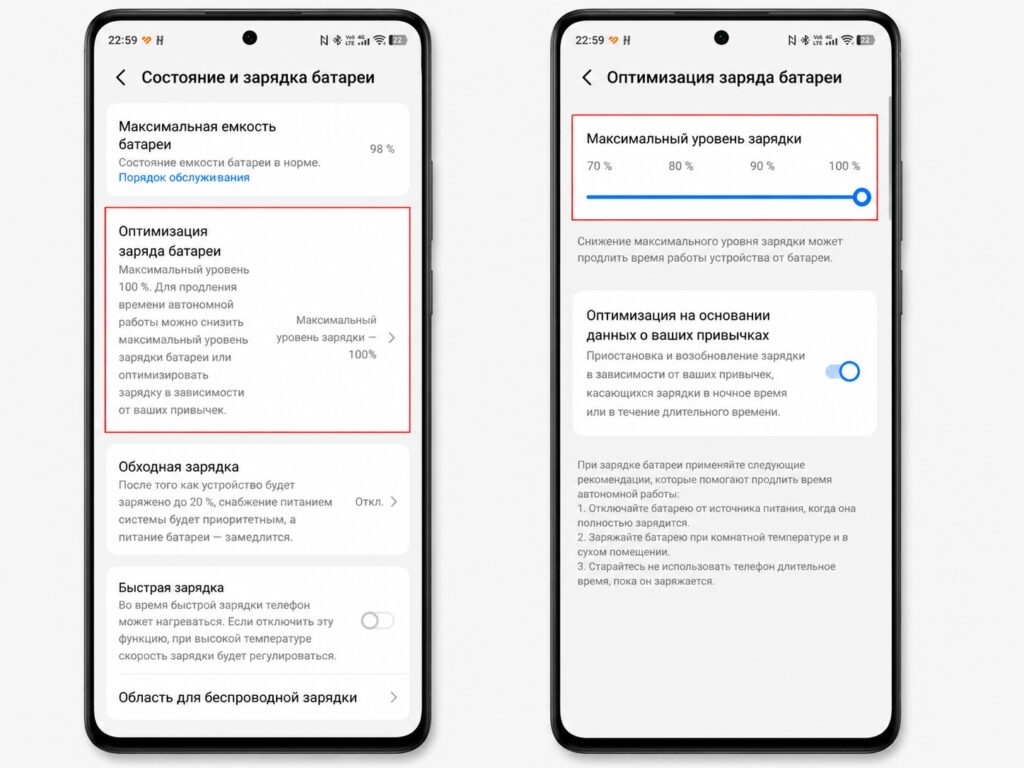
Disabling battery protection lets the phone charge fully to 100%
Important caveat: This feature does not save daily charge — it preserves the battery’s long-term capacity. Disabling it gives you a full 100% every morning, but the trade-off is that the battery may lose maximum capacity slightly faster over time. If you have a predictable sleep schedule, it may be wiser to leave battery protection enabled.
Should you disable all three?
These are not universal recommendations. The source author’s experience is based on personal usage patterns — light multitasking, an irregular sleep schedule, and a preference for maximum daily charge over long-term battery longevity. Your results will vary depending on your phone model, Android skin, daily habits, and how much you value battery health over the life of the device.
The exact menu names and paths differ between manufacturers (Samsung, Xiaomi, vivo, OnePlus, etc.), so you may need to search your Settings app if the labels don’t match exactly. All three features are common across most modern Android skins.


