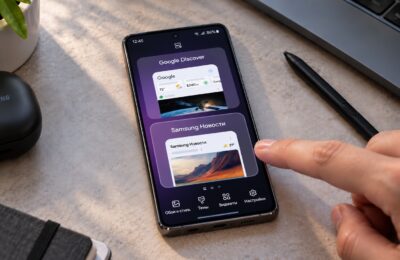
Samsung’s One UI settings menu is notoriously deep, with useful options often buried three or four levels down. There is, however, a way to place a shortcut to any specific settings page directly on your home screen — just like an app icon. The feature is not enabled by default; it requires Samsung’s official Good Lock toolkit and its RegiStar module, both available through the Galaxy Store. Once set up, a single tap on the home screen takes you straight to the exact settings page you need.
What you need to know
- Samsung Galaxy phones can create home screen shortcuts to individual settings pages, but the feature must first be unlocked via the RegiStar module inside Samsung’s Good Lock app.
- Good Lock and RegiStar are official Samsung tools distributed through the Galaxy Store.
- Not every settings page supports a direct shortcut — some sub-pages require creating a shortcut to the parent page instead.
- Shortcuts are created by long-pressing a search result inside the Settings app after the feature is enabled.
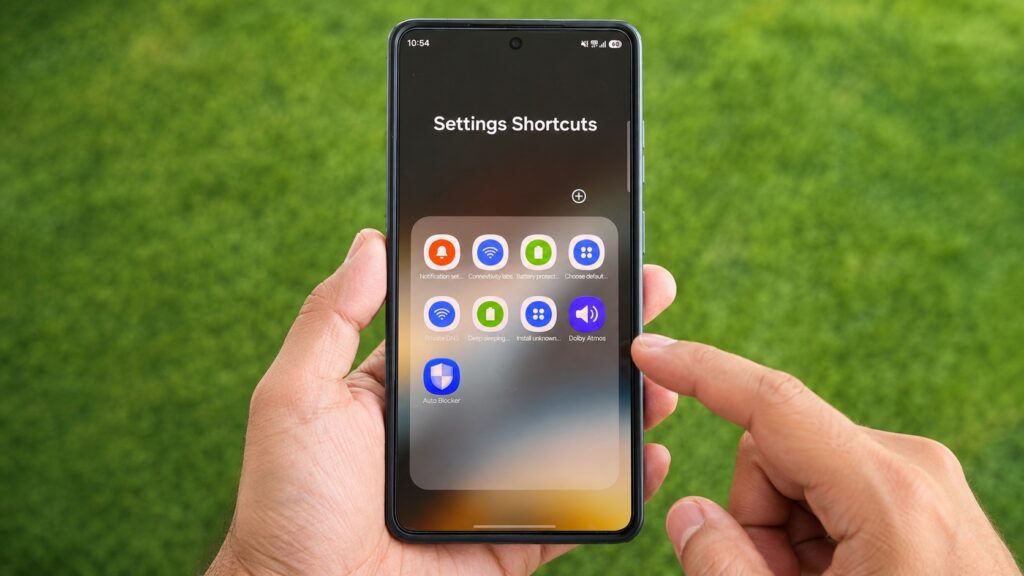
Samsung’s hidden settings shortcut feature in action
What this feature does and why it matters
The concept is straightforward: you pick the settings pages you visit most often and create individual shortcuts for each one on your home screen. Tapping a shortcut opens that exact settings page immediately — no navigating through nested menus or guessing the right search term.
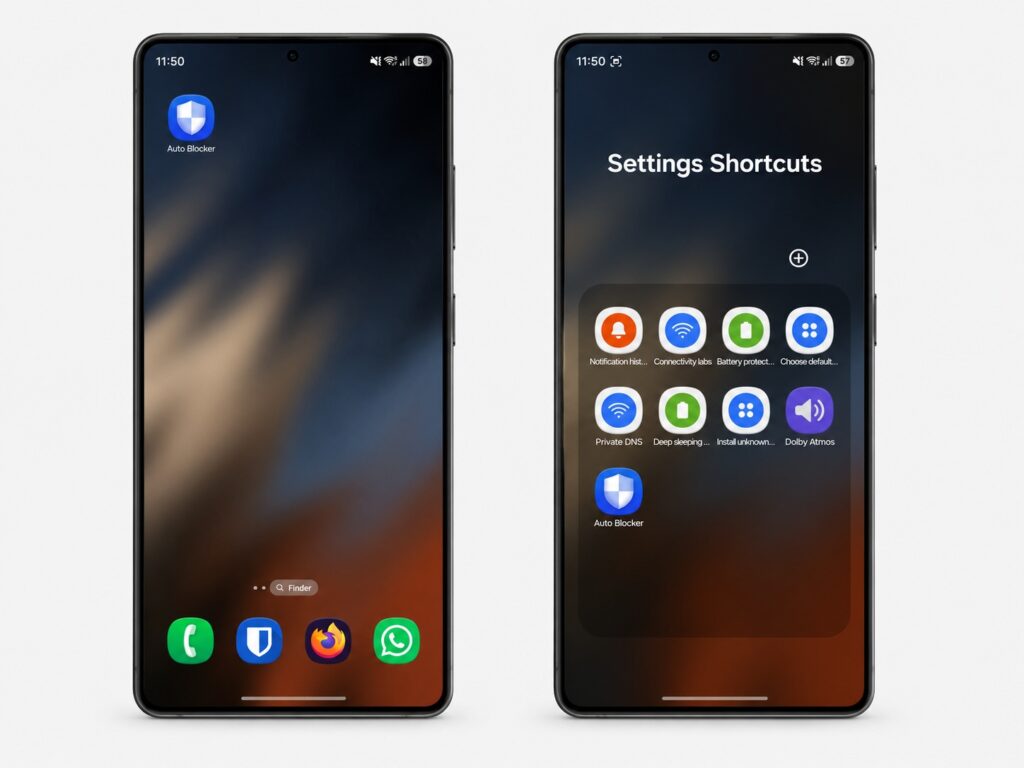
Frequently used settings placed as shortcuts on the home screen
By default, Samsung does not allow creating shortcuts for system settings pages. The capability must first be unlocked through the RegiStar module inside Good Lock — Samsung’s official companion app that provides additional customization options for Galaxy smartphones.
How to enable settings shortcuts via Good Lock
The setup involves installing one app and one module within it. Here are the steps:
- Install the Good Lock app from the Galaxy Store if it is not already on your phone.
- Open Good Lock, go to the Plugins tab, then select the Life up tab at the top.
- Find the RegiStar module and tap the download icon next to it to install.
- After installation, open RegiStar, go to Search options, and enable the Allow creation of a shortcut toggle.
Good Lock and its modules are officially distributed through the Galaxy Store, which is available on Samsung smartphones. Note that the Good Lock interface may not be fully translated into all languages, so menu item names may appear in English regardless of your system language.

How to create a shortcut for a specific settings page
Once the permission is enabled, creating a shortcut for any settings page takes just a few taps:
- Open the Settings app and navigate to the page you want a shortcut for. Note the heading at the top of that page.
- Return to the main Settings screen.
- Tap the search bar and type that heading.
- When the exact match appears in the results, long-press it until a pop-up reading Add to Home screen? appears.
- Tap Add — the shortcut will appear on your home screen as an icon with the setting’s name.
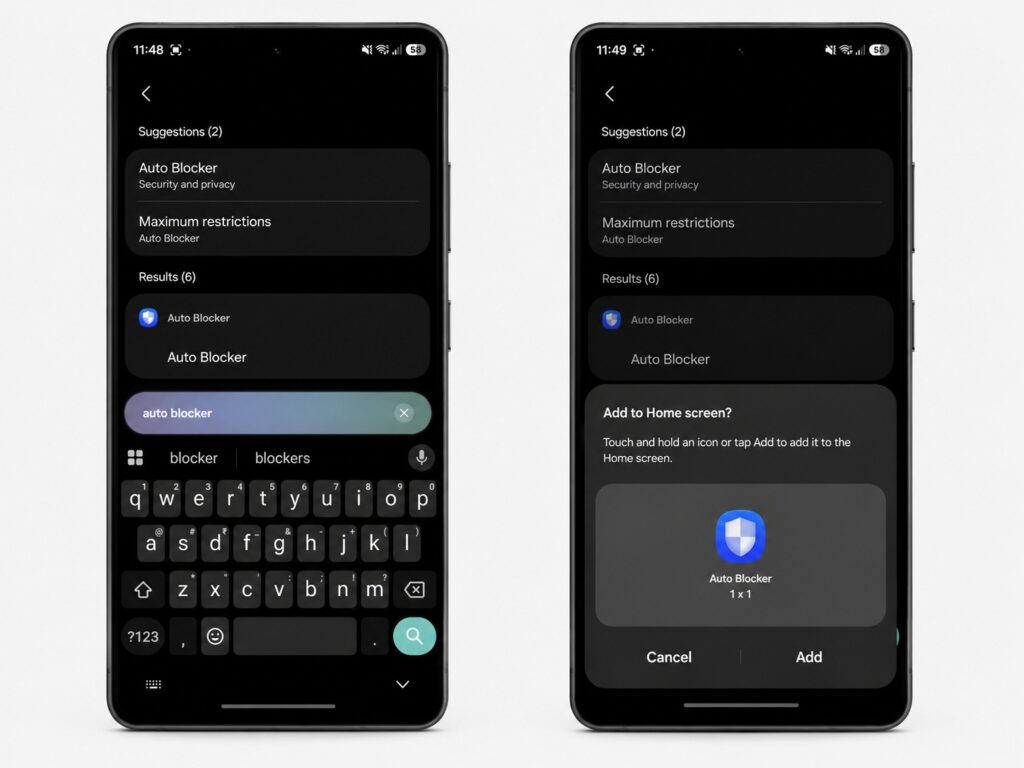
Shortcuts are added through the Settings search function
Repeat the process for any other settings pages you want quick access to. It is recommended to group all such shortcuts into a single folder on the home screen to keep things organized — otherwise, a dozen settings icons can quickly clutter the display.
Settings pages worth creating shortcuts for
If you are unsure where to start, focus on pages you visit frequently or that are buried deep in the menu hierarchy. Examples include:
- Notification history — quickly review missed notifications.
- Auto Blocker — toggle protection on or off when sideloading APK files.
- Install unknown apps — grant an app permission to install other apps.
- Default apps — quickly change the default app for calls, messages, and other functions.
- Sleeping apps — check which apps have been put into deep sleep and restore them if needed.
- Battery protection, Dolby Atmos, and mouse/trackpad settings for Samsung DeX mode.
A limitation to be aware of
The feature is useful but not without caveats. Not every settings sub-page supports a direct shortcut. For example, the Connectivity labs page (used for Wi-Fi diagnostics) cannot have its own shortcut. In that case, the workaround is to create a shortcut to the parent page — Intelligent Wi-Fi — and navigate one step further from there.
Even when a direct shortcut is not possible, creating one for the closest available page still helps: the target item is highlighted in the results, saving you from scanning the menu manually. It is a small detail, but it still reduces the number of taps needed to reach deeply nested options.
Overall, if you frequently adjust settings on a Samsung Galaxy phone and find the multi-layered One UI menus frustrating, spending a few minutes setting up Good Lock and RegiStar can pay off with one-tap access to your most-used settings going forward.