Charging a MacBook to 100% and then using it on battery power is perfectly normal and does not, by itself, damage the battery. The real threat to long-term battery health is leaving the laptop plugged in at maximum charge for extended periods, especially in warm environments. Apple designs MacBook batteries to retain up to 80% of their original capacity after roughly 1,000 charge cycles — a threshold that typically takes several years of regular use to reach.
What you need to know
- A fully charged lithium-ion battery sits at higher voltage, which stresses the cathode — but this stress is minimal if you unplug and start using the laptop promptly.
- The combination of sustained 100% charge and elevated temperature accelerates electrolyte degradation and measurable capacity loss.
- macOS 26.4 introduced a manual charge-limit slider (80%, 85%, 90%, 95%, or 100%) in System Settings → Battery.
- Apple’s existing Optimized Battery Charging learns your routine and holds the charge near 80%, topping up to 100% only when it predicts you will unplug soon.
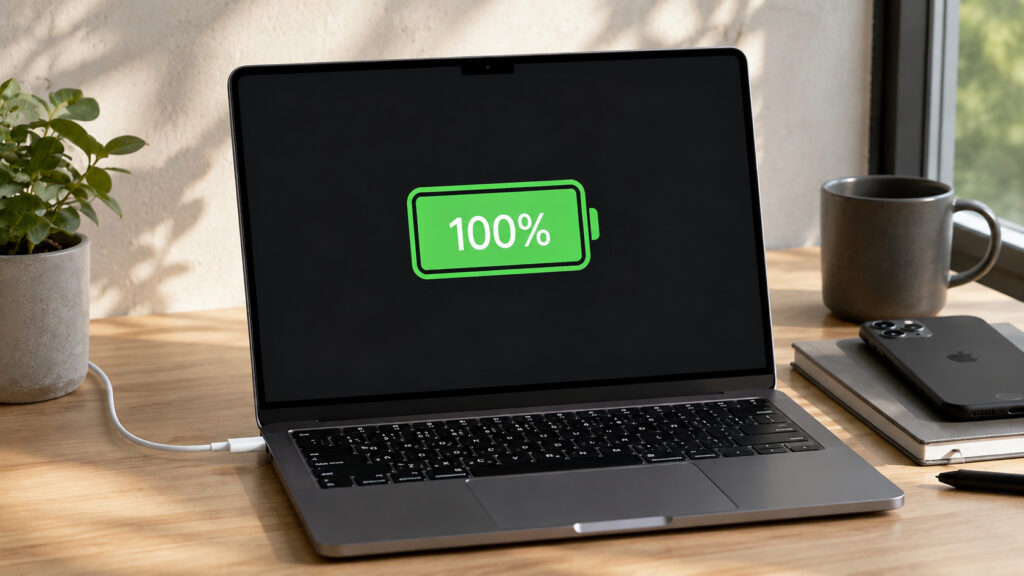
Are you afraid to charge your MacBook to 100%?
Why a full charge alone is not the problem
A lithium-ion battery is engineered to be charged and discharged — that is its job. One full charge cycle is consumed whenever you use 100% of the battery’s capacity, whether in a single session or spread across several days. Charging to 100%, unplugging, and running on battery is the intended usage pattern.
The nuance is chemical. When a battery is fully charged it operates at a higher internal voltage, placing extra stress on the cathode. However, if you begin drawing power shortly after reaching 100%, that elevated stress is brief and leaves no significant mark on long-term capacity.
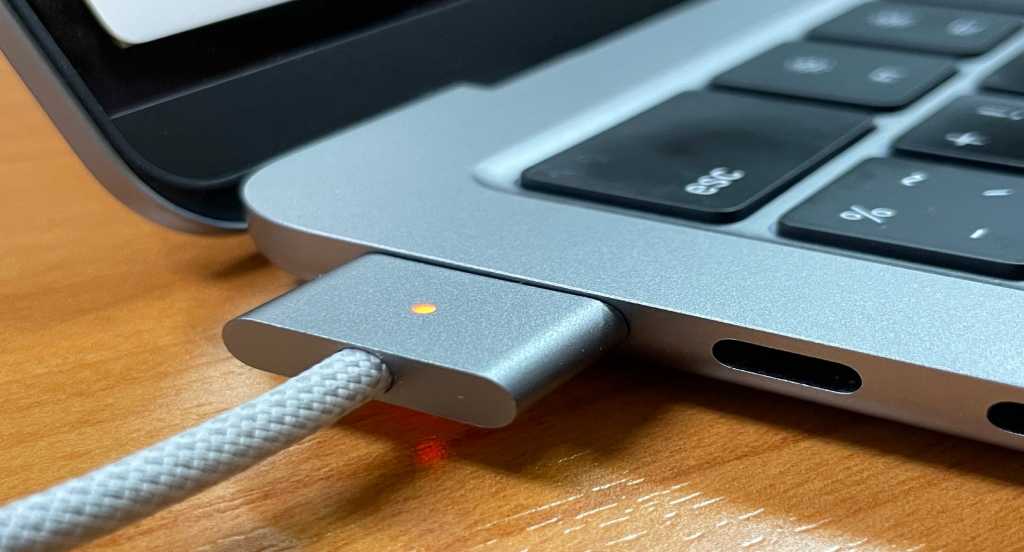
It is better to unplug the charger after reaching 100%
Heat is the real enemy, not the number on screen
Two factors accelerate battery wear far more than any single full charge: high temperature and prolonged time at maximum charge. Individually each is manageable; combined, they degrade the electrolyte inside the cells noticeably faster, reducing usable capacity.
Consider a worst-case scenario: a MacBook left permanently plugged in, lid closed, sitting near a radiator or in direct sunlight — or rendering a heavy project on a bed with its vents blocked. In those conditions, 100% charge plus elevated heat compound into a genuine problem. This is why battery specialists refer to the chemical age of a battery: it depends not just on calendar time since manufacture but also on the history of heat exposure and charging behavior.
How to set a manual charge limit in macOS
Apple’s Optimized Battery Charging has been running quietly on Apple-silicon MacBooks for some time, learning your schedule and holding the charge near 80% until it expects you to unplug. Many users are unaware it exists because it works entirely in the background.
With macOS 26.4, Apple added a more direct tool — a manual charge limit. You can configure it as follows:
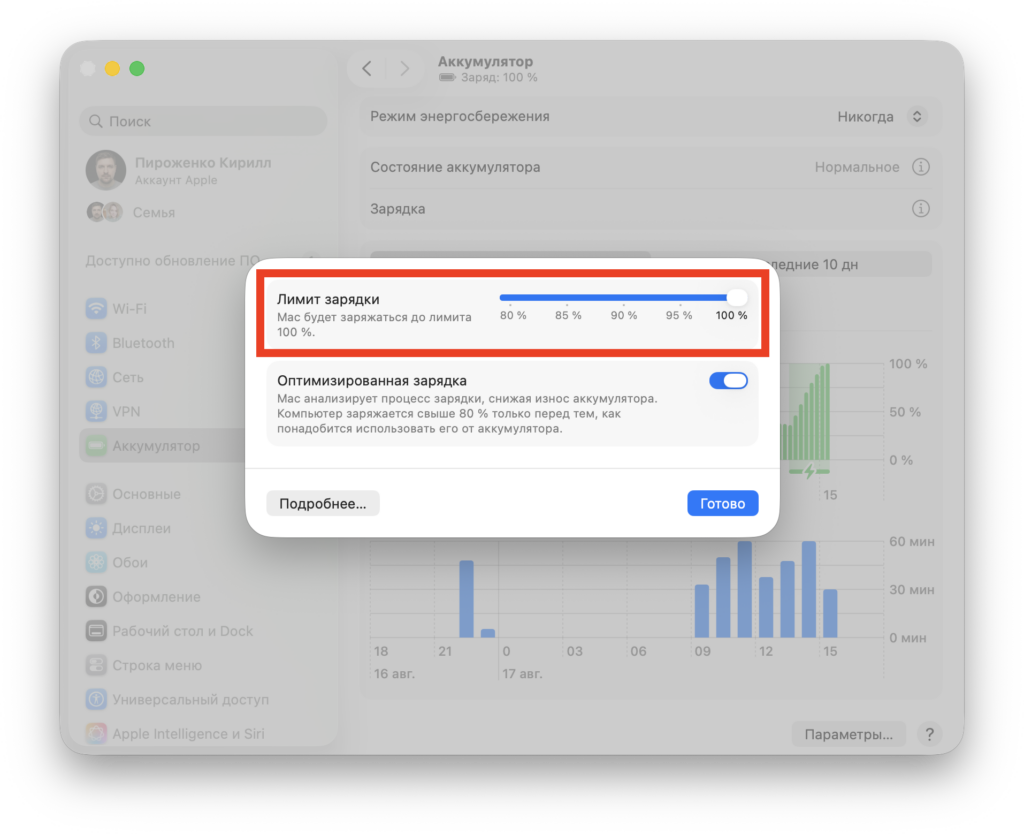
If you mostly work plugged in, setting a charge limit is recommended
- Open System Settings from the Apple menu in the top-left corner.
- Navigate to the Battery section.
- Click the (i) icon next to Charging.
- Drag the Charge Limit slider to the desired value — options are 80%, 85%, 90%, 95%, or 100%.
- Click Done to save.
After this, the MacBook will stop charging at the selected level. One caveat: the system will occasionally charge to 100% anyway in order to recalibrate the battery gauge — this is expected behavior and happens infrequently. Before a long day away from an outlet, you can simply slide the limit back to 100% to get the full range.
Practical dos and don’ts
- Charging to 100% and then using the laptop on battery is fine — it is the designed operating mode.
- Avoid leaving the MacBook at maximum charge for months while plugged in, especially in a warm environment.
- Deep discharges to 0% on a regular basis are also harmful — they wear the battery roughly as much as constant maximum charge.
- Leave Optimized Battery Charging enabled in most cases; it handles the details automatically.
- Use the manual charge limit if your MacBook lives on a desk and is almost always plugged in.
- Mind the temperature: do not block ventilation, and avoid leaving the laptop in a hot car or in direct sunlight.
Do not let your computer overheat
The bottom line
A 100% charge does not, by itself, ruin a MacBook battery. What does cause accelerated degradation is the combination of sustained maximum charge and heat over long periods. Use your laptop normally, keep macOS’s protective charging features turned on, pay attention to cooling, and the battery should serve you well for years.