If your iPhone shows a “Software Update Failed” message while trying to download iOS 27, the cause is almost always an interrupted download rather than a fault with the device. The error most often appears in the first day or two after a major release, when Apple’s servers are under heavy load, and it can usually be resolved in a few minutes. The fixes below run from the simplest (waiting and reconnecting to Wi-Fi) to the most reliable fallback (updating through a computer with Finder or iTunes).
What you need to know
- The “Software Update Failed” dialog means the iPhone could not finish downloading the firmware file; it does not indicate hardware damage.
- Common causes: overloaded Apple servers on release day, unstable Wi-Fi, insufficient free storage, incorrect date and time, or a corrupted partially downloaded update file.
- A partially downloaded iOS 27 file can be deleted from Settings > General > iPhone Storage and then re-downloaded from scratch.
- Updating via a computer (Finder on modern macOS, iTunes on Windows or older Macs) uses a cable connection and keeps your data, as long as you choose “Update” rather than “Restore.”
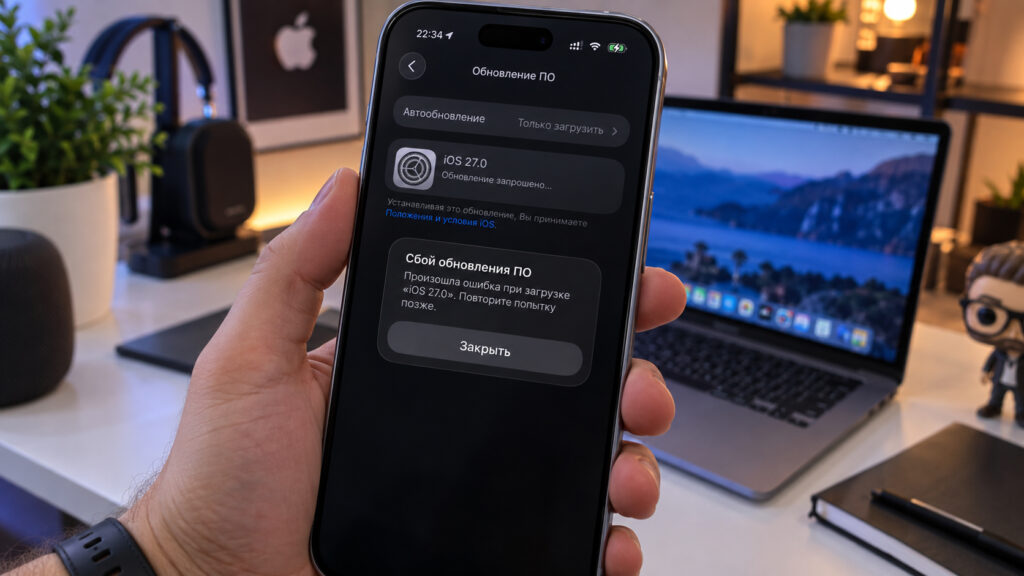
Error while downloading iOS 27
What the “Software Update Failed” message actually means
The wording sounds alarming, but it simply signals an interrupted download: the iPhone was unable to finish fetching the firmware file and reported it. iOS 27 has just been released to the general public, and in the first day tens of millions of users worldwide attempt to download it at the same time. While Apple’s servers are saturated, download speeds fall and some requests time out.
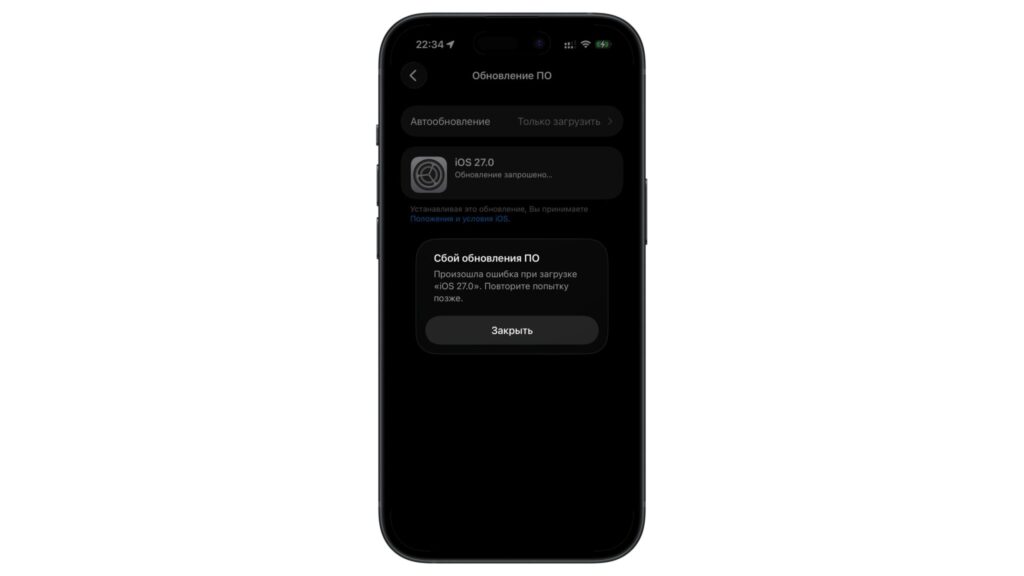
Error while installing iOS 27 on an iPhone
There are several everyday causes: overloaded Apple servers on release day, unstable Wi-Fi, not enough free storage, incorrect date and time settings, or a corrupted update file stuck in storage. None of these points to a broken iPhone. The steps below work from the most common cause to the rarest, ruling out each in turn.
1. Wait and try again later
If the error appeared on the day iOS 27 launched or the day after, the problem is almost certainly not your phone but Apple’s servers. During peak hours the download may simply be unable to complete no matter how many times you retry, so the most sensible move is to come back later.
- Tap “Close” in the error dialog and leave the update alone for at least 15-30 minutes.
- The best times to download are late evening, overnight, or early morning, when server load drops.
- After a few hours, go back to Settings > General > Software Update and start the download again.
This alone is often enough.
2. Reconnect to Wi-Fi or switch networks
Major iOS updates are multi-gigabyte downloads, and any brief network hiccup can break them. The screenshot above shows a weak signal, which is an early warning sign. Before blaming Apple, make sure the problem is not on your end: the simplest step is to reconnect to the network and restart your router at the same time.
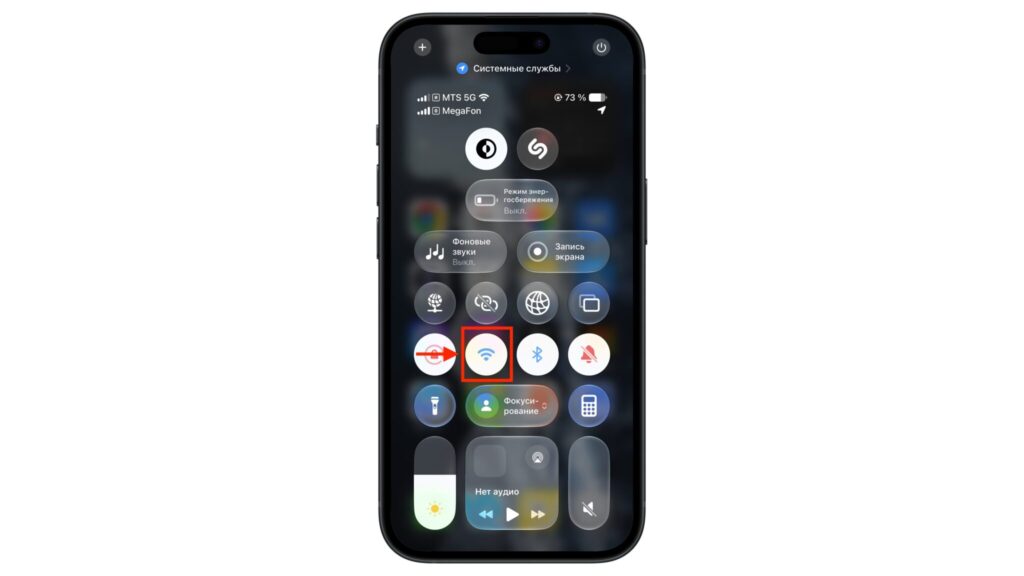
Restarting Wi-Fi from Control Center
- Open Control Center, turn Wi-Fi off, wait 10 seconds, and turn it back on.
- If that does not help, go to Settings > Wi-Fi, tap your network, choose “Forget This Network,” and reconnect by entering the password.
- Restart the router: unplug it for 30 seconds and plug it back in.
- Try a different network, such as one at work, at home, or a hotspot from another phone.
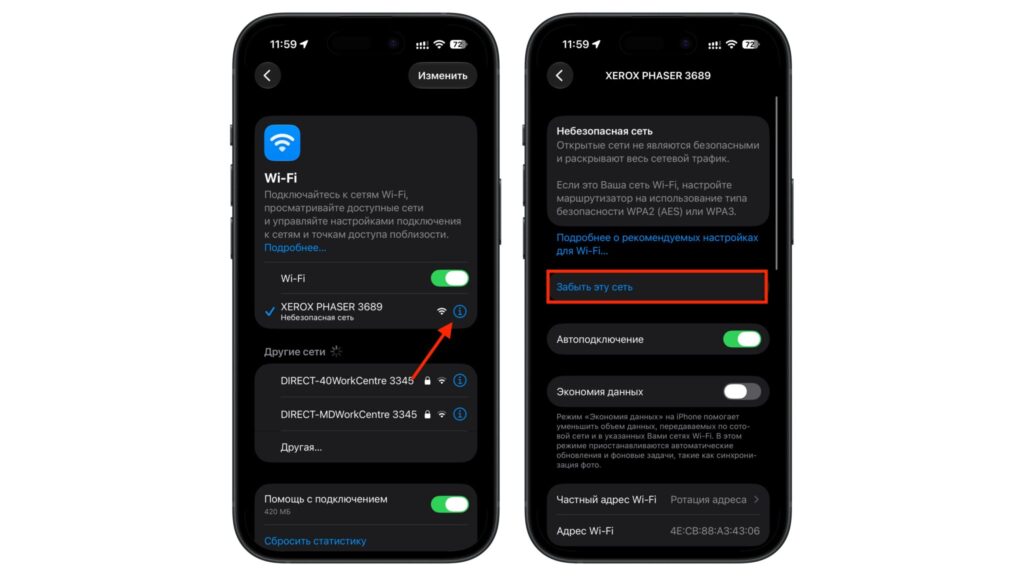
Reconnecting to a Wi-Fi network
A stable connection resolves more than half of these failures. If the Wi-Fi signal is clearly weak, move closer to the router or temporarily switch to a faster network.
3. Restart the iPhone
After a long stretch without a reboot, temporary glitches accumulate and the update service can misbehave. A simple restart clears those stuck processes and often gets the firmware download moving again.
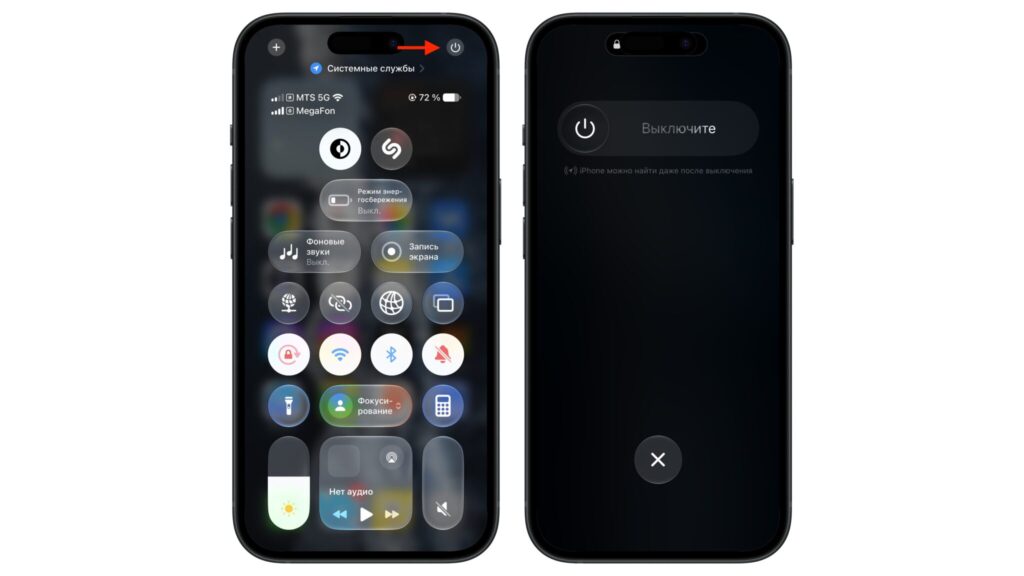
Shutting down an iPhone from Control Center
- Open Control Center and tap the power icon in the top-right corner of the screen.
- Drag the slider to the right and wait about 30 seconds for the phone to shut down completely.
- Hold the side button until the Apple logo appears.
If the screen is completely frozen and the slider does not appear, use a force restart: briefly press Volume Up, then Volume Down, then hold the side button until the logo appears.
4. Free up storage
Installing iOS 27 requires a buffer of free space, noticeably more than the size of the update file itself. If storage is nearly full, the download may not start or may fail at the very end. Checking and clearing space takes about a minute.
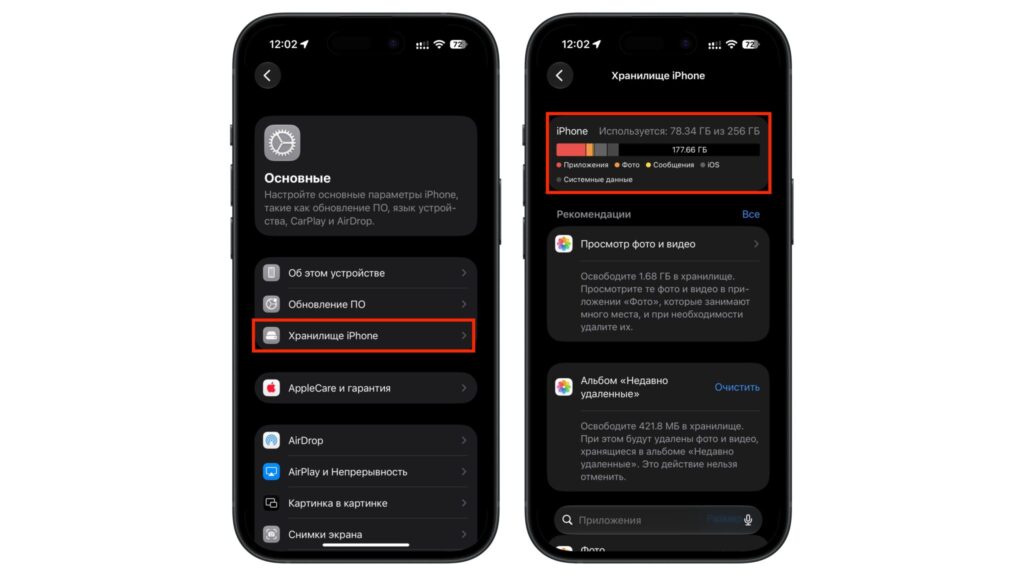
Used storage on an iPhone
- Open Settings > General > iPhone Storage and check how many gigabytes are free.
- Keep at least 15-20 GB available, since the system needs room for both the file and its unpacking.
- Delete large videos, unused apps, and cached data, and offload some photos and videos to iCloud or a computer.
When the phone lacks free space, no amount of reconnecting will help. Clear storage first, then return to the download.
5. Delete the downloaded update and fetch it again
Sometimes the firmware file downloads only partially and becomes corrupted. The phone sees the incomplete update, tries to resume it, and hits the error again. The fix is to delete the broken file and start a clean download.
- Go to Settings > General > iPhone Storage.
- Scroll through the list of apps and find the entry for the iOS 27 update.
- Tap it and choose “Delete Update.”
- Return to Settings > General > Software Update and start the download from scratch.
A fresh file almost always downloads without problems.
6. Check date, time, and region
A less obvious but real cause is incorrect date and time. Apple’s servers check them during the download, and if the phone’s date is wrong, the update can fail without a clear explanation. This comes up especially often after swapping a SIM card or traveling to another time zone.
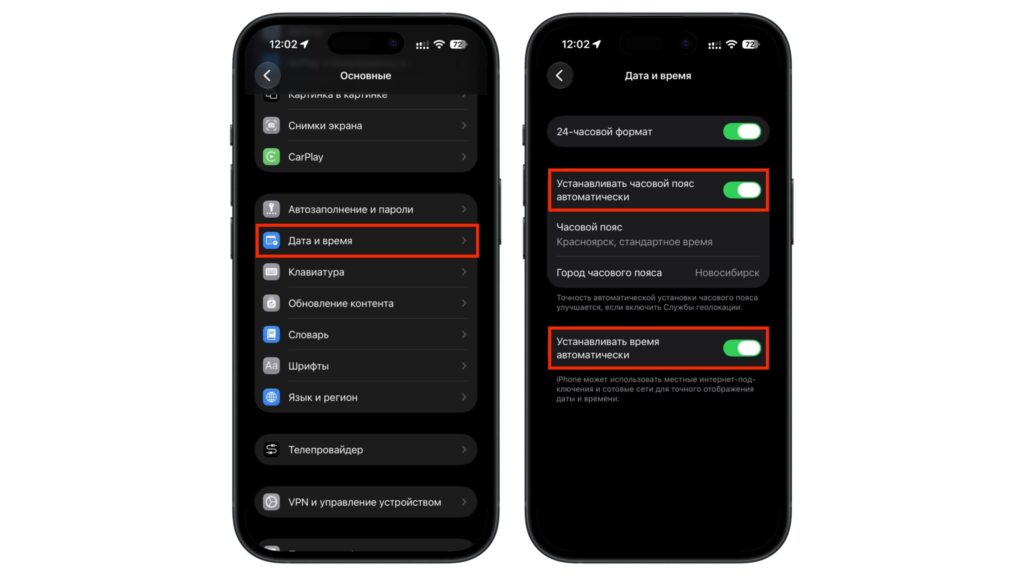
Automatic time and time zone settings
- Open Settings > General > Date & Time.
- Turn on the “Set Automatically” switch.
- Confirm that the time zone is detected correctly and that the year and date match reality.
Automatic date and time removes the mismatch with Apple’s servers so the download stops failing for no visible reason.
7. Reset network settings
If Wi-Fi keeps breaking the download and nothing else has worked, return the network parameters to factory defaults. A network settings reset clears faulty records for access points, DNS, and VPN that may be causing the phone to fetch the file incorrectly. Be aware that saved Wi-Fi passwords will be erased too, so keep them handy.
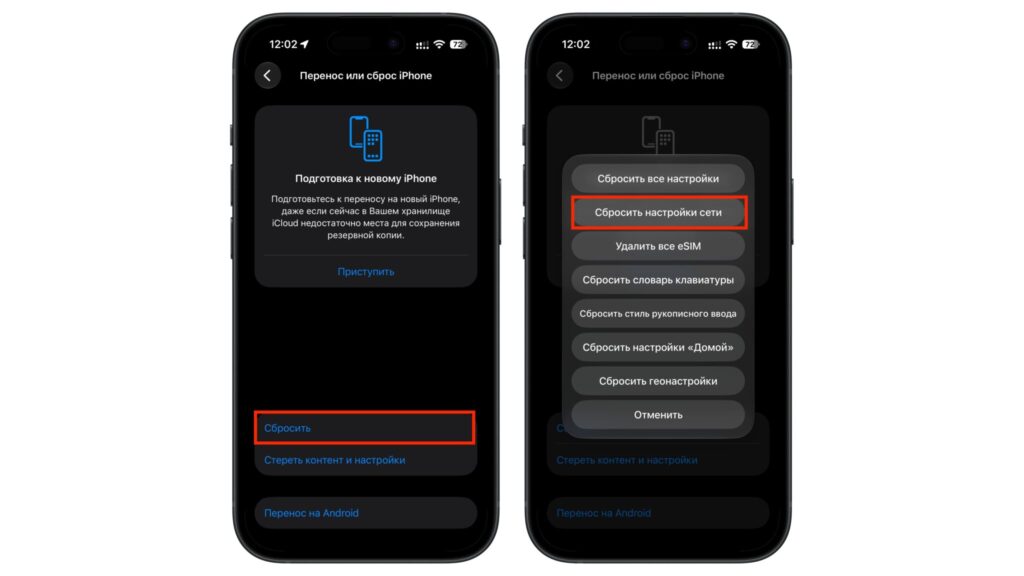
Resetting network settings on an iPhone
- Open Settings > General > Transfer or Reset iPhone > Reset.
- Choose “Reset Network Settings.”
- Enter your passcode and confirm the reset.
- Reconnect to your Wi-Fi network and retry the iOS 27 download.
Personal data, photos, and apps remain in place; only network settings are cleared.
8. Update through a computer
When the phone flatly refuses to download the firmware over the air, updating via a computer is the fallback. A cable connection is more stable than any Wi-Fi link, and in this case the Mac or PC downloads the file rather than the iPhone. The method is reliable and does not touch your data, provided you do not confuse “Update” with “Restore.”
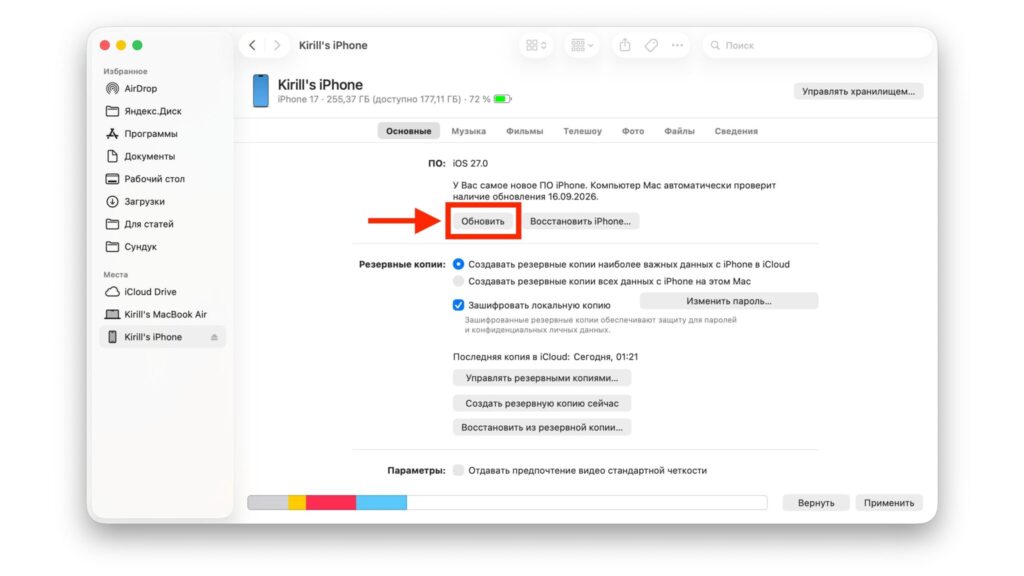
Updating an iPhone through a computer
- Connect the iPhone to the computer with an original or good-quality cable.
- On a Mac running a modern version of macOS, open Finder; on Windows or an older Mac, open iTunes.
- Select your iPhone in the sidebar and click “Update.”
- Wait while the computer downloads and installs iOS 27.
If nothing works
Updating through Finder most often resolves the cases where over-the-air downloads keep failing. If none of these steps helps and the phone is an older model, the device may simply no longer be supported by iOS 27, in which case the update will never appear, and that is expected behavior rather than an error.


