If closing apps on your iPhone feels slower after updating to iOS 27, the cause may be a single accessibility setting rather than aging hardware. According to the source author, when Reduce Motion is enabled on iOS 27, swiping an app away while the keyboard is open no longer happens in one fluid movement: the keyboard slides down first, the screen pauses for a fraction of a second, and only then does the app shrink into its icon. Turning off Reduce Motion in Settings restores the single, combined animation. The behavior does not appear when Reduce Motion is disabled, and Apple has not commented on whether it is a bug or an intentional change.
What you need to know
- The two-step app-closing animation on iOS 27 appears only when the Reduce Motion accessibility setting is turned on and the keyboard is visible when you swipe up to leave an app.
- The fix reported by the source author is to disable Reduce Motion: Settings → Accessibility → Motion → Reduce Motion → Off.
- Disabling it brings back all the visual effects Reduce Motion suppresses, which is a trade-off for users who rely on it for motion sensitivity or a calmer interface.
- The source says the effect did not occur on iOS 26 with the same setting enabled, and Apple has not explained the change.
New animations in iOS 27 on iPhone
What changed in the animation after the update
The issue is not visible to everyone — only to users who have the Reduce Motion accessibility feature switched on. The source author describes the sequence like this: you open an app with a text field (a messenger, Notes, or a browser with a search bar), start typing so the keyboard appears, and then swipe up from the bottom to leave the app. Instead of flying straight to the Home Screen, the app first waits for the keyboard to collapse and only then follows it off screen.
Visually, that turns one motion into two separate actions. The keyboard slides down, the screen appears to freeze for a moment, and then the app shrinks into its icon. According to the source, the process feels roughly twice as long as before, when everything collapsed at once. The extra intermediate frame noticeably hurts the perception of speed even if nothing else has slowed down.
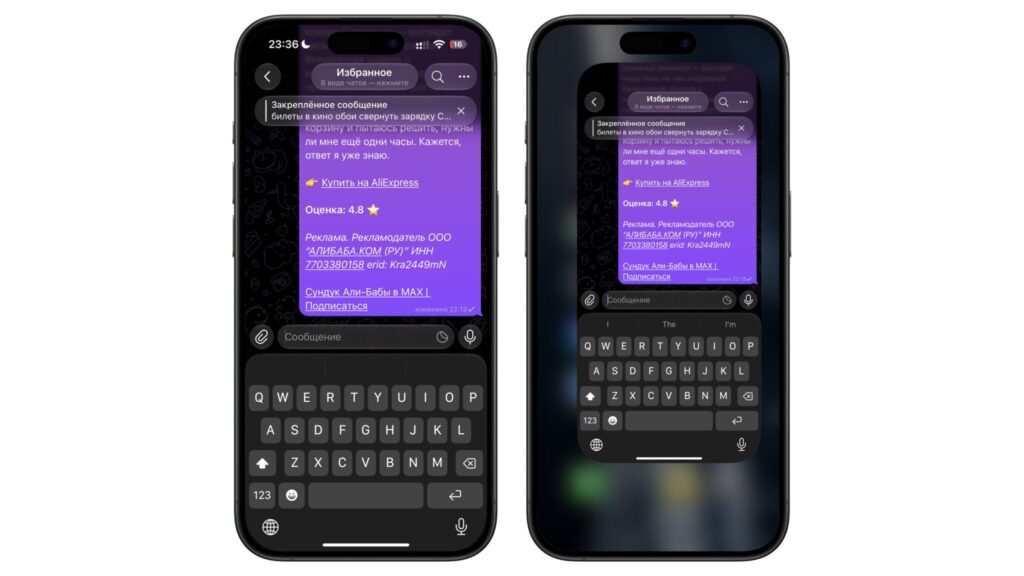
With Reduce Motion off, the animation remains a single continuous motion
Notably, the source reports that none of this happens with Reduce Motion turned off. With standard animations, the system dismisses the keyboard and the app together in one motion, as expected. The problem surfaces only in combination with this accessibility feature, which is why it is not immediately obvious what is causing it.
How to remove the slow animation
The workaround the source author describes is a single setting change: turn off Reduce Motion, the feature that triggers the two-step behavior. It takes a few taps.
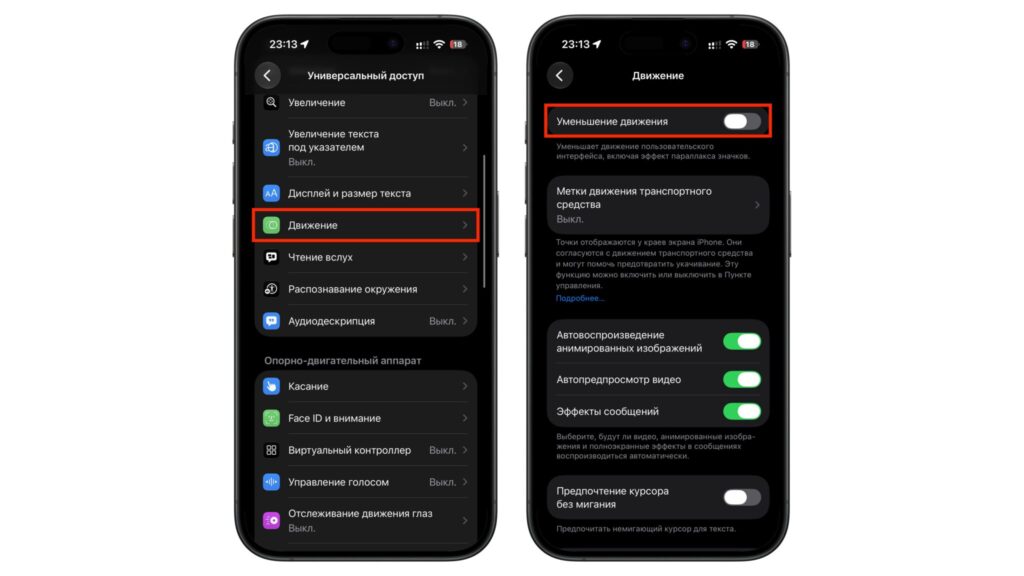
Turning off the Reduce Motion setting
- Open the Settings app on your iPhone.
- Scroll to Accessibility and open it.
- Tap Motion.
- Switch the Reduce Motion toggle to Off.
After this, according to the source, closing apps becomes fluid again and the extra keyboard step disappears — the keyboard and the app collapse simultaneously, as they did before.
The trade-off
There is one significant caveat. Turning off Reduce Motion also restores every effect the setting was suppressing: floating panels, glints around buttons, and zoom transitions. If you enabled Reduce Motion specifically for a calmer interface or because you are sensitive to motion, you will have to decide which matters more to you — the smoother app-closing animation or the reduced motion across the rest of the system.
Bug or deliberate Apple design?
The fix is straightforward, but the cause is less clear. The source notes that Apple has not commented, and users are split between two explanations.
One view is that this is an ordinary oversight. Reduce Motion already changes animation logic across the system, replacing zooms and slides with cross-fades. It is plausible that, when an app is dismissed, two processes — hiding the keyboard and shrinking the app — failed to coordinate and ended up running in sequence rather than together. The source adds that odd behavior involving this feature and text input has been seen before.
The alternative view is that Apple did this on purpose. The reasoning would be that a user who enabled Reduce Motion is sensitive to abrupt transitions, so the system spaces the actions out and shows them step by step to reduce visual clutter. The source author considers this explanation a stretch but does not rule it out.
What complicates the picture is that, according to the source, this did not happen previously. On iOS 26, Reduce Motion also altered animations, yet app dismissal remained a single motion. The two-stage keyboard effect appeared specifically with the new release, which suggests something changed in iOS 27 — whether intentionally or not. Neither explanation is confirmed.
For users, the distinction may not matter much: bug or feature, the result looks slow and awkward. The source author’s practical conclusion is that waiting for an official explanation from Apple could take a long time, and disabling the setting is the simpler option.
Why people reduce animations in the first place
It is worth understanding what Reduce Motion normally offers, because that is what you give up by turning it off. The source author describes reducing animations as a long-standing trick for making an iPhone feel faster. The key point is that actual app launch speed does not change. What changes is that the system stops spending time rendering elaborate transitions. An app opens just as quickly as before; you simply don’t see the smooth zoom, so it appears immediately. That creates the impression of a snappier phone even though nothing has technically been accelerated.
iOS 27 alongside an iPhone 11 Pro Max
According to the source, the effect of fewer animations is most noticeable on older models: the weaker the processor, the more the difference is felt, because the phone no longer has to draw a smooth transition on every tap. That makes the trade-off sharpest for owners of older iPhones who use Reduce Motion: on iOS 27 they must weigh the perceived responsiveness the setting provides elsewhere against the clumsy two-step app-closing it now introduces.
There is also the matter of taste. iOS animations are part of the system’s signature feel, and many users find a stripped-down interface without smooth transitions dull or even cheap-looking. Ultimately the choice comes down to whether you prefer perceived speed and reduced motion or the familiar visual polish — and, on iOS 27 specifically, whether the slower app-closing behavior bothers you enough to switch Reduce Motion off.


