Dragging a widget from one Home Screen page to another in iOS 27 can leave an iPhone’s interface frozen and unresponsive to touch, according to a report from the Apple news site AppleInsider.ru. Locking and unlocking the phone does not fix it, but a forced restart using the buttons does. Until Apple releases a fix, the source recommends a simple workaround: add a new copy of the widget directly on the page where you want it, rather than moving the existing one. The source describes this as a software glitch, not a hardware fault, and says the phone works normally again after a restart.
What you need to know
- According to the source, holding a widget and dragging it onto an adjacent Home Screen page can make the screen flicker, overlap interface elements, and stop responding to touch.
- Locking and unlocking the iPhone does not help, and the power-off slider cannot be moved. The source says only a forced restart (volume up, volume down, then hold the side button) brings the phone back.
- The source reports that a forced restart does not erase photos, messages, or apps.
- The suggested workaround is to add the widget again on the target page and delete the original. Apple has not commented on the bug.
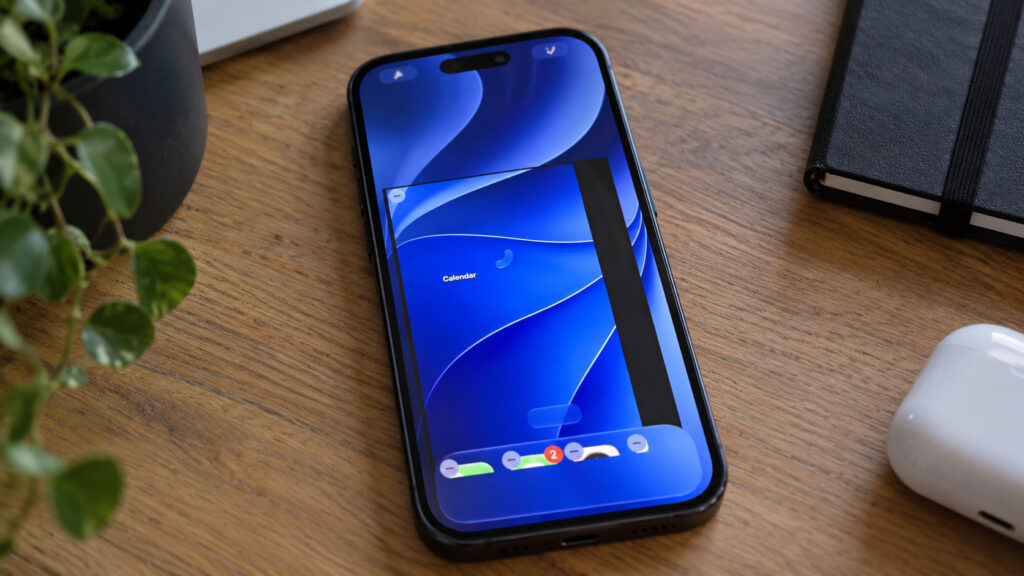
A frozen iPhone screen
How moving a widget freezes iOS 27
According to the source, Apple released iOS 27 to all users on September 14 and promised that the system would be faster and more responsive. Two weeks later, complaints were already piling up. The source cites reports that the new parental controls do not work and that the touchscreen stops responding to input. Widgets are the latest addition to that list.
The trigger described in the report is an everyday action. You press and hold a widget on the Home Screen and drag it to the next page. At some point the system appears to lose track of what is happening. The display starts to flicker, interface elements overlap, and the touchscreen stops responding. You can no longer swipe, open an app, or return to the Home Screen.
The obvious first step, locking and then unlocking the iPhone, does not help. The source says the screen turns off and on again, but the interface stays stuck. The report stresses that this is a software glitch, not hardware damage, and that the iPhone works as before once it has been restarted. The original article included a video of the problem, which is not reproduced here.
Not every iPhone is affected every time
The source says the bug does not appear on every iPhone or on the first try. In some videos, users simply drag the widget quickly between pages. In others, they also press the side button at the same time. Some phones freeze after a couple of moves, while others hold out much longer. The source author advises against trying to reproduce the problem yourself, since there is nothing to gain and you would only spend time recovering the phone.
The author also criticizes Apple’s testing. iOS 27 was tested all summer, with beta after beta installed by thousands of people, yet this scenario still slipped through. The author argues that dragging widgets is a routine action rather than an edge case, and suggests that this part of the system may not have received enough testing attention. That last point is the author’s inference, not a confirmed explanation.
How to restart an iPhone that has already frozen
If your phone has already frozen, the source says the usual methods will not work. The screen does not respond to touch, and you cannot shut the phone down from the menu because the power-off slider will not move. The report says only a forced restart using the buttons works, and that the procedure is the same on every iPhone that supports iOS 27.
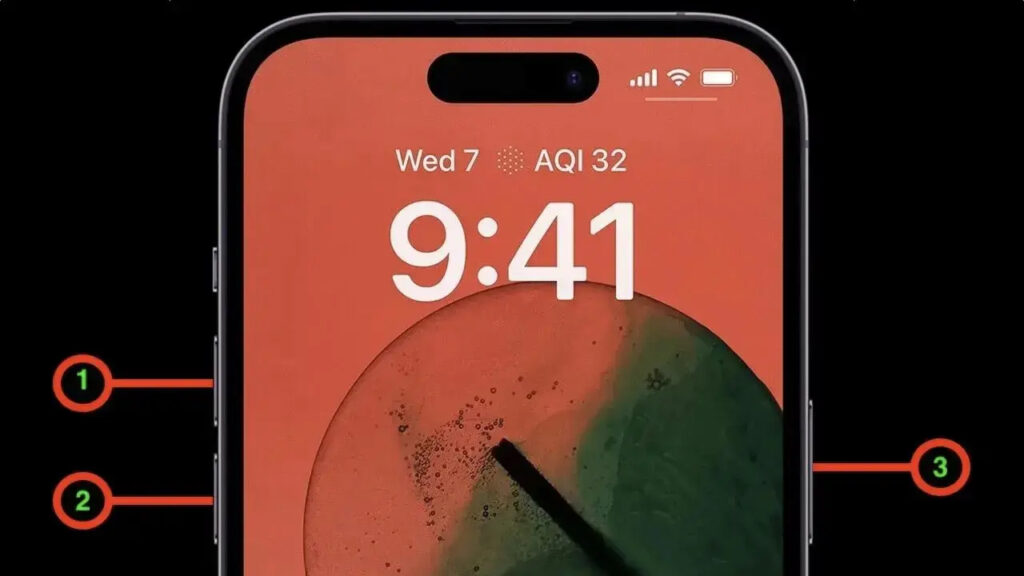
Button sequence for force restarting an iPhone
- Quickly press and release the volume up button.
- Immediately press and release the volume down button.
- Press and hold the side button.
- Keep holding it, even if the power-off slider appears on screen.
- Release the button when you see the Apple logo.
The source says timing matters most. Press the volume buttons one right after the other, with no pause. If a couple of seconds pass between presses, the iPhone will just show the volume indicator and nothing else will happen. You usually need to hold the side button for at least 10 seconds, so do not worry if the logo does not appear right away.
What a forced restart does and does not do
According to the source, a forced restart does not delete any data. It is not a settings reset but a hard restart of the system, which the author compares to pulling a computer’s plug from the wall. Photos, messages, and apps stay where they were. After the phone restarts, check your Home Screen, because the widget may be on either the original page or the new one.
If the iPhone freezes again, the source says you can repeat the same button sequence, and that doing so several times a day does not harm the phone. Doing it repeatedly is still tedious, which is why the source recommends avoiding the trigger altogether.
How to put a widget on a different page without the risk
Until a fix arrives, the source’s advice is simple: do not move widgets between Home Screen pages. If you want a widget on another page, it is easier to add it again directly on that page and delete the old one. The author estimates this takes about 30 seconds at most.
Judging by the videos, the source says, the glitch happens when a widget is dragged across the edge of the screen and the system switches pages. If the widget is added directly to the page you want, that page switch never happens. The source outlines these steps:
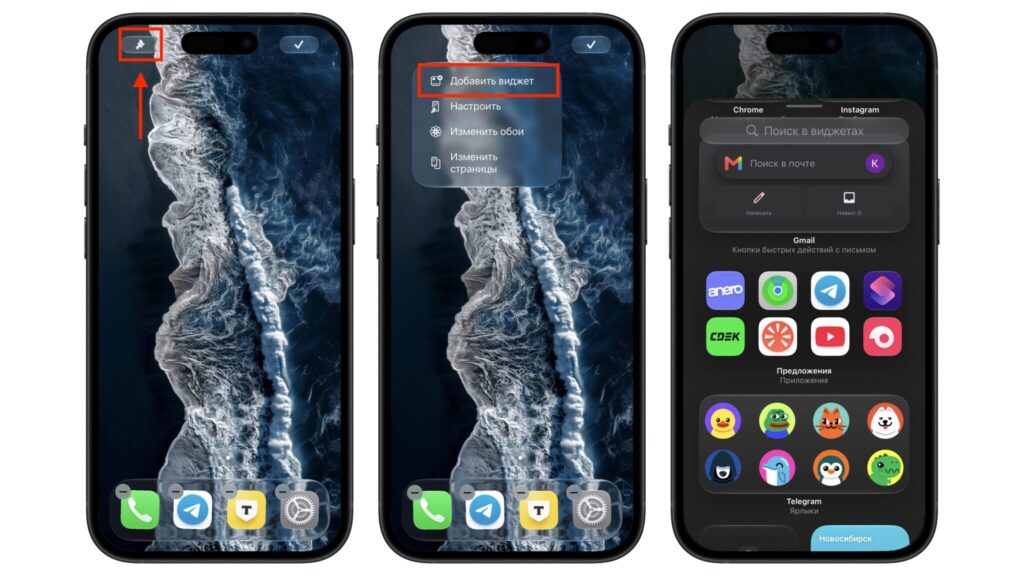
Adding widgets to an empty Home Screen page
- Press and hold an empty area of the Home Screen until the icons start to jiggle.
- Swipe to the Home Screen page where you want the widget.
- Tap the brush icon in the upper-left corner of the screen.
- Choose the option to add a widget.
- Find the widget you want in the list or through search, and choose a size.
- Tap the add-widget button, place the widget in an empty spot, and tap Done.
You remove the old widget in the same editing mode by tapping the minus sign in its corner and confirming. The source notes that if the widget has custom settings, such as a chosen city in a weather widget or a specific album in a photos widget, you will need to set them up again. To do that, press and hold the new widget to open its menu and choose the option to edit the widget.
According to the source, moving a widget within a single page is fine. The problem appears only when the widget is carried over to the next page. If you want to avoid any risk, the author suggests planning your layout in advance and building the Home Screen from scratch.
When to expect a fix from Apple
The source says Apple has not commented on the bug. It notes that similar software freezes have appeared in earlier versions of iOS and that Apple eventually fixed them. The author expects the fix to arrive in one of the upcoming minor updates, perhaps as a single line in the release notes. That is the author’s forecast, not a confirmed plan or date.
iOS 27.0.1 logo next to an iPhone
A pattern of early iOS 27 glitches
The source author is more concerned about the overall picture. For a new release, the number of problems seems high. The author lists three recent issues: a week earlier, iPhones were freezing after a quick gesture in a pull-down panel, then touchscreen problems surfaced, and now widgets are affected. The author says none of these bugs is critical on its own, since each is cleared by a restart. Taken together, though, they leave the impression that the release was somewhat rushed. This is the author’s assessment.
The source advises people who have not yet updated and use their iPhone for work to wait for the first major bug-fix update. For people already on iOS 27, the recommendation is to avoid the known triggers and install updates as soon as they are released.