If you live in Moscow or frequently visit the city center, you’ve probably encountered a situation where mobile internet simply disappears. No messengers, no maps, no banking apps — nothing works. But what do you do if you want to know the moment connectivity returns? There’s an elegant solution — a shortcut that will automatically check the network and notify you with Siri’s voice as soon as the internet is back. You can set it up in five minutes, and it’s incredibly useful.
Creating your own internet locator on iPhone
What to Do If Mobile Internet Disappears on iPhone
Imagine a typical situation. You’re walking down the street, pull out your phone — and there’s nothing. Websites won’t load, messages won’t send. You start nervously refreshing the page, over and over, wasting time and nerves. Sound familiar?
The scanner shortcut solves this problem elegantly. You press one button, put your iPhone in your pocket, and calmly continue on your way. As soon as your carrier restores connectivity, the iPhone will notify you itself — with voice and vibration. You don’t need to pull out your phone every thirty seconds to check if the internet has appeared. Automation does everything for you.
This is especially useful in situations where connectivity drops not for five minutes, but for an hour or longer. If you’re standing in line, sitting in a café, or just taking a walk, the shortcut works in the background and patiently waits until the network returns. Meanwhile, you can focus on something else.
To create the scanner shortcut, you’ll need two things. First — the standard Shortcuts app, which is already installed on every iPhone. Second — a free utility called Actions from the App Store. It adds a special action called Is Host Reachable to Shortcuts, which isn’t included in the standard set. Without it, checking internet availability won’t be possible.
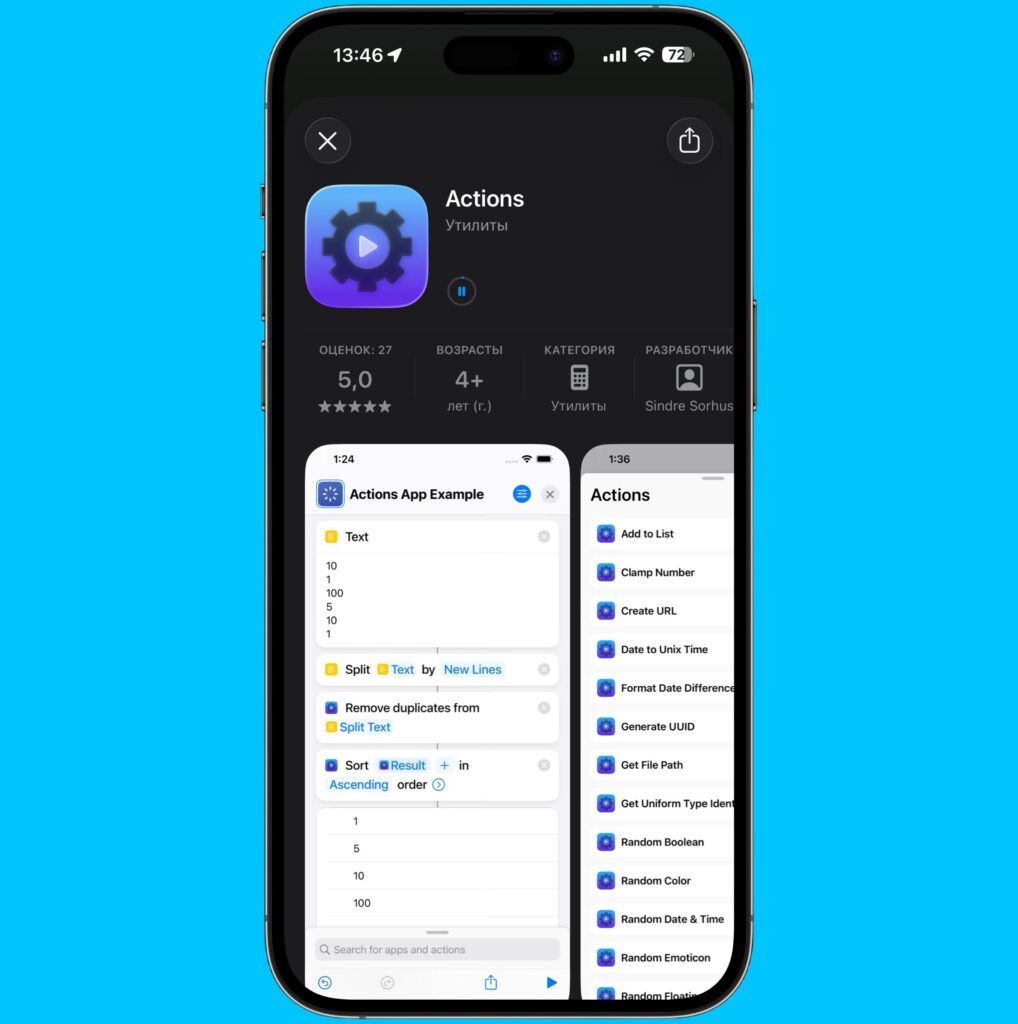
Unfortunately, without this utility nothing will work, so go ahead and download it
Actions is a small app that extends the capabilities of standard Shortcuts. It adds dozens of useful actions that Apple somehow forgot about. In our case, we’re only interested in one of them — checking whether a specific host is reachable on the network. The app is completely free and doesn’t require a subscription. After installing Actions, it doesn’t disappear from memory — its actions automatically become available in the Shortcuts editor. You don’t need to launch Actions separately; it just needs to be installed on your device.
Shortcut for Checking Internet on iPhone
Now let’s get to the most interesting part. Open the Shortcuts app and create a new one. Name it whatever you like — for example, “Internet Locator” or “Network Scanner.” The name doesn’t affect how it works, but it’s better to choose something clear so you don’t have to search through dozens of other shortcuts later. Then follow these steps:
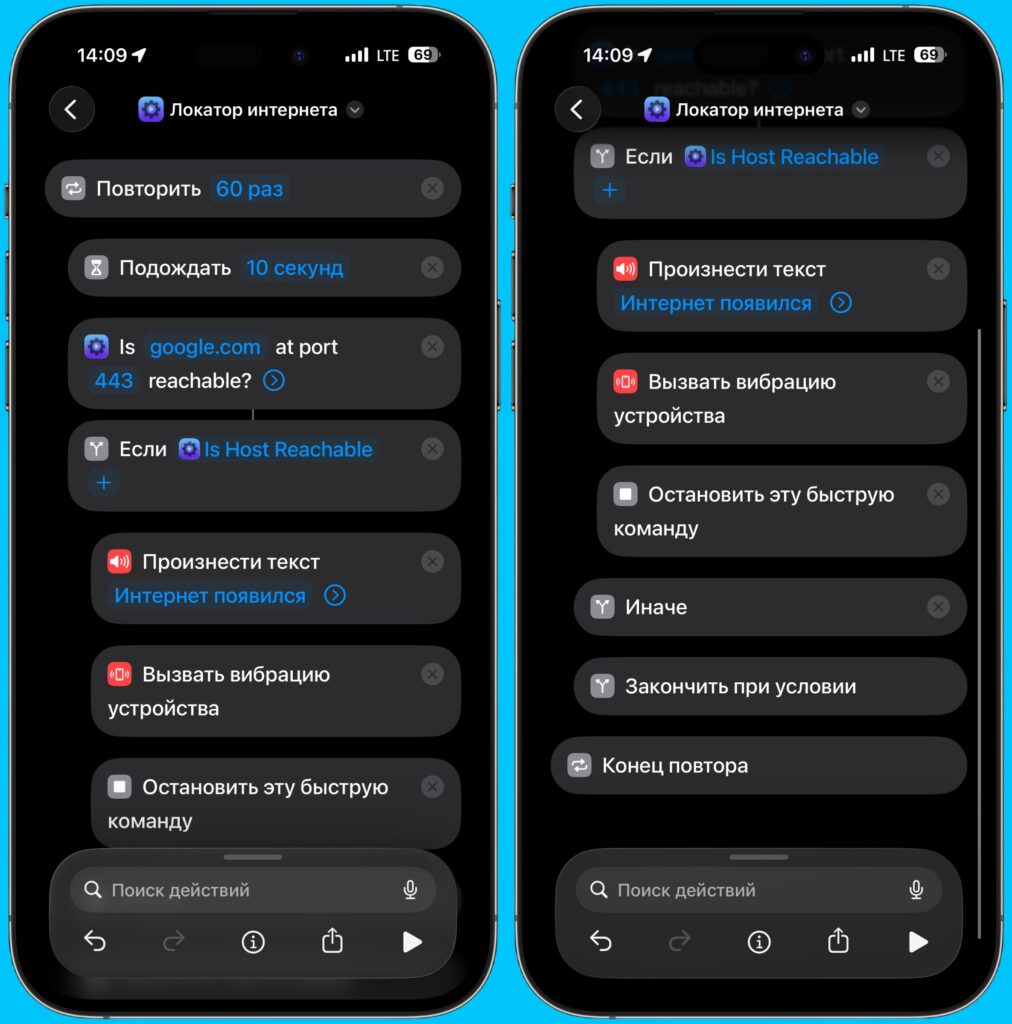
You need to create a shortcut with this set of actions
- Add a Repeat action. This is a standard loop that will perform specified actions a certain number of times. In the repetition count field, enter 60. This means the iPhone will make 60 attempts to check for network availability before stopping. With a 10-second interval between attempts, that’s roughly 10 minutes of operation. If you need more — increase the number, for example, to 120 or 180.
- Inside the loop, that is, between the “Repeat” and “End” actions, add a Wait action. Set the value to 10 seconds. This is the pause between checks. Without it, the iPhone would spam requests every millisecond, which would drain the battery faster and serves no real purpose. Ten seconds is an optimal interval. Connectivity usually doesn’t return instantly, so checking more frequently is simply unnecessary.
- After the wait, still inside the loop, add the Is Host Reachable action from the Actions app. This is exactly why we installed the additional utility. In the URL field, enter the address of any reliable website — for example, apple.com or google.com. In the port field, enter 443. This is the standard port for HTTPS connections, through which virtually all modern internet operates. It’s best to specify something maximally stable and accessible. Google.com or apple.com are ideal candidates because their servers operate with virtually no downtime.
- After the Is Host Reachable action, add the standard If action. As the condition, select the Is Host Reachable variable. This means “Yes” — that is, the condition will trigger when the host becomes reachable. Everything you place inside this condition will only execute when internet appears.
- Inside the condition, add a Speak Text action. Here, write the phrase that Siri will say out loud when the network appears. For example: “Internet is back” or something funnier to your taste. You can write anything — Siri will speak whatever text you specify.
- Next, add a Vibrate Device action. This is an additional safeguard in case you’re in a noisy place and might not hear the voice notification. Vibration will definitely get your attention, even if the phone is in your jacket pocket.
- Finally, inside the condition, add a Stop This Shortcut action. This is critically important. Without it, the loop will continue running even after the internet has been found, and the iPhone will keep telling you over and over that connectivity has appeared. The “Stop” action breaks the loop immediately after the first successful detection — exactly what we need.
When everything is ready, tap Done in the upper right corner. The shortcut is saved and ready to use.
Launching a Shortcut from the iPhone Lock Screen
Launching the shortcut every time through the Shortcuts app isn’t the most convenient option. It’s much better to place it on your home screen as a widget or add it to the lock screen. This way you can launch the scanner with a single tap, without digging through apps.
To do this, open your “Internet Locator” shortcut in the Shortcuts app and tap the arrow next to the name, select “Add to Home Screen,” and configure the shortcut on your home screen.
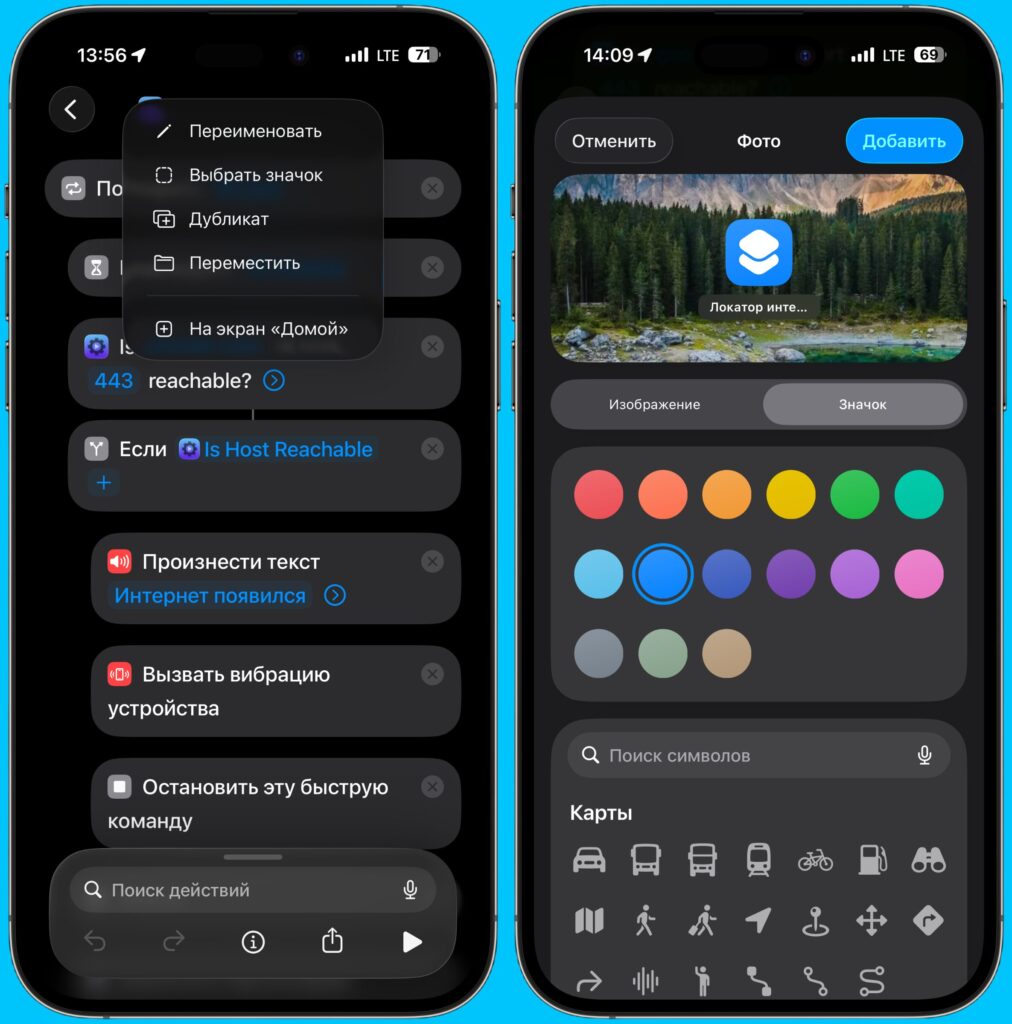
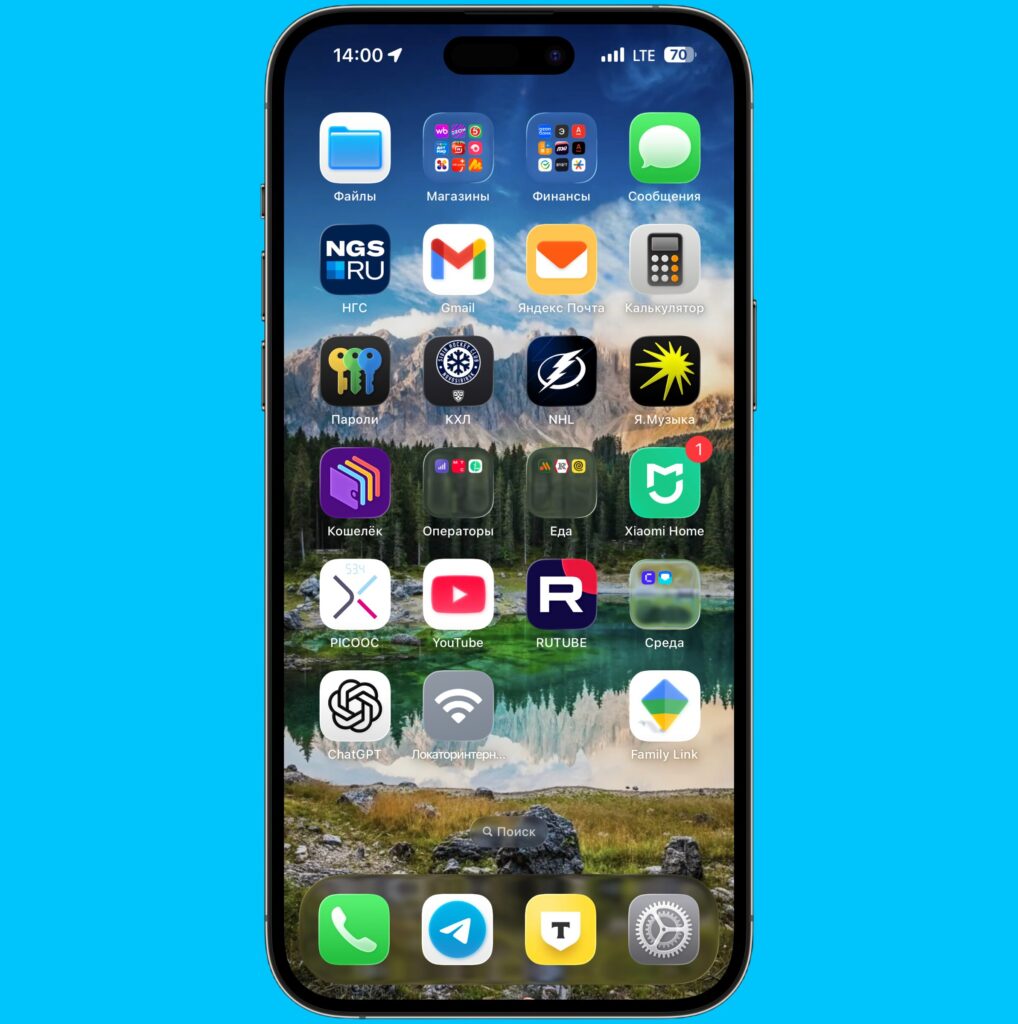
The most convenient option is to add the shortcut to the iPhone home screen
You can also add the shortcut to the lock screen. To do this, go to lock screen settings, select the widget area, and add the shortcut there. This is even more convenient — you won’t even need to unlock your iPhone. When you know that connectivity is down, simply tap the widget and put the phone in your pocket.
The usage algorithm is as simple as it gets. You enter an area with no connectivity. You realize the internet is gone. You tap the “Internet Locator” icon — via the widget, via the lock screen, or via the Shortcuts app. Then you put your smartphone in your pocket and go about your business.