Android is a tricky system: half of its truly useful features are buried so deep in menus that only a few people know about them. I’ve been exploring Android settings for many years and still stumble upon features I never even suspected existed. I’ve put together a collection of working tricks that genuinely simplify your life. By the way, one of them will help you detect uninvited guests on your network. Let’s dig in and figure out how to supercharge your phone.
Here are a few Android setup lifehacks
Privacy Dashboard — Where to Find It on Android
Let’s start with my favorite hidden Android feature. The system has a dedicated privacy dashboard that clearly shows which apps accessed which data over the last 24 hours. That’s exactly how I once caught a social network app accessing my contacts for no reason whatsoever.
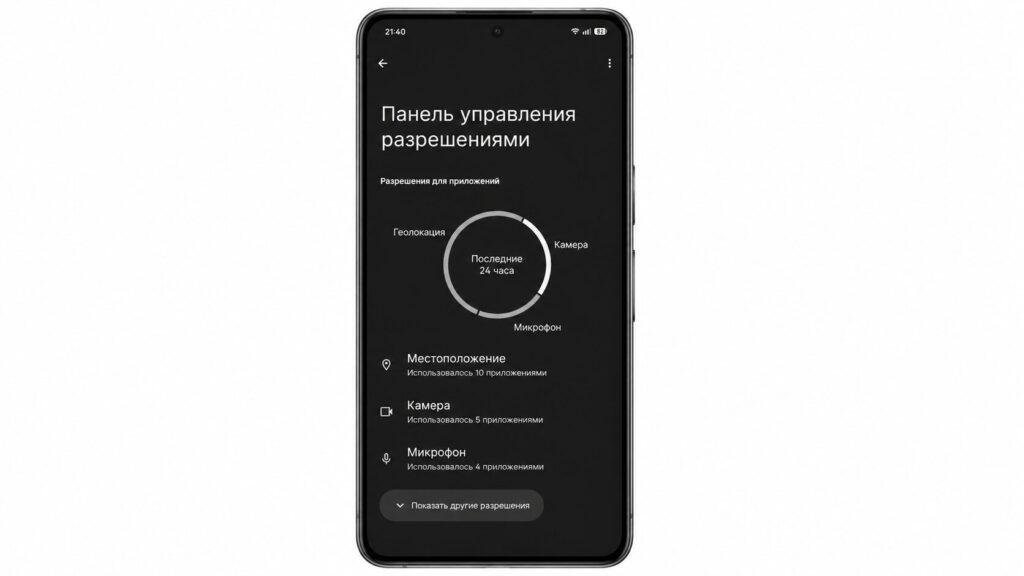
This section lets you see which apps requested permissions
To open the dashboard, type “Privacy Dashboard” in your settings search. Sometimes it’s listed as “Permissions used in the last 24 hours.” It’s an excellent way to clean up your permissions.
QR Code for Wi-Fi — Share Your Network Without a Password
Sound familiar? A guest asks for your Wi-Fi password and you’re trying to remember that sacred 20-character combination. Forget about it. Android has a secret phone feature that lets you share your network via QR code. Open your Wi-Fi settings, select your current network, and find the share option or QR code icon.
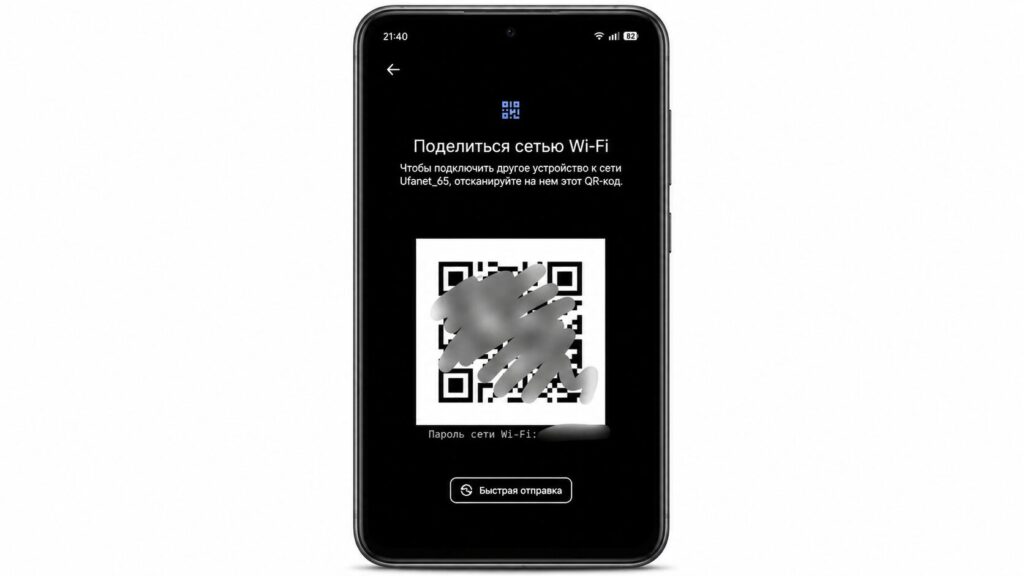
Sharing Wi-Fi is now easier than ever
Your guest points their camera and connects in a second. You just need to go to the hotspot in your Wi-Fi settings and select “QR Code.” No more spelling out passwords letter by letter.
Metered Connection — How to Save Data
If you tether internet from one smartphone to another, you’ve probably experienced the moment when the second device instantly devoured your entire data plan on some system update. The useful Android setting called “metered connection” comes to the rescue. It forces the phone to treat Wi-Fi like a mobile network and conserve data.
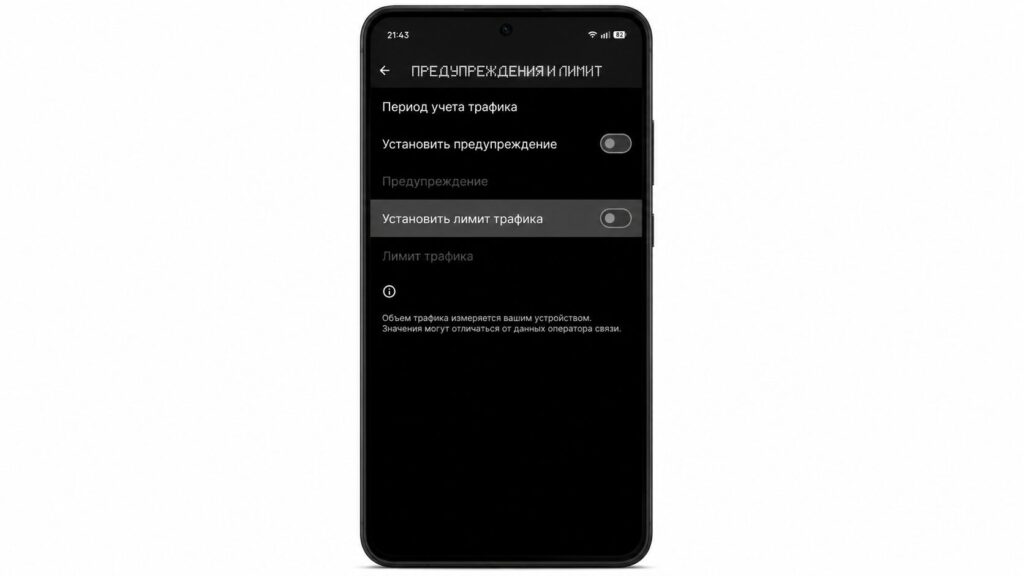
Limiting data usage will really save you
On your phone, type “Metered connection” in the search and you’ll go straight to this section. It’s especially relevant when every gigabyte counts.
How to Customize the Power Button on Android
It always annoyed me that the Android power button in recent years launches the voice assistant instead of the power-off menu. If you, like me, don’t need that, you can change the button’s behavior. This is one of those hidden Android tricks that hides in different places depending on the brand. Just type “Side button” in your settings search. On some devices, look for it in the accessibility settings.
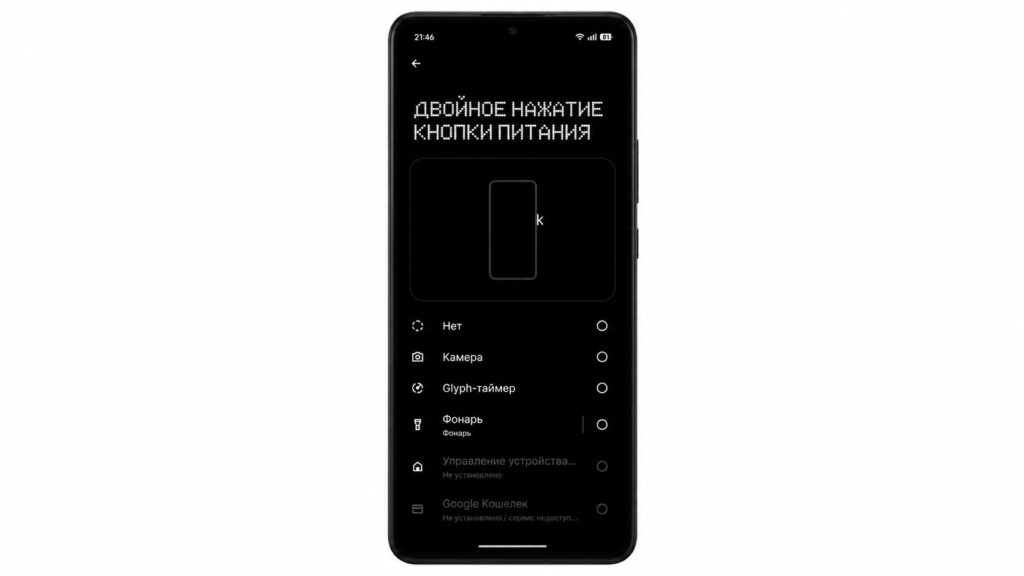
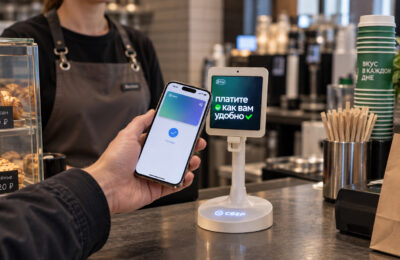
Double press even lets you assign NFC payment
If you can’t find it, just type “power button” in the settings search. Small annoyances like these can sometimes ruin the overall experience with a device.
Customizing the Quick Settings Panel
By default, the Android quick settings panel is stuffed with icons, half of which you never use. This is easy to fix by bringing only the ones you need to the front. Open quick settings and tap the pencil icon — then you can drag and drop icons, changing their order and size.
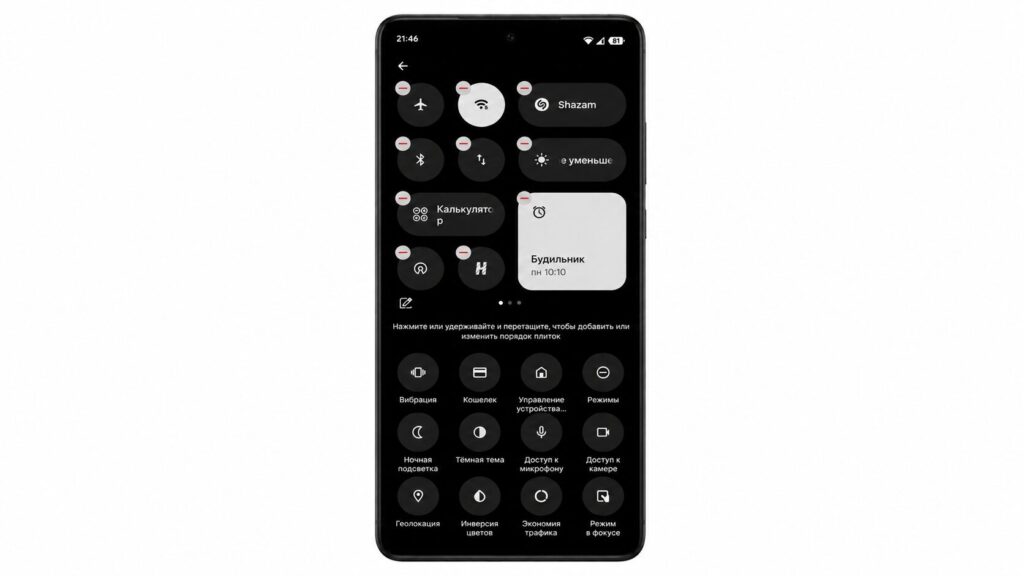
On Nothing OS you can easily resize widgets
As a bonus, you’ll discover tiles from installed apps you didn’t even know about. It’s a small thing, but it makes using your phone noticeably more pleasant.
Long Press on Quick Settings Icons
Here’s another lifehack. The quick settings panel you pull down from the top — everyone uses it only to toggle features on or off. But if you hold an icon a bit longer, you can quickly jump to Android settings for that specific feature. For example, holding the “Do Not Disturb” icon takes you straight to the schedule settings instead of just toggling it on. This way you don’t have to wander through endless menus looking for the right option — you get there in one tap.
How to Properly Set Up Notifications on Android
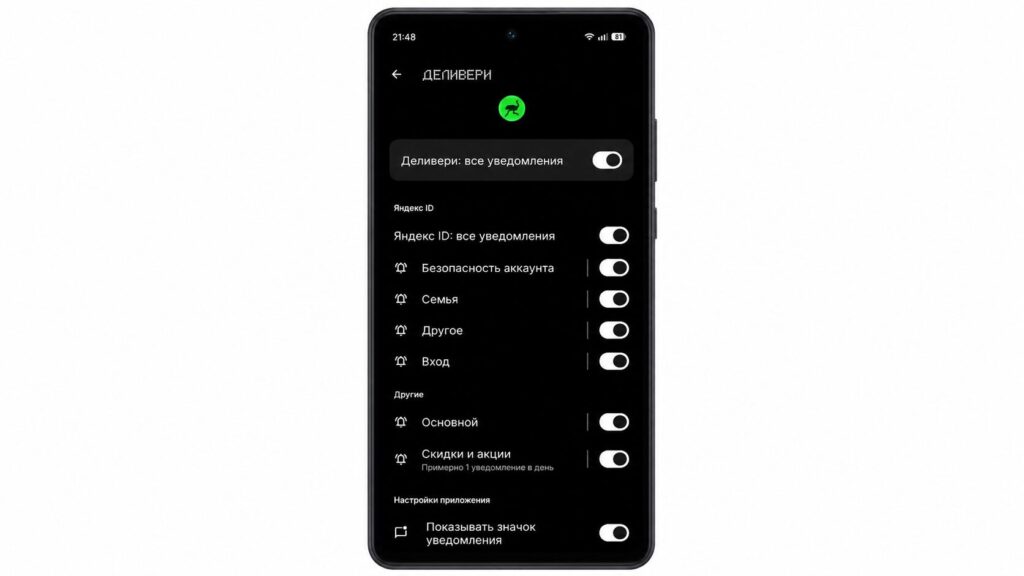
Last but not least, my favorite hidden phone setting against annoying notifications. Many apps send both useful notifications and advertising spam all lumped together. Notification channels let you disable only the junk while keeping the important stuff. For example, with a delivery service, you can mute promotions but keep order status updates.