An old tablet gathering dust in a drawer doesn’t always deserve to be thrown away. Often it lags not because of worn-out hardware, but because years of updates turned a lightweight system into an overloaded one. My story of resurrecting a Samsung Galaxy Tab S7+ shows that you can bring back its speed in one evening, without reflashing. Here’s what you need to do.
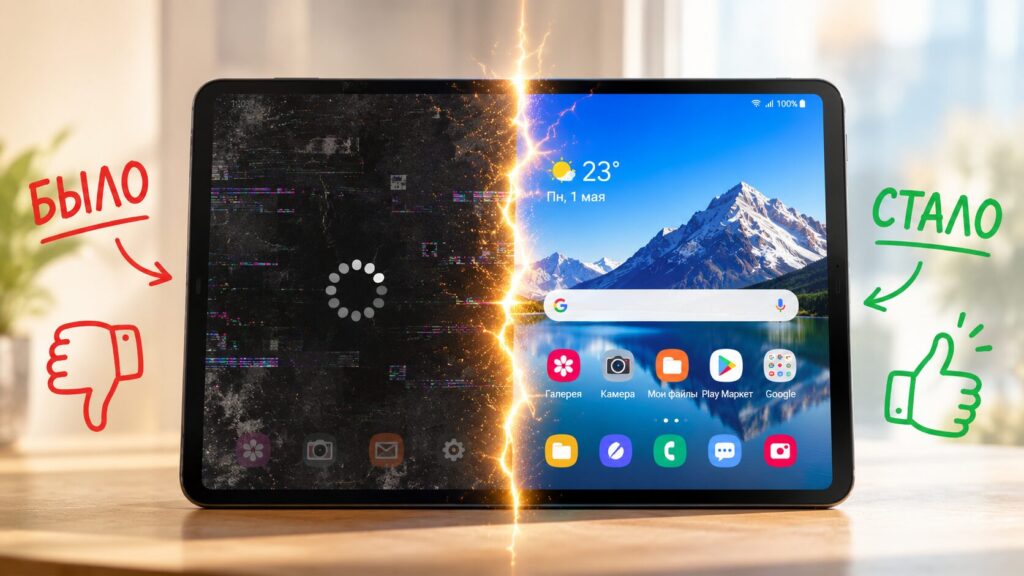
I revived a dead Android tablet using this unique third-party launcher
I recently found my old Galaxy Tab S7+ while cleaning up, fixed the screen, charged it, and updated it. The tablet was noticeably slower than I remembered, even though its specs were still quite impressive even for 2026: after all, a Snapdragon 865+ processor and 8 GB of RAM shouldn’t have become hopelessly outdated in five years. So the problem was something else.
Why an Old Android Tablet Lags
Many people think that the chip “wears out” over time and the device inevitably starts to lag. Even if you buy a good budget Android tablet, it can serve you for many years. Because in reality, the cause is most often software-related: the system gains more and more features with each update, while the hardware stays the same.
The Galaxy Tab S7+ shipped with One UI 2.5, and by the time I turned it back on, it had gone through updates all the way to One UI 6. Each new version of the shell was heavier than the previous one: animations, widget updates, and background services take up memory that the tablet could spend on what you actually need. You can’t roll back years of system bloat, but you can remove one of the heaviest layers — the home screen.
Why Change the Launcher on an Android Tablet
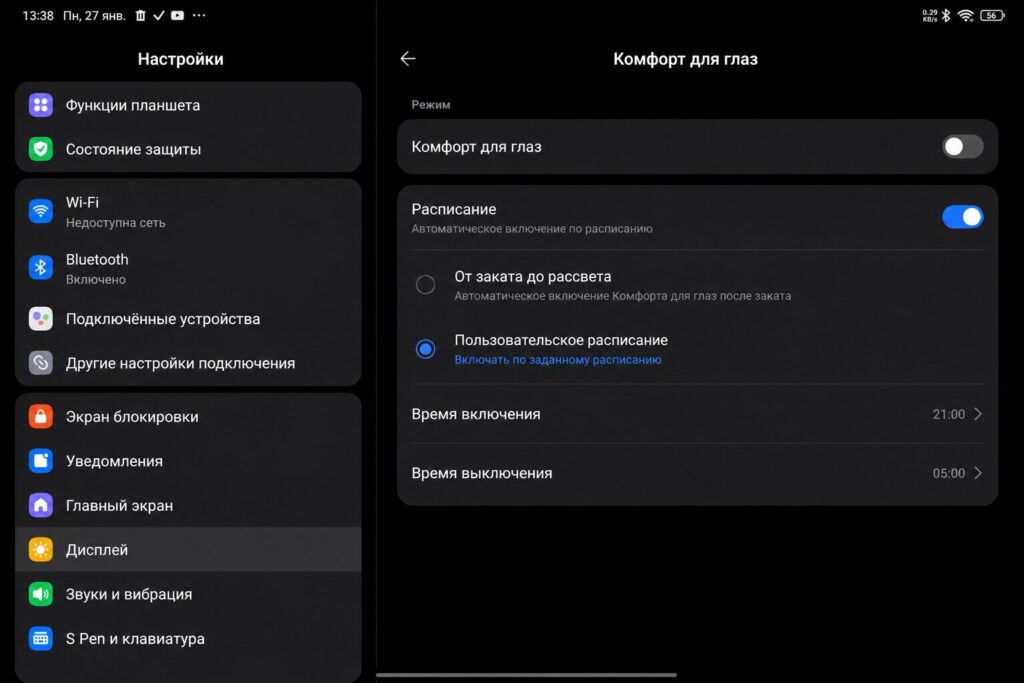
Reading e-books on a large tablet is a real pleasure. The key is to set up the screen properly
The main motivation here is a specific use case. The Tab S7+ has a large 12.4-inch screen, and it’s perfect for reading books, comics, and manga. A phone is too small for this, a laptop or monitor doesn’t give the same feeling, and a tablet hits the sweet spot: it’s easy to carry and you can see every detail.
If the device only needs to handle one or two tasks, there’s no point in keeping a heavy manufacturer shell with all its features. A lightweight launcher for a specific role is a reasonable compromise between performance and convenience.
How to Clean Up an Android Tablet Before Changing the Launcher
Before touching the home screen, it’s worth tidying things up. The basic sequence looks like this:
- Delete pre-installed apps you don’t use. Some can be removed the usual way, but others can only be disabled through developer mode.
- Remove old downloaded apps you haven’t used in a long time.
- Keep only what you actually need for the new tasks on the device.
This cleanup alone frees up memory and reduces some background load. But the main change was replacing Samsung’s stock launcher with a third-party one — in this case, Niagara Launcher.
Why Niagara Launcher Is the Best Launcher for an Android Tablet
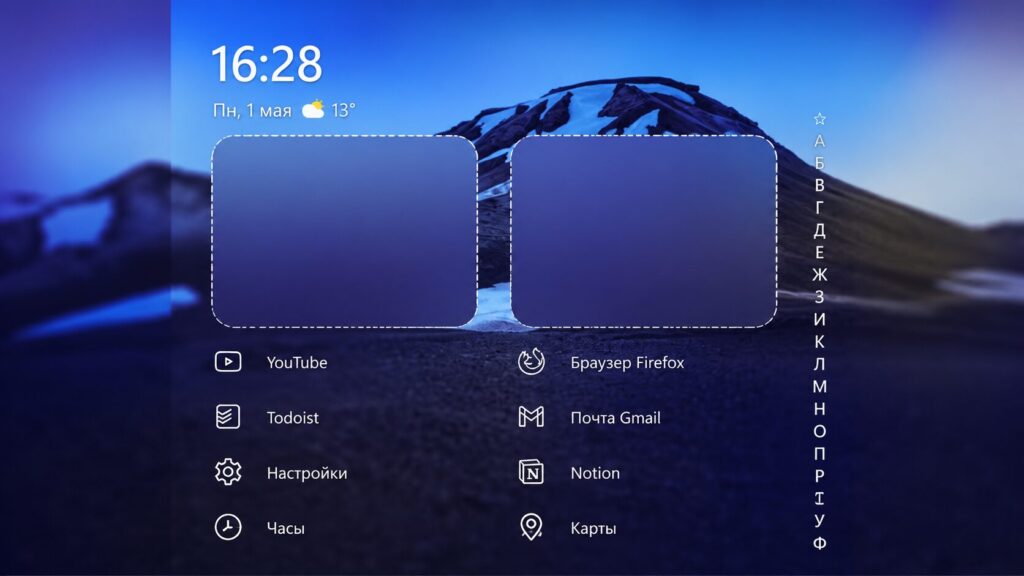
Decluttering an old tablet’s home screen is worth its weight in gold
Niagara installs from Google Play, and on first launch it asks you to choose a few favorite apps and set itself as the default launcher. Its main feature is an almost empty home screen: instead of a grid of icons and pages to swipe through, you see a short list of favorite apps at the edge of the screen.
On a large 12.4-inch display, this is especially convenient: you can reach everything with one hand instead of stretching across a scattered mess of icons. Notifications are built into the same list — a message appears as a line under the relevant app, and swiping on an app opens its notifications and shortcuts in a pop-up window.
But what brought back the speed wasn’t what the launcher does, but what it doesn’t do. It’s a small and lightweight app: no constant widget updates, unnecessary background processes, ads, or pushy prompts to buy the Pro version. As a result, the tablet started working almost as fast as on the day it was purchased.
Should You Switch Your Tablet’s Launcher to Niagara
The approach works, but be realistic about what you’re getting. Changing the launcher doesn’t turn an old tablet into a new one — years of system bloat won’t disappear, and heavy apps will still strain the device. But for a narrow use case like reading or watching videos, the difference is immediately noticeable.
Who this is useful for:
- Owners of old but powerful tablets and phones that are sitting idle
- Those who want to dedicate a device to one or two tasks — reading, video, or use as a home display
- Those who are annoyed by an overloaded manufacturer home screen
Who doesn’t need to bother: if your device is already handling things fine and you need the familiar icon grid and widgets, there’s no need to break a working setup for the sake of an experiment.
The bottom line is simple: before writing off an old Android tablet, try removing the excess software and installing a lightweight launcher. It’s free, takes one evening, and often gives the device a second life for at least a couple more years.