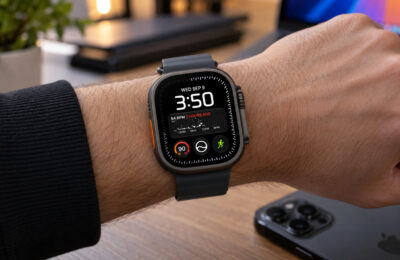
A few weeks ago, I stopped taking off my Apple Watch at night. Not for activity rings or sleep statistics, but because I needed a silent yet noticeable alarm so I wouldn’t wake up the whole apartment. My watch is brand new, and I wanted to put it through its paces. Almost immediately, I ran into a problem familiar to many: overnight, the watch would lose 15-20% of its charge for no apparent reason. You’re lying still, the screen seems to be at minimum, but in the morning instead of a full hundred percent you see 80-85. I figured out where the energy was going and built an automation that completely solves the problem. Now by wake-up time I still have 95-97%. Here’s how to do it yourself.
The watch now works at night exactly the way I need it to, without any problems
Why Apple Watch Drains Quickly Overnight
There are two main culprits, and both are enabled by default on all modern models. The first is the Always On Display. The screen never fully turns off — it just dims and shows the watch face in a power-saving mode. During the day this is convenient: you glance at your wrist and immediately see the time. But at night, the watch continues to illuminate the display for eight hours straight while you sleep. The drain is small, but it adds up overnight.
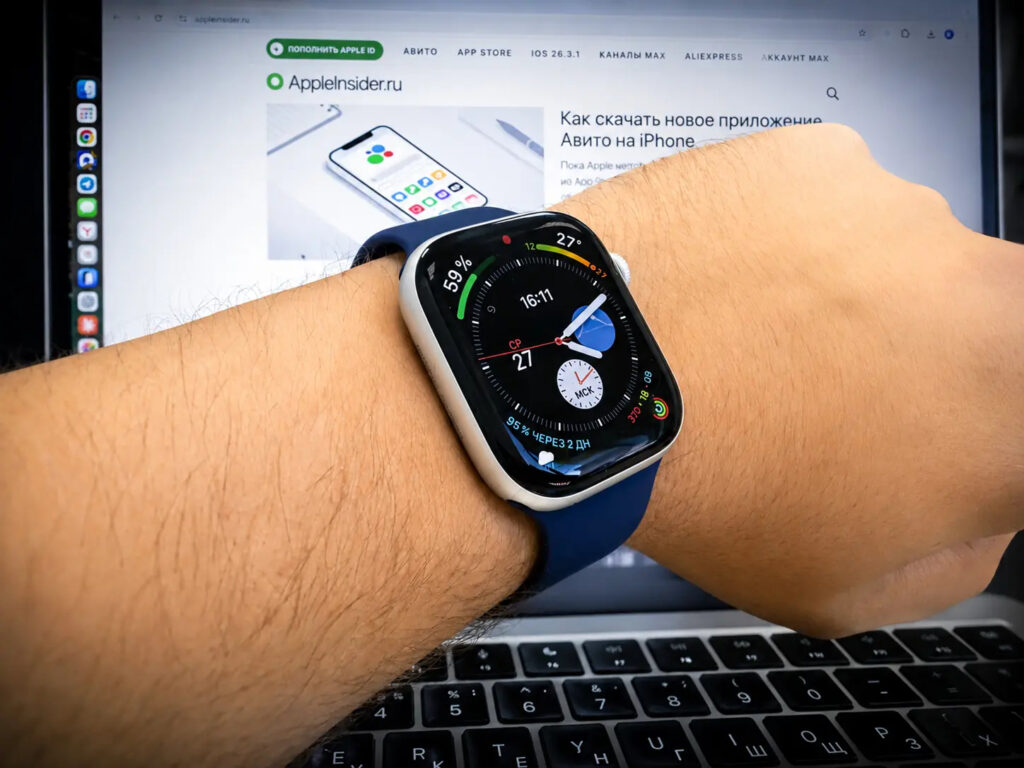
AOD and raise-to-wake activation at night can unexpectedly drain your battery more than you thought
The second and far more insidious factor is the raise-to-wake screen activation. During sleep, you toss and turn, move your hand, pull up the blanket. The watch interprets each such movement as a “look at the watch face” gesture and lights up the display at full brightness. Over the course of a night, dozens or even hundreds of these false triggers accumulate. That’s what eats up most of the charge.
You could, of course, simply turn on airplane mode or low power mode at night. But then you lose some of the functions you kept the watch on your wrist for in the first place. I wanted a smarter solution.
How to Automatically Disable the Apple Watch Screen at Night
The idea is simple. At night I already enable the “Do Not Disturb” focus mode so that my phone and watch don’t bother me with notifications. That same moment can be used as a trigger.
This creates an elegant chain. “Do Not Disturb” turns on — the watch automatically disables the Always On Display and turns off raise-to-wake. The display stops reacting to movements during sleep and doesn’t light up unnecessarily. When “Do Not Disturb” turns off in the morning, both features turn back on by themselves, without any action on your part. During the day everything works as usual; at night the watch essentially falls asleep with you.
The beauty is that the “Do Not Disturb” focus syncs between iPhone and Apple Watch. You can enable it with a gesture on your phone before bed, and the watch will immediately pick up the command. You don’t need to press anything on the watch itself.
How to Set Up Automatic Always On Display Deactivation
All the magic lives in the Shortcuts app, which is installed on every iPhone. You’ll need to create two automations, mirroring each other. Follow these steps.
- Open Shortcuts and go to the “Automation” tab at the bottom of the screen. Tap the plus sign in the upper right corner and create a new automation. In the list of triggers, select “Do Not Disturb”.
- Create the first automation for when the focus mode turns on. The condition reads “When Do Not Disturb turns on.” In the actions block, add two items: set the “Always On” mode to “Off” and set the “Wake on Wrist Raise” function also to “Off.” This is exactly how it looks in my screenshot: both toggles are set to off.
- On the automation settings screen, set “Run Immediately” instead of “Run after confirmation.” Otherwise, the watch will ask for permission every time, and the whole point of automation is lost. I also turned off the “Notify When Run” toggle to avoid getting unnecessary notifications in the middle of the night.
- Create the second, mirror automation for when the focus turns off. The condition is “When Do Not Disturb turns off.” Here you use the same two actions but in reverse: “Always On” mode set to “On” and “Wake on Wrist Raise” also set to “On.” Again, set immediate run without notifications and save.
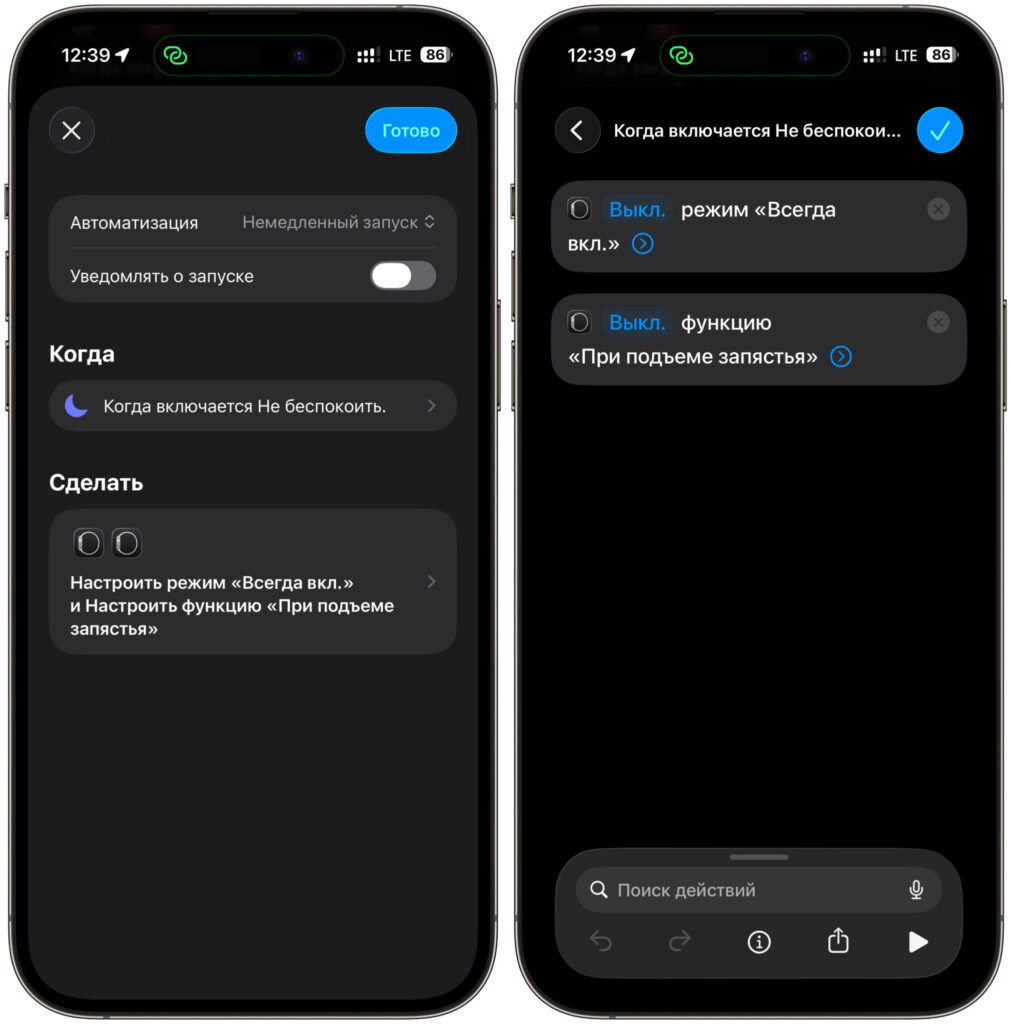
Create the first automation linked to the “Do Not Disturb” mode
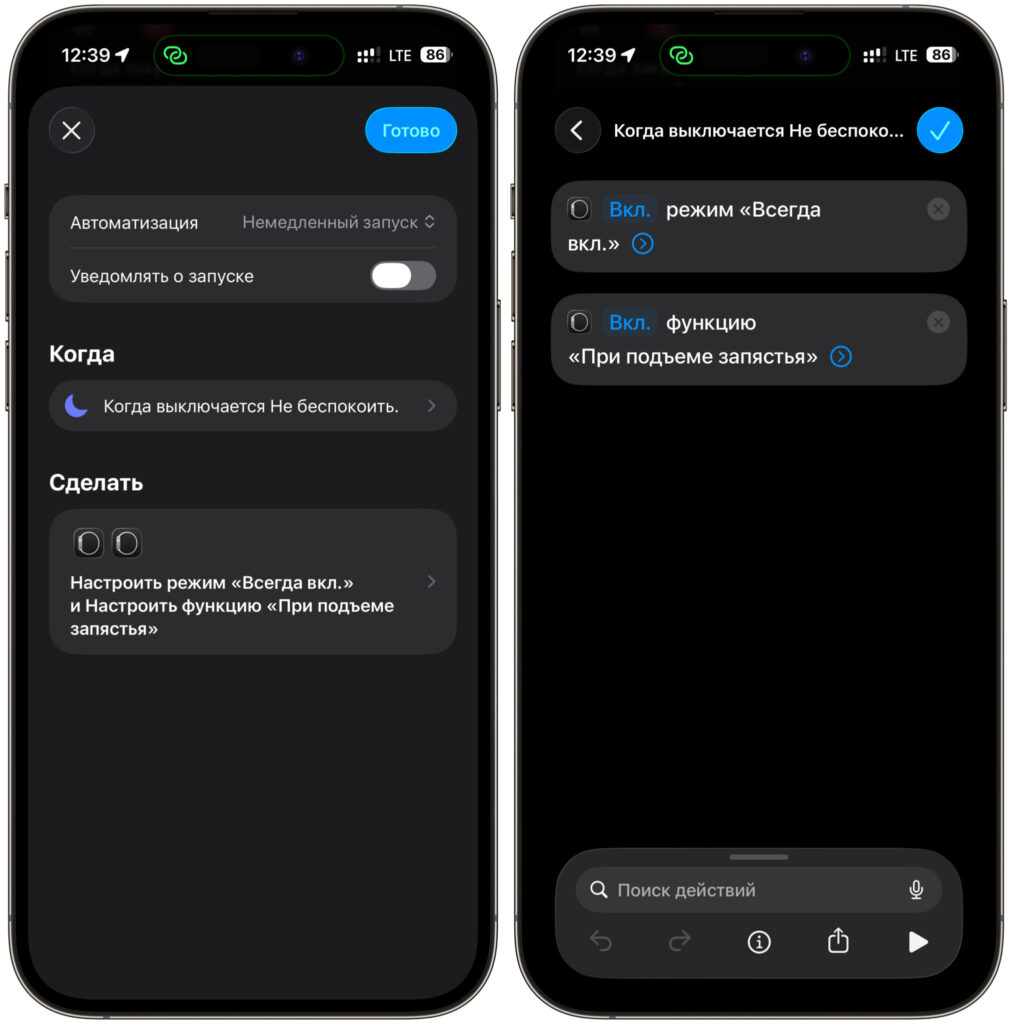
The second automation should be linked to deactivation
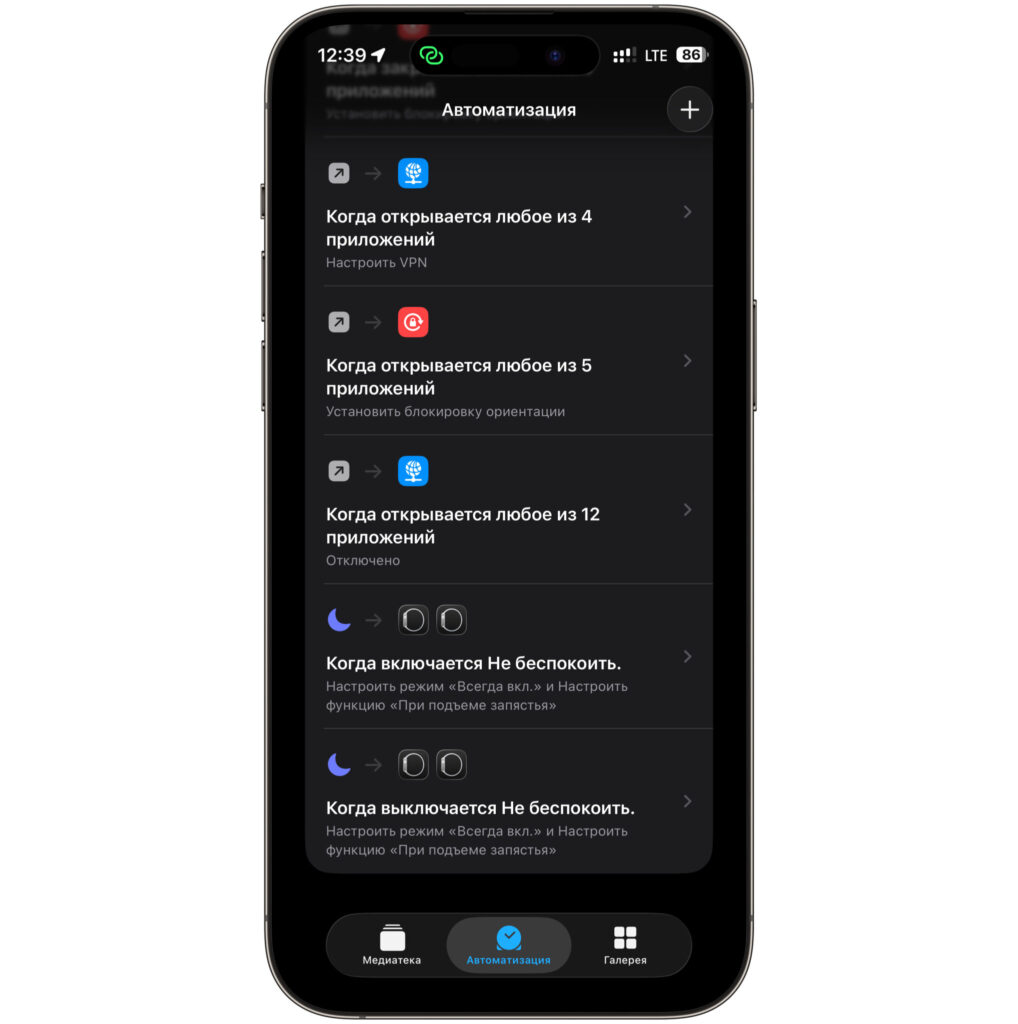
As a result, you’ll have two working automations
After saving, your automation list will show two entries: “When Do Not Disturb turns on” and “When Do Not Disturb turns off,” each with two actions for Apple Watch. That’s it for the setup — from here on the system does everything on its own. Now you can either enable “Do Not Disturb” manually or on a schedule, and each time the automation linked to Apple Watch will trigger automatically.
How Much Does Apple Watch Battery Life Improve After This Setup
Now for the numbers — the whole reason this was worth doing. Before the setup, my Apple Watch lost an average of 10-12% charge overnight. And that’s considering I was lying mostly still, with the main drain coming specifically from false screen activations.
After the automation started working, the picture changed dramatically. False display activations are completely eliminated because raise-to-wake simply doesn’t work at night. Always On Display is also disabled, so the screen doesn’t dim needlessly. As a result, overnight the watch loses only 3-5% depending on how long I sleep. Go to bed at 100% — wake up at 95-97%. That’s a two-to-three-fold difference.
What this means in practice: I used to have to put the watch on the charger every morning, otherwise it would die by evening. Now a single charge easily lasts a day and a half including nighttime sleep tracking. I charge them while I wash up and eat breakfast — about twenty minutes — and that’s enough until the next evening. The charging dependency has stopped dictating my routine.